

MiniMax H3 Image Character Swap ComfyUI: reference‑true character replacement for still images#
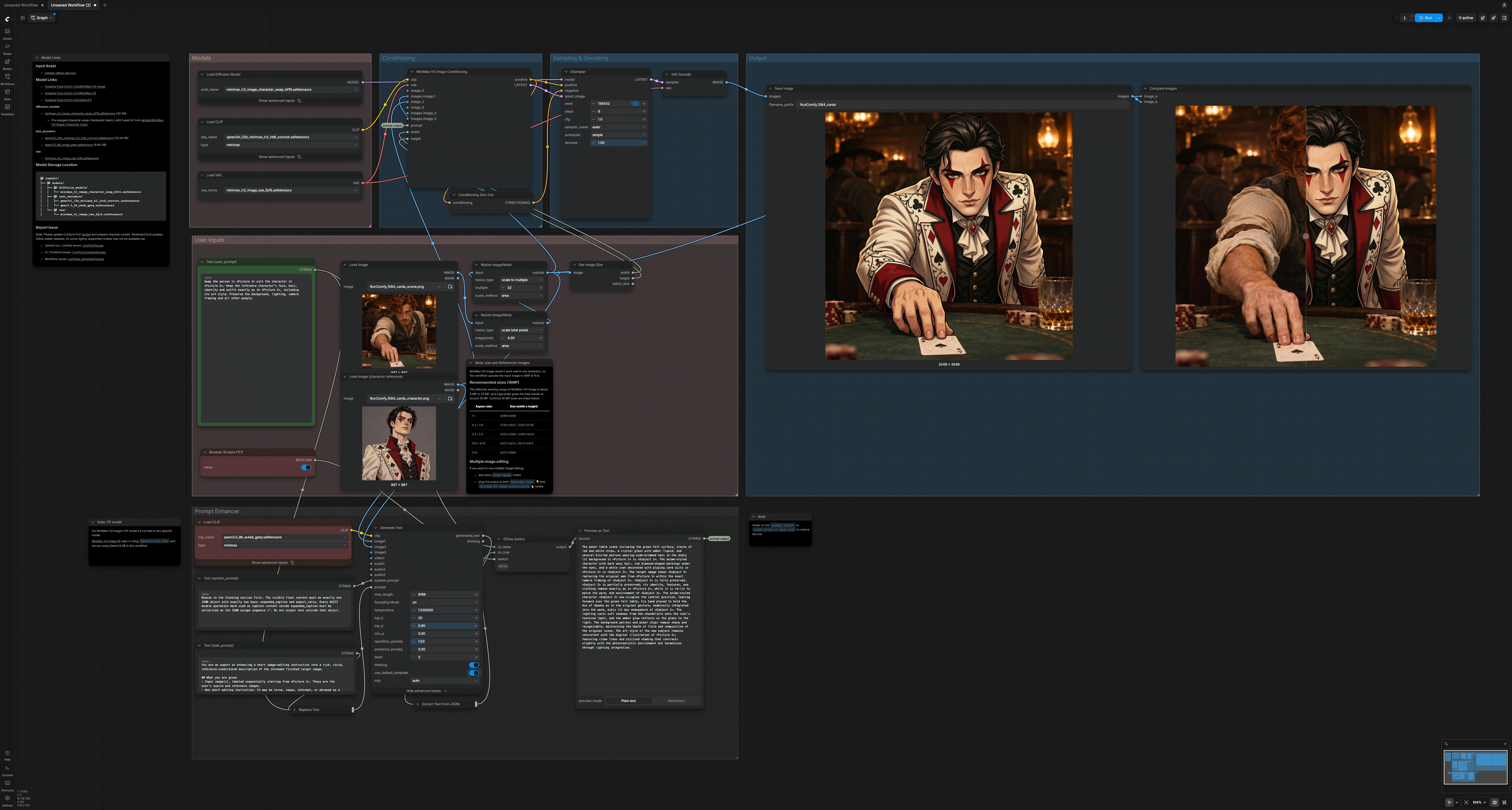
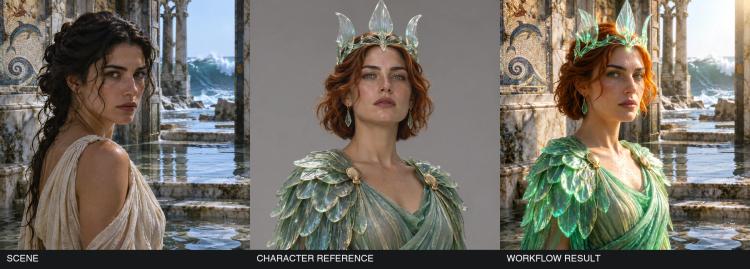
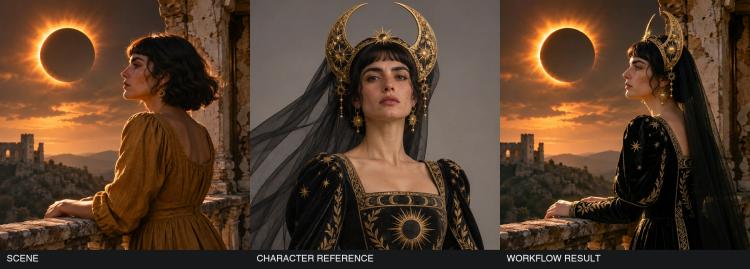
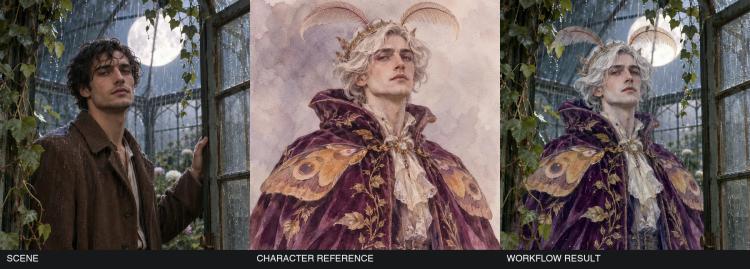
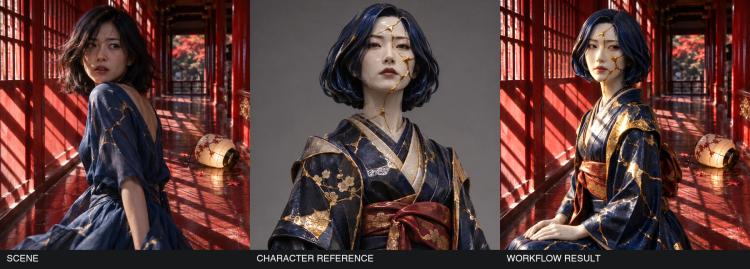
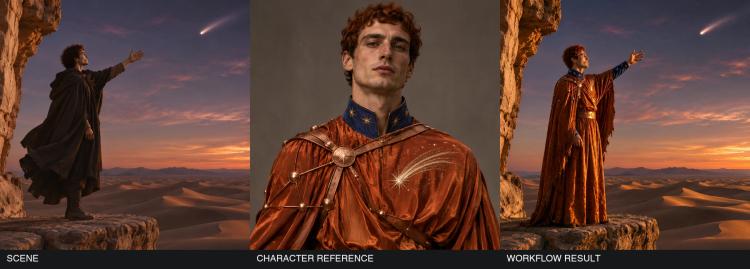
This workflow swaps a single person in a still image with a reference character while preserving the original scene. Load your scene as Picture 1 and your character reference as Picture 2; the MiniMax H3 Image checkpoint with the Akatz character‑swap adapter guides identity, hair, outfit, and even art style so the new character fits naturally into the shot. MiniMax H3 Image Character Swap ComfyUI is ideal for illustrators, editors, and hobbyists who want faithful, high‑resolution replacements without hand‑masking.
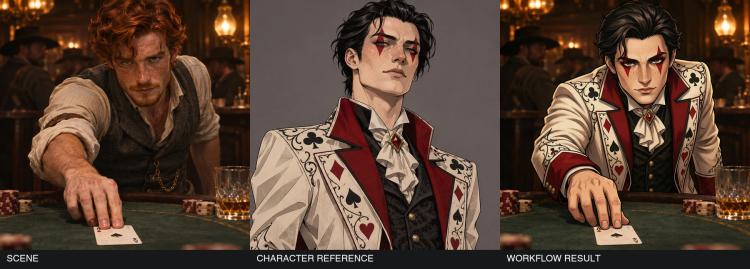
In the included card‑duelist example, the illustrated character replaces the original player at the table and keeps a hand on the ace. The pipeline upscales your input to a workable canvas, conditions the model with both images plus a brief instruction, and then renders a swap that honors the background, lighting, framing, and all other people.
Key models for MiniMax H3 Image Character Swap#
- MiniMax H3 Image by MiniMaxAI. The high‑resolution image diffusion backbone used for editing and generation in this workflow. It provides the denoising transformer that performs the actual image rewrite guided by conditioning. Model card
- MiniMax H3 Image Character Swap (pre‑merged). A ready‑to‑use checkpoint that fuses the Akatz Character‑Swap LoRA into the MiniMax H3 Image UNet so identity, hair, outfit, and style transfer are tightly steered during sampling. Model card
- Akatz MiniMax‑H3 Character‑Swap LoRA. The adapter that specializes MiniMax H3 Image for character replacement, focusing on facial structure, hair silhouette, clothing cues, and stylistic consistency. Included via the merged checkpoint but also available separately. Model card
- MiniMax H3 Image VAE (FP16). The variational autoencoder used to encode the scene into latents and decode the final image with high fidelity to textures and fine detail. Model card
- Qwen 3.5 9B (W4A8 GPTQ). A compact language model used here for prompt enhancement: it expands a short editing instruction into a precise, reference‑conditioned caption that improves guidance. Model card Note: MiniMax’s Prompt Enhancer examples also work with other Qwen variants, such as the MiniMax H3 Image PE resources. Model card
How to swap a character in ComfyUI#
The workflow follows a simple path: provide two images and a short instruction, optionally enhance the instruction into a structured caption, build conditioning that fuses scene and character cues, then sample and decode the swap.
User Inputs#
Load the scene photo or illustration as Picture 1 using LoadImage (#45) and the character reference as Picture 2 using Load Image (character reference) (#63). Enter a short instruction in Text (user_prompt) (#43), for example: “Swap the person in Picture 1 with the character in Picture 2; preserve background and framing.” The workflow automatically scales the scene to about 4 megapixels with ResizeImageMaskNode (#56) and then snaps the working size to a multiple of 32 with ResizeImageMaskNode (#48). GetImageSize (#50) forwards the resized width and height so the model samples at the scene’s canvas. For best results, choose a reference image where the face angle, lighting, and hairstyle are clearly visible.
Prompt Enhancer (optional)#
If you enable Boolean (Enable PE?) (#61), the pipeline routes your instruction through a compact prompt enhancer. StringReplace (#40) inserts your free‑form text into a task template, and TextGenerateV2 (#34) uses Qwen 3.5 to produce a single JSON object containing an ‘expanded_caption’ that precisely describes the intended target image. JsonExtractString (#44) pulls the ‘expanded_caption’ value, and ComfySwitchNode (#41) chooses between this enhanced caption and your original wording. PreviewAny (#37) lets you inspect the final prompt string being sent downstream. Disable the enhancer when you want literal, word‑for‑word control.
Conditioning#
MiniMaxH3ImageConditioning (#32) assembles guidance for MiniMax H3 Image by combining the text prompt with both images. Picture 1 supplies the base scene and composition, and Picture 2 supplies the identity, hair, outfit, and style to transfer. The node also receives the working width and height from GetImageSize (#50), ensuring a swap at the scene’s canvas rather than a padded resolution. A neutral ConditioningZeroOut (#33) is used as negative conditioning so only your prompt and references drive the edit. This stage is where the model learns what to keep (background, lighting, framing) and what to replace (the selected person).
Sampling & Decoding#
KSampler (#38) runs the merged MiniMax H3 Image Character Swap checkpoint to perform the denoising pass that executes the replacement. The sampler respects the scene latent, your prompt, and the character reference to maintain identity‑critical features while preserving the environment. Keep denoise near 1.0 for a full person swap; reduce it slightly if you want gentler changes. VAEDecode (#42) converts the refined latents back into a high‑fidelity RGB image.
Output and A/B review#
SaveImage (#9) writes the result with a consistent filename prefix, and ImageCompare (#62) presents an interactive before/after so you can check framing, hand placement, and lighting continuity. This final step makes it easy to confirm details like the duelist’s hand on the ace or subtle occlusions that anchor the character into the scene.
Key nodes for MiniMax H3 Image Character Swap#
MiniMaxH3ImageConditioning (#32)#
This node fuses your text instruction with Picture 1 (scene) and Picture 2 (character) to build the guidance MiniMax H3 Image follows. Use concise wording to reinforce identity and outfit cues from the reference while stating what to preserve in the scene. If the swap must respect a specific composition detail (for example, ‘right hand on the ace’), mention it explicitly so the guidance anchors contact and occlusion correctly.
KSampler (#38)#
The sampler executes the actual rewrite with the merged character‑swap checkpoint. Adjust steps for quality/time trade‑off and vary seed for alternates. Keep cfg low to privilege the strong image‑conditioned guidance that preserves background and lighting; raise it only when the prompt needs more influence. Use denoise near 1.0 for a complete replacement; lower values retain more of the original person.
TextGenerateV2 (#34)#
When the Prompt Enhancer is enabled, this node expands your short instruction into a structured ‘expanded_caption’ that tightly couples the scene evidence with the character’s identity and style. It is useful when your initial text is terse, vague, or missing canvas details. If you already write precise instructions, you can skip the enhancer for maximum literal control.
ComfySwitchNode (#41)#
This switch routes either the enhanced caption or your original user_prompt into conditioning, controlled by Boolean (Enable PE?) (#61). Turn it on to get richer, reference‑aware captions automatically; turn it off to exactly respect the words you typed.
ResizeImageMaskNode (#56)#
The workflow first scales the scene to roughly 4 megapixels to enter the MiniMax H3 Image sweet spot, then ResizeImageMaskNode (#48) ensures dimensions are a multiple of 32 for efficient sampling. This keeps memory predictable while maintaining strong scene fidelity. If your inputs are already large and clean, the automatic scaling still preserves composition by driving the final canvas from the resized scene.
Optional extras#
- Resolution guidance: MiniMax H3 Image works best between 4 MP and 20 MP, with a sweet spot around 16 MP. Common 16 MP canvases include 4096x4096 (1:1), 5024x3360 (3:2), and 5472x3072 (16:9).
- Pose matching: Choose a reference with a similar head angle, hair silhouette, and lighting to your scene; this strengthens identity transfer and reduces artifacts around hairlines and ears.
- Keep anchors: Mention interactions that must persist, such as ‘right hand on the ace’ or ‘elbow on the table’, so the swap respects contact, shadows, and occlusions.
- Gentle vs bold edits: Lower
denoiseor reducestepsif the model alters unaffected regions; raise them for harder replacements or stylistic blends. - Multi‑image editing: You can add more
LoadImagenodes and feed them into bothTextGenerateV2andMiniMaxH3ImageConditioningto provide extra identity, outfit, or style references. - Troubleshooting drift: If backgrounds change, add preserving language to the prompt (for example, ‘preserve background, lighting, and camera framing’) and keep
cfgmodest so the image conditioning dominates.
This MiniMax H3 Image Character Swap ComfyUI workflow delivers high‑fidelity, style‑aware replacements that keep your scene intact while transferring the character’s identity and clothing with confidence.
Acknowledgements#
This workflow implements and builds upon the following works and resources. We gratefully acknowledge akhaliq for the MiniMax-H3-Image Character Swap checkpoint and ComfyUI workflow, MiniMaxAI for the MiniMax H3 Image base model, and Akatz AI for the H3 Character Swap LoRA adapter for their contributions and maintenance. For authoritative details, please refer to the original documentation and repositories linked below.
Resources#
- akhaliq/MiniMax-H3-Image-Character-Swap
- Hugging Face: Character-swap checkpoint and ComfyUI workflow
- MiniMaxAI/MiniMax-H3-Image
- Hugging Face: MiniMax H3 Image base model
- akatz-ai/MiniMax-H3-Character-Swap-LoRA
- Hugging Face: Akatz character-swap adapter
Note: Use of the referenced models, datasets, and code is subject to the respective licenses and terms provided by their authors and maintainers.