

Workflow Tutorial#
LTX 2.3 Director 2.0 timeline video workflow for ComfyUI#
LTX 2.3 Director 2.0 is a timeline-first ComfyUI workflow for generating, extending, retaking, and audio-aware editing of LTX‑2.3 videos. It is built around the third‑party LTX Director 2.0 timeline node and a two‑stage render pipeline that first lays down the scene, then upscales and refines. The result is a controllable, canvas‑style process ideal for AI filmmakers who want longer, beat‑matched sequences without giving up creative iteration.
This verified graph drives Lightricks’ LTX‑2.3 22B distilled model with dedicated video and audio VAEs plus the LTX‑2.3 spatial x2 upscaler. Prompts, motion guides, and optional retakes are authored directly on the timeline, and the workflow automatically keeps framing stable during the Stage 2 upscale. It is RunComfy‑ready and designed for reliable daily production.
Key models in Comfyui LTX 2.3 Director 2.0 workflow#
- Lightricks LTX‑2.3 22B Distilled (transformer‑only) – the generative video backbone that synthesizes motion and visuals from text and guides. Model card
- LTX‑2.3 Video VAE (bf16) – encodes/decodes video latents for efficient denoising and final frame reconstruction. Assets
- LTX‑2.3 Audio VAE (bf16) – turns timeline audio into latents for audio‑aware guidance and restores waveform at the end. Assets
- LTX‑2.3 Spatial Upscaler x2 v1.1 – latent‑space super‑resolution that doubles spatial detail before the final pass. Assets
- LTX‑2.3 Text Projection – maps prompts into the model’s embedding space for consistent conditioning. Assets
- Optional Tiny VAE for previews (taeltx2_3) – lightweight preview VAE used for fast model previews. Kijai LTX2.3_comfy
The timeline tooling and guide nodes are provided by WhatDreamsCost’s custom ComfyUI extension. WhatDreamsCost‑ComfyUI
How to use Comfyui LTX 2.3 Director 2.0 workflow#
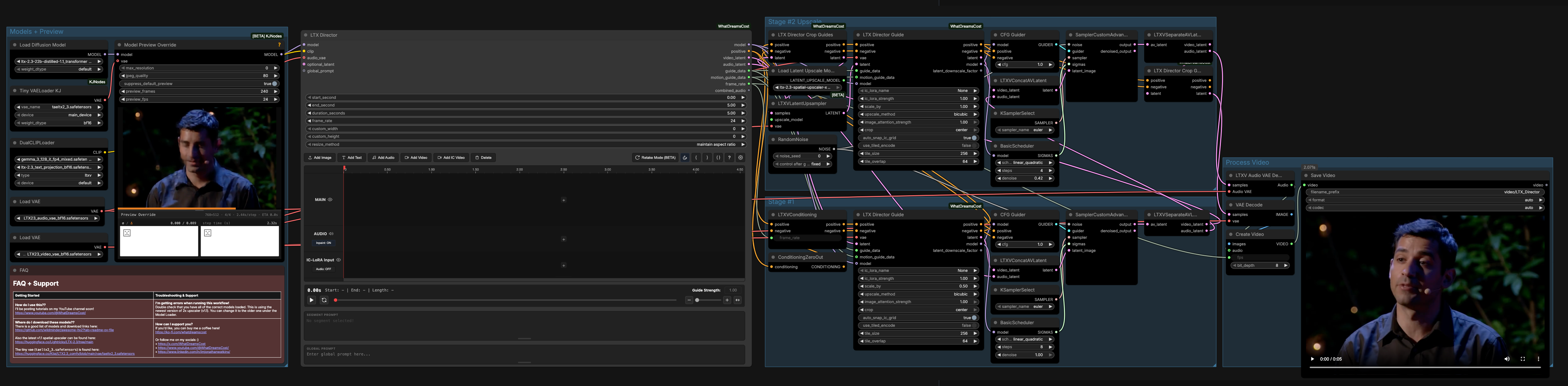
This workflow runs in two coordinated stages: Stage 1 builds a coherent base video and audio latent from the LTX Director timeline; Stage 2 upscales, preserves framing, and refines detail; the Process Video group decodes frames, restores audio, sets fps, and writes the final file.
Models + Preview#
The “Models + Preview” group loads the LTX‑2.3 22B distilled backbone, video and audio VAEs, and the spatial x2 upscaler. ModelPreviewOverrideKJ (#10) pairs the backbone with a tiny preview VAE so you can scrub and sanity‑check prompts before full sampling. LTXDirector (#131) is the canvas where you set duration, frame rate, global and per‑segment prompts, motion cues, and audio settings. If you plan iterative retakes, keep the RandomNoise (#30) seed steady to retain structure across edits.
Stage #1#
Stage 1 converts your timeline into conditioning and a base audio‑video latent. LTXVConditioning (#27) receives positive conditioning from the director and a zeroed negative via ConditioningZeroOut (#128) for a clean baseline. LTXDirectorGuide (#133) merges guide data, motion guides, the model, and the video VAE to produce guided conditioning and an initial video latent; audio from the director is combined via LTXVConcatAVLatent (#29). The sampler stack (CFGGuider (#28), BasicScheduler (#33), KSamplerSelect (#32), SamplerCustomAdvanced (#31)) denoises this AV latent into a first‑pass result, which is then split by LTXVSeparateAVLatent (#34) so the audio latent can be carried forward.
Stage #2 Upscale#
Stage 2 preserves your framing while adding spatial detail and refinement. LTXDirectorCropGuides (#55) analyzes Stage 1’s video latent and conditioning to produce crop guides that keep subjects stable during upscale. LTXVLatentUpsampler (#14) applies the LTX‑2.3 spatial x2 model to the video latent using the full video VAE, then LTXDirectorGuide (#132) re‑applies timeline guidance to the higher‑resolution latent and reunites it with the carried audio latent via LTXVConcatAVLatent (#18). The second sampler stack (CFGGuider (#17), BasicScheduler (#21), KSamplerSelect (#20), SamplerCustomAdvanced (#19)) produces the final AV latent; a last LTXDirectorCropGuides (#54) pass ensures crops are respected before decode.
Process Video#
VAEDecode (#1) turns the final video latent into frames with the high‑fidelity video VAE, while LTXVAudioVAEDecode (#24) restores the waveform from the audio latent. CreateVideo (#2) muxes frames and audio at the frame rate broadcast by the director, and SaveVideo (#37) writes the file into the output folder defined in the node. If your final looks misaligned with timing, adjust the director’s frame rate or timeline segment boundaries and re‑render.
Key nodes in Comfyui LTX 2.3 Director 2.0 workflow#
LTXDirector (#131)#
The timeline brain of the workflow. Author the global prompt, place per‑segment prompts, enable audio and motion tracks, and set duration and frame rate. Use retakes by specifying the retake window and prompt; only that window will be regenerated, preserving surrounding context. Enable audio‑aware editing to let soundtrack or VO influence pacing and emphasis. The optional latent input can be used to anchor iterations when you want consistent shot structure.
LTXDirectorGuide (#133)#
Stage 1 guide that converts timeline prompts, guide data, and motion cues into conditioning and a seed video latent. It establishes composition and motion flow at base resolution. Adjust it when you need stronger narrative adherence or clearer blocking before upscale. Its outputs drive the Stage 1 sampler and prepare crop guidance for the next stage.
LTXDirectorGuide (#132)#
Stage 2 guide operating after the spatial x2 upscale. It re‑injects the same timeline intelligence at higher resolution so details sharpen without breaking composition. When you push for more texture or micro‑motion, bias decisions here so Stage 2 refines rather than rewrites your Stage 1 intent.
LTXVLatentUpsampler (#14)#
Applies the LTX‑2.3 spatial x2 v1.1 upscaler in latent space to add detail efficiently. Use it to double spatial fidelity before the final denoising pass, which typically improves edges, small props, and typography. Leave it engaged for master renders; consider bypass only for very fast previs.
LTXDirectorCropGuides (#55)#
Computes per‑segment crop windows so subject framing survives the upscale path. Use it whenever you have shot‑specific compositions, reframes, or letterboxing to maintain consistent look across both stages. If you see drifting crops, revisit your timeline segments and regenerate guides.
SamplerCustomAdvanced (#31)#
Stage 1 sampler that translates conditioning into the base AV latent. Pair it with the Stage 1 guider and scheduler to balance adherence and exploration. For stable retakes, keep the same noise seed; for new variations, randomize the seed.
SamplerCustomAdvanced (#19)#
Stage 2 sampler that finalizes detail after upscale. It should stay harmonized with Stage 1 choices so refinement stays faithful. When results feel over‑smoothed or oversharp, adjust sampler type or scheduler pairing here first.
Optional extras#
- To extend a sequence, add segments on the director timeline and increase the duration; the workflow will propagate new timing and audio automatically.
- For beat‑matched edits, enable audio‑aware editing and place audio segments; the audio VAE will guide motion and emphasis during sampling.
- If you want reproducible retakes, keep
RandomNoise(#30) fixed; to explore alternatives, change the seed between renders. - The preview VAE speeds up look‑dev; rely on the video VAE decode only for finals to save time.
- Keep the director’s resize method on maintain‑aspect to prevent unintended stretching after the upscale step.
- Output organization is controlled in
SaveVideo(#37); set a clear folder per project to keep iterations tidy.
Links and references
- LTX‑2.3 models and assets: Lightricks/LTX‑2.3
- Timeline and guide nodes: WhatDreamsCost‑ComfyUI
- Preview utilities: ComfyUI‑KJNodes
- Tiny preview VAE: Kijai LTX2.3_comfy
Acknowledgements#
This workflow implements and builds upon the following works and resources. We gratefully acknowledge MDMZ for the workflow tutorial, WhatDreamsCost for the WhatDreamsCost-ComfyUI nodes, and Lightricks for the LTX-2.3 model for their contributions and maintenance. For authoritative details, please refer to the original documentation and repositories linked below.
Resources#
- MDMZ Workflow tutorial (YouTube)
- Docs / Release Notes: Workflow tutorial source
- WhatDreamsCost/YouTube channel
- Docs / Release Notes: WhatDreamsCost YouTube channel
- WhatDreamsCost/WhatDreamsCost-ComfyUI
- Lightricks/LTX-2.3
- Hugging Face: Lightricks/LTX-2.3
Note: Use of the referenced models, datasets, and code is subject to the respective licenses and terms provided by their authors and maintainers.