LTX 2.3 Movie Builder Workflow: coherent, multi‑scene, audio‑aware filmmaking in ComfyUI#
The LTX 2.3 Movie Builder Workflow is a cinematic AI filmmaking system that joins Qwen/Gemma prompt intelligence with the LTX‑2.3 video model to produce coherent multi‑scene movies, story‑driven clips, and music videos. It automates scene planning, prompt sequencing, and shot assembly while preserving character identity, motion continuity, and cinematic pacing. You can drive results with text alone, image‑to‑video starts, or audio reference for lip‑sync and gesture timing, keeping creative control over style, camera motion, length, and edit order.
Built by Mickmumpitz.ai for production workflows, this ComfyUI graph integrates start‑image creation with FLUX.2, structured speech prompts, audio‑aware conditioning, optional latent upscaling, and a final shot assembler. If you need a ready‑to‑shoot pipeline, the LTX 2.3 Movie Builder Workflow gets you from references and script lines to a finished cut with minimal manual setup.
Key models in Comfyui LTX 2.3 Movie Builder Workflow#
- Lightricks LTX‑2.3 22B (transformer only, FP8): the primary text‑to‑video backbone used for image‑to‑video and text‑to‑video generation. Model
- LTX‑2.3 Distilled LoRA 384 1.1: distilled weights that speed up and stabilize LTX‑2.3 sampling. LoRA
- LTX‑2.3 Spatial Upscaler x2 1.1: optional latent upscaler for cleaner, larger videos. Model
- LTX‑2.3 Video VAE (BF16) and Audio VAE (BF16): VAEs for LTX video and audio latents. Video VAE · Audio VAE
- LTX‑2.3 ID LoRA TalkVid 3k: identity‑aware LoRA that improves speaking identity and mouth motion. LoRA
- Gemma 3 12B IT + LTX‑2.3 Text Projection: text encoding stack used for LTX prompts. Encoder · Projection
- FLUX.2‑klein‑9B FP8: fast image generator for start frames, props, and look‑dev. Model
- FLUX.2‑klein‑9B Consistency LoRA V2 and 360 ERP Outpaint LoRA: improve temporal steadiness and wide context in assets. Consistency · 360 ERP
- Flux2 VAE and Qwen 3 8B text encoder for FLUX: encoders used in the asset‑creation path. Flux2 VAE · Qwen 3 8B
- Optional low‑VRAM path: LTX‑2.3 GGUF quantized UNet. GGUF
How to use Comfyui LTX 2.3 Movie Builder Workflow#
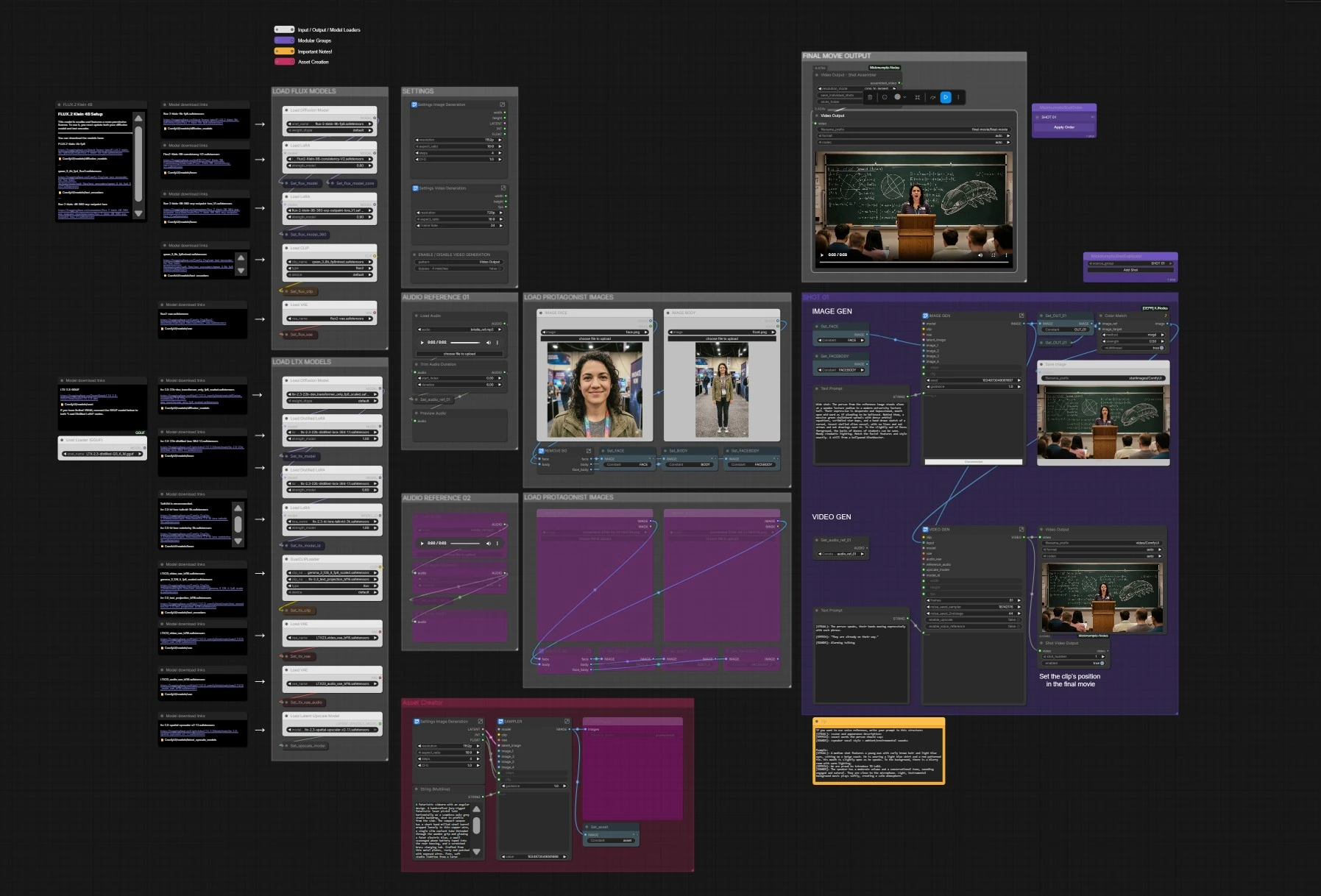
At a glance: pick your movie resolution and fps, load protagonist images (face/body), add optional voice reference, generate a start frame with FLUX or provide your own still, write a structured prompt, then render the shot. Duplicate the shot for new scenes and reorder them in the assembler to export the final movie.
SETTINGS#
Set your video canvas and pacing in the LtxResolutionPicker (#13492) and Frame Rate (#13480). Global sampling controls live in Set_steps (#845) and Set_cfg (#851) and affect both asset creation and LTX video generation. If you are iterating on stills only, toggle the ENABLE / DISABLE VIDEO GENERATION (#13715) bypass to save time. These settings define how long each clip runs and how it composes into the final timeline.
LOAD LTX MODELS#
The LTX stack loads with UNETLoader (#13450), two Load Distilled LoRA nodes (#10370, #10159), and the ID LoRA LoraLoaderModelOnly (#10324) for character consistency. Prompts are encoded by DualCLIPLoader (#13451) using Gemma + LTX projection. Video and audio VAEs load via VAELoader (#13449) and VAELoader (#13832), and the optional latent upscaler is provided by LatentUpscaleModelLoader (#10349). The graph stores these as reusable “Get/Set” values so every shot reads the same model pack.
LOAD FLUX MODELS#
For start‑image creation and look development, the FLUX path loads UNETLoader (#1992) with the Consistency and 360 ERP LoRAs (LoraLoaderModelOnly #6228, #13261). Text is encoded with CLIPLoader (#362) using Qwen, and images decode with VAELoader (#360). This stage is independent, so you can rapidly iterate on props, environments, or establishing shots before handing them to LTX.
LOAD PROTAGONIST IMAGES#
Add your face and body references with LoadImage (#4867, #1284) and the companion set (#13472, #13473) if needed. The embedded “REMOVE BG” toolchain auto‑crops faces and removes backgrounds to produce FACE, BODY, and FACEBODY sets (Set_FACE #3093, Set_BODY #3291, Set_FACEBODY #1334). Clean references are critical for identity retention across shots.
ASSET CREATOR (optional)#
If you want the workflow to create a precise start still, write a description in Text Prompt (#13442) and run the FLUX sampler KSampler (#13361). The resulting frame is cached as OUT_01 and saved via SaveImage (#13439), then optionally harmonized with your references using ColorMatch (#13478). This becomes the visual anchor for the ensuing image‑to‑video pass.
AUDIO REFERENCE (optional)#
Load a voice or performance cue with LoadAudio (#10343) and trim it in TrimAudioDuration (#10344); preview with PreviewAudio (#10346). The audio is passed to LTXVReferenceAudio (#13329) when Enable Voice Reference (#13320) is on, guiding mouth shapes, phrasing, and gesture beats. A second reference slot (AUDIO REFERENCE 02) is available if you want to compare or switch takes mid‑iteration.
SHOT 01#
Each shot reads models and settings from the shared pool, then blends your assets, prompt, and optional audio into a video. Enter a cinematic description or speech‑driven prompt in Text Prompt (#13384); use the included format [VISUAL] / [SPEECH] / [SOUNDS] for the best results. The start still is preprocessed in LTXVPreprocess (#13308) and animated in LTXVImgToVideoInplace (#13289), with audio conditioning provided by LTXVReferenceAudio (#13329) when enabled. The pipeline runs a two‑stage sampler (SamplerCustomAdvanced #13316, #13331) and, if Enable Upscale (#13322) is on, refines detail with LTXVLatentUpsampler (#13306). CreateVideo (#13310) muxes the frames and audio; you can save per‑shot outputs via ShotVideoOutput (#13379) and Video Output (#13393).
FINAL MOVIE OUTPUT#
Arrange shot order with the helper nodes MickmumpitzShotOrder (#8230) and MickmumpitzShotDuplicator (#6357), then assemble your cut in Video Output - Shot Assembler (#5598). The assembler crops and concatenates clips, preparing a single timeline for export. Render the final movie with Video Output (#5521). To build longer films, duplicate SHOT 01, adjust prompts and in/out positions, and re‑export.
Key nodes in Comfyui LTX 2.3 Movie Builder Workflow#
LTXVImgToVideoInplace (#13289)#
Turns a high‑quality still into a temporally consistent video latent while preserving identity and composition. Use it to convert FLUX‑made starts or your own references into motion. Pair it with clear scene direction in Text Prompt and keep the same seed across takes when you want comparable alternates.
LTXVReferenceAudio (#13329)#
Injects timing and phoneme cues from a voice or music bed so speech and gestures align naturally. Works best with prompts that separate [VISUAL], [SPEECH], and [SOUNDS]. Toggle Enable Voice Reference to switch between audio‑guided and purely prompt‑driven motion.
LTXVLatentUpsampler (#13306)#
Refines detail in latent space using the LTX‑2.3 Spatial Upscaler for crisper textures and edges. Enable it when shots will be intercut with close‑ups or text overlays; disable it to iterate faster during look‑dev.
ColorMatch (#13478)#
Matches color between your start still and a reference output to maintain continuity across scenes. Helpful when compositing multiple FLUX‑generated assets or mixing lighting setups.
KSampler (#13361)#
The FLUX asset generator that creates props, locations, and hero stills for the video stage. Lock seeds to keep a consistent visual language across sequences, then nudge text to explore small style changes without breaking continuity.
Video Output - Shot Assembler (#5598)#
Collects individual shot renders and outputs a single cut. Use it to reorder scenes, crop consistently, and export the movie in one pass.
Optional extras#
- Use the prompt structure shown in the graph’s tip: [VISUAL] scene description, [SPEECH] exact words, [SOUNDS] vocal style and ambience. This helps the LTX text and audio encoders cooperate.
- Keep character identity steady by providing both face and body references and enabling the LTX‑2.3 ID LoRA.
- For fast iteration, disable the upscaler and voice reference, shorten the shot length, and use the video bypass to generate start frames only.
- On lower VRAM systems, try the GGUF build of LTX‑2.3 and avoid stacking extra LoRAs until final passes. GGUF
- Duplicate SHOT 01 for new scenes, vary prompts minimally across shots, and reuse seeds to keep cut‑to‑cut tone and lighting stable across your entire LTX 2.3 Movie Builder Workflow.
Acknowledgements#
This workflow implements and builds upon the following works and resources. We gratefully acknowledge Mickmumpitz for LTX 2.3 Movie Builder Workflow Source for their contributions and maintenance. For authoritative details, please refer to the original documentation and repositories linked below.
Resources#
- Mickmumpitz/LTX 2.3 Movie Builder Workflow Source
- Docs / Release Notes: mickmumpitz.ai/posts/new-video-free-i-157336696
Note: Use of the referenced models, datasets, and code is subject to the respective licenses and terms provided by their authors and maintainers.