

LTX 2.3 Image to Video for ComfyUI#
This workflow turns a single image or a pure text prompt into smooth, cinematic AI video with LTX 2.3 Image to Video. It is built for creators who want high visual coherence, strong scene consistency, and polished motion without manual wiring. Use it on RunComfy or any ComfyUI environment to generate dynamic, stylized results that stay faithful to your prompt.
The graph supports two creative modes: image to video with your first frame as a visual anchor, or text to video guided entirely by language. It also includes automatic prompt enhancement, latent upscaling for sharper detail, and optional audio decoding so your final LTX 2.3 Image to Video render arrives ready to publish.
Key models in ComfyUI LTX 2.3 Image to Video workflow#
- Lightricks LTX 2.3 22B video model. The core video diffusion transformer that synthesizes temporally consistent motion and visuals from text and optional image guidance. Model files and documentation are available on Hugging Face and code-level references on GitHub.
- LTX Audio VAE. The audio variational autoencoder used to decode the model’s audio latent into an audio track for muxing with frames. Distributed with the LTX 2.3 release on Hugging Face.
- LTX 2.3 Spatial Upscaler x2. A latent-space super-resolution model that improves sharpness and spatial fidelity before the final high-resolution sampling pass. Available in the LTX 2.3 repository on Hugging Face.
- Gemma 3 12B Instruct text encoder plus LoRA. A compact instruction-tuned text encoder and LoRA used here to improve prompt understanding and phrasing for video. The packaged encoder and LoRA weights used by this template are provided in the Comfy-Org LTX-2 assets on Hugging Face.
How to use ComfyUI LTX 2.3 Image to Video workflow#
At a high level, your prompt and optional first frame are encoded, a low-resolution latent video is sampled, then upscaled in latent space and refined at higher resolution. The result is decoded to frames and audio, then composed into a final MP4. You can switch between image to video and text to video at any point before running.
- Model
- This group loads the LTX 2.3 checkpoint, the audio VAE, and the text encoder. It also applies the LTX 2.3 LoRA to the base model for improved instruction following. Together they define the foundation that the rest of the LTX 2.3 Image to Video pipeline builds on. You usually will not change anything here unless you swap model variants or LoRA styles.
- Prompt
- Enter your scene description and optional negatives. The text is encoded for both positive and negative conditioning and paired with your selected frame rate so motion planning aligns with timing. Keep language time-aware with verbs that describe change, for example “camera pushes forward” or “leaves swirl in wind.” Negative prompts help avoid unwanted artifacts such as watermarks or cartoonish simplifications.
- Prompt Enhancement
- The graph includes a helper that analyzes your image and text, then generates a stronger, time-aware prompt draft you can adopt or edit. This makes it easier to steer LTX 2.3 Image to Video toward cinematic, action-driven descriptions. It is especially helpful when you start from a single still and want motion that feels intentional. The preview node lets you inspect the enhanced text before generation.
- Video Settings
- Choose whether to run image to video or switch to text to video with a simple toggle. Set width, height, duration, and frame rate to fit your target platform. These settings drive latent allocation and downstream decoding so keep them in sync with your creative intent. If you plan to publish widely, favor dimensions and timing that are codec-friendly.
- Image Preprocess
- Your first frame is resized and normalized to a model-friendly aspect while preserving composition. A light prefilter helps stabilize edges and reduce compression noise that can cause shimmering during motion. This step is important even when you only use the image to suggest layout and color.
- Empty Latent
- The workflow allocates empty video and audio latents based on your dimensions, duration, and frame rate. This provides a clean canvas for the sampler and ensures audio and video stay length-aligned. Noise is generated deterministically when you want reproducibility or randomized for variation between runs.
- Generate Low Resolution
- A first sampling pass carves motion and structure into a compact latent video. If you are using image to video,
LTXVImgToVideoInplace(#249) injects your first frame as a visual anchor so motion evolves from a coherent starting point. Conditioning from your positive and negative text guides content and style, whileManualSigmas(#252) andKSamplerSelectdefine how aggressively noise is removed over time.LTXVCropGuides(#212) helps maintain framing that matches your prompt. The resulting audio-video latent is then split for separate processing.
- A first sampling pass carves motion and structure into a compact latent video. If you are using image to video,
- Latent Upscale
- Before committing to high-resolution refinement,
LTXVLatentUpsampler(#253) applies the x2 spatial upscaler to the low-res latent. Doing this in latent space is fast and preserves learned motion while boosting detail capacity. It is a safe way to add crispness without introducing artifacts.
- Before committing to high-resolution refinement,
- Generate High Resolution
- A second sampler refines the upscaled latent at larger spatial size to lock in textures, lighting, and small motions. When running text to video, the earlier image-to-video step can be bypassed and
LTXVImgToVideoInplace(#230) simply passes the latent through.VAEDecodeTiled(#251) then decodes the video latent to frames efficiently. In parallel, the audio latent is decoded with the LTX Audio VAE so both streams end up frame-accurate.
- A second sampler refines the upscaled latent at larger spatial size to lock in textures, lighting, and small motions. When running text to video, the earlier image-to-video step can be bypassed and
- Export
CreateVideo(#242) muxes frames and audio into a single video at your chosen frame rate. The top-levelSaveVideonode writes the final file to your ComfyUI output so you can download it immediately. Your LTX 2.3 Image to Video render is now ready to preview or publish.
Key nodes in ComfyUI LTX 2.3 Image to Video workflow#
LTXVImgToVideoInplace(#249 and #230)- Converts a still into a video latent or passes the latent through when disabled. Use it when you want the first frame to define layout, palette, and character placement. Toggle the text-to-video switch if you prefer motion to emerge solely from the prompt. Documentation for the operator family is maintained in the ComfyUI integration on GitHub.
LTXVConditioning(#239)- Combines encoded positive and negative text with your frame rate to produce conditioning that steers both content and motion tempo. Favor short, clear sentences that describe change over time and reserve negatives for artifacts you consistently see and want to suppress. This node is the most effective place to adjust style and scene behavior without touching samplers.
ManualSigmas(#252) withKSamplerSelect- The noise schedule and sampler work together to trade off big motion versus fine detail. Higher early noise encourages broader movement while later steps consolidate texture. Adjust these only after you have good prompts and image guidance in place. The underlying sampling controls follow standard ComfyUI semantics, see reference implementations in the LTX repository on GitHub.
LTXVLatentUpsampler(#253)- Applies the LTX 2.3 spatial upscaler in latent space so you can refine at higher resolution in the next stage. Use it when you need extra crispness or plan to deliver larger formats. The x2 model is distributed with LTX 2.3 on Hugging Face.
VAEDecodeTiled(#251) andCreateVideo(#242)- Tiled decoding prevents memory spikes at higher resolutions and ensures consistent frame quality.
CreateVideothen assembles frames and the decoded audio track into a final MP4 at your selected fps. Keep your fps consistent with the value used during conditioning to avoid playback drift.
- Tiled decoding prevents memory spikes at higher resolutions and ensures consistent frame quality.
Optional extras#
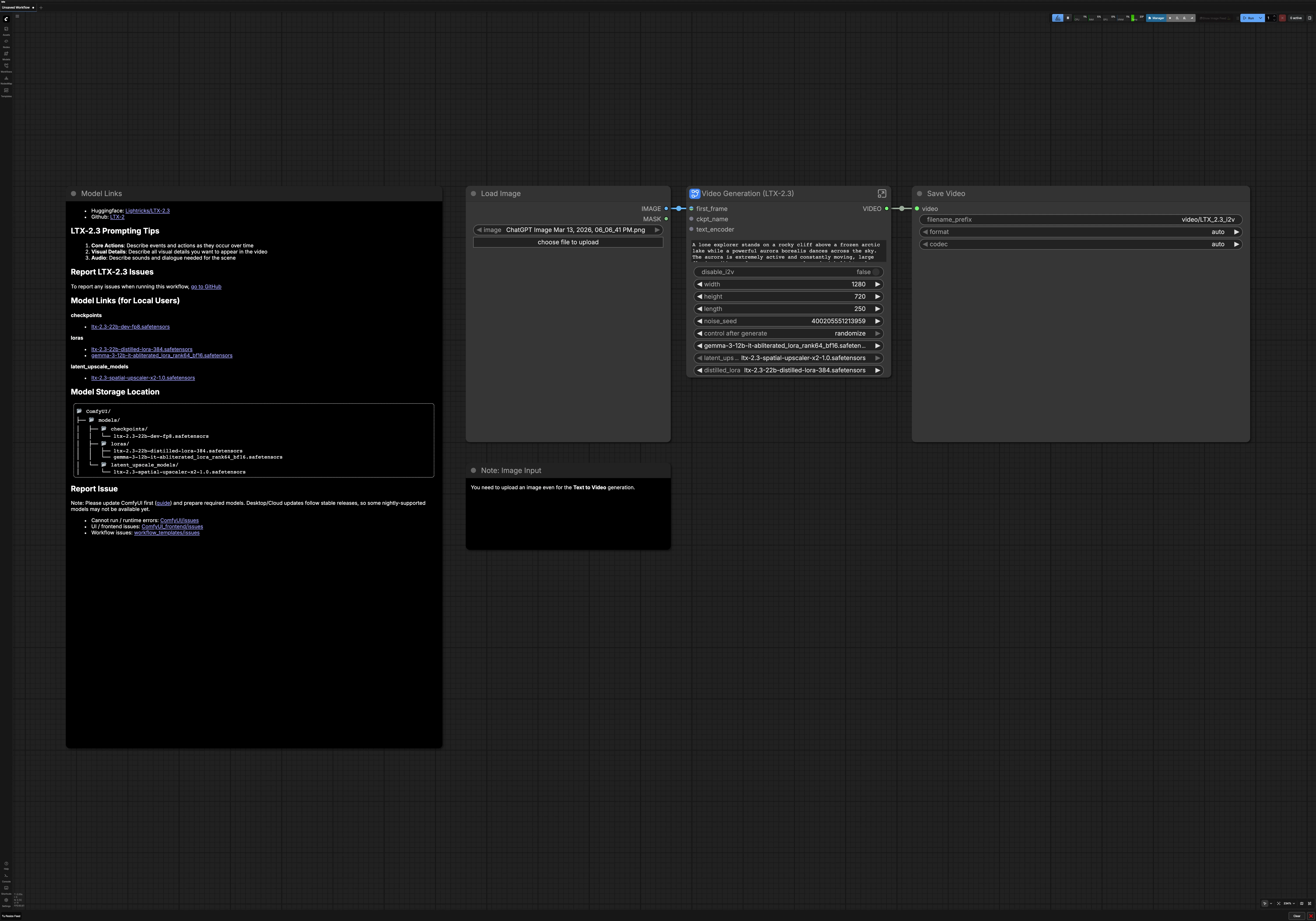
- You must still upload a first-frame image even when using text to video. The toggle will ignore it during generation but the UI requires a placeholder image.
- For LTX 2.3 Image to Video prompting, lead with the core action, then visual specifics, then atmosphere. Time words like “slowly,” “suddenly,” and “continues” help the model plan motion.
- Use negative prompts to avoid overlays and UI artifacts such as “watermark,” “subtitles,” or “still frame.”
- If style looks too strong or too weak, try a different LoRA or adjust its weight in the LoRA loader. You can also remove the LoRA to lean on the base model’s look.
- Reuse a fixed noise seed for reproducibility when iterating on text, then randomize for variation once you lock the shot.
Acknowledgements#
This workflow implements and builds upon the following works and resources. We gratefully acknowledge Lightricks for LTX-2.3 and EyeForAILabs for the EyeForAILabs YouTube Tutorial for their contributions and maintenance. For authoritative details, please refer to the original documentation and repositories linked below.
Resources#
- Lightricks/LTX-2.3
- GitHub: Lightricks/LTX-2
- Hugging Face: Lightricks/LTX-2.3
- arXiv: LTX-2: Efficient Joint Audio-Visual Foundation Model
- EyeForAILabs/YouTube Tutorial
- Docs / Release Notes: EyeForAILabs YouTube Tutorial
Note: Use of the referenced models, datasets, and code is subject to the respective licenses and terms provided by their authors and maintainers.