

LTX 2.3 Prompt Relay: multi‑beat image‑to‑video generation in ComfyUI#
LTX 2.3 Prompt Relay is a ComfyUI workflow for directing image‑to‑video with segmented prompt routing across multiple beats in one clip. It uses PromptRelayEncode as a training‑free, inference‑time controller to assign different text instructions to different time spans, so you can script camera moves and actions per beat while preserving subject continuity and smooth transitions. A Qwen VLM helper can auto‑draft or refine the story beats from a reference image before generation.
This ComfyUI LTX 2.3 Prompt Relay workflow is ideal for cinematic shorts, product shots, and narrative teasers where you want scene‑by‑scene control without fine‑tuning. It produces a synced video with decoded audio and writes an H.264 MP4 with metadata preserved.
Key models in Comfyui LTX 2.3 Prompt Relay workflow#
- LTX‑Video 2.3 base checkpoint. The generative backbone that synthesizes temporally consistent video from text and an optional reference frame. See the community build and weights context on Hugging Face for ComfyUI users. Kijai/LTX2.3_comfy
- LTX‑Video 2.3 Video VAE and Audio VAE. Decoders that turn the model’s latent video and latent audio into RGB frames and a waveform for muxing, used here to export an MP4. Kijai/LTX2.3_comfy
- Qwen VLM (Instruct). A vision‑language model that reads the reference image and drafts multi‑beat action lines the workflow uses as local prompts. Integrated via the ComfyUI‑QwenVL extension. 1038lab/ComfyUI-QwenVL
- Optional LTX 2.3 LoRAs. Style or efficiency adapters such as a distilled LoRA and a crisp‑enhance LoRA are pre‑wired for easy toggling to change texture and sharpness without altering your prompts. Kijai/LTX2.3_comfy
How to use Comfyui LTX 2.3 Prompt Relay workflow#
Overall flow#
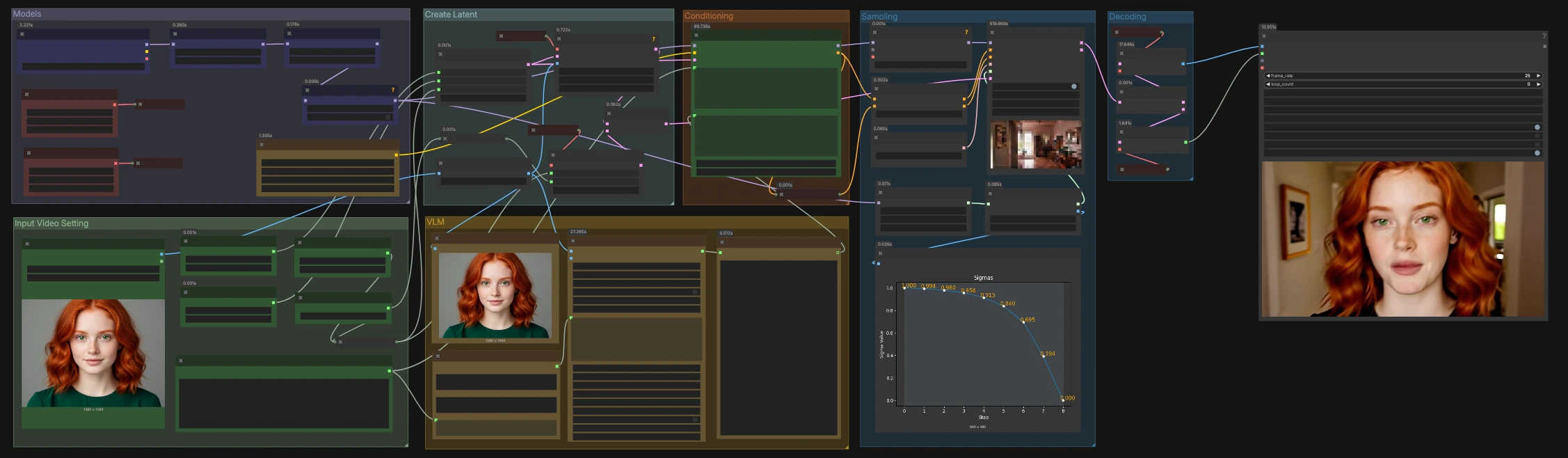
The workflow reads a single image as the opening frame, gathers a global prompt plus beat‑specific local prompts, encodes them with Prompt Relay, samples a joint audio‑video latent, then decodes and combines frames and audio into an MP4. Groups are organized as Models, Input Video Setting, VLM, Conditioning, Create Latent, Sampling, and Decoding.
Models#
The base LTX‑Video 2.3 checkpoint loads first, then two optional LoRAs are applied in sequence to tune crispness and efficiency. Attention patching is enabled to improve fidelity under long prompts. You can keep both LoRAs, disable one, or bypass them entirely if you prefer a neutral baseline look.
Input Video Setting#
Choose width, height, total seconds, and FPS for the clip. The workflow computes the frame count automatically as a product of seconds and FPS, keeping image and audio lengths in sync. Set these before writing prompts so you know how many beats will comfortably fit.
VLM#
Load or drop a reference image. The image is preprocessed and sent to a Qwen VLM that follows a short instruction template to propose four concise beat lines separated by the pipe character “|”. You can review and edit the generated text in the on‑screen viewer before it moves on, or skip the VLM and write your own lines.
Conditioning with Prompt Relay#
PromptRelayEncode takes a global prompt for style and setting plus your local prompts for per‑beat actions. Separate beats with “|” in local prompts; the encoder routes each segment to its time span and blends between them for smooth handoffs. The node outputs prompt conditioning and a patched model so the sampler follows your beat script faithfully. Reference and usage are provided by the ComfyUI‑PromptRelay project. kijai/ComfyUI-PromptRelay
Create Latent#
An empty video latent is initialized to your chosen resolution and length. The preprocessed reference image is written into the timeline’s first frame to anchor identity, pose, and lighting. An empty audio latent with matching duration is created so decoding produces a ready‑to‑mux waveform alongside the frames.
Sampling#
A scheduler creates the noise schedule, a visualizer previews it, and the sampler runs on the concatenated audio‑video latent using the patched LTX 2.3 model and Prompt Relay conditioning. You can change the sampler type if you prefer a different trade‑off between sharpness and stability. The result is a single latent that already encodes both video and audio.
Decoding and export#
The latent is split into video and audio branches, then decoded by the LTX 2.3 Video VAE and Audio VAE. VideoHelperSuite combines the frames and waveform into an H.264 MP4 with a standard pixel format for wide player compatibility and saves the metadata for reproducibility. ComfyUI-VideoHelperSuite
Key nodes in Comfyui LTX 2.3 Prompt Relay workflow#
PromptRelayEncode (#605)#
The core controller that applies segmented prompt routing at inference time. Use global_prompt for style, setting, subject, and lens language that should persist, and use local_prompts for beat‑specific actions separated by |. Keep beats concise and focused; 3 to 6 beats usually read cleanly. If you want to hand‑time transitions, keep adjacent beats semantically compatible so the blend is natural. Reference: kijai/ComfyUI-PromptRelay
AILab_QwenVL_Advanced (#610)#
A VLM assistant that reads the reference image and expands your idea into beat lines using a short instruction prompt. Edit the instruction text to nudge tone or camera vocabulary, then review the generated beats in the viewer. The output feeds directly into local_prompts, and you can override it with your own writing at any time. Reference: 1038lab/ComfyUI-QwenVL
LTXVImgToVideoInplaceKJ (#582)#
Seeds the first frame of the latent video with your input image, promoting identity and lighting stability across beats. For pure text‑to‑video, bypass this node and start from an empty video latent. For stronger adherence to the seed frame, keep your global prompt consistent with the image content.
BasicScheduler (#514) and VisualizeSigmasKJ (#358)#
Control and preview the denoising schedule used by the sampler. Use the visualizer to sanity‑check the curve shape when switching samplers or step counts. A smoother schedule often yields steadier motion, while more aggressive schedules push detail.
VHS_VideoCombine (#604)#
Muxes decoded frames and audio into a single MP4 with a widely compatible pixel format. Make sure its frame rate matches your Input Video Setting group for accurate sync. Disconnect the audio input here if you want a silent export. Reference: ComfyUI-VideoHelperSuite
Optional extras#
- Beat writing tips: write in present tense, keep each beat to one action, add short dialogue only when it advances the beat, and begin with a camera verb such as “push in,” “pan right,” or “handheld drift.”
- Use the global prompt for art direction and optics (lighting, lens, mood); use local prompts for motion, gestures, and framing changes.
- For faster iteration, keep resolution modest while drafting beats, then raise it for the final render.
- If LoRAs oversharpen or shift color, lower their weights or disable one of them to recover neutrality.
Acknowledgements#
This workflow implements and builds upon the following works and resources. We gratefully acknowledge gordonchen19 for Prompt-Relay, kijai for ComfyUI-PromptRelay, Kijai for LTX2.3_comfy (ComfyUI model context), 1038lab for ComfyUI-QwenVL, and the Patreon post author (Innovate Futures @ Benji) for the workflow source, for their contributions and maintenance. For authoritative details, please refer to the original documentation and repositories linked below.
Resources#
- Patreon/Workflow source
- Docs / Release Notes: post @Benji
- gordonchen19/Prompt-Relay
- GitHub: gordonchen19/Prompt-Relay
- Docs / Release Notes: site
- kijai/ComfyUI-PromptRelay
- GitHub: kijai/ComfyUI-PromptRelay
- Kijai/LTX2.3_comfy
- Hugging Face: Kijai/LTX2.3_comfy
- Docs / Release Notes: discussion #51
- 1038lab/ComfyUI-QwenVL
- GitHub: 1038lab/ComfyUI-QwenVL
Note: Use of the referenced models, datasets, and code is subject to the respective licenses and terms provided by their authors and maintainers.