




FireRed Image Edit 1.0 ComfyUI Workflow#
FireRed Image Edit 1.0 is a general-purpose, instruction-following image editing workflow for ComfyUI that delivers high-fidelity results with strong visual consistency. It supports single and multi-image edits such as object swaps, background replacement, style-preserving refinements, text style preservation, photo restoration, and virtual try-on. The graph is designed for fast iteration on RunComfy and similar hosted setups, with clear controls for model selection, resolution, and sampling.
If you are a creator, designer, or researcher who needs precise edits from natural language instructions, this FireRed Image Edit workflow lets you combine plain-text guidance with one to three reference images to steer complex transformations while keeping identities, layout, and style intact.
Key models in ComfyUI FireRed Image Edit workflow#
- FireRed-Image-Edit-1.0. The base diffusion model that performs instruction-following edits with strong visual consistency. Available in high-precision BF16 and quantized variants suitable for constrained hardware. Model card
- FireRed-Image-Edit-1.0 GGUF. A quantized UNet version optimized for CPU or low-VRAM inference that preserves the behavior of the base FireRed Image Edit weights with reduced memory footprint. Weights
- Qwen2.5-VL 7B text encoder (FP8, Comfy-packaged). Provides multimodal text-image embeddings that translate your instructions into conditioning FireRed Image Edit can follow. Files
- Qwen Image VAE. Encodes and decodes latents compatible with the FireRed Image Edit pipeline, preserving detail during reconstruction. Files
- Qwen-Image-Edit-2511-Lightning LoRA. An optional LoRA that adapts the base model toward fast, step-efficient inference while keeping edit intent clear. Use when you want quick previews or a snappier FireRed Image Edit iteration loop. Model
How to use ComfyUI FireRed Image Edit workflow#
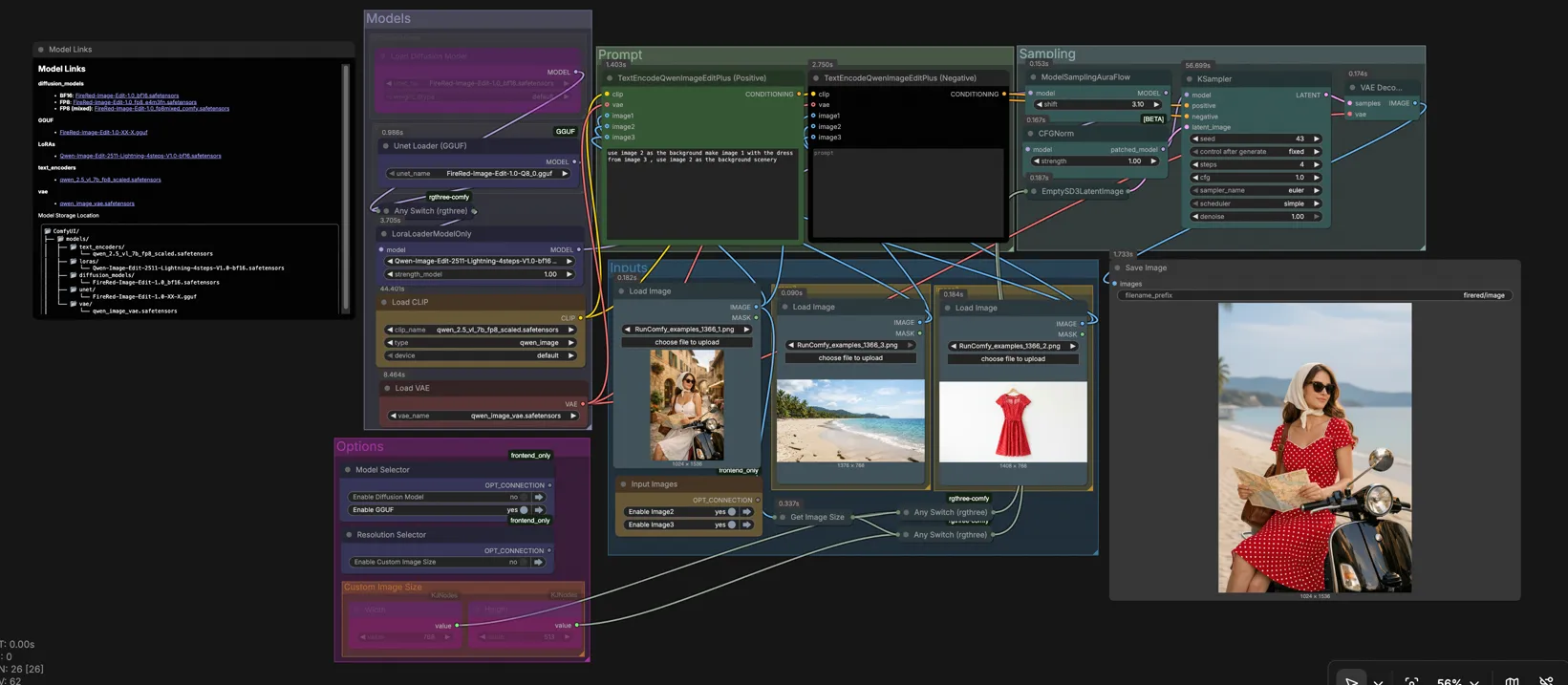
At a high level, you choose the model variant, load one to three reference images, write an instruction that names those images, set your target resolution, then sample and save. Groups in the canvas mirror this flow so you can work top to bottom without hunting for nodes.
Models#
This group lets you pick the FireRed Image Edit backbone that matches your hardware and speed needs. The graph includes a high-quality BF16 UNet and a GGUF quantized UNet wired into an Any Switch (rgthree) (#91) so you can toggle between them. A LoraLoaderModelOnly (#74) optionally applies the Qwen-Image-Edit-2511-Lightning LoRA to accelerate previews. The model is then prepared with sampling and guidance normalization for stable instruction following.
Prompt#
Your instructions are encoded with two TextEncodeQwenImageEditPlus nodes for positive and negative guidance. Refer to your loaded images explicitly as “image 1”, “image 2”, and “image 3” inside the prompt to control how FireRed Image Edit uses each reference. For example, you can ask to keep image 1 as the subject, place it on the background from image 2, and transfer clothing or style from image 3. Use the negative prompt to state what to avoid, such as unwanted objects, color shifts, or text changes.
Inputs#
Load your sources in the Inputs area: image 1 is typically the main subject, image 2 an alternate background or context, and image 3 a style or garment reference. You can work with a single image or combine two or three for multi-image edits. The graph reads image 1’s dimensions via GetImageSize so you can auto-match resolution when needed. Images are passed to both positive and negative encoders so your instruction can leverage them consistently.
Image2#
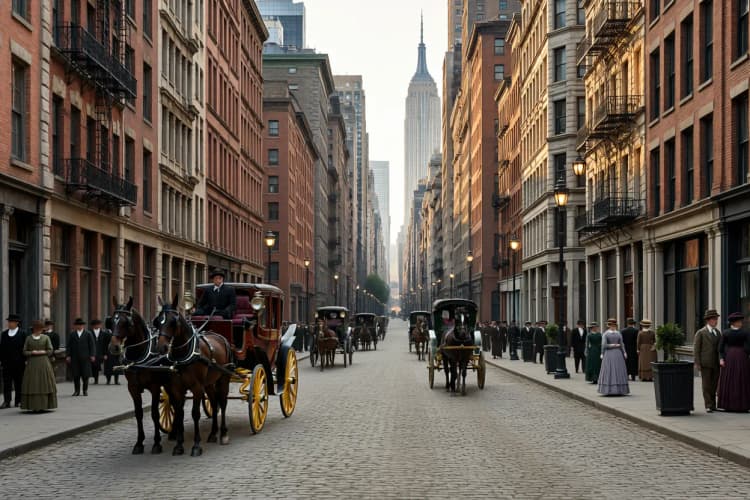
Use this slot when you want a different background, lighting, or layout. In your positive instruction, describe the placement and how much of image 2 should be used. Negative guidance can prevent full scene replacement if you only want a partial composite. FireRed Image Edit will align subject boundaries while preserving the subject’s appearance.
Image3#
Use this slot for style or object transfer, such as virtual try-on or accessory swaps. Name the exact attribute to transfer, like “the red jacket from image 3” or “the brushstroke style from image 3”. This keeps the FireRed Image Edit conditioning focused and prevents global restyling when you only want one element to change.
Diffusion Model#
This view exposes the BF16 FireRed Image Edit UNet. Choose it for the best detail fidelity and the most stable execution of complex instructions. It is the recommended path on modern GPUs. If you encounter memory limits at larger resolutions, consider the GGUF path.
GGUF#
This view exposes the GGUF-quantized FireRed Image Edit UNet optimized for CPU or low-VRAM devices. Quality remains strong for most edits, with a notable reduction in memory usage. It is ideal for batchable, reproducible renders on modest hardware or when running multiple workers.
Sampling#
The sampling block combines your positive and negative conditioning with a latent canvas and produces the final edit. EmptySD3LatentImage (#116) sets target resolution and batch size, then KSampler (#65) runs steps using your chosen scheduler and seed. VAEDecode converts latents to an image for preview and SaveImage writes files to your ComfyUI output directory. Fix the seed for reproducibility or vary it to explore alternatives that respect your instruction.
Options#
Use the Model Selector area to switch between BF16 and GGUF variants without rewiring. The Resolution Selector can auto-match image 1 or use the Custom Image Size group. These controls exist to keep the FireRed Image Edit flow fast, letting you tune cost, speed, and quality per job.
Custom Image Size#
Two integer widgets set width and height when you want explicit control. This path feeds the latent generator so the entire run respects your chosen size. For best detail with FireRed Image Edit, favor resolutions close to the aspect of your main subject or background image to reduce resampling artifacts.
Key nodes in ComfyUI FireRed Image Edit workflow#
Any Switch (rgthree) (#91)#
Routes the graph through either the BF16 FireRed Image Edit UNet or the GGUF variant without changing downstream wiring. Use it to A/B quality and speed or to route CPU and GPU workers through the same graph. Project link: rgthree/rgthree-comfy
LoraLoaderModelOnly (#74)#
Applies the Qwen-Image-Edit-2511-Lightning LoRA on top of the selected FireRed Image Edit model. Increase strength when you want snappier previews at lower steps, and reduce it if you notice over-assertive changes. Keep it enabled for ideation, then disable or soften for final, highest-fidelity renders. Model link: lightx2v/Qwen-Image-Edit-2511-Lightning
TextEncodeQwenImageEditPlus (Positive) (#68)#
Transforms your instruction into conditioning while ingesting up to three reference images. Write direct, unambiguous commands and explicitly reference image numbers for compositing, attribute transfer, or layout constraints. The more specific your nouns and verbs, the more reliably FireRed Image Edit follows them.
TextEncodeQwenImageEditPlus (Negative) (#69)#
Lets you forbid artifacts, off-styles, or changes you do not want. Use it to preserve typography, brand colors, or identity even when the main instruction pushes a strong transformation. Combine with clear positives to balance creativity and preservation.
EmptySD3LatentImage (#116)#
Creates a latent canvas at your chosen resolution. Match image 1’s size for faithful composites or set a custom resolution for outputs destined for print or specific aspect ratios. Consider modest upscales after the edit rather than editing at extremely high resolutions.
KSampler (#65)#
Drives the denoising process that realizes your instruction. Adjust steps, scheduler, and seed to balance speed and fidelity. With the Lightning LoRA enabled, fewer steps often suffice for strong previews, while the BF16 path with more conservative settings is ideal for finals. Core node reference: ComfyUI
Optional extras#
- For fast iteration, start with the GGUF path plus the Lightning LoRA, then switch to BF16 for finals.
- Write prompts that name sources, for example: “place the subject from image 1 onto the background from image 2 and transfer the jacket from image 3, keep lighting consistent.”
- Use the negative prompt to protect brand colors, logos, or text when editing product shots with FireRed Image Edit.
- Auto-match the resolution to image 1 for composites, or set a custom size when you are replacing the entire background.
- Fix the seed when comparing BF16 and GGUF outputs so differences reflect model choice rather than randomness.
Acknowledgements#
This workflow implements and builds upon the following works and resources. We gratefully acknowledge @eyeforailabs and FireRedTeam for FireRed-Image-Edit-1.0 and EyeForAILabs for the YouTube Tutorial for their contributions and maintenance. For authoritative details, please refer to the original documentation and repositories linked below.
Resources#
- FireRedTeam/FireRed-Image-Edit-1.0
- GitHub: FireRedTeam/FireRed-Image-Edit
- Hugging Face: FireRedTeam/FireRed-Image-Edit-1.0
- EyeForAILabs/YouTube Tutorial
- Docs / Release Notes: @eyeforailabs YouTube Tutorial
Note: Use of the referenced models, datasets, and code is subject to the respective licenses and terms provided by their authors and maintainers.