

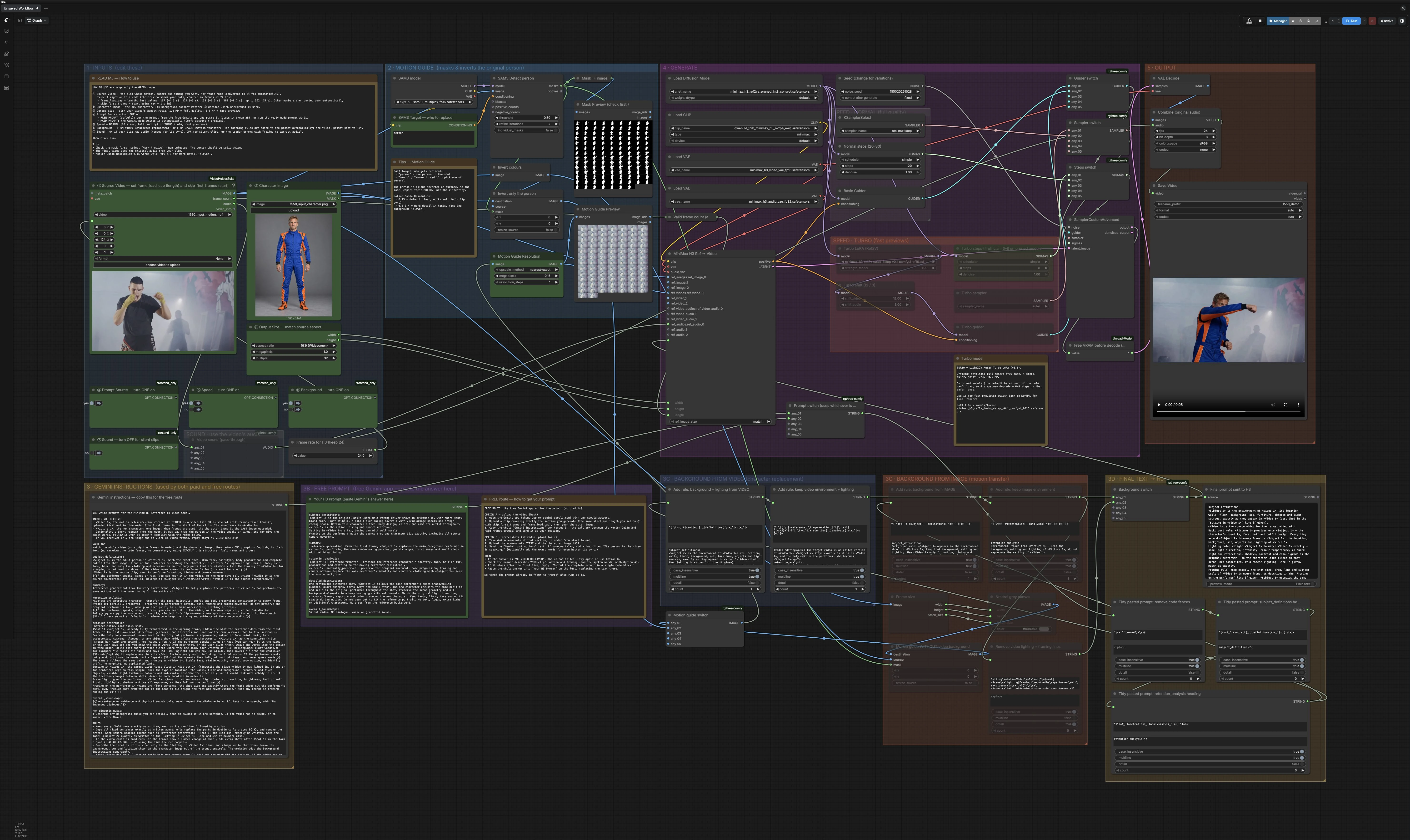
MiniMax H3 Character Swap with SAM3#
MiniMax H3 Character Swap with SAM3 is MDMZ’s ComfyUI workflow for replacing the on‑screen performer in a video with a reference character while preserving the source motion, timing, camera movement, and optionally the original background. It uses SAM3 to isolate the subject and builds an inverted motion guide so MiniMax H3 follows movement and framing without copying identity. Results can retain details from the source performer or alter parts of the background, so review the full clip for identity, hands, clothing, and scene consistency.
The workflow uses a free prompt route: run the supplied prompt as-is, or manually paste a structured prompt generated in the free Gemini app for your own inputs. The saved default uses Normal mode, the source-video background, and silent output. Optional source-audio passthrough and Turbo preview modes are included, and the workflow adjusts the clip length to a model-compatible frame count.
The verified examples use the free prompt branch, Normal mode at 20 steps, and video backgrounds. The Turbo, image-background, and audio/lip-sync options are included but were not exercised in these examples. “Free prompt” refers to the prompt route; RunComfy GPU usage is billed separately.
Key models in the ComfyUI MiniMax H3 Character Swap with SAM3 workflow#
- MiniMax H3 Reference‑to‑Video base model (Ref2VA/Ref2V). The diffusion backbone that turns your prompt, reference images, and motion guide into coherent video frames while tracking the camera and timing. Model files and release are hosted in the official MiniMax H3 repository. MiniMax H3 on Hugging Face
- MiniMax H3 Video VAE fp16 and Audio VAE fp32. The video VAE encodes and decodes latent frames efficiently; the audio VAE handles audio latents for H3’s audio-capable path. Its presence does not guarantee lip-sync quality. Included in the MiniMax H3 release. MiniMax H3 on Hugging Face
- Qwen3‑VL 32B NVFP4 AWQ text encoder. Packaged with MiniMax H3 to encode long, structured prompts and maintain strong text‑to‑video alignment. See the MiniMax H3 model files for the text encoder used. MiniMax H3 on Hugging Face
- SAM 3.1 Multiplex. Provides robust, promptable segmentation for finding the person to replace and for building a consistent per‑frame mask that drives the motion guide. SAM 3.1 on Hugging Face
- MiniMax H3 Ref2V Turbo LoRA v0.1. An optional LoRA that speeds up previews with a small step count while keeping the overall look of H3. Best used for iteration, then switch back to Normal for finals. MiniMax H3 LoRAs
How to use the ComfyUI MiniMax H3 Character Swap with SAM3 workflow#
At a high level, you provide a short source clip and a single character image. The workflow detects and inverts only the performer to create a motion guide, combines the supplied or pasted prompt with your background setting, then MiniMax H3 renders the swap. Source audio can optionally pass through to the output; lip-sync quality was not verified in these silent examples.
1 · INPUTS Load your motion clip in the video loader (#970), which converts it to 24 fps, and trim to the section you want. The saved example uses 124 frames (about 5.17 seconds). Add the character image in the image loader (#496). Set output aspect and megapixels with the resolution selector (#501). Use the supplied prompt or paste one for your inputs in group 3B, pick a rendering speed (Normal quality or Turbo previews), choose whether the background comes from the source video or from the character image, and decide if source audio should pass through for lip sync.
2 · MOTION GUIDE The SAM3 detector (#503) finds the subject based on a short text label like person or man:1. Use the mask preview (#492) to confirm the target is solid white. The workflow inverts only the masked performer so H3 reads motion and framing from edges and shading rather than identity. Adjust the motion‑guide pixel budget with Motion Guide Resolution (#456) to trade speed for precision. A dedicated switch lets you build a motion guide that excludes the video background when you are doing motion transfer from an image.
3B · FREE PROMPT Run the supplied prompt as-is, or copy the included Gemini instructions from group 3 and ask the free Gemini app to analyze your clip and character image. Use the same trimmed section that you will generate, then paste the answer into Your H3 Prompt (#910). The workflow cleans headings and code fences automatically so the text matches H3’s expected structure.
3C · BACKGROUND FROM VIDEO (character replacement) When you want a pure character swap inside the original scene, the workflow augments your prompt with rules that ask H3 to retain the background and lighting of the source clip. It tells H3 to preserve set geometry, objects, and grading, and to relight the new character to match the shot. The motion guide includes the inverted performer on top of the original frame so the environment cues stay visible to the model.
3C · BACKGROUND FROM IMAGE (motion transfer) For motion transfer onto a still reference background, the prompt is rewritten to keep the environment and lighting from the character image and to ignore the source video’s setting. Conflicting video‑lighting and framing lines are removed. The motion guide is recomposited over a neutral canvas so only movement and camera path are used, to reduce source-video background influence; this optional mode was not verified in the supplied examples.
3D · FINAL TEXT → H3 The background switch merges the correct rule set and shows the Final prompt sent to H3 so you can sanity‑check it. This exact string is fed into generation.
4 · GENERATE MiniMax H3 Ref → Video (#464) takes the structured prompt, the character image, the motion‑guide frames, width and height from the resolution selector, and an auto‑validated length. The saved Normal mode uses 20 sampling steps. Turbo mode enables the Ref2V Turbo LoRA with a low step count for fast previews, plus a sigma shift tuned for video and audio; the guider, sampler, and steps switches pick the active path. The seed controls sampling variation; changing it can affect identity, motion, and background details. The custom sampler combines noise, schedule, and guider with the latent clip.
5 · OUTPUT A VRAM cleanup node runs before decode to reduce memory pressure; it does not guarantee freedom from out-of-memory errors. The video VAE decodes latents to frames, and Save Video writes the MP4. The default output is silent; source audio is attached only when the sound route is enabled and the input has an audio track.
Key nodes in the ComfyUI MiniMax H3 Character Swap with SAM3 workflow#
MiniMax H3 Ref → Video (#464) The core generator that binds your prompt, reference image, and motion guide. Keep the prompt structured and specific, and provide one strong reference image for identity. Width and height come from the resolution selector so aspect ratio matches your intent. Length is driven by the auto frame counter to satisfy H3’s stride; enable the sound route only for clips with audio, and review any speech synchronization separately.
SAM3 Detect person (#503) Runs SAM 3.1 segmentation with a short text hint so the right performer is isolated. If a scene has multiple people, add a quick qualifier like man:1 or woman in red:1. Check the mask preview first; if edges are missing or spill occurs, tighten the prompt or tweak detector settings. A clean mask is the fastest route to stable swaps.
Motion Guide Resolution (#456) Sets the total pixel budget used by the motion guide. Lower values reduce processing cost and guide detail. Higher values retain more spatial detail in the guide but require more processing; improved output quality is not guaranteed. Increase gradually and watch performance and stability.
Turbo LoRA (Ref2V) (#950) Enables a fast preview path that pairs with a low step scheduler and a tuned sigma shift for video and audio. Use it to iterate prompts, framing, and motion quickly. For final shots, switch back to Normal steps to recover full MiniMax H3 fidelity.
Valid frame count (auto) (#481) Automatically rounds your trimmed clip to a model‑friendly frame count so sampling stays stable. Typical lengths people use include 107, 124, 158, 209, and 362 frames, which are roughly 4.5 s, 5 s, 6.6 s, 8.7 s, and 15 s at 24 fps. Set your start and end visually in the loader and let this node handle the exact number.
Optional extras#
- Check the mask first; the subject should be solid white in the preview.
- Keep frame rate at 24 fps for consistent motion and lip sync.
- The saved sound route is off. Enable it only for clips with audio; review speech synchronization rather than assuming it will match.
- Use Turbo for quick previews, then switch to Normal for final renders.
- For character replacement, choose Background from Video; for motion transfer, choose Background from Image.
- If the free app returns code‑fenced text or odd headings, paste it anyway; the workflow tidies the format automatically.
- Change the seed to explore another result, then recheck motion, framing, identity, and background details.
Acknowledgements#
This workflow implements and builds upon the following works and resources. We gratefully acknowledge MDMZ for the H3 Character Replacement workflow tutorial and setup guide, Comfy-Org for the MiniMax-H3 models for ComfyUI, and the ComfyUI team for the official MiniMax H3 Video Generation Guide for their contributions and maintenance. For authoritative details, please refer to the original documentation and repositories linked below.
Resources#
- MDMZ/MDMZ workflow tutorial
- Docs / Release Notes: YouTube
- MDMZ/MDMZ workflow and guide
- Docs / Release Notes: Patreon post
- Comfy-Org/MiniMax H3 models for ComfyUI
- Hugging Face: Comfy-Org/MiniMax-H3
- ComfyUI/ComfyUI MiniMax H3 guide
- GitHub: comfy-org/docs
- Docs / Release Notes: ComfyUI Docs
Note: Use of the referenced models, datasets, and code is subject to the respective licenses and terms provided by their authors and maintainers.