

MiniMax H3 Motion Transfer: reference‑guided, side‑by‑side animation in ComfyUI#
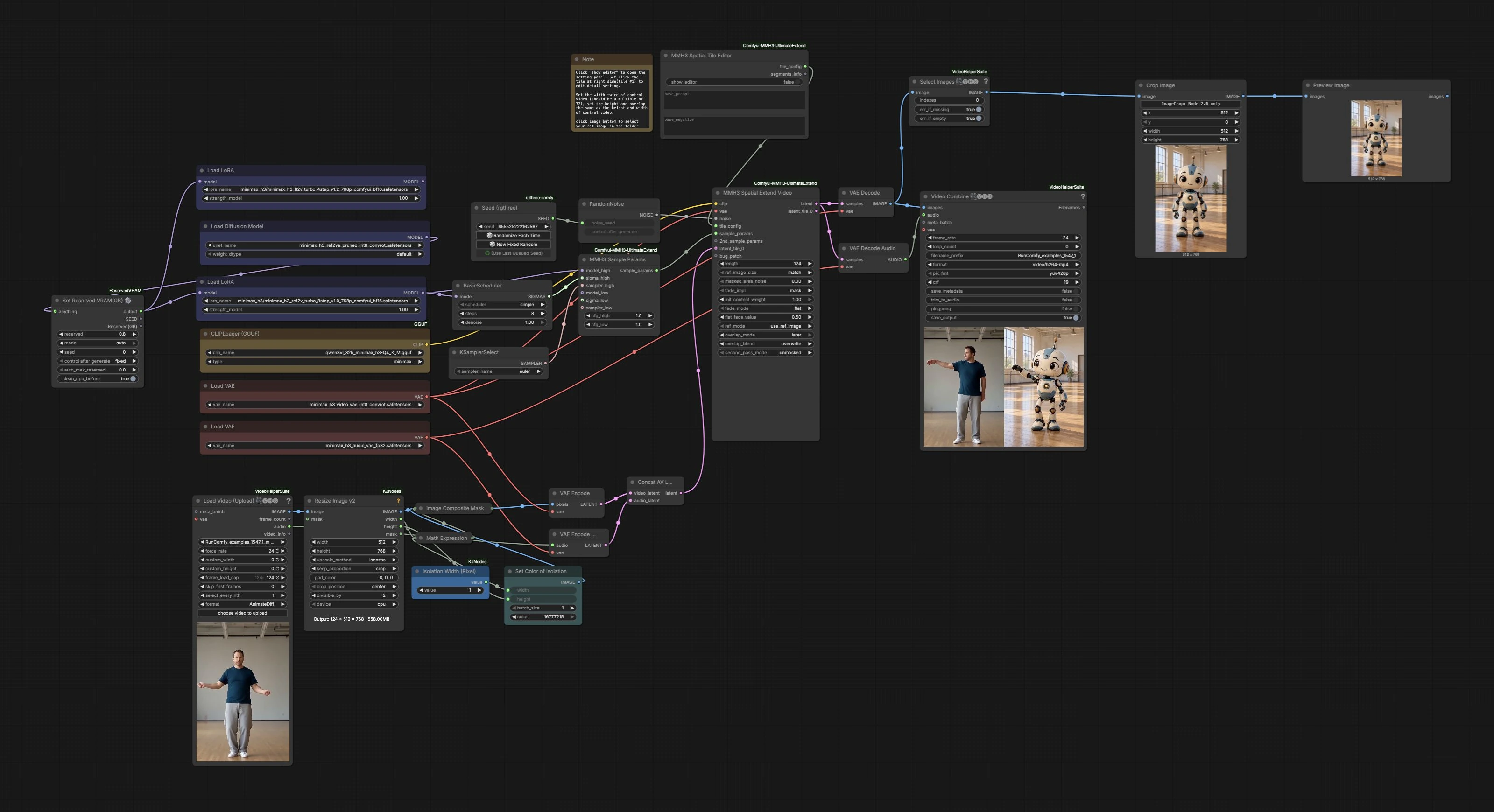
This workflow performs MiniMax H3 Motion Transfer by taking a motion source video and a single character reference image, then generating a synchronized side‑by‑side video. The left half shows the original motion clip, while the right half outpaints a new character that mirrors the motion. It is powered by MiniMax H3 with MMH3 UltimateExtend for reference‑guided spatial outpainting, so you can quickly reuse one motion clip to animate many stylized or realistic characters.
Use MiniMax H3 Motion Transfer for previz, short‑form content, or rapid look exploration. Motion fidelity improves when the character’s proportions and camera perspective resemble the source, and stylization strength can be steered with LoRA and prompting.
Key models in Comfyui MiniMax H3 Motion Transfer workflow#
- MiniMax H3 diffusion model. The generative backbone that drives video latents and supports Ref2VA and FL2VA conditioning used for motion transfer and outpainting. MiniMax‑H3 on Hugging Face
- MiniMax H3 Video VAE. Encodes and decodes video latents for frame synthesis and preview. Included in the same model repository. Model files
- MiniMax H3 Audio VAE. Carries the source audio alongside generated frames so the final render preserves sound. Included in the same repository. Model files
- Minimax H3 Turbo LoRA (Ref2V and FL2V variants). Speeds up and stabilizes Ref2VA and FL2VA conditioning, letting you achieve usable results at low step counts while keeping motion aligned. lightx2v/Minimax‑h3‑Turbo
How to use Comfyui MiniMax H3 Motion Transfer workflow#
Load the motion source with VHS_LoadVideo (#11)#
This node imports the motion clip and extracts both frames and audio for the pipeline. Point it to your source file and, if needed, trim or subsample to shorten tests. The node outputs an image sequence and an audio stream that remain synchronized through the graph. Keeping the original audio helps you validate beat and timing when reviewing motion transfer.
Prepare a side‑by‑side canvas#
The incoming frames are resized with ImageResizeKJv2 (#12) so the motion area matches the target canvas. An empty strip is created with EmptyImage (#25) and positioned using ComfyMathExpression (#26), then overlaid onto the right of each frame via ImageCompositeMasked (#23). This forms a clean right‑hand region for the new character while leaving the left half untouched. The composite is encoded to latents with VAEEncode (#10). In parallel, the source audio is encoded with VAEEncodeAudio (#21) and merged with the video latent using LTXVConcatAVLatent (#20).
Define tiles and the character prompt in MMH3SpatialTileEditor (#31)#
This editor divides the canvas into two tiles: the left tile follows the original video content, while the right tile is generated from your character reference. Supply a clear reference image and a concise prompt that tells the model to match the left side’s poses and timing while preserving your character’s identity. Adjust the tile arrangement so the seam falls where it is easy to blend. Overlap and fade settings in the editor help minimize any visible join between tiles.
Choose the model stack and sampling schedule#
UNETLoader (#3) loads the MiniMax H3 model, and LoraLoaderModelOnly (#2) applies the Minimax H3 Turbo LoRA variant appropriate for the run. BasicScheduler (#18) and KSamplerSelect (#19) define the step schedule and sampler for stable results. MMH3SampleParams (#17) ties these pieces together, balancing adherence to source motion versus freedom for stylization. Use Seed (rgthree) (#22) to lock in reproducibility or to explore variations.
Generate the motion‑transfer frames with MMH3SpatialExtendVideo (#8)#
This is the core of MiniMax H3 Motion Transfer. The node reads your tile configuration, the reference image guidance, and the noise from RandomNoise (#13), then performs spatial outpainting over time. The left tile maintains the original motion clip, while the right tile synthesizes the new character performing the same moves. Overlap, blending, and optional second‑pass settings help maintain temporal consistency and reduce seams as frames evolve.
Decode, preview, and export#
The video latents are decoded to images with VAEDecode (#14) and audio is recovered with VAEDecodeAudio (#16). For a quick check of the generated side, the first frame can be previewed by selecting and cropping with VHS_SelectImages (#32), ImageCropV2 (#33), and PreviewImage (#34). Finally, VHS_VideoCombine (#15) assembles the frames and audio into a single MP4 for review and sharing.
Key nodes in Comfyui MiniMax H3 Motion Transfer workflow#
MMH3SpatialTileEditor (#31)#
Defines the two‑tile layout and how each half is conditioned. Set the left tile to follow the source and the right tile to use your reference image and prompt. Overlap and fade parameters in the editor are the main tools for seamless blending where tiles meet. Use a reference that matches the source camera and subject scale to improve pose fidelity.
MMH3SpatialExtendVideo (#8)#
Executes reference‑guided spatial outpainting across time. It consumes the tile layout, noise, CLIP text conditioning, VAE, and sampling parameters to generate the right‑hand character while preserving the left half. If you notice flicker or a visible seam, modestly increase overlap or soften fade in the tile config to stabilize transitions.
MMH3SampleParams (#17)#
Bridges the model, scheduler, and sampler to define how strictly the right tile follows the source motion versus the style in your prompt and reference. When you need tighter motion matching, bias toward stronger guidance; for freer style, relax it slightly. Keep this in balance with your LoRA choice so the character identity remains stable.
LoraLoaderModelOnly (#2)#
Loads the Minimax H3 Turbo LoRA. The Turbo variants are tuned for efficient Ref2VA and FL2VA conditioning, which helps maintain motion alignment at low step counts. If your result leans too hard into a look or deviates from the source timing, reduce the LoRA’s influence or switch variant.
VHS_LoadVideo (#11)#
Handles ingestion and synchronization of frames and audio. Use it to control clip length and effective frame rate during experimentation. Keeping audio throughout the graph makes it easier to judge whether motion beats align after transfer.
VHS_VideoCombine (#15)#
Builds the final video from decoded frames and the recovered audio. Set the desired frame rate and visual quality for your deliverable. When you only want a silent preview, disable audio in this node.
Optional extras#
- Prefer a reference image with similar camera angle, body proportions, and crop as the performer in the source video; full‑body references work best for full‑body motion.
- If the character drifts or clips the seam, nudge the tile boundary and increase tile overlap or fade in the editor for gentler transitions.
- Keep prompts short and descriptive. For strict MiniMax H3 Motion Transfer, rely more on the reference and less on heavy stylistic text.
- The seed controls fine details on the generated side. Lock the seed to iterate on layout, then randomize to explore alternatives.
- This workflow relies on MMH3 UltimateExtend custom nodes and the VideoHelperSuite for video I/O. Refer to their repos for node behavior and updates: Comfyui‑MMH3‑UltimateExtend and ComfyUI‑VideoHelperSuite.
Acknowledgements#
This workflow implements and builds upon the following works and resources. We gratefully acknowledge bbaudio-2025 for the MMH3 UltimateExtend ComfyUI custom nodes, the original workflow author for the original workflow JSON, Comfy-Org for the MiniMax H3 ComfyUI model files, and lightx2v for the MiniMax H3 Turbo LoRA for their contributions and maintenance. For authoritative details, please refer to the original documentation and repositories linked below.
Resources#
- bbaudio-2025/Comfyui-MMH3-UltimateExtend
- Pastebin/Original workflow JSON
- Docs / Release Notes: Original workflow JSON
- Comfy-Org/MiniMax-H3
- Hugging Face: Comfy-Org/MiniMax-H3
- lightx2v/Minimax-h3-Turbo
- Hugging Face: lightx2v/Minimax-h3-Turbo
- GitHub: ModelTC/Minimax-H3-Turbo
Note: Use of the referenced models, datasets, and code is subject to the respective licenses and terms provided by their authors and maintainers.