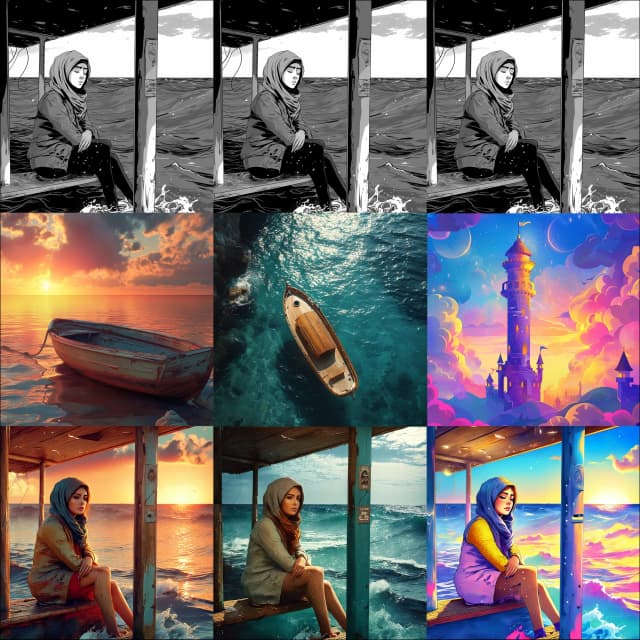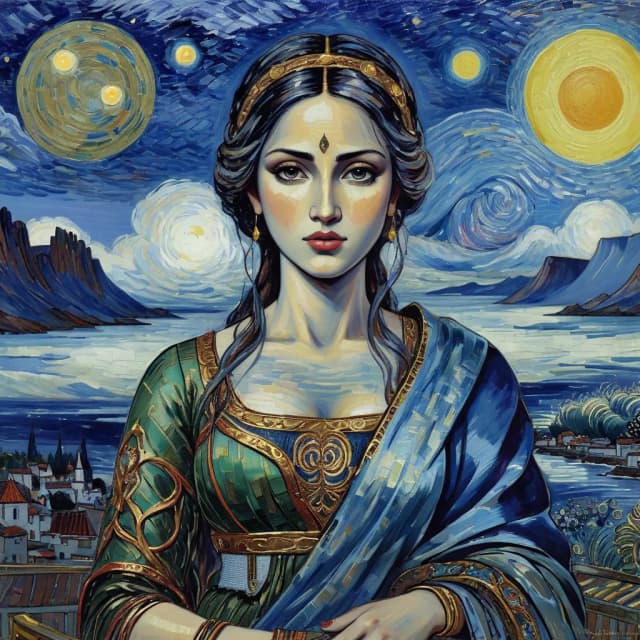

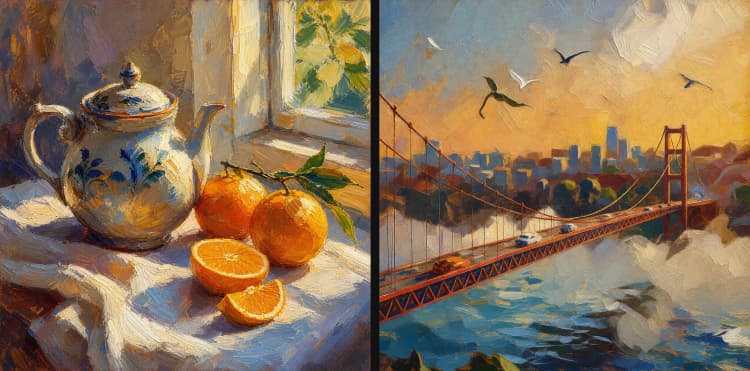
Krea 2 style transfer ComfyUI workflow: single-image style, brand-new scenes#
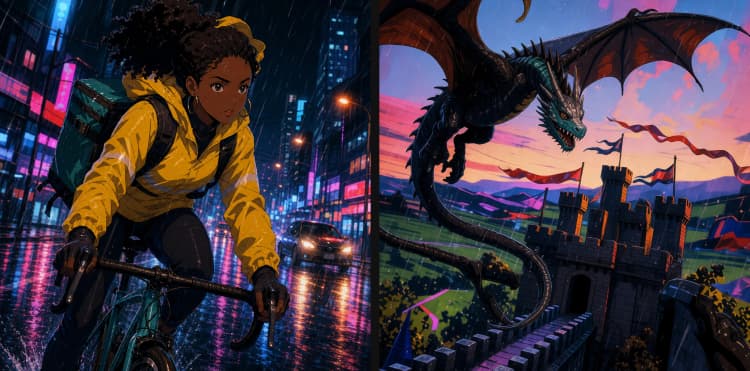
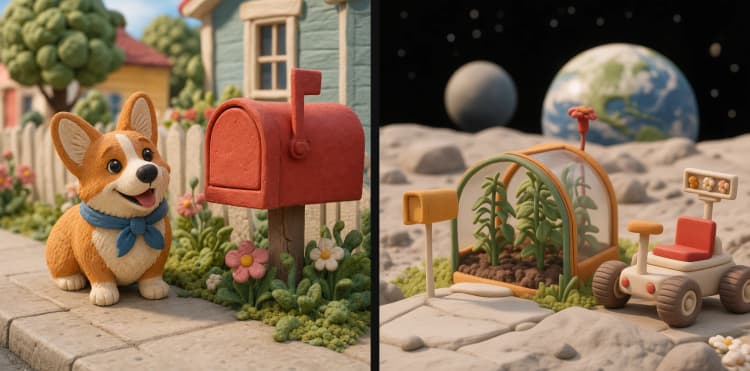
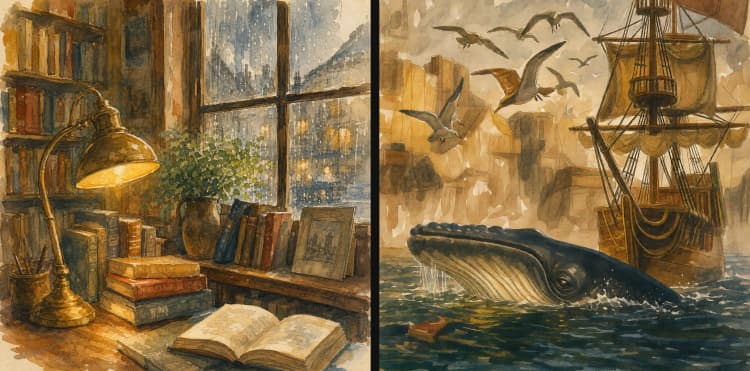
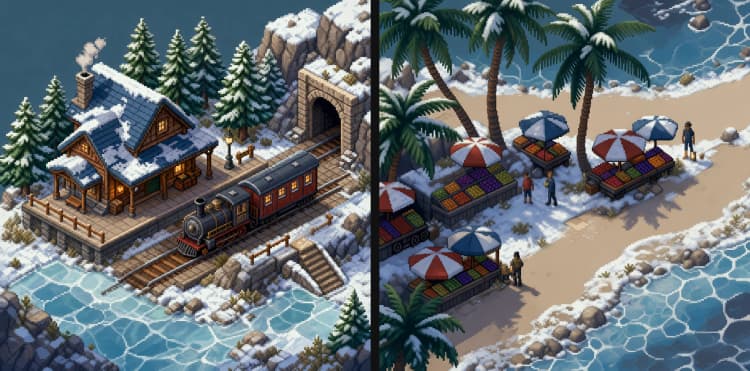
This Krea 2 style transfer ComfyUI workflow transfers the visual language of one reference image onto a completely new composition. It keeps your subject and framing fresh while carrying over texture, palette, and rendering cues from posters, anime cels, watercolor, clay, oil painting, or photographic looks. It is built for RunComfy and pairs Krea 2 Turbo with Qwen3-VL text encoding, Qwen Image VAE, and an Untwisting RoPE conditioning path for reliable one-shot style capture.
Creators get an efficient path to test many styles against the same prompt without copy-pasting scene layouts. The workflow’s RF inversion plus Untwisting RoPE stack focuses on style, not structure, so your generated images remain compositionally novel while feeling like they belong to the same aesthetic family.
Key models in ComfyUI Krea 2 style transfer workflow#
- Krea 2 Turbo. The diffusion backbone used to synthesize the target image. It offers fast, high-quality generation and provides the feature space that the style injection modifies. Model card
- Qwen3-VL 4B text encoder. Encodes your prompts into conditioning vectors suited for Krea 2, enabling faithful content guidance while leaving room for strong style transfer. Distributed with the Krea 2 Comfy pack. Weights repo
- Qwen Image VAE. Handles image-to-latent and latent-to-image conversions with fidelity, which is critical when extracting the reference style and when decoding the final result. Weights repo
How to use ComfyUI Krea 2 style transfer ComfyUI workflow#
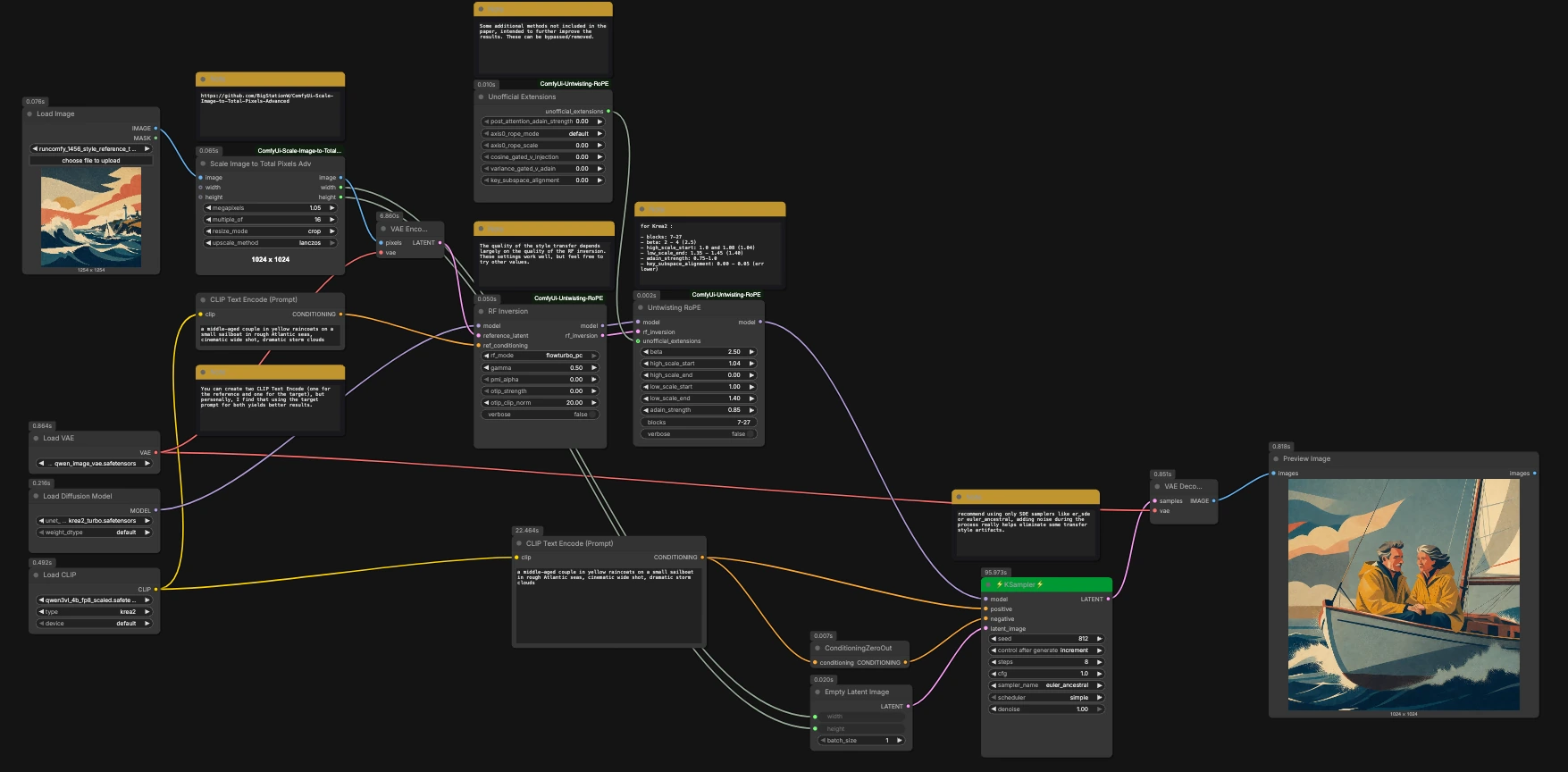
At a high level, you load a single style reference, scale it to the target resolution, encode it to latents, extract a style signal via RF inversion, attach that signal to Krea 2 with Untwisting RoPE, then sample from a fresh latent guided by your prompt. The sections below follow the dominant path from inputs to preview.
Load the style reference (LoadImage (#612))#
Load one image whose look you want to transfer. Choose a style-forward frame with clear materials, lighting, and color so the inversion has a strong signal to learn from. You can reuse the same reference while iterating prompts to test how the style adapts to different subjects.
Scale reference to target resolution (ImageScaleToTotalPixelsX (#265))#
The reference is resized using the Scale Image to Total Pixels Advanced node so the style statistics match the target canvas. This helps stabilize the RF inversion and avoids warping when the VAE encodes the reference. If your target is square or cinematic, scale accordingly so the aspect ratio you plan to generate at is reflected here.
Encode the reference to latents (VAEEncode (#333))#
The scaled reference is encoded by Qwen Image VAE into a latent representation. Keeping the VAE consistent across encode and decode maintains color and texture coherence. High-fidelity reconstruction here pays dividends in the quality of the downstream style transfer.
Encode your prompts (CLIPTextEncode (#607) and CLIPTextEncode (#259))#
Your target prompt is encoded with the Qwen3-VL text encoder. The same prompt can optionally be fed into the reference branch for the inversion step, which often improves alignment between the learned style and the scene you want to render. If you prefer, you can split prompts, but using the same target prompt for both is a solid default.
Extract the style signal (RFInversion (#603))#
RF inversion reads the reference latent and prompt conditioning to distill a compact style code and a lightly adapted base model. This emphasizes color, material, and stroke-like features while deemphasizing layout and object identity. It is the step that turns a single frame into a reusable style descriptor.
Attach style to the model (UntwistingRoPE (#623) with UnofficialExtensions (#632))#
Untwisting RoPE injects the style code into Krea 2 Turbo by modulating attention across a band of U-Net blocks. The method carefully rebalances rotary positional encoding so the transfer acts like a look overlay rather than a layout transplant. The optional extensions node exposes extra controls used by the same implementation. Reference: ComfyUi-Untwisting-RoPE.
Initialize a fresh canvas (EmptyLatentImage (#634))#
A blank latent is created to the width and height derived from your scaled reference. Starting from noise ensures new compositions that do not copy the reference layout. This preserves the spirit of style transfer while delivering an original scene.
Sample the image (KSampler (#635) with ConditioningZeroOut (#636))#
Sampling uses the style-attached model and your positive conditioning to draw a new image from noise. Negative conditioning is zeroed by default so the style can dominate without fights over low-level features. SDE-style or otherwise noise-adding samplers such as er_sde or euler_ancestral work well to reduce transfer artifacts through the trajectory.
Decode and preview (VAEDecode (#262) and PreviewImage (#617))#
The final latent is decoded by Qwen Image VAE back to RGB and displayed for review. Because the same VAE is used both ways, colors and textures remain faithful to the intended look. Save and iterate by changing the seed or prompt to explore the style across different subjects and framings.
Key nodes in ComfyUI Krea 2 style transfer ComfyUI workflow#
RFInversion (#603)#
Role: learns a compact representation of the reference image’s style and returns a lightly adapted model plus a style latent. Increase its influence if the style feels too subtle, or reduce it if the style overwhelms subject identity. Backed by the Untwisting RoPE implementation for ComfyUI, which documents the inversion presets and behaviors. Reference: ComfyUi-Untwisting-RoPE.
UntwistingRoPE (#623)#
Role: injects the learned style into Krea 2 across selected U-Net blocks while compensating for rotary positional effects so structure stays novel. Tune the block range to widen or narrow where the style applies, adjust the scale parameters to balance adherence versus freedom, and use the adaptive instance normalization control to lift or tame palette and material transfer. Small key subspace alignment values can steady fine detail if edges feel jittery. Reference: ComfyUi-Untwisting-RoPE.
ImageScaleToTotalPixelsX (#265)#
Role: scales the style reference to a target pixel budget and aspect ratio before encoding. Choose a resampling method like Lanczos for crisp edges, and supply dimensions that match your intended generation size. This alignment reduces aliasing in the VAE and improves the stability of the style code. Reference: ComfyUi-Scale-Image-to-Total-Pixels-Advanced.
KSampler (#635)#
Role: performs the diffusion trajectory using the style-attached model and your prompt conditioning. Samplers that add noise along the path tend to wash out residual layout hints and deliver cleaner style transfer; try er_sde or euler_ancestral. Moderate steps and a balanced guidance scale usually keep both style and content on track while preserving variety through the seed.
Optional extras#
- Start with a style-forward reference that shows clean lighting, strong materials, and minimal clutter.
- Use the same target prompt for both the inversion branch and the main branch to keep style and content in sync.
- Prefer SDE or noise-adding samplers such as
er_sdeoreuler_ancestralto reduce transfer artifacts. - Match the scaled reference aspect ratio to your target output, then explore other ratios once the style feels right.
- If the result copies the reference layout, lower the style influence or move style to a narrower block range in
UntwistingRoPE.
Resources used in this Krea 2 style transfer ComfyUI workflow:
- Krea 2 Turbo model card: Hugging Face
- Krea 2 Comfy weights pack, including Qwen3-VL text encoder and Qwen Image VAE: Hugging Face
- Untwisting RoPE ComfyUI extension: GitHub
- Scale Image to Total Pixels Advanced: GitHub
Acknowledgements#
This workflow implements and builds upon the following works and resources. We gratefully acknowledge krea for the Krea-2-Turbo model, Comfy-Org for the Krea-2 ComfyUI weights, BigStationW for the ComfyUI custom nodes Untwisting RoPE and Scale Image to Total Pixels Advanced, and the r/StableDiffusion community for the first release and workflow source. For authoritative details, please refer to the original documentation and repositories linked below.
Resources#
- Reddit/first release and workflow source
- Docs / Release Notes: r/StableDiffusion post
- krea/Krea-2-Turbo
- Hugging Face: krea/Krea-2-Turbo
- Comfy-Org/Krea-2
- Hugging Face: Comfy-Org/Krea-2
- BigStationW/ComfyUi-Untwisting-RoPE
- BigStationW/ComfyUi-Scale-Image-to-Total-Pixels-Advanced
Note: Use of the referenced models, datasets, and code is subject to the respective licenses and terms provided by their authors and maintainers.