

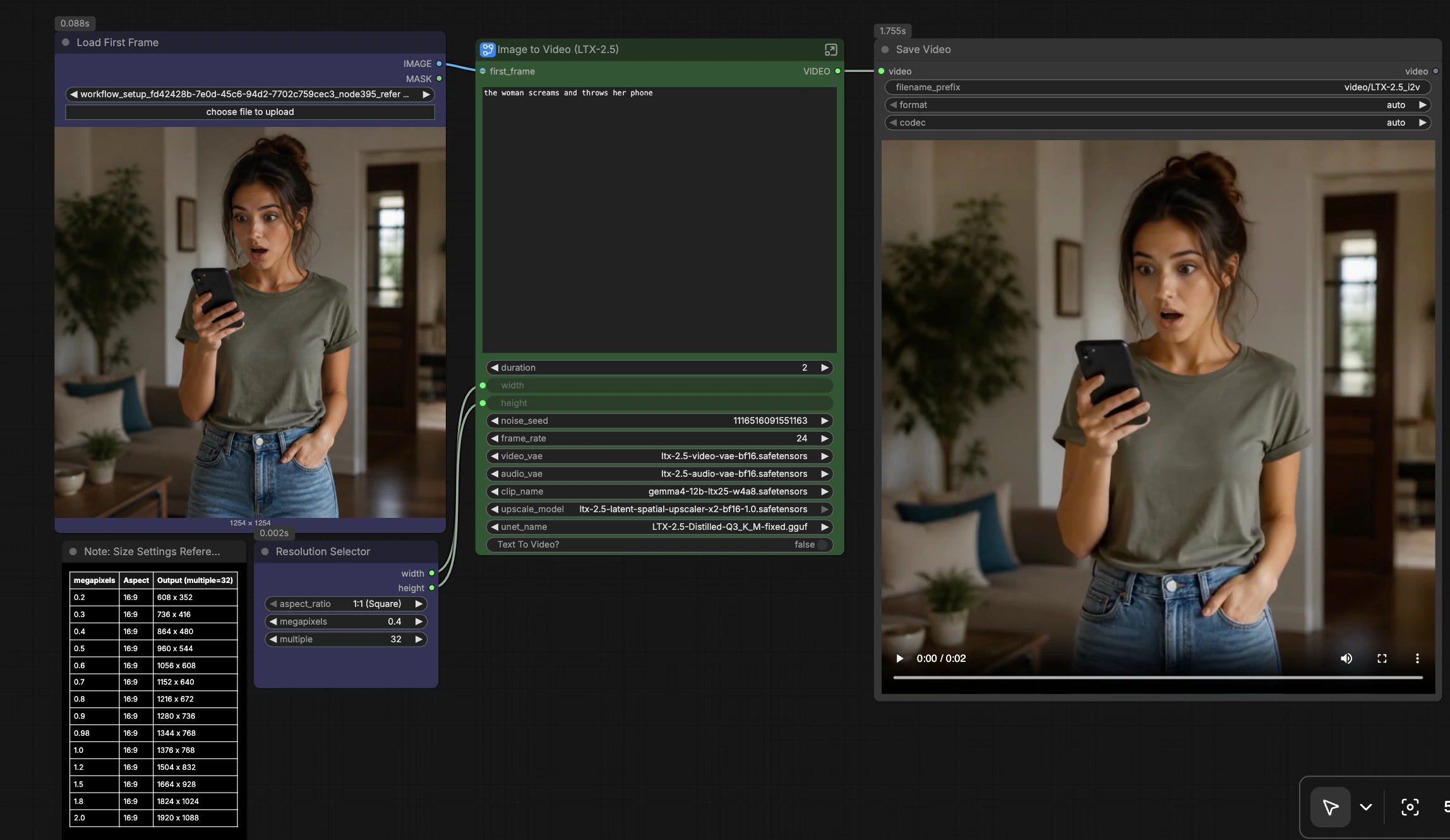
LTX 2.5 GGUF ComfyUI image‑to‑video with synchronized audio#
This LTX 2.5 GGUF ComfyUI workflow turns a single source image and a natural‑language prompt into a short video with a generated, synchronized audio track. It uses the official LTX‑2.5 model family for video and audio generation, routed through a GGUF‑quantized UNet path to reduce VRAM while keeping cinematic motion and scene coherence.
The graph is designed for quick iteration on character shots, machinery, and environment moves. It includes a switch for image‑to‑video or text‑to‑video, a two‑stage latent pipeline (coarse pass then latent upscaling), and tiled decoding to keep memory pressure low. If you need a compact, production‑ready path, this LTX 2.5 GGUF ComfyUI workflow is a practical starting point.
Key models in ComfyUI LTX 2.5 GGUF ComfyUI workflow#
- LTX‑2.5 (official, by Lightricks). Core video and audio generative model used for motion synthesis and multimodal guidance. Model card
- LTX‑2.5 Video VAE (bf16). Encodes and decodes video latents for efficient generation, paired with the main model. Included in the LTX‑2.5 repository under vae/. Video VAE
- LTX‑2.5 Audio VAE (bf16). Handles the audio latent pathway so the final render includes synchronized sound. Included in the LTX‑2.5 repository under vae/. Audio VAE
- Gemma‑based 12B text encoder with LTX‑2.5 projection. Provides prompt embeddings matched to LTX‑2.5, packaged by the LTX repository under text_encoders/. Text encoder
- LTX‑2.5 Latent Spatial Upscaler x2 1.0. A latent‑space super‑resolution model that adds detail after the coarse pass. Upscaler
- LTX‑2.5 Distilled UNet (GGUF quantized). Quantized UNet weights loaded via the ComfyUI‑GGUF loader to cut memory use while keeping quality acceptable. GGUF is the inference format, not an official model name. ComfyUI‑GGUF
How to use ComfyUI LTX 2.5 GGUF ComfyUI workflow#
The pipeline runs in two stages: a guided low‑resolution pass to establish motion and timing, followed by latent upscaling and a high‑resolution refinement. Audio is carried as a paired latent throughout, then decoded and muxed with the final frames.
Model#
Load the GGUF‑quantized UNet with UnetLoaderGGUF (#406). Video and audio VAEs are selected with VAELoader (#385, #386), and the Gemma‑based text encoder is provided by CLIPLoader (#387). The upscaler is chosen with LatentUpscaleModelLoader (#371). This group defines the backbone that all other groups rely on.
Prompt#
Write your scene description in the Prompt field, focusing on subjects, motion, and a single clear camera move. The text encoder embeds positive and negative prompts through LTXVConditioning (#365), which also accepts the chosen frame rate to align timing. If you want speech‑like audio, include short quoted lines; the audio path will respond to the textual context while staying scene‑aware. Keep prompts concise and specific to avoid conflicting guidance.
Video Settings#
Set duration, frame rate, and target size. Utilities convert seconds and fps into frame counts so the graph allocates the correct temporal length. Stick to sizes that are multiples of 32 for stability and speed. Use the resolution selector to choose a common aspect ratio, then adjust to your desired scale.
Image Preprocessing#
Load the first (reference) frame and let LTXVPreprocess (#350) normalize it for LTX‑2.5. The switch Switch to Text to Video? (#363) controls whether the image is used as a spatial anchor or bypassed for pure text‑to‑video. The resize helper keeps your input consistent with the working resolution. Good preprocessing improves identity preservation and layout.
Empty Latent#
EmptyLTXVLatentVideo (#356) and LTXVEmptyLatentAudio (#366) preallocate the temporal canvas for video and audio. These lengths come from your duration and fps choices. This separation ensures the video and audio paths stay synchronized as they move through sampling and refinement.
Generate Low Resolution#
The first sampler block uses LTXVDualCFGGuider (#388) with your prompt conditioning to drive motion and scene dynamics, then synthesizes a coarse latent with SamplerCustomAdvanced (#344). If you are doing image‑to‑video, LTXVImgToVideoInplace (#357) injects the reference frame into the latent to stabilize identity and composition; it is bypassed for text‑to‑video. This pass is purposefully lighter to establish movement and timing before upscaling.
Latent Upscale#
LTXVSeparateAVLatent (#367) splits audio and video so the video latent can be enhanced by LTXVLatentUpsampler (#348) with the x2 model. The preprocessed image is optionally re‑applied with LTXVImgToVideoInplace (#349) to keep details consistent after the upscale. The audio latent is then re‑attached via LTXVConcatAVLatent (#340), preserving sync.
Generate High Resolution#
A second sampler block (LTXVDualCFGGuider (#391) plus SamplerCustomAdvanced (#368)) refines detail and temporal consistency at the higher scale. LTXVSeparateAVLatent (#369) passes audio to LTXVAudioVAEDecode (#358) while the video latent is decoded with VAEDecodeTiled (#374) to reduce VRAM peaks. CreateVideo (#370) assembles frames and audio into the final MP4 at your target fps.
Key nodes in ComfyUI LTX 2.5 GGUF ComfyUI workflow#
UnetLoaderGGUF (#406)#
Loads the LTX‑2.5 distilled UNet in GGUF format. Choose the quantized file that matches your VRAM budget; lighter quantization lowers memory and speeds up inference at some quality cost. If you upgrade to a less‑quantized file, expect sharper textures and more stable fine motion.
LTXVImgToVideoInplace (#357 and #349)#
Injects the first frame into the latent so motion evolves from your image rather than drifting away. Toggle the bypass input when switching between image‑to‑video and text‑to‑video. Use the low‑res node (#357) for initial stabilization and the high‑res node (#349) to re‑anchor details after upscaling.
LTXVLatentUpsampler (#348)#
Applies the LTX‑2.5 Latent Spatial Upscaler to add detail without decoding to pixels. Use it when you want more definition at nearly the same memory cost as the coarse pass. If you see flicker after upscaling, slightly strengthen guidance in the following refinement stage.
ManualSigmas (#397 and #396)#
Controls the denoise schedule used by the samplers. Shorter schedules are faster but can reduce adherence or temporal smoothness; longer or front‑loaded schedules add stability at extra cost. Pair this with the sampler choice to balance speed and quality for your scene.
VAEDecodeTiled (#374)#
Decodes the high‑res video latent to frames using tiles to cap VRAM usage. If you run out of memory, reduce tile size or enable stronger tiling; if you see seams, increase overlap or try a larger tile. Keep your VAE selection aligned with the official LTX‑2.5 video VAE.
CreateVideo (#370)#
Muxes the image sequence and decoded audio into a final video file. Set fps to match your generation frame rate to avoid time stretch. Use this as the single render point for consistent outputs across iterations.
Optional extras#
- For image‑to‑video, describe only one clear camera move and the subject’s action; avoid multiple competing moves.
- For text‑to‑video, keep prompts concise and add short quoted lines for speech‑like audio when appropriate.
- Resolution tips: stick to multiples of 32; common 16:9 sizes include 960x544 (fast) and 1344x768 or 1504x832 (sharper). Increase only if you have VRAM headroom.
- If results ignore the prompt, increase guidance in the sampler block or simplify the prompt language.
- For reproducibility across runs, set a fixed seed in the noise node; random seeds are best for exploration.
- If VRAM is tight, prefer the GGUF Q‑level you can afford and keep the upscaler enabled; it adds detail for minimal memory cost.
Links for reference: the official LTX‑2.5 models and assets live on Hugging Face, and the GGUF UNet loader comes from ComfyUI‑GGUF.
- LTX‑2.5 models and assets: Lightricks/LTX‑2.5
- GGUF loader: city96/ComfyUI‑GGUF
Acknowledgements#
This workflow implements and builds upon the following works and resources. We gratefully acknowledge Lightricks for LTX-2.5 and city96 for ComfyUI-GGUF for their contributions and maintenance. For authoritative details, please refer to the original documentation and repositories linked below.
Resources#
- Lightricks/LTX-2.5
- Hugging Face: Lightricks/LTX-2.5
- city96/ComfyUI-GGUF
- GitHub: city96/ComfyUI-GGUF
Note: Use of the referenced models, datasets, and code is subject to the respective licenses and terms provided by their authors and maintainers.