


Qwen Image 2.1 Multi-image Editing for reference‑guided composition in ComfyUI#
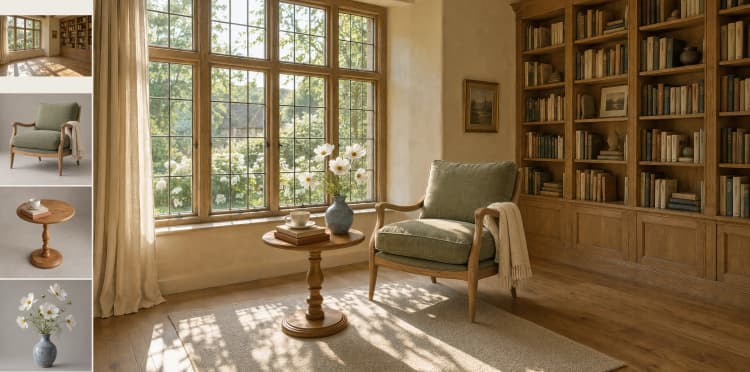
This workflow assembles multiple reference images into one coherent scene using English editing instructions. It blends subjects, objects, and environments while preserving recognizable design features, materials, and lighting. A reference‑aware prompt enhancement stage expands your directions before generation so Qwen Image 2.1 can place each element accurately and keep identities intact.
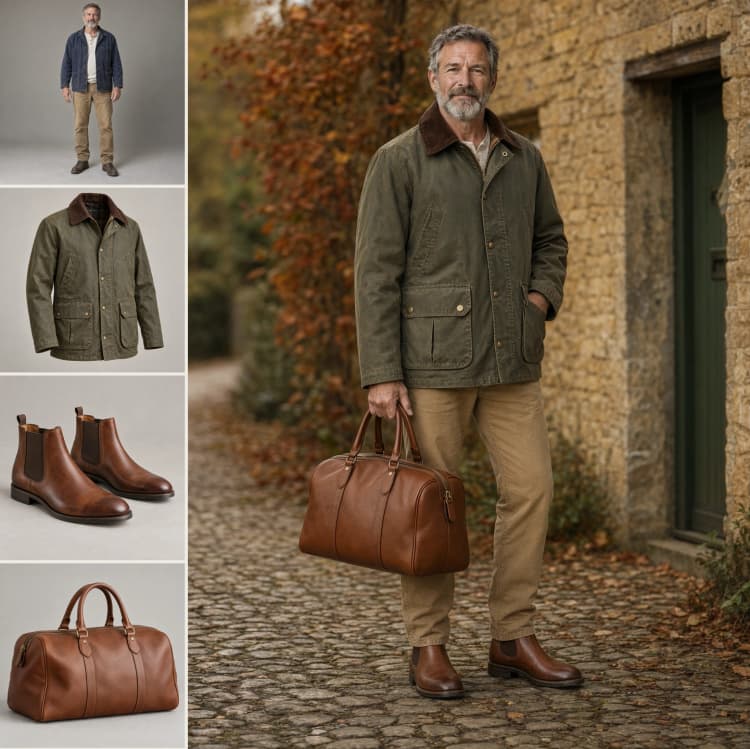
Qwen Image 2.1 Multi-image Editing is ideal for interior styling, coordinated outfit visualization, and group portraits created from separate photos. You describe how each reference should appear and interact, the workflow rewrites your instruction into an explicit edit prompt, and the model produces a single photorealistic or stylized image that feels naturally composed.
Key models in Comfyui Qwen Image 2.1 Multi-image Editing workflow#
- Qwen-Image-2.1. The core text-and-image conditioned diffusion model used for generation. It enables reference-aware editing and robust placement of multiple visual inputs. See the model card and project overview for capabilities and variants: Hugging Face, GitHub.
- Qwen-Image-2.1-PE-I2I. An instruction-tuned component used here for reference-aware prompt enhancement. It rewrites your English directions into a concise, generation-ready edit prompt grounded in the provided images: Hugging Face.
- Qwen-Image-2.1 VAE. The variational autoencoder that decodes latents back to RGB while maintaining color fidelity and fine detail: packaged with the Qwen-Image-2.1 release on Hugging Face.
How to use Comfyui Qwen Image 2.1 Multi-image Editing workflow#
The workflow runs in three stages: you provide references and a plain-English instruction, the prompt is rewritten with image grounding, and the generator composes a final image from the enhanced prompt plus your references.
User Input#
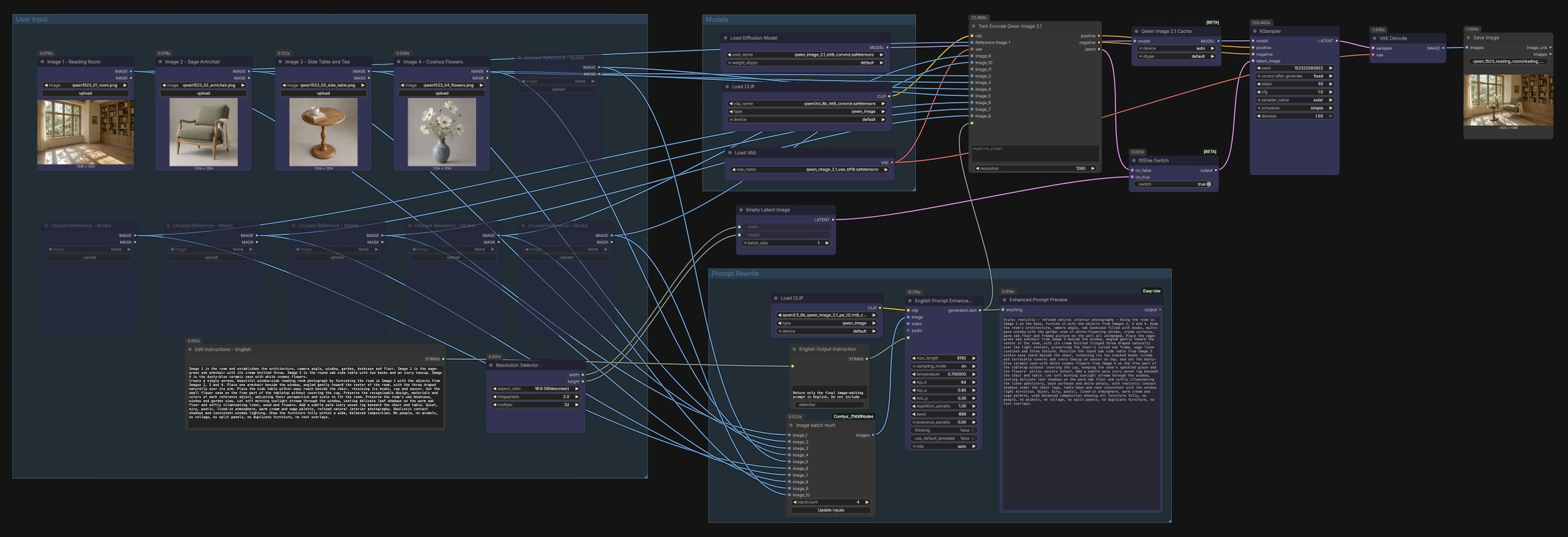
Use the four LoadImage nodes for your base scene and reference elements: Image 1 - Reading Room (#470), Image 2 - Sage Armchair (#510), Image 3 - Side Table and Tea (#503), and Image 4 - Cosmos Flowers (#511). Additional LoadImage nodes labeled “Unused Reference” are available if you need more sources; connect them when you want the references to influence the result. Write your instruction in Edit Instructions - English (#516), clearly stating each image’s role, the traits to preserve, where to place objects, and what to avoid. Set your output aspect and size in ResolutionSelector (#13), then the workflow will create an EmptyLatentImage (#480) at that resolution for generation unless you choose the alternative path described below.
Prompt Rewrite#
All selected images are collated by ZNGB_ImageBatchMulti (#531) and passed to English Prompt Enhancement via TextGenerateLTX2Prompt (#502). A short helper line is appended in English Output Instruction (#517) to return only the final prompt. The enhancement step uses a Qwen Image 2.1 PE model to expand roles, placement, lighting, and consistency rules into a single, explicit edit instruction. You can preview this refined text in Enhanced Prompt Preview (#501) before generation proceeds automatically.
Models#
The Models group loads the generation components: UNETLoader (#477) for Qwen-Image-2.1, CLIPLoader (#533) for its text-vision encoders, and VAELoader (#479) for decoding. TextEncodeQwenImage21 (#519) then merges the enhanced prompt, your optional negative prompt, and up to ten reference images into conditioning suitable for multi-image editing. It also produces an optional reference latent that can guide structure more tightly when desired.
Sampling and output#
QwenImage21Cache (#484) shares the model with KSampler (#482) for efficient iterative sampling. By default, ComfySwitchNode (#483) routes a blank latent from EmptyLatentImage (#480) for free composition; switch it to use the TextEncodeQwenImage21 latent when you want stronger adherence to reference geometry or layout. Tune KSampler to balance prompt adherence and variation, then VAEDecode (#481) and SaveImage (#534) produce your final image with the chosen filename prefix.
Key nodes in Comfyui Qwen Image 2.1 Multi-image Editing workflow#
TextGenerateLTX2Prompt (#502)#
This node performs the reference-aware prompt enhancement using a Qwen Image 2.1 PE model. Provide your instruction and the assembled image batch to obtain a single, explicit edit prompt grounded in the references. Increase the allowed length when you need to preserve many object attributes, and adjust sampling options to favor either creative paraphrasing or strictly literal rewrites. The preview node shows exactly what the generator will follow.
TextEncodeQwenImage21 (#519)#
Encodes the enhanced prompt and up to ten reference images into conditioning for Qwen-Image-2.1. Use the negative_prompt to forbid unwanted duplicates, collage effects, or extra people. The resolution input sets the working scale for feature extraction; match it to your output for stable detail retention. This node can also emit an initial latent that locks composition more tightly when selected via the switch.
ComfySwitchNode (#483)#
Toggles the initiation strategy for KSampler. Keep the default blank latent for freer composition that still respects reference identity through conditioning. Switch to the reference latent from TextEncodeQwenImage21 when you want stronger structural guidance; combine this with lower denoising to emphasize the references.
KSampler (#482)#
Drives the denoising process of Qwen-Image-2.1. Use seed to reproduce a specific arrangement or to explore variations. Adjust cfg for how firmly the model follows the enhanced prompt and steps for the quality-speed tradeoff. The sampler_name and scheduler choices can subtly change texture and sharpness; pick a consistent pair when iterating on a look.
ResolutionSelector (#13)#
Provides fast control over output width and height. Choose an aspect ratio that comfortably frames all referenced elements. Larger resolutions reveal more texture from the references but require more compute, so increase gradually as your composition settles.
Optional extras#
- When writing instructions, enumerate each image’s role and the exact features to preserve: material, color, pattern, silhouette, and scale.
- Keep camera angle, time of day, and lighting direction consistent across references for more natural composites.
- For interiors, choose one base room as the environment and treat furniture or decor as objects to place; for outfits, use one mannequin or model as the base and supply garments as object references.
- If you see duplicates or collage artifacts, strengthen the
negative_promptwith terms like “no duplicates, no collage” and be explicit about object counts. - Use the latent switch for two modes: blank-latent for exploratory layout, reference-latent for precise placement.
- Lock a promising look with a fixed
seed, then create variations by changing only the instruction or swapping one reference at a time. - Organize results by scene using the
SaveImagefilename prefix so iterations remain easy to compare.
For background on the model family and weights used in this Qwen Image 2.1 Multi-image Editing workflow, see the official resources: Qwen-Image-2.1 on Hugging Face, Qwen-Image-2.1-PE-I2I, and the project repository on GitHub.
Acknowledgements#
This workflow implements and builds upon the following works and resources. We gratefully acknowledge RunningHub for the workflow source, QwenLM (Qwen) for Qwen-Image-2.1, and Qwen for the Qwen-Image-2.1-PE-I2I reference-aware prompt enhancement for their contributions and maintenance. For authoritative details, please refer to the original documentation and repositories linked below.
Resources#
- RunningHub/Workflow source
- Docs / Release Notes: Workflow source
- Qwen/Qwen-Image-2.1
- Hugging Face: Qwen/Qwen-Image-2.1
- GitHub: QwenLM/Qwen-Image-2.1
- QwenLM/Qwen-Image-2.1
- GitHub: QwenLM/Qwen-Image-2.1
- Hugging Face: Qwen/Qwen-Image-2.1
- Qwen/Qwen-Image-2.1-PE-I2I
- Hugging Face: Qwen/Qwen-Image-2.1-PE-I2I
Note: Use of the referenced models, datasets, and code is subject to the respective licenses and terms provided by their authors and maintainers.