

Edit an image with a visual reference#
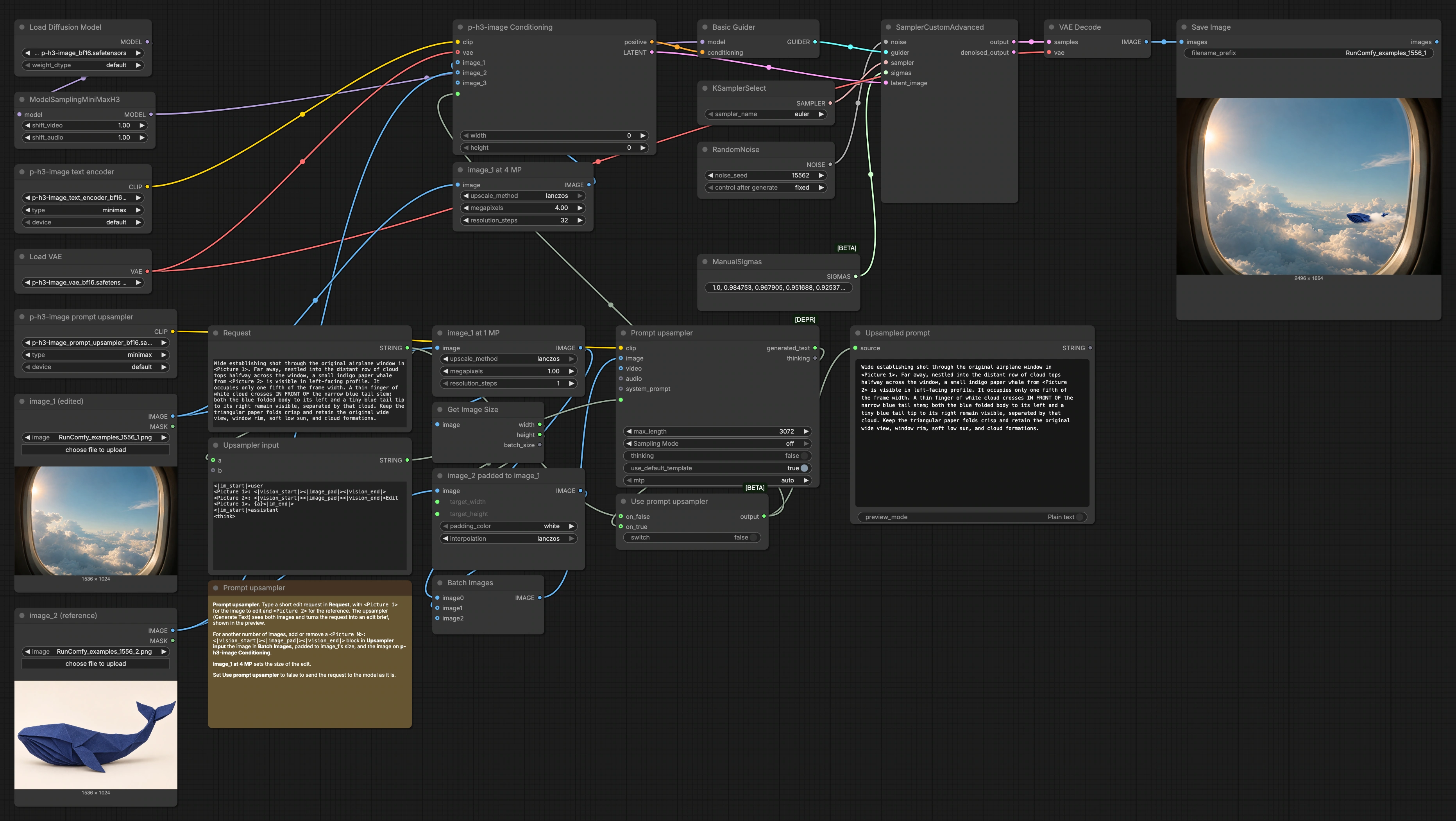
Load the scene you want to edit as Picture 1 and the visual reference as Picture 2. Describe what to take from the reference, where to place it in the scene, and which details to preserve.
The default example places an indigo origami whale among distant clouds outside an airplane window. To reproduce the saved 2496 × 1664 image, leave the two inputs in place, keep Use prompt upsampler off, and use seed 15562. The graph uses eight Euler sampling steps and a 4 MP target for Picture 1.
Examples#
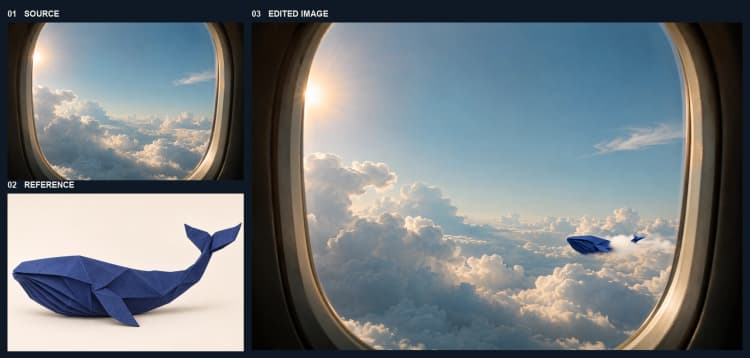
- Place a subject in a scene. A foreground cloud crosses the whale’s narrow tail, leaving the folded body and tail tip visible on opposite sides.
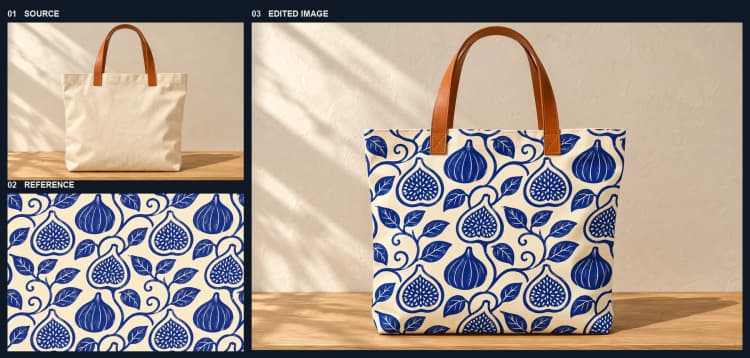
- Transfer a repeating print. Blue fig and leaf motifs cover the front of an ivory canvas tote while its leather handles remain visible.
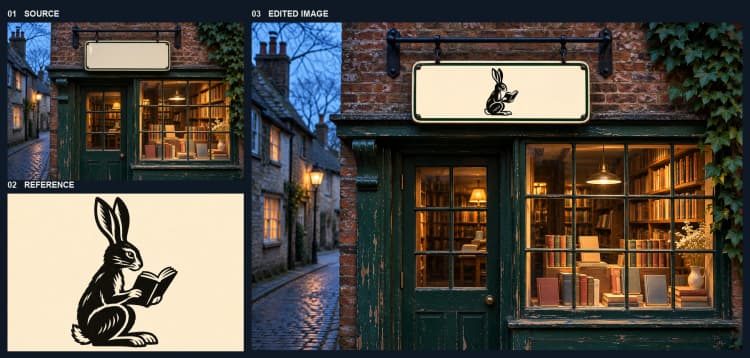
- Apply an emblem. A woodcut of a hare reading a book sits inside a bookshop sign’s green border. The bracket, brickwork and lit windows remain in the scene.
Models#
- P-H3-Image (bf16) diffusion model. Core denoising network that executes the edit in latent space while respecting image and text conditioning. Model card and files.
- P-H3-Image VAE (bf16). Encodes the edited image into latents and decodes the final output back to pixels with consistent color and detail. VAE file.
- P-H3-Image text encoder (bf16). Converts the plain or upsampled instruction into embeddings that steer the edit. Text encoder.
- P-H3-Image prompt upsampler (bf16). A vision-language component that reads both images plus your short request and expands it into a detailed edit brief for stronger guidance. Prompt upsampler.
How to use the workflow#
The graph flows from inputs to conditioning, then sampling and decoding. Stages below map to key UI labels so you can follow the dominant path and operate the P-H3-Image ComfyUI Image Edit confidently.
- Load your images
- Load the source image in
image_1 (edited)(#4) and the visual reference inimage_2 (reference)(#5). The source keeps the scene’s composition while the reference lends subject or style. Set the overall output size withimage_1 at 4 MP(#31); this controls how large the edit will be rendered. For the upsampler, the workflow also prepares a scaled copy of the source at 1 MP and pads the reference to match usingimage_2 padded to image_1(#21) so both previews align spatially.
- Load the source image in
- Write the edit request
- Type a short instruction in
Request(#17), mentioning what to insert, preserve, or style. The default illustrates precise placement and occlusion: a distant indigo origami whale, a thin cloud passing in front of its tail, and the airplane window staying in view. The template inUpsampler input(#18) formats your request with<Picture 1>and<Picture 2>so the prompt upsampler can see both images. You can keep this simple text-only request if you prefer to bypass upsampling.
- Type a short instruction in
- Generate a refined instruction (optional)
Prompt upsampler(#23) reads the two prepared images and your request, then produces a longer, image-aware instruction. ToggleUse prompt upsampler(#24) to choose between the upsampled brief and your original request. The resulting text is previewed inUpsampled prompt(#16) so you can verify that the P-H3-Image ComfyUI Image Edit will honor your intent.
- Condition the edit
p-h3-image text encoder(#28) embeds the final instruction, andPH3ImageConditioning(#30) fuses it with the full-resolution source and the reference. This node also creates a latent that anchors the edit to the source image size set earlier. The result is strong, spatially aligned conditioning that preserves framing while inserting or adapting content from the reference. This is the core of the P-H3-Image ComfyUI Image Edit behavior.
- Sample and iterate
BasicGuider(#8) passes conditioning to the sampler stack whereKSamplerSelect(#9),ManualSigmas(#7), andRandomNoise(#10) define how the trajectory explores the latent space.SamplerCustomAdvanced(#11) then performs the actual denoising steps to realize your edit. Change the noise seed inRandomNoisefor new variations without rewriting the prompt. If you need a different look, try another sampler inKSamplerSelectwhile keeping the rest of the P-H3-Image ComfyUI Image Edit setup intact.
- Decode and save
VAEDecode(#12) converts the final latent back to an image using the P-H3-Image VAE, preserving texture and color.SaveImage(#13) writes the output with your chosen filename prefix so you can keep multiple runs organized. Review the result and iterate by adjusting the request, the upsampler toggle, or the seed to fine-tune placement and strength.
Key nodes#
PH3ImageConditioning (#30)#
This node combines the source image, the reference image, and the instruction to produce the positive conditioning and an aligned latent. It ensures the edit respects the source composition while borrowing content or style from the reference. Use the switch on node #24 to select the instruction that feeds this node.
TextGenerate Prompt upsampler (#23)#
This component reads both images and expands a short request into a richer, image-aware brief. It is especially helpful for complex spatial relations like “keep the airplane window” or “place the whale far away behind the cloud band.” Use Use prompt upsampler (#24) to quickly A/B test with and without upsampling to see which yields the best P-H3-Image ComfyUI Image Edit.
ImageScaleToTotalPixels “image_1 at 4 MP” (#31)#
Controls the working resolution of the edit while keeping aspect ratio. Higher settings emphasize fine detail and stable edges; lower settings preview faster. This is the primary lever for balancing quality and speed without changing your instruction or the rest of the P-H3-Image ComfyUI Image Edit graph.
SamplerCustomAdvanced (#11)#
Executes the denoising process using the selected sampler, sigma schedule, and guider. It is the place where variations from seed, sampler choice, or schedule translate into different looks. Keep the conditioning steady while you explore sampler options to understand how they influence the edit’s crispness and adherence.
MiniMaxH3SigmaShift (#27)#
Adapts the loaded P-H3-Image diffusion model for stable sampling with the chosen schedule. Leave it in the path for best results with this family of models. It helps the sampler track a noise schedule suited to P-H3-Image so edits remain consistent across seeds.
Optional extras#
- To preserve composition, include explicit cues such as “retain the original window rim, soft low sun, and cloud formations” in your request.
- To control size and distance, phrase constraints like “occupies one fifth of the frame width” or “nestled into the distant row of cloud tops.”
- For faster iteration, lower the megapixel setting in
image_1 at 4 MP, test ideas, then raise it for the final render. - For diversity without rewording, change the seed in
RandomNoiseor try another sampler inKSamplerSelect. - Keep files organized by setting a clear
filename_prefixinSaveImagewhen running multiple P-H3-Image ComfyUI Image Edit variations.
Acknowledgements#
This workflow implements and builds upon the following works and resources. We gratefully acknowledge PrunaAI for P-H3-Image-Comfy and the p-h3-image_edit.json ComfyUI workflow for their contributions and maintenance. For authoritative details, please refer to the original documentation and repositories linked below.
Resources#
- PrunaAI/P-H3-Image-Comfy
- Hugging Face: PrunaAI/P-H3-Image-Comfy
- PrunaAI/P-H3-Image-Comfy — workflows/p-h3-image_edit.json
- Hugging Face: workflows/p-h3-image_edit.json (commit 44a0fb7)
Note: Use of the referenced models, datasets, and code is subject to the respective licenses and terms provided by their authors and maintainers.