

Qwen Image 2.1 Edit ComfyUI Workflow: precise, reference‑guided image editing from text#
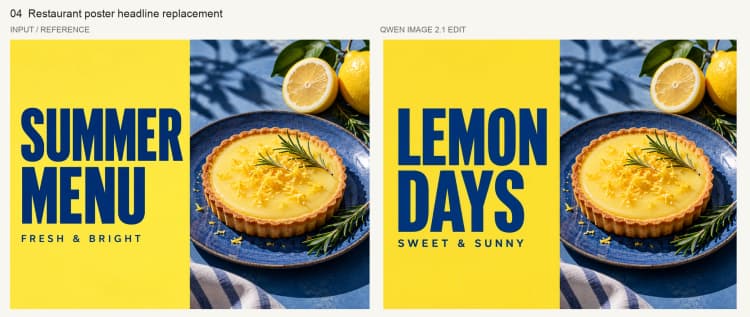
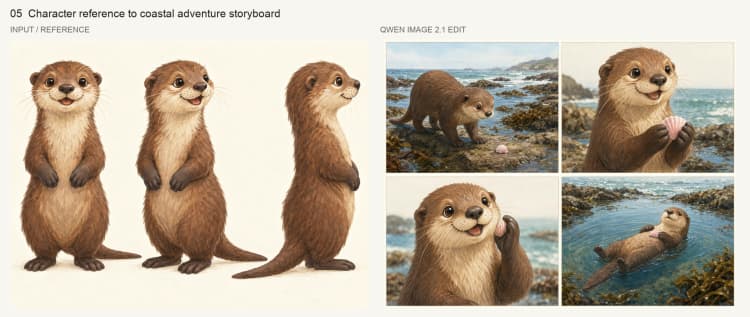
This Qwen Image 2.1 Edit ComfyUI Workflow turns plain-language instructions and one or more visual references into faithful image edits. It is designed for product placement, lighting and weather changes, style conversion, in-image text replacement, and character storyboards. The workflow keeps the original scene composition while applying the requested changes, so your framing, perspective, and background remain intact.
Built around the unified Qwen-Image-2.1 model, the pipeline accepts a base image as the canvas plus optional reference images you can call out in your prompt. Typical examples include adding a product to a room, converting a sunny shot to rain, replacing a label with new text, or carrying a character consistently across panels. Results are exported as ready-to-share images.
Key models in Comfyui Qwen Image 2.1 Edit ComfyUI Workflow#
- Qwen-Image-2.1 diffusion model (UNet). The core image editor that synthesizes changes consistent with your instructions and references. This workflow uses the UNet weights packaged for ComfyUI, available in the official weight repository Comfy-Org/Qwen-Image-2.1.
- Qwen3-VL 8B text-image encoder. Encodes the instruction prompt and the linked reference images into conditioning signals that drive the edit. The encoder weights ship with the same repository under text_encoders in Comfy-Org/Qwen-Image-2.1.
- Qwen-Image-2.1 VAE. Compresses and decodes images to and from the latent space used by the diffusion model, ensuring high-fidelity reconstructions and stable edits. VAE weights are included in Comfy-Org/Qwen-Image-2.1.
How to use Comfyui Qwen Image 2.1 Edit ComfyUI Workflow#
The overall logic is simple: load models, set the canvas size, encode your text and references, sample the edit, and save the result. The groups below mirror the graph organization and show how the pieces fit together.
Models group#
This group loads the UNet, multimodal encoder, and VAE that power the Qwen Image 2.1 Edit ComfyUI Workflow. The UNet provides the editing capability, the encoder turns your prompt and reference images into guidance, and the VAE moves between pixels and latents. These loaders are prefilled to the recommended Qwen-Image-2.1 weights so you can run out of the box. Advanced users can swap weights of the same family for speed or precision. Caching is applied so repeated runs with the same model avoid reload overhead.
Image Size group#
This group determines the latent canvas the edit will target. By default, the canvas follows the aspect ratio of your base image to help preserve composition and camera geometry. If you enable a custom canvas, the workflow switches to a user-specified width and height for tasks like square thumbnails or vertical storyboards. For the most faithful edits, set a custom size that is close to the resized base image used by the model. Large deviations can pull the edit away from the original framing.
Conditioning group#
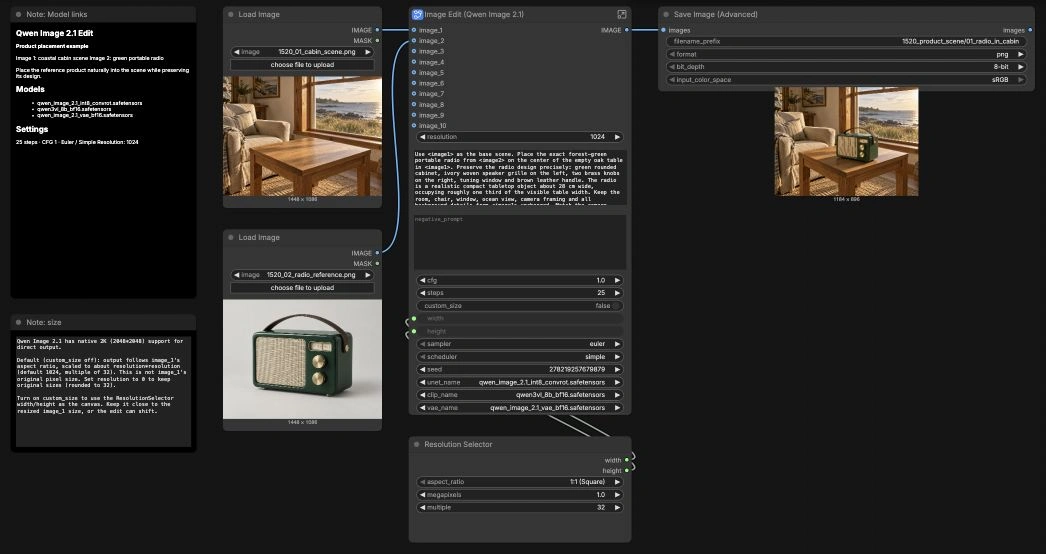
Here the workflow fuses text instructions with visual context. Connect your base scene to image_1 and any references to the additional image slots, then refer to them in your prompt with tokens like <image1>, <image2>, and so on. The encoder builds positive and negative conditioning plus an initial latent informed by the base image, which anchors the edit to your composition. Clear, specific prompts work best: describe what to change, what to keep, and how to match perspective, lighting, or material. You can include constraints like “no extra objects” or “no text” to suppress unwanted artifacts.
Sampling group#
This group generates the actual edit from the conditioning. The sampler interprets steps, guidance strength, and sampler or scheduler selections to balance faithfulness and creativity. Low guidance values bias toward preserving the input while higher values push stronger changes; moderate step counts are often enough for clean results. After sampling, the VAE decodes the latent to an image and the output is saved. If you need strict reproducibility, keep a fixed seed; if you want variety, randomize it.
Key nodes in Comfyui Qwen Image 2.1 Edit ComfyUI Workflow#
Image Edit (Qwen Image 2.1) (#459) This is the front panel that ties the workflow together. It exposes the instruction fields, sampler controls, custom size toggle, and image inputs for the base scene and references. Use <image1>, <image2>, etc. inside your prompt to explicitly bind instructions to the connected images. Keep the negative prompt focused on things you do not want (for example, “logos, watermarks, extra objects”). The structure mirrors the official editing template for Qwen-Image-2.1, so most tasks work without graph changes reference.
TextEncodeQwenImage21 (#474) Encodes text and images with the Qwen3-VL 8B encoder and prepares both conditioning and an initial latent guided by the base image. This is where the workflow learns which elements to preserve and which to modify. Keep references visually close to your target result in terms of perspective, material, and lighting. When giving multiple references, call out their roles in the prompt to avoid ambiguity. The node uses the official Qwen-Image-2.1 encoders bundled in Comfy-Org/Qwen-Image-2.1.
ResolutionSelector (#13) Provides convenient presets plus manual width and height for custom canvases. Use it when the project demands a specific aspect ratio or pixel size, like marketplace squares or tall storyboard frames. For maximal fidelity to the base image, keep the custom size close to the model’s internal resize of the base. Qwen-Image-2.1 also supports direct 2K outputs; use this when you need higher detail without post-upsampling, as described in the Comfy-Org weights page reference.
ComfySwitchNode (#468) Controls whether the sampler receives a latent derived from your base image or from an empty canvas sized by the selector. Turn it on for strict custom dimensions or off to automatically follow the base image geometry. If you choose a custom canvas, avoid extreme departures from the base image’s resized dimensions or the edit may drift. This simple switch is the key to moving between composition-preserving edits and deliberate reframing.
KSampler (#458) Runs the diffusion process that produces the edit. Adjust steps for detail and stability and cfg for how strongly the prompt steers the result; lower guidance tends to better preserve the input, while higher guidance enforces bigger changes. sampler_name and scheduler influence texture and convergence; the provided combinations are practical defaults for Qwen-Image-2.1. Fix seed to reproduce a result or randomize it for new variations. When a change is almost correct but not perfect, try small step or guidance nudges before rewriting the prompt.
SaveImageAdvanced (#461) Handles filename prefix, format, and color space so outputs are organized and ready for sharing. Use clear, semantic prefixes per task or shot to keep multi-run experiments tidy. When iterating, consider embedding key run info in the prefix, like the scene or subject, for quick filtering later. PNG is a safe archival choice; switch to JPEG only if file size is critical.
Optional extras#
- Prompt pattern for product placement: “Use <image1> as the base scene. Place the [object] from <image2> on [surface]. Match [lighting] and [perspective]. Add a soft contact shadow. No extra objects, no text.”
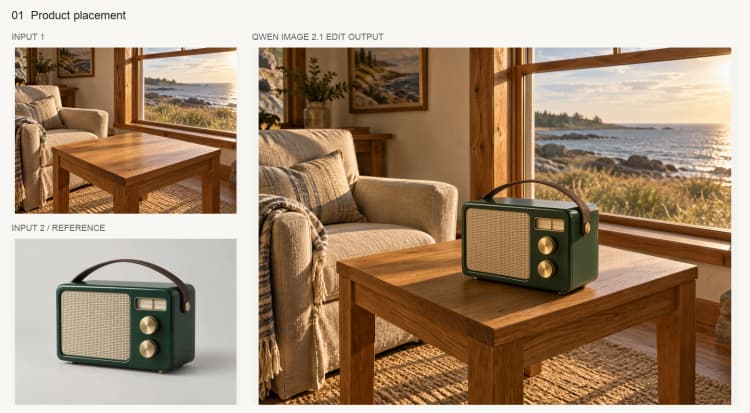
- For lighting or weather changes, state what to keep: “Preserve composition and camera framing from <image1>. Convert to golden-hour sunlight / light rain / overcast while matching existing shadows.”
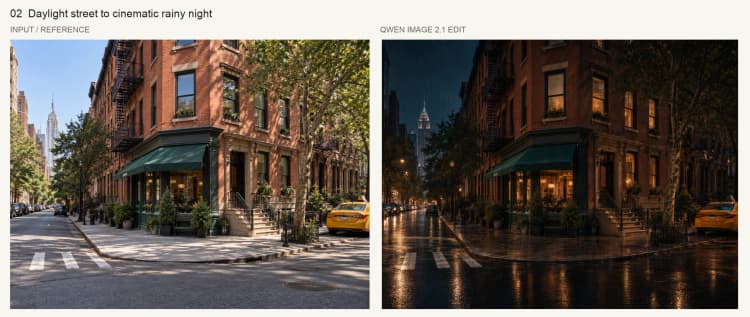
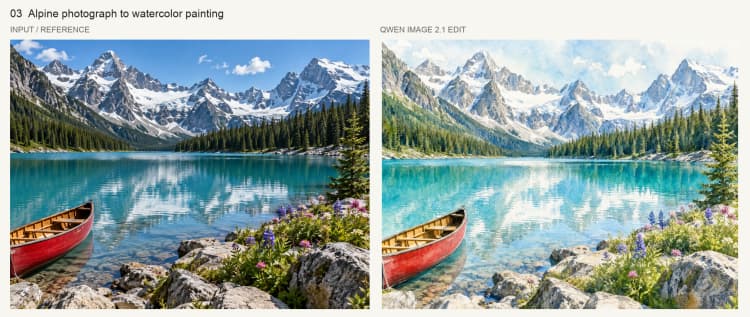
- For style conversion, ask for material or render changes while keeping structure: “Retain layout from <image1>. Convert to watercolor illustration / cinematic grade / neon cyberpunk color palette.”
- For in-image text replacement, be explicit: “Replace the label on <image1> with ‘NEW TEXT’, same font weight and color, preserve edges and reflections.”
- For character storyboards, provide multiple face or outfit references across <image2>..<imageN> and request identity consistency from panel to panel.
This Qwen Image 2.1 Edit ComfyUI Workflow gives you an efficient, composition-aware editor that responds to precise language and concrete visual cues. Start with clear prompts, good references, and a size choice that respects the base image, then iterate with small sampler tweaks for production-ready results.
Acknowledgements#
This workflow implements and builds upon the following works and resources. We gratefully acknowledge Comfy-Org for the ComfyUI workflow source and official image-editing template, Qwen for the Qwen-Image-2.1 model and announcement, and Comfy-Org for hosting the ComfyUI model weights for their contributions and maintenance. For authoritative details, please refer to the original documentation and repositories linked below.
Resources#
- Comfy-Org/Workflow source
- Docs / Release Notes: Workflow source
- Qwen/Qwen Image 2.1 announcement
- Docs / Release Notes: Qwen Image 2.1 announcement
- Comfy-Org/ComfyUI model weights
- Hugging Face: Comfy-Org/Qwen-Image-2.1
- Comfy-Org/Official image editing template
- GitHub: Comfy-Org/workflow_templates
Note: Use of the referenced models, datasets, and code is subject to the respective licenses and terms provided by their authors and maintainers.