




Qwen Rapid AIO single‑image editing workflow for ComfyUI#
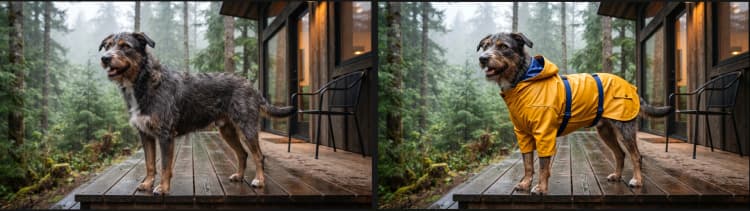
This Qwen Rapid AIO workflow performs instruction‑guided edits on one input image while preserving subject identity, composition, and scene structure. It is ideal for material swaps, object or wardrobe changes, color adjustments, and fast before‑and‑after iterations. Built around a community Rapid AIO checkpoint derived from Qwen‑Image‑Edit‑2511, it balances targeted changes with strong content preservation for reliable single‑image editing.
Designed for RunComfy cloud, the graph includes a concise path from image upload to preview and export, plus three optional LoRA slots you can enable for specialized looks. Qwen Rapid AIO emphasizes clear textual instructions, minimal setup, and quick turnarounds without compromising the original shot.
Key models in Comfyui Qwen Rapid AIO workflow#
- Phr00t Qwen‑Image‑Edit‑Rapid‑AIO v23. A community checkpoint tailored for fast, instruction‑guided single‑image edits while aiming to keep subject and layout consistent. Model card
- Qwen‑Image‑Edit‑2511. The official base model family that powers instruction‑to‑image editing with strong visual‑language alignment. The Rapid AIO variant in this workflow is built on this lineage. Model card
How to use Comfyui Qwen Rapid AIO workflow#
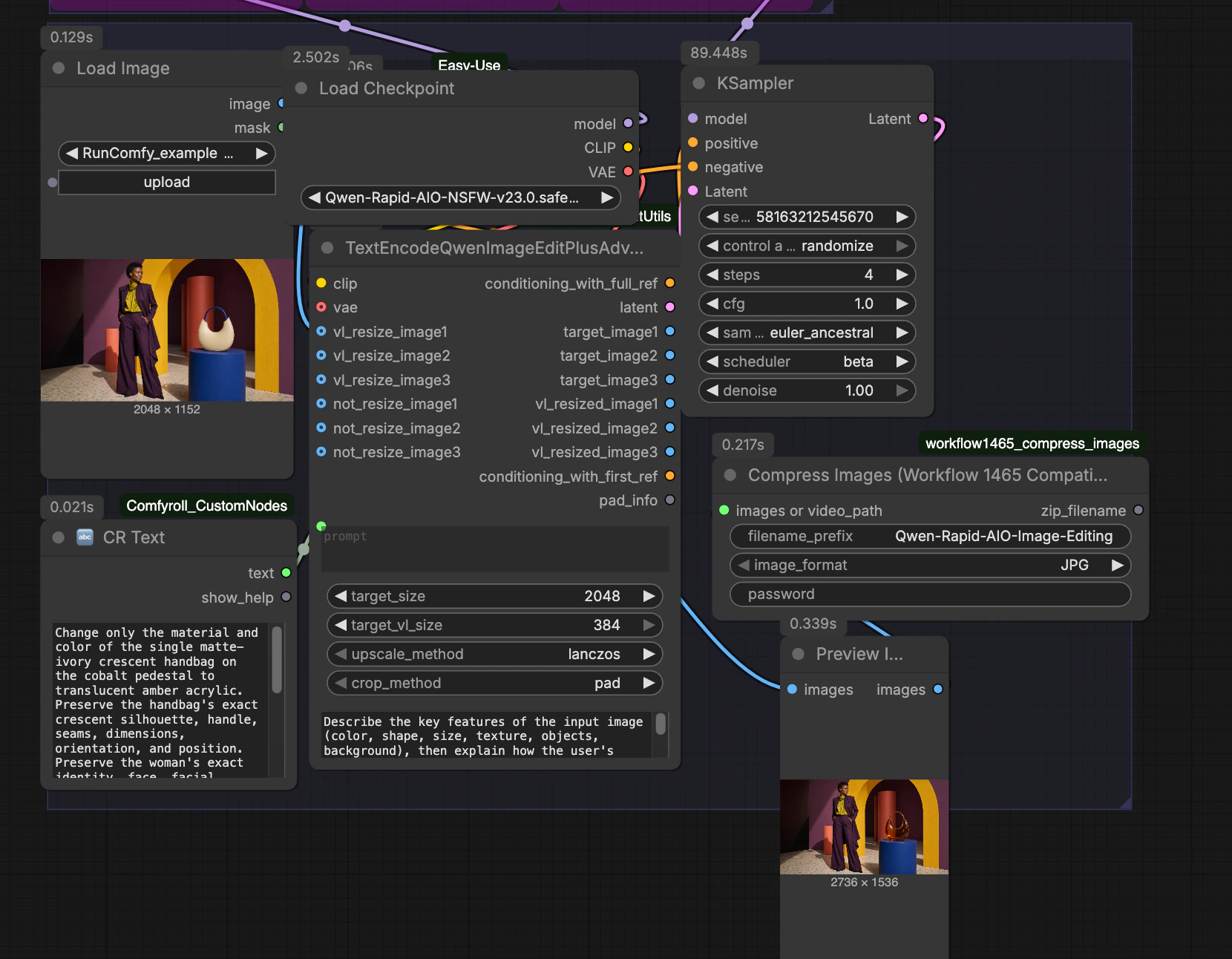
The workflow follows a simple path from source image and instruction to an edited preview and export. Stages below reference the exact node labels and IDs so you can locate them quickly in the graph.
Source image input: LoadImage (#5)#
Load a single source image to serve as the edit reference. Keep the framing you want to preserve, since Qwen Rapid AIO aims to maintain composition. High‑quality inputs with clear subjects produce the most faithful edits. If the subject occupies a small area, consider pre‑cropping so the model focuses on the region of interest.
Instruction encoding: CR Text (#13) and TextEncodeQwenImageEditPlusAdvance (#14)#
Enter a concise edit instruction in CR Text (#13). The encoder TextEncodeQwenImageEditPlusAdvance (#14) analyzes both the image and your text, producing conditioning that instructs what to change and what to keep. It also prepares a starting latent aligned to the resized vision‑language view of your image. Keep requests specific to the attribute you want to modify to reduce unintended changes.
Model and optional adapters: CheckpointLoaderSimple (#4) and LoraLoaderModelOnly (#1, #2, #3)#
CheckpointLoaderSimple (#4) loads the Qwen Rapid AIO checkpoint with its paired CLIP and VAE. Three LoraLoaderModelOnly nodes (#1, #2, #3) are wired in sequence so you can stack lightweight adapters if desired. Leave a LoRA slot empty or set its strength to zero to bypass it, or pick a single focused LoRA for subtle style or material biases. For general editing reliability, run Qwen Rapid AIO without LoRAs first, then add an adapter only if you need a targeted push.
Sampling: KSampler (#10) with zeroed negatives via ConditioningZeroOut (#7)#
The sampler receives your positive conditioning from the encoder and a zeroed negative conditioning from ConditioningZeroOut (#7). This design avoids over‑regularization from negative prompts and helps preserve the original subject and layout. The sampler then applies your instruction to the latent while keeping structure intact. If you need stronger changes, you can increase denoising strength and steps gradually.
Decode, preview, and export: VAEDecode (#11), PreviewImage (#20), CompressImages (#12)#
After sampling, VAEDecode (#11) converts the edited latent back to an image. PreviewImage (#20) shows the result immediately so you can iterate on the instruction quickly. When you are satisfied, use CompressImages (#12) to bundle outputs with your chosen filename prefix, which is convenient for downloading multiple trials.
Housekeeping: easy clearCacheAll (#9) and easy cleanGpuUsed (#8)#
These utility nodes automatically clear caches and free VRAM after decoding. They help keep longer editing sessions stable so you can run many Qwen Rapid AIO trials back to back.
Key nodes in Comfyui Qwen Rapid AIO workflow#
TextEncodeQwenImageEditPlusAdvance (#14)#
This node fuses your instruction with the visual features of the input image to create edit‑aware conditioning and a starting latent. Adjust the prompt to describe exactly what to change and explicitly list what must be preserved. The instruction field can hold a general policy for edits, while target_size, target_vl_size, upscale_method, and crop_method control how the image is resized for vision‑language alignment. Use one resized image input as in this graph for single‑image edits.
KSampler (#10)#
The sampler is where edits are applied to the latent. Tune steps for quality versus speed, cfg for how strongly the model follows the conditioning, and denoise for edit strength. sampler_name and scheduler influence noise traversal and texture; try a stable setting first, then vary them only if you see artifacts. Set a fixed seed for reproducibility when comparing small instruction changes.
LoraLoaderModelOnly (#1, #2, #3)#
Each LoRA slot injects a lightweight adapter into the base model. Use lora_name to pick an adapter and strength_model to control its influence; stacking is supported but start with one adapter at modest strength. Clear lora_name or set strength_model to 0 to bypass a slot. Enable LoRAs only when you need a specific style or attribute nudge that the base Qwen Rapid AIO checkpoint does not already provide.
CheckpointLoaderSimple (#4)#
Select the main checkpoint file here. The provided graph points to a Rapid AIO checkpoint derived from Qwen‑Image‑Edit‑2511, which includes compatible CLIP and VAE. You can swap to another Qwen‑Image‑Edit family checkpoint if you want baseline behavior or to compare results across variants.
Optional extras#
- Write surgical instructions. Name the single object and attribute to change, then list everything to preserve. Short, specific requests yield the most stable Qwen Rapid AIO edits.
- Start gentle. Keep denoising modest to preserve identity and pose; only raise it if the change is too subtle.
- Try without LoRAs first. Add one adapter at low strength if you need a targeted stylistic or material push.
- Iterate quickly. Preview a result, refine the instruction, and zip a small batch with
CompressImages(#12) when you have variations you like.
Acknowledgements#
This workflow implements and builds upon the following works and resources. We gratefully acknowledge RunningHub for the workflow source, Phr00t for the Qwen-Image-Edit-Rapid-AIO model, and Qwen for the Qwen-Image-Edit-2511 official model for their contributions and maintenance. For authoritative details, please refer to the original documentation and repositories linked below.
Resources#
- RunningHub/RunningHub workflow source
- Docs / Release Notes: RunningHub post
- Phr00t/Qwen-Image-Edit-Rapid-AIO
- Hugging Face: Phr00t/Qwen-Image-Edit-Rapid-AIO
- Qwen/Qwen-Image-Edit-2511
- Hugging Face: Qwen/Qwen-Image-Edit-2511
Note: Use of the referenced models, datasets, and code is subject to the respective licenses and terms provided by their authors and maintainers.