




Instruction-guided image editing with the Boogu Image Edit ComfyUI workflow#
The Boogu Image Edit ComfyUI workflow turns a single source image plus clear positive and negative edit prompts into realistic, instruction-guided edits that preserve the subject and camera framing. It is designed for creators who need controlled wardrobe, material, color, or scene tweaks without rebuilding the whole image. The workflow uses the Flux VAE path to keep detail and structure, and it was validated on an editorial portrait turned into a fashion edit, making it ideal for compelling before-and-after results.
Built for RunComfy, the Boogu Image Edit ComfyUI workflow loads the Boogu-Image-0.1-Edit model with a Qwen3-VL text encoding setup, then samples edits that respect the original composition. You get side-by-side comparisons and a slider viewer out of the box, so it is easy to review differences and iterate quickly.
Key models in Comfyui Boogu Image Edit ComfyUI workflow#
- Boogu-Image-0.1-Edit. The core instruction-guided editing model that rewrites appearance while preserving subject identity and layout. It maps prompt instructions to local changes rather than regenerating the whole scene. Model card
- Qwen3-VL text encoder. A multimodal-aligned text encoder used here to strengthen prompt understanding for edit intent and constraints. In this workflow it is provided as part of the Boogu ComfyUI weights package. Weights collection
- Flux VAE. The autoencoder used in the Flux family that compresses and reconstructs images with high fidelity, helping the workflow preserve composition and texture while editing. Reference repository
How to use Comfyui Boogu Image Edit ComfyUI workflow#
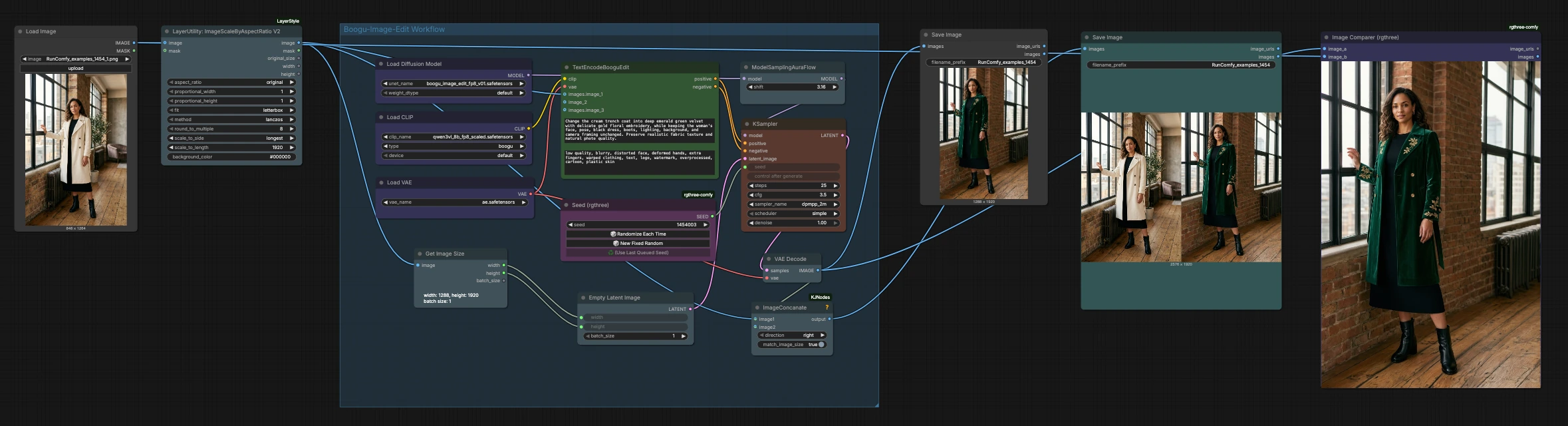
This pipeline follows a straight path from input to comparison: load and size the source image, encode instructions, sample edits, decode, then compare or save. The Boogu Image Edit ComfyUI workflow keeps your original framing by matching the latent canvas to the input dimensions.
Input and sizing#
Start by loading your reference photo. The LoadImage (#62) node brings the image into the graph, and LayerUtility: ImageScaleByAspectRatio V2 (#64) scales it while preserving aspect ratio. This stage prepares a clean, model-friendly resolution, optionally letterboxing to avoid distortion. GetImageSize (#65) reads the scaled image’s width and height so downstream steps can match the latent canvas exactly. Because the Boogu Image Edit ComfyUI workflow edits in place, keeping the input’s proportions is key to stable, realistic results.
Model and encoders#
The model and encoders are initialized before any sampling happens. UNETLoader (#70) loads the Boogu-Image-0.1-Edit network, CLIPLoader (#69) provides the Qwen3-VL text encoding backbone, and VAELoader (#71) sets the Flux VAE path. This combination aligns your text instructions with the visual content while retaining spatial structure. No user inputs are required here beyond ensuring the correct model files are available in your environment.
Instruction encoding#
Your prompts are turned into edit guidance in TextEncodeBooguEdit (#63). Provide a clear positive prompt describing the change you want and, optionally, a negative prompt listing what to avoid. The node also ingests the source image, which anchors identity, pose, lighting, and framing so the edit respects the original photo. The result is a pair of conditioning streams that nudge generation toward your intent while resisting unwanted drift.
Latent canvas and reproducibility#
To preserve composition, EmptyLatentImage (#66) creates a latent canvas sized to the scaled input by using dimensions from GetImageSize (#65). A reproducible seed comes from Seed (rgthree) (#61), which lets you rerun the exact edit or intentionally randomize variations. Keeping the latent aligned to the input helps the Boogu Image Edit ComfyUI workflow maintain subject geometry and background continuity. This also makes small, targeted adjustments more predictable across iterations.
Sampling#
Sampling is where edits take shape. ModelSamplingAuraFlow (#60) configures model sampling behavior, and KSampler (#67) applies your positive and negative conditioning to the latent canvas. The sampler’s core idea is iterative refinement guided by your instructions and the source image’s features. If you want subtle, localized changes, emphasize preservation in your prompt and keep edit strength modest; for bolder material or palette swaps, increase edit strength and clarify the new attributes. The Boogu Image Edit ComfyUI workflow is tuned for controlled edits, so prompt clarity usually matters more than aggressive sampling.
Decode, compare, and save#
Once sampling finishes, VAEDecode (#57) reconstructs the edited image using the Flux VAE. For evaluation, ImageConcanate (#58) places the original and edited images side by side, and Image Comparer (rgthree) (#73) provides a slider-style visual diff. You can save the single edited result with SaveImage (#72) and the side-by-side comparison with another SaveImage (#68). These outputs make it simple to review if the Boogu Image Edit ComfyUI workflow met your brief and to iterate on prompts when needed.
Key nodes in Comfyui Boogu Image Edit ComfyUI workflow#
TextEncodeBooguEdit (#63)#
This node converts your positive and negative prompts, together with the reference image, into conditioning that steers the edit. Use concise, descriptive language for the desired change and explicitly list elements to protect when necessary. If the model over-edits, strengthen preservation terms in the prompt or add them to the negative prompt. Keeping desired attributes explicit helps the node lock identity, pose, and lighting.
KSampler (#67)#
KSampler performs the iterative denoising steps that realize the edit. The most impactful controls are edit strength, steps, guidance scale, sampler, and scheduler. Lower strength preserves more of the source, while higher strength enables larger wardrobe, material, or color shifts. If prompt adherence feels weak, raise guidance slightly or try a different sampler family; if results look overbaked, lower guidance or steps. For additional background on sampler behavior, see the k-diffusion reference implementation on GitHub. Repository
ModelSamplingAuraFlow (#60)#
This node adjusts the model’s sampling characteristics before denoising begins. Small changes here influence coherence, contrast, and how assertively the model follows the prompt. If you want gentler edits, reduce the effect; for more stylized changes, increase it slightly. Treat it as a global tone control that complements the sampler’s own settings.
LayerUtility: ImageScaleByAspectRatio V2 (#64)#
Proper sizing prevents warping and keeps the subject in place. This node scales the source while preserving aspect ratio and can letterbox to reach friendly dimensions. Keeping the image’s proportions stable improves identity retention and makes edits transfer cleanly to backgrounds. Use this when your inputs vary widely in size or orientation.
Optional extras#
- Write prompts as instructions: what to change, what to keep, and where, in that order.
- List protected attributes explicitly in the positive prompt to reinforce preservation.
- Use the negative prompt for artifacts you consistently dislike, such as text, logos, or overprocessed skin.
- Lock reproducibility with a fixed seed, then explore variations by randomizing it after you find a good base.
- For subtle tweaks, reduce edit strength first before changing samplers or steps.
- When comparing results, rely on the slider viewer to spot color casts, fabric texture, and edge fidelity.
- If you upscale or crop outside the workflow, re-run the Boogu Image Edit ComfyUI workflow to maintain framing and consistency.
Acknowledgements#
This workflow implements and builds upon the following works and resources. We gratefully acknowledge Boogu for the Boogu-Image-0.1-Edit model, Comfy-Org and ComfyUI for the ComfyUI‑repackaged Boogu-Image weights and the official Boogu tutorial, and RunComfy and RunningHub for the shared cloud workflow and workflow reference for their contributions and maintenance. For authoritative details, please refer to the original documentation and repositories linked below.
Resources#
- RunningHub/Boogu Image Edit ComfyUI Workflow Reference
- Docs / Release Notes: RunningHub post
- RunComfy/Cloud Save ComfyUI Workflow
- Docs / Release Notes: RunComfy workflow
- Boogu/Boogu-Image-0.1-Edit
- GitHub: boogu-project/Boogu-Image
- Hugging Face: Boogu/Boogu-Image-0.1-Edit
- Docs / Release Notes: Model card
- Comfy-Org/Boogu-Image
- Hugging Face: Comfy-Org/Boogu-Image
- Docs / Release Notes: Model files for ComfyUI
- ComfyUI/Boogu-Image-0.1 ComfyUI Workflow Example
- GitHub: boogu-project/Boogu-Image
- Hugging Face: Comfy-Org/Boogu-Image
- Docs / Release Notes: ComfyUI tutorial
Note: Use of the referenced models, datasets, and code is subject to the respective licenses and terms provided by their authors and maintainers.