

FLUX.2 Klein 9B LoRA ComfyUI Inference: preview-aligned AI Toolkit LoRA generation in ComfyUI#
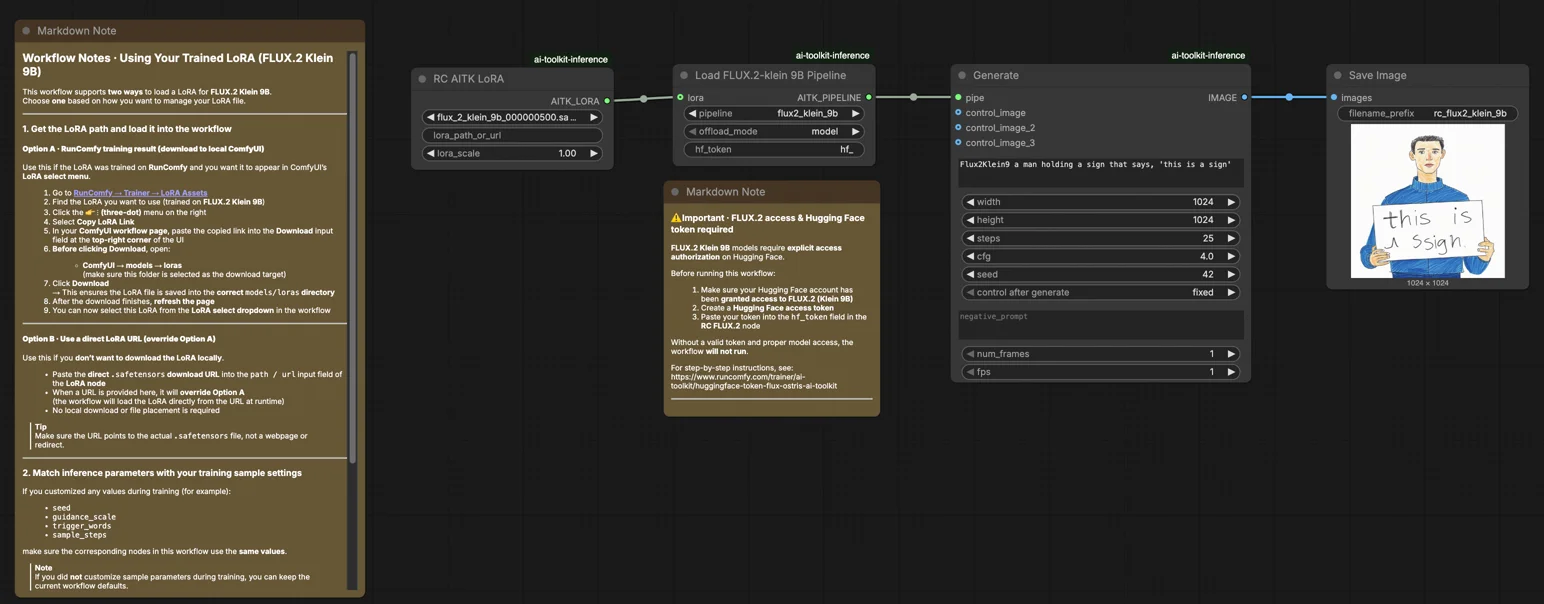
Use this RunComfy workflow when you need ComfyUI inference that stays consistent with AI Toolkit training previews for FLUX.2 Klein 9B LoRAs. The setup routes generation through Flux2Klein9BPipeline—a model-specific pipeline wrapper open-sourced by RunComfy—rather than a standard sampler graph. Your adapter is applied via lora_path and lora_scale inside that pipeline, giving you training-matched LoRA behavior without manual pipeline reconstruction.
Why FLUX.2 Klein 9B LoRA ComfyUI Inference often looks different in ComfyUI#
When AI Toolkit renders a training preview, it runs the full FLUX.2 Klein 9B inference pipeline—Qwen3-8B text encoding, flow-match scheduling, and internal LoRA injection all happen as a coordinated unit. A typical ComfyUI graph reassembles these components independently, which introduces subtle differences in conditioning, noise scheduling, and adapter application order. The result is pipeline-level drift, not a single misconfigured knob. Flux2Klein9BPipeline bridges this gap by executing the model's own pipeline end-to-end and injecting your LoRA within it. Reference: `src/pipelines/flux2_klein.py`.
How to use the FLUX.2 Klein 9B LoRA ComfyUI Inference workflow#
Step 1: Get the LoRA path and load it into the workflow (2 options)#
Option A — RunComfy training result > download to local ComfyUI:
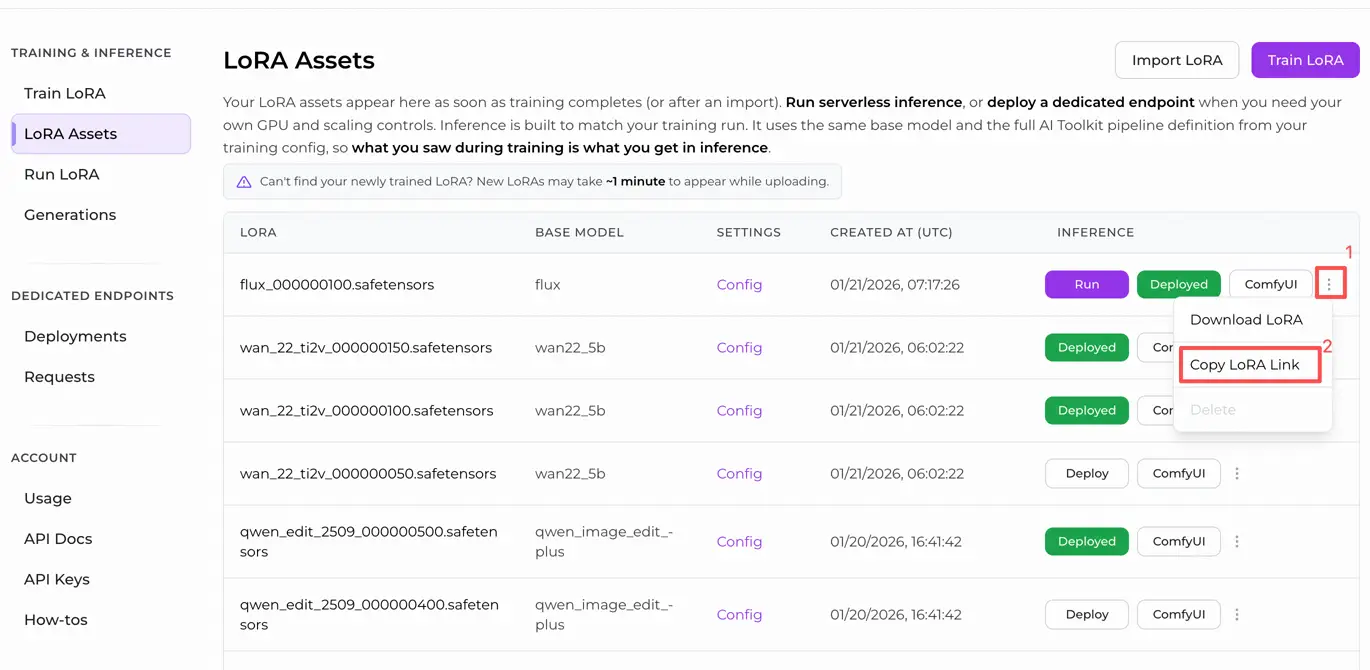
- Go to Trainer > LoRA Assets
- Find the FLUX.2 Klein 9B LoRA you want to use
- Click the ... (three-dot) menu on the right > select Copy LoRA Link
- In the ComfyUI workflow page, paste the copied link into the Download input field at the top-right corner of the UI
- Before clicking Download, make sure the target folder is set to ComfyUI > models > loras (this folder must be selected as the download target)
- Click Download — the LoRA file is saved into the correct
models/lorasdirectory - After the download finishes, refresh the page
- The LoRA now appears in the LoRA select dropdown — select it
Option B — Direct LoRA URL (overrides Option A):
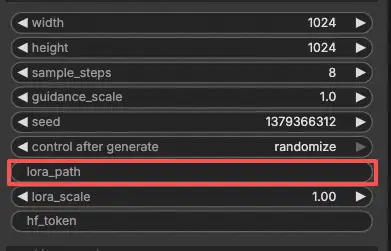
- Paste the direct
.safetensorsdownload URL into thepath / urlinput field of the LoRA node - When a URL is provided here, it overrides Option A — the workflow fetches the LoRA directly from the URL at runtime
- No local download or file placement is required
Tip: confirm the URL resolves to the actual .safetensors file, not a landing page or redirect.
Step 2: Match inference parameters with your training sample settings#
Set lora_scale on the LoRA node to control adapter strength—begin with the value you used during training previews and adjust from there.
Remaining parameters are on the Generate and Load Pipeline nodes:
prompt— your text prompt; include any trigger words from trainingwidth/height— output resolution; match your training preview size for direct comparison (multiples of 16)sample_steps— inference steps; FLUX.2 Klein 9B defaults to 25guidance_scale— CFG strength; default is 4.0 (Klein 9B is not guidance-distilled, so this value directly shapes output quality)seed— fix a seed to reproduce a specific output; change it to explore variationsseed_mode—fixedorrandomizehf_token— a valid Hugging Face token is required because FLUX.2 Klein 9B is a gated model; paste your token into thehf_tokenfield on the Load Pipeline node
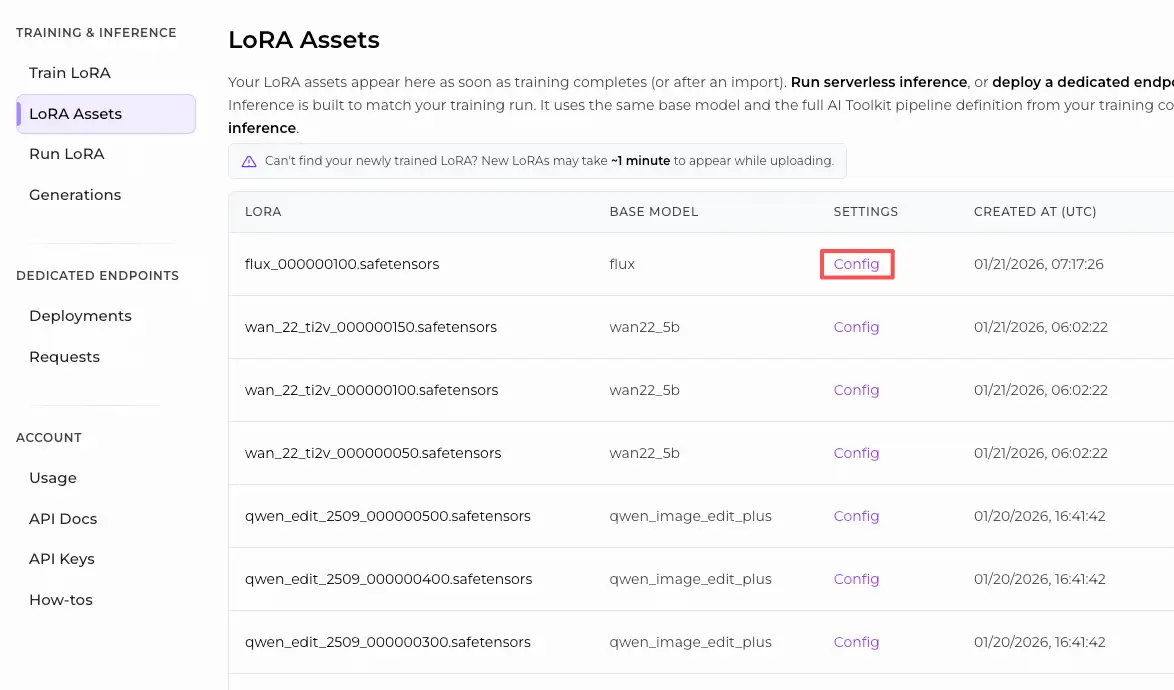
Training alignment tip: if you customized sampling values during training (seed, guidance_scale, sample_steps, trigger words), copy those exact values into the corresponding fields. If you trained on RunComfy, open Trainer > LoRA Assets > Config to view the resolved YAML and transfer preview/sample settings.
Step 3: Run FLUX.2 Klein 9B LoRA ComfyUI Inference#
Click Queue/Run — the SaveImage node writes results to your ComfyUI output folder.
⚠️ Important · FLUX.2 access & Hugging Face token required#
FLUX.2 Klein 9B models require explicit access authorization on Hugging Face.
Before running this workflow:
- Make sure your Hugging Face account has been granted access to FLUX.2 (Klein 9B)
- Create a Hugging Face access token
- Paste your token into the
hf_tokenfield in the RC FLUX.2 node
Without a valid token and proper model access, the workflow will not run.
For step-by-step instructions, see: https://www.runcomfy.com/trainer/ai-toolkit/huggingface-token-flux-ostris-ai-toolkit
Quick checklist:
- ✅ Hugging Face account has FLUX.2 Klein 9B access and a valid token is in
hf_token - ✅ LoRA is either: downloaded into
ComfyUI/models/loras(Option A), or loaded via a direct.safetensorsURL (Option B) - ✅ Page refreshed after local download (Option A only)
- ✅ Inference parameters match training
sampleconfig (if customized)
If everything above is correct, the inference results here should closely match your training previews.
Troubleshooting FLUX.2 Klein 9B LoRA ComfyUI Inference#
Most “training preview vs ComfyUI inference” gaps on FLUX.2 Klein 9B come from pipeline-level differences (text encoder path, scheduler/conditioning, and where/how the adapter is applied). The RunComfy workflow avoids rebuilding the pipeline manually by running generation through Flux2Klein9BPipeline and injecting the LoRA inside that pipeline via lora_path / lora_scale, which is the closest way to reproduce AI Toolkit preview behavior in ComfyUI.
(1) 401 Client Error.#
Why this happens FLUX.2 Klein 9B is a gated Hugging Face model. If your account does not have access, or no valid token is provided, model weights cannot be downloaded and inference fails with a 401 error.
How to fix
- Ensure your Hugging Face account has been granted access to
black-forest-labs/FLUX.2-klein-base-9B. - Create a Hugging Face access token and paste it into the
hf_tokenfield on the Load Pipeline node. - After access and token are confirmed, run inference through the RunComfy AI Toolkit pipeline nodes so authentication and model loading happen in one consistent pipeline.
- For step-by-step instructions, see: https://www.runcomfy.com/trainer/ai-toolkit/huggingface-token-flux-ostris-ai-toolkit
(2) Flux 2 Klein models CLIPLoader errors#
Why this happens These errors are caused by a text encoder mismatch—for example, loading an incompatible encoder or mixing Klein 4B and Klein 9B encoder assets. This often appears as embedding or vocabulary size mismatches during CLIP/text-encoder loading.
How to fix
- Update ComfyUI to the latest version to ensure FLUX.2 Klein support is complete.
- Make sure the correct text encoder for Klein 9B is used (Klein 9B requires Qwen3-8B; using a 4B encoder will fail).
- For preview-aligned LoRA inference, prefer the RunComfy pipeline wrapper, which loads the correct encoder and applies the LoRA in the same pipeline used for AI Toolkit previews.
(3) mat1 and mat2 shapes cannot be multiplied (512x2560 and 7680x3072)#
Why this happens This error indicates a conditioning dimension mismatch, typically caused by using the wrong encoder or an incorrect clip/conditioning type for FLUX.2 Klein 9B. The model receives embeddings of the wrong shape, causing matrix multiplication to fail during sampling.
How to fix
- If building graphs manually, verify you are using the FLUX.2 Klein–specific text encoder and that the clip/conditioning type matches FLUX.2 Klein expectations.
- For the most reliable fix, run inference through the RunComfy FLUX.2 Klein 9B pipeline wrapper (
model_type = flux2_klein_9b) and inject your LoRA vialora_path. This keeps the entire inference stack—encoder, scheduler, and adapter—pipeline-aligned with AI Toolkit previews.
Run FLUX.2 Klein 9B LoRA ComfyUI Inference now#
Load the workflow, paste your lora_path, enter a valid hf_token, and let Flux2Klein9BPipeline keep ComfyUI output aligned with your AI Toolkit training previews.