

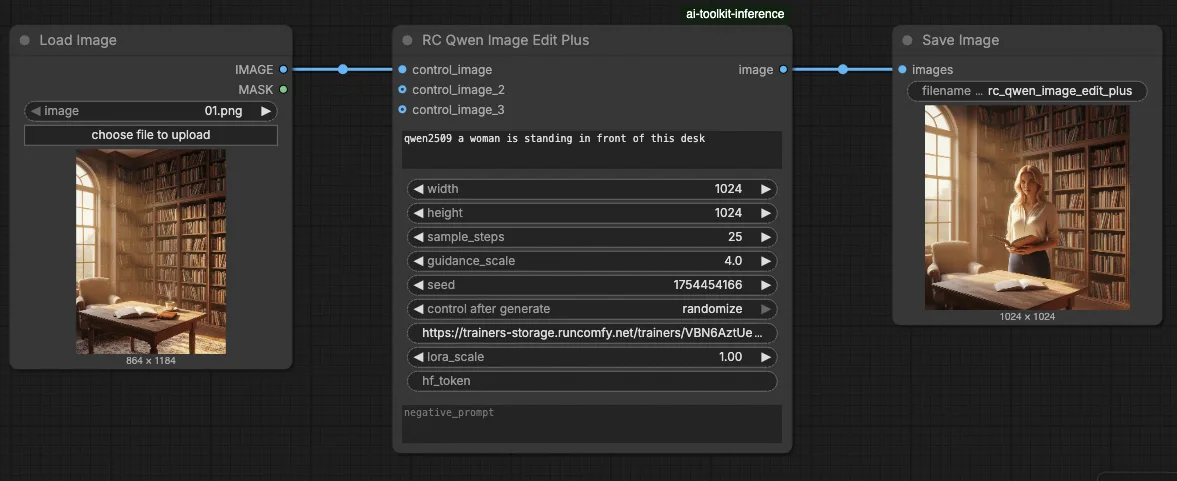
Qwen Edit 2509 LoRA Inference: training-matched Qwen Image Edit Plus 2509 edits in ComfyUI#
Qwen Edit 2509 LoRA Inference is a production-ready RunComfy workflow that lets you apply an AI Toolkit–trained LoRA on Qwen Image Edit Plus 2509 in ComfyUI with training-matched results. It’s built around RC Qwen Image Edit Plus (RCQwenImageEditPlus)—a RunComfy-built, open-sourced custom node (source) that runs a model-specific Qwen edit pipeline (not a generic sampler graph), injects your adapter via lora_path / lora_scale, and keeps the required control-image preprocessing aligned with how the edit model encodes prompts.
Why Qwen Edit 2509 LoRA Inference often looks different in ComfyUI#
AI Toolkit sample images are produced by a Qwen Image Edit Plus 2509–style pipeline that couples the text prompt with the input image during prompt encoding, then applies guidance using Qwen’s “true CFG” behavior. If you recreate the job as a standard ComfyUI edit graph, small differences in conditioning, guidance semantics, and where the LoRA is applied can compound—so matching prompt/steps/seed still won’t reliably reproduce the preview. In other words, the gap is usually a pipeline mismatch, not one “wrong setting”.
What the RCQwenImageEditPlus custom node does#
RCQwenImageEditPlus routes Qwen Image Edit Plus 2509 editing through the same kind of preview-aligned inference pipeline and applies your AI Toolkit LoRA consistently inside that pipeline using lora_path and lora_scale. It also handles the control image in the way this family expects for edit-conditioned prompting (including resizing for prompt encoding), so the baseline behavior is closer to what you saw during training samples. Reference pipeline implementation: `src/pipelines/qwen_image.py`.
How to use the Qwen Edit 2509 LoRA Inference workflow#
Step 1: Import your LoRA (2 options)#
- Option A (RunComfy training result): RunComfy → Trainer → LoRA Assets → find your LoRA → ⋮ → Copy LoRA Link
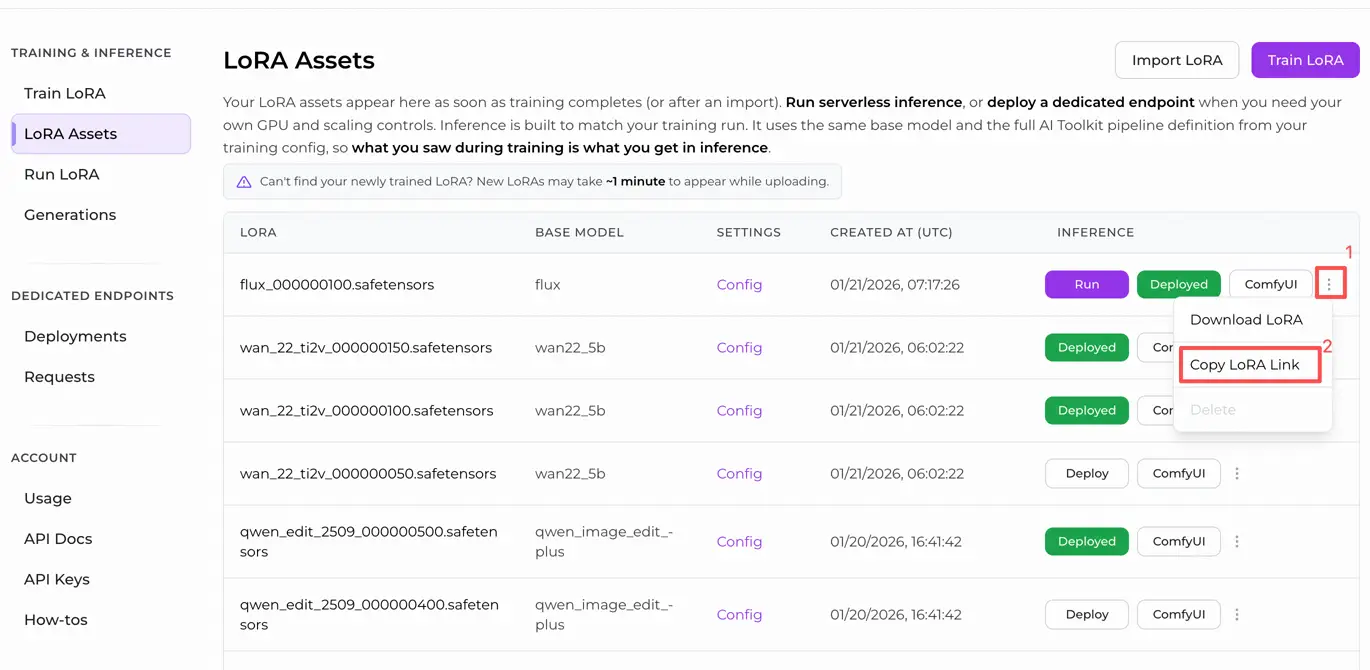
- Option B (AI Toolkit LoRA trained outside RunComfy): Copy a direct
.safetensorsdownload link for your LoRA and paste that URL intolora_path(no need to download intoComfyUI/models/loras)
Step 2: Configure the RCQwenImageEditPlus custom node for Qwen Edit 2509 LoRA Inference#
Paste your LoRA link into lora_path on RCQwenImageEditPlus (use the RunComfy link from Option A, or a direct .safetensors URL from Option B).
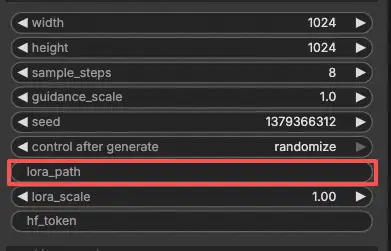
Then set the rest of the node parameters (start by mirroring your AI Toolkit preview/sample values while you validate alignment):
prompt: your edit instruction (include the same trigger tokens you trained with, if any)negative_prompt: optional; keep it empty if you didn’t use negatives in your training sampleswidth/height: output size (multiples of 32 are recommended for this pipeline family)sample_steps: number of inference steps; match the preview step count before tuningguidance_scale: guidance strength (Qwen uses a “true CFG” scale, so reuse your preview value first)seed: lock the seed while comparing training preview vs ComfyUI inference by setting the control_after_generate to 'fixed'lora_scale: LoRA strength; begin at your preview strength, then adjust gradually
This is an image-edit workflow, so you must also provide an input image:
control_image(required input): connect a LoadImage node tocontrol_image, then replace the sample image with the photo you want to edit.
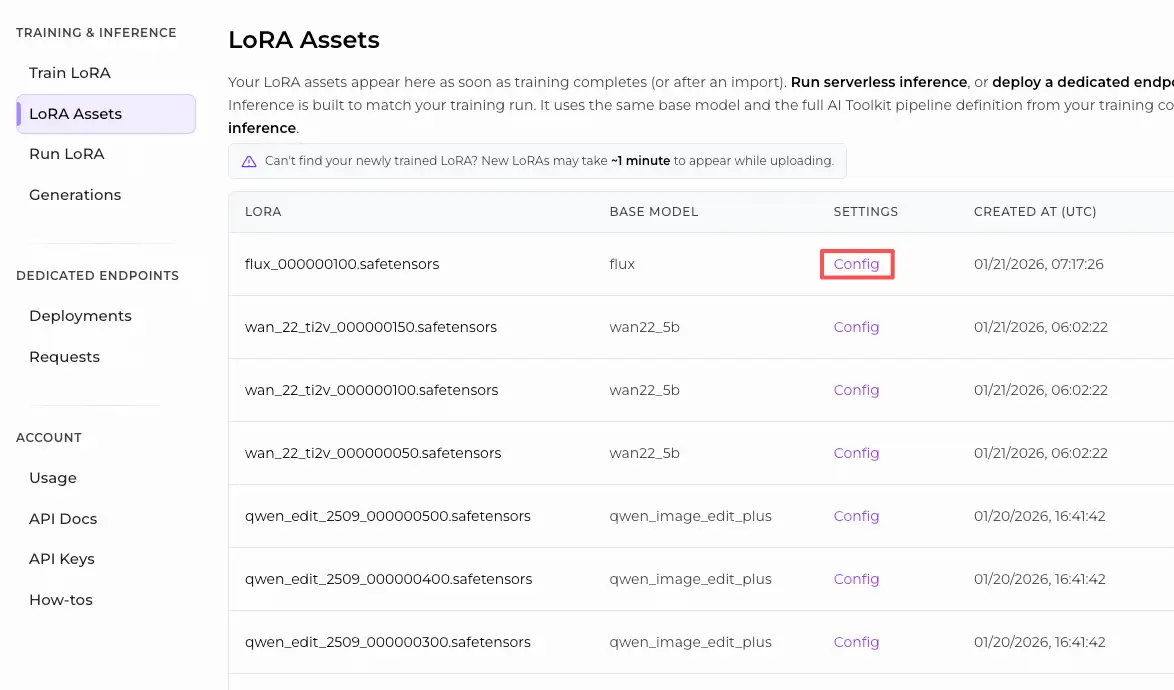
Training alignment note: if you customized sampling during training, open your AI Toolkit training YAML and mirror width, height, sample_steps, guidance_scale, seed, and lora_scale. If you trained on RunComfy, go to Trainer → LoRA Assets → Config and copy the preview/sample values into RCQwenImageEditPlus.
Step 3: Run Qwen Edit 2509 LoRA Inference#
Queue/Run the workflow. The SaveImage node writes the edited output to your normal ComfyUI output folder.
Troubleshooting Qwen Edit 2509 LoRA Inference#
Most issues people hit after training a Qwen Image Edit Plus 2509 LoRA in AI Toolkit and then trying to run it in ComfyUI come from pipeline / loader mismatch—especially when mixing Nunchaku-quantized Qwen Edit 2509 loaders, generic sampler graphs, and LoRA loaders that patch weights in a different place than the AI Toolkit preview pipeline.
RunComfy’s RC Qwen Image Edit Plus (RCQwenImageEditPlus) custom node is designed to bring you back to a training-matched baseline by:
- running a Qwen Image Edit Plus 2509–specific edit pipeline (not a generic sampler graph), and
- injecting your AI Toolkit LoRA inside that pipeline via
lora_path/lora_scale,
so the edit conditioning + guidance behavior is closer to what you saw during AI Toolkit preview sampling.
(1)Comfy generates noise after cancelling Qwen Image Edit Nunchaku generation#
Why this happens
This is a real-world failure mode reported specifically around Qwen Image Edit in a Nunchaku-based ComfyUI workflow: cancelling a run can leave the model/graph in a bad state, and subsequent runs produce only noise even with valid prompts and settings.
How to fix (user-reported working fixes)
- Recovery by using ComfyUI’s “Clear Models and Node Cache” (or equivalent model/node cache reset) and then rerunning.
- reverting ComfyUI to 0.3.65 helped if the regression persisted.
- If your goal is training-matched LoRA validation (preview parity), run the same edit through RCQwenImageEditPlus first. This keeps inference pipeline-aligned with AI Toolkit-style preview sampling and avoids debugging “noise after cancel” side effects in a generic / Nunchaku sampler path.
(2)qwen image edit does not support Lora loading#
Why this happens
This was reported as a limitation of the ComfyUI-nunchaku Qwen Image Edit path: LoRA loading fails / warns because that inference route does not patch the same modules the LoRA was trained against (or simply doesn’t support LoRA injection for Qwen Edit in that implementation).
How to fix (reliable, practical resolution)
- In that Nunchaku path, the issue was closed as not planned—so the practical fix is to switch inference to a pipeline that supports Qwen Edit 2509 LoRA injection.
- In RunComfy, that means using RCQwenImageEditPlus and loading the adapter only via:
lora_path(your AI Toolkit.safetensorsURL)lora_scale(strength) This keeps LoRA application inside the Qwen Edit 2509 pipeline, which is exactly what you want for training-matched comparisons.
- If you must stay on Nunchaku quantization for speed, use a Qwen/Nunchaku-specific LoRA loader (not the base edit loader expecting “generic LoRA behavior”).
(3)multi-stage workflow not resetting cache#
Why this happens
In multi-stage workflows (different LoRAs per stage), users reported the LoRA state can “stick” across reruns—so stage 1 may accidentally reuse stage 2 LoRAs unless the cache is reset.
How to fix (user-verified workaround)
- Users reported the workflow resets correctly only when the model is manually unloaded / purged between reruns.
- If you’re validating AI Toolkit preview matching, keep your baseline workflow single-stage and run it through RCQwenImageEditPlus first (pipeline-aligned). Add multi-stage logic only after your baseline is stable.
(4)TypeError: got multiple values for argument 'guidance' (v2.0+)#
Why this happens
In some environments, users hit TypeError: got multiple values for argument 'guidance' when LoRA loaders and scheduler/patch stacks interact with the QwenImageTransformer2DModel forward signature (argument duplication can occur depending on patch order and external scheduler modifications).
How to fix (maintainer-documented solution for affected users)
- The loader’s troubleshooting section recommends: if you still hit this on v2.0+ even after updates, use v1.72 (the last v1.x release before diffsynth ControlNet support was added), because it avoids the argument-passing complexity that triggers duplicated
guidance. - After you’ve restored stability, do training-parity checks in RCQwenImageEditPlus so your preview-alignment debugging isn’t confounded by loader/scheduler signature edge cases.
(5)Missing control images for QwenImageEditPlusModel#
Why this happens
Qwen Image Edit Plus 2509 is an edit-conditioned model family. In AI Toolkit training and in ComfyUI inference, the pipeline expects a control image input to couple the edit instruction with the image-conditioned encoding path. If control images are missing/miswired, training jobs or edit inference will fail or behave unexpectedly.
How to fix (model-correct, training-consistent approach)
- In ComfyUI, always connect LoadImage →
control_imageon RCQwenImageEditPlus, and keep the control image fixed while validating your LoRA vs preview output. - Use RCQwenImageEditPlus for inference so the control-image preprocessing + prompt encoding follows the Qwen Edit 2509 pipeline expectations (pipeline-aligned with AI Toolkit-style previews), and your LoRA is applied at the correct patch point via
lora_path/lora_scale.
Run Qwen Edit 2509 LoRA Inference now#
Open the workflow, set lora_path, connect your control_image, and run RCQwenImageEditPlus to bring ComfyUI results back in line with your AI Toolkit previews.