


ComfyUI Nvidia Cosmos Text & Image to Video Workflow#
What is the Nvidia Cosmos Workflow#
Turn your imagination into fluid videos using the newly released Nvidia Cosmos models in ComfyUI. This workflow demonstrates the strong AI capabilities of Nvidia Cosmos with its text-to-video and image-to-video generation features. Powered by Nvidia Cosmos's state-of-the-art 7B and 14B models, you can create high-quality videos from either textual descriptions or still images. The Nvidia Cosmos engine gives stellar results thanks to its ultra-efficient video processing capabilities.
Key Features of Nvidia Cosmos#
- Dual Generation Modes: Nvidia Cosmos offers both text-to-video and image-to-video generation
- Guaranteed Motion: Always generates videos with movement when using 121 frames
- Effective Negative Prompts: Non-distilled model ensures better control through negative prompts
- Flexible Image Control: Generate from the last frame or create transitions between images
- Ultra-Efficient VAE: Nvidia Cosmos employs a refined VAE system for smooth, high-quality video generation
- High Resolution Support: Create videos at resolutions of 704x704 and above
- Precise Frame Control: Optimized for 121-frame sequences
- Smart Image Interpolation: Generate smooth transitions between reference images
How to Use the Nvidia Cosmos Workflow#
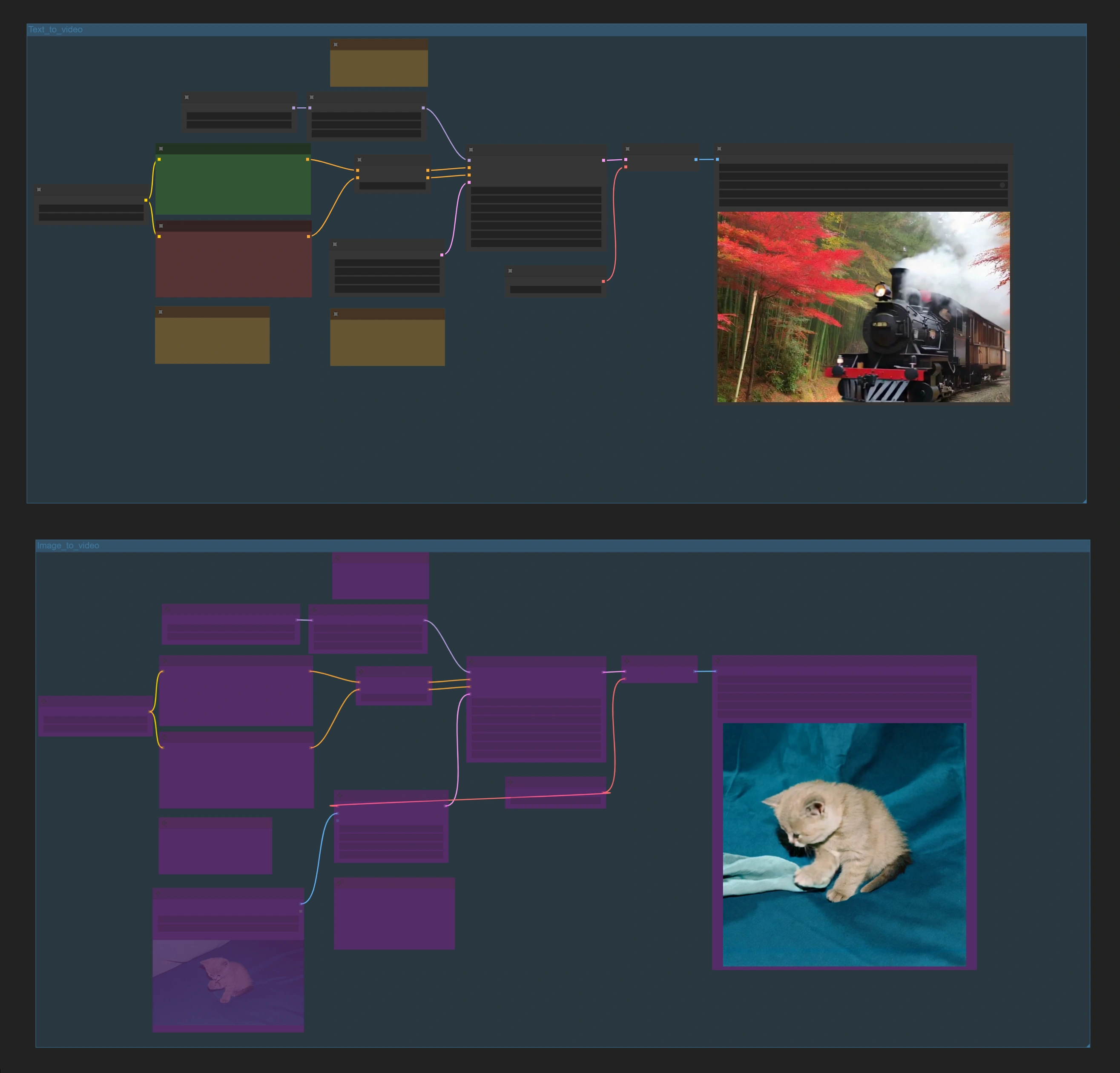
Nvidia Cosmos workflow contains two main parts: _text-to-video_ and _image-to-video_ generation. By default, the _image-to-video_ group is bypassed. To switch between the two modes:
- For _text-to-video_: Keep the _image-to-video_ group bypassed (default setting)
- For _image-to-video_: Right-click the _image-to-video_ group and select
Set Group Nodes to Always
1. Text to Video Generation with Nvidia Cosmos#
Setup and Requirements#
- Choose your preferred Nvidia Cosmos model size (7B recommended for starting)
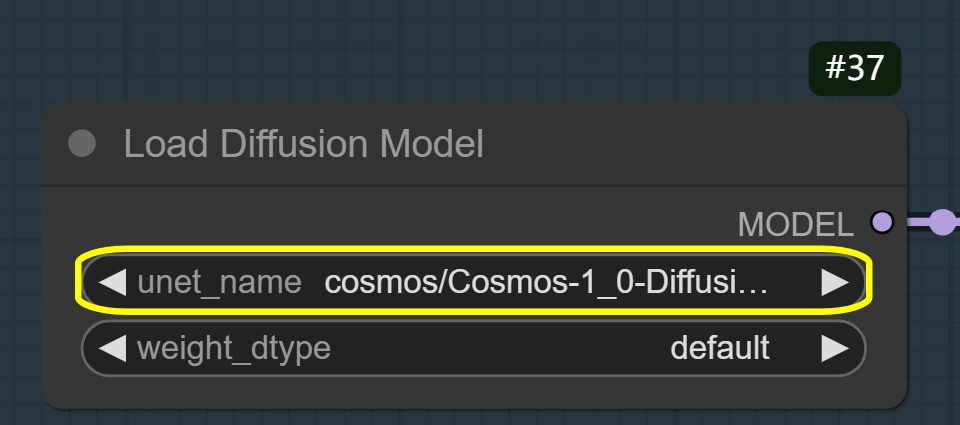
- Set resolution (Default 1280x704; minimum 704x704)
- Frame settings:
- Length: 121 frames (The model performs optimally with a length of 121; deviating too much from this can result in subpar video quality.)


- Frame rate: 24.00 (default rate for optimal quality) <img src="https://cdn.runcomfy.net/workflow_assets/1184/readme02.webp" alt="Nvidia Cosmos" width="350"/> <img src="https://cdn.runcomfy.net/workflow_assets/1184/readme03.webp" alt="Nvidia Cosmos" width="350"/>
Sampling Parameters for Nvidia Cosmos#
- Sampler:
res_multistep(Nvidia's recommended sampler for Cosmos) - Scheduler:
karras(default for stability) - Steps:
20(higher = better quality but slower; lower = faster but less detailed) - CFG:
6.5(prompt guidance strength) - Denoise:
1.00(1.00 = complete transformation; lower values keep more original content)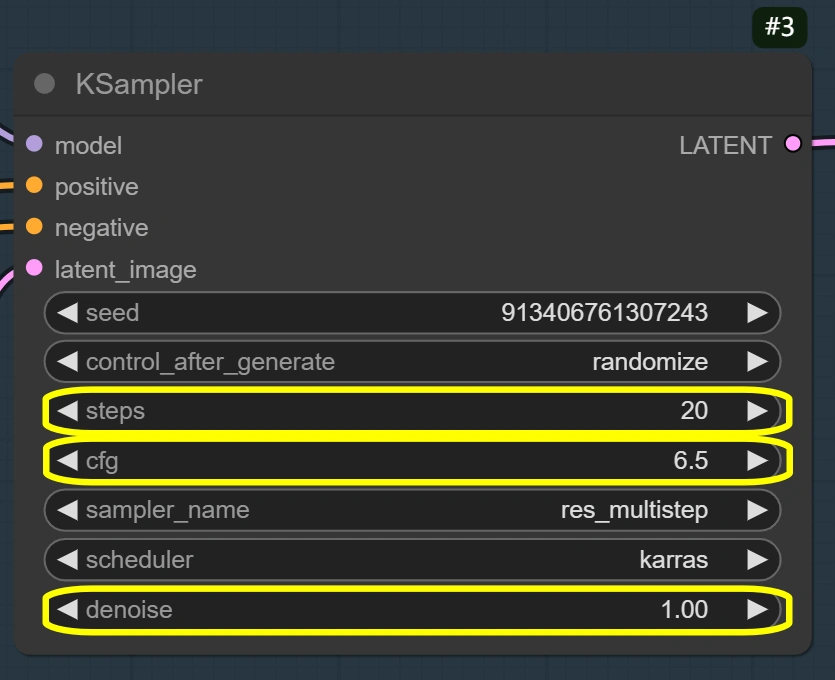
Prompting Tips for Nvidia Cosmos#
- Use detailed, multi-sentence prompts for better results
- Include comprehensive negative prompts
- Short prompts may generate coherent videos but might not strictly follow instructions
2. Image to Video Generation with Nvidia Cosmos#
Setup and Requirements#
- Same base requirements as Nvidia Cosmos text-to-video
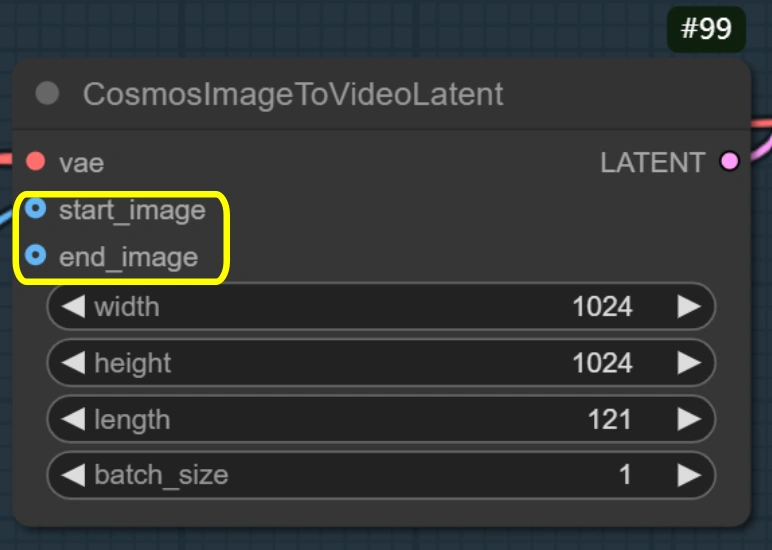
- Supports
start_imageandend_imageinputs
Reference Image Options#
- Set a
start_imageorend_image, or both at the same time - Images work best when similar in style and content (for smooth transitions)
Key Parameters#
- Identical sampling settings to text-to-video mode
- Maintains same video quality standards
Advanced Tips for Nvidia Cosmos#
- For higher quality results with more VRAM, try the Nvidia Cosmos 14B model
- Ensure prompts are descriptive and detailed for best results
- Experiment with different image pairs for unique transitions
More Information about Nvidia Cosmos#
For more details and updates about Nvidia Cosmos, visit Nvidia Cosmos Official Page.