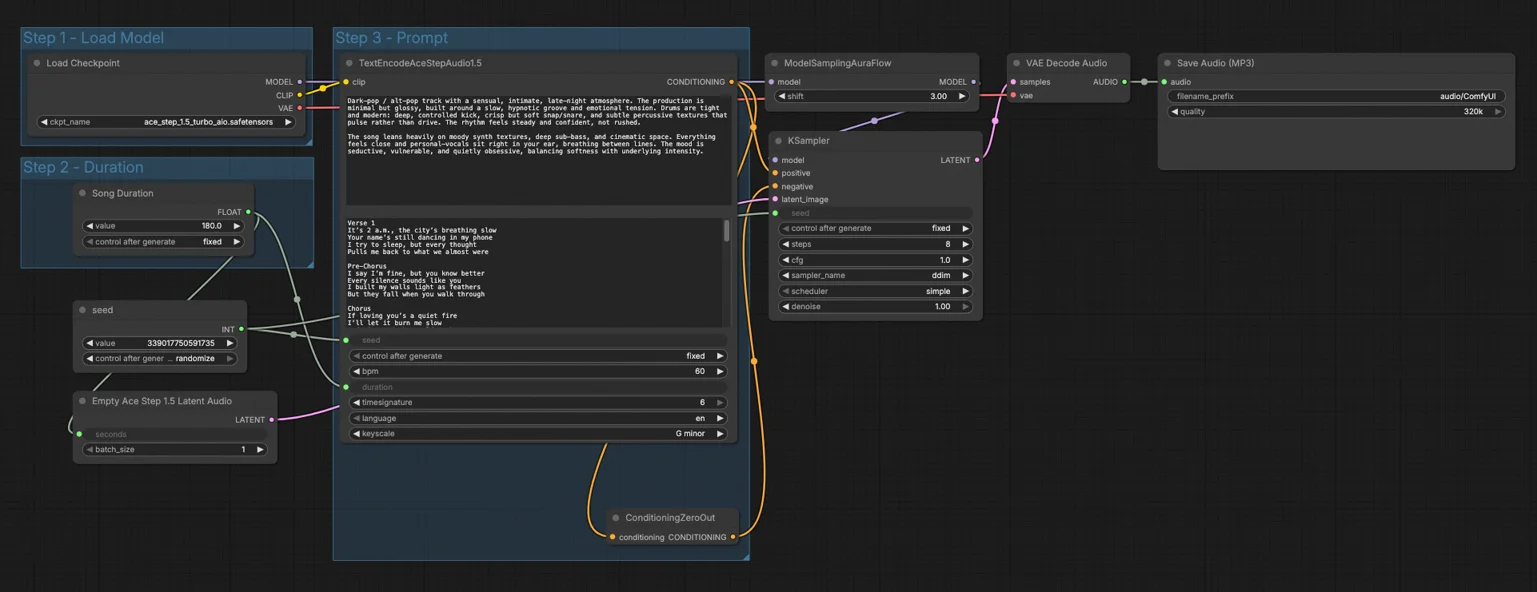
Ace Step 1.5 text-to-music workflow for ComfyUI#
This template turns a short creative brief and optional lyrics into a finished MP3 using Ace Step 1.5. It is designed for musicians, producers, and creators who want fast, high‑quality song generation with coherent structure, vocals, and stylistic control from text. The workflow focuses on a direct text-to-music path so you can go from idea to audio in one pass.
Ace Step 1.5 pairs a planning module with a diffusion transformer to deliver commercial‑grade musical continuity while remaining light enough for everyday hardware. In this ComfyUI graph, Ace Step 1.5 accepts a style prompt plus lyrics, plans the arrangement, synthesizes a latent audio representation, then decodes and saves a ready‑to‑share file.
Key models in Comfyui Ace Step 1.5 workflow#
- Ace Step 1.5 Turbo AIO checkpoint. The foundation model that maps text and lyrics to music and handles diffusion‑based synthesis in the audio domain. Available from Comfy‑Org on Hugging Face as part of the ComfyUI files set: Comfy-Org/ace_step_1.5_ComfyUI_files.
- Ace Step 1.5 text encoder. Packaged with the checkpoint and used to convert your prose prompt and optional lyrics into conditioning for the generator. Exposed in the graph by the
TextEncodeAceStepAudio1.5node. - Ace Step 1.5 audio VAE. Also packaged in the checkpoint and used to decode the synthesized latent into a time‑domain waveform for export.
How to use Comfyui Ace Step 1.5 workflow#
At a high level you load the Ace Step 1.5 model, choose song duration, describe the music and paste lyrics, then run sampling to synthesize and decode to MP3.
Step 1 - Load Model#
This group initializes the core assets through CheckpointLoaderSimple (#97). Selecting the Ace Step 1.5 Turbo AIO file loads the model, its text encoder, and the audio VAE in one step. The ModelSamplingAuraFlow (#78) node attaches an Ace Step 1.5 compatible sampler configuration so the downstream KSampler can run with the intended algorithm. Once this is set, the rest of the workflow can be driven purely by your prompt and duration.
Step 2 - Duration#
Here the Song Duration (#99) control feeds seconds to EmptyAceStep1.5LatentAudio (#98), which preallocates the target latent length for the track. Setting a shorter length is great for quick ideation and style checks, while longer values let Ace Step 1.5 plan fuller sections. The duration flows forward so the encoder and sampler agree on how much structure to generate. If you later extend the song, keep the same seed to preserve vibe and motifs.
Step 3 - Prompt#
Use TextEncodeAceStepAudio1.5 (#94) to describe the style, mood, instrumentation, and production notes, and optionally paste lyrics. Ace Step 1.5 reads this to plan melody, harmony, rhythm, and vocal phrasing with coherent sections. The seed (#102) line makes results repeatable or randomized as you prefer. A ConditioningZeroOut (#47) sends a neutral negative conditioning to reduce conflicts, which is often a good default for musical outputs. If you want a stricter negative prompt, replace that node with your own negative text path.
KSampler (#3)#
This node performs the actual diffusion process using the Ace Step 1.5 model connection from ModelSamplingAuraFlow (#78), the positive conditioning from your prompt, the neutral negative conditioning, and the preallocated latent length. It transforms noise into a structured latent that reflects your text instructions and lyrics. For fast ideation you can keep runtime conservative, then scale up quality when you lock in a concept. The same seed yields consistent structure across takes so you can A/B sampler choices.
VAEDecodeAudio (#18)#
After sampling, this node converts the latent audio representation back into a time‑domain waveform using the Ace Step 1.5 VAE. It preserves the musical form planned during encoding while smoothing fine details introduced during diffusion. The output is a full‑band audio signal ready for export.
SaveAudioMP3 (#104)#
Finally, the waveform is written to an MP3 file in your standard ComfyUI outputs. Choose a bitrate appropriate for your target and render. This gives you a compact shareable file while keeping the original latent available for re‑runs if you adjust prompts or seeds.
Key nodes in Comfyui Ace Step 1.5 workflow#
TextEncodeAceStepAudio1.5 (#94)#
Transforms your creative brief and lyrics into conditioning that Ace Step 1.5 understands. For control, adjust language, musical key, and tempo to steer phrasing and harmony, and set section structure when you want more or fewer form changes. Use descriptive production notes like genre, mood, and mix cues to anchor style. Keep lyrics concise and metrical for cleaner vocal phrasing.
KSampler (#3)#
Drives the diffusion process that turns planning into audio latents. Increase steps for more detail and stability, or reduce them for very fast previews. Try alternate sampler methods if you want different transient behavior, then keep the seed fixed to make comparisons fair. Raise guidance strength for tighter adherence to your Ace Step 1.5 prompt, lower it for freer improvisation.
EmptyAceStep1.5LatentAudio (#98)#
Allocates the target song length as a latent tensor so every downstream stage works on the same duration. Set this to the number of seconds you want in the final render. Longer latents require more compute and may benefit from slightly higher quality settings in the sampler.
ModelSamplingAuraFlow (#78)#
Attaches an Ace Step 1.5 compatible sampling strategy that balances speed and musical coherence. Use it when you want responsive iterations that still keep global structure intact. If you experiment with different sampler families, use the same seed to evaluate how timing and transients change.
SaveAudioMP3 (#104)#
Exports the decoded waveform to a compressed file. Select bitrate to trade off size and fidelity for your release or sharing destination. For archival or mixing, you can swap this for a WAV save node in the same position.
ConditioningZeroOut (#47)#
Provides a neutral negative conditioning, which is a safe default for lyrics‑driven music generation. Replace it with a custom negative prompt if you need explicit exclusions such as no vocals or fewer high‑frequency artifacts. Keep positive and negative instructions conceptually distinct to avoid conflicts.
Optional extras#
- Start with 30–60 seconds to validate style, then extend duration to complete the track while keeping the seed fixed.
- For instrumentals with Ace Step 1.5, say so explicitly in the prompt or put “no vocals” in a negative prompt path.
- Treat lyrics like singable lines with natural phrasing and consistent syllable counts to improve vocal outcomes.
- Save promising seeds alongside prompts so you can revisit and upscale later without losing the song’s identity.
Helpful references: the ComfyUI project on GitHub for general usage info ComfyUI and the Ace Step 1.5 ComfyUI files on Hugging Face for the checkpoint and assets Comfy-Org/ace_step_1.5_ComfyUI_files.
Acknowledgements#
This workflow implements and builds upon the following works and resources. We gratefully acknowledge Comfy.org for the Ace Step 1.5 workflow for their contributions and maintenance. For authoritative details, please refer to the original documentation and repositories linked below.
Resources#
- Comfy.org/Ace Step 1.5 Workflow Source
- Docs / Release Notes: Ace Step 1.5 is now available in ComfyUI
Note: Use of the referenced models, datasets, and code is subject to the respective licenses and terms provided by their authors and maintainers.