Z-Image Turbo Lora Inference: Run AI Toolkit LoRA in ComfyUI for Training‑Matched Results#
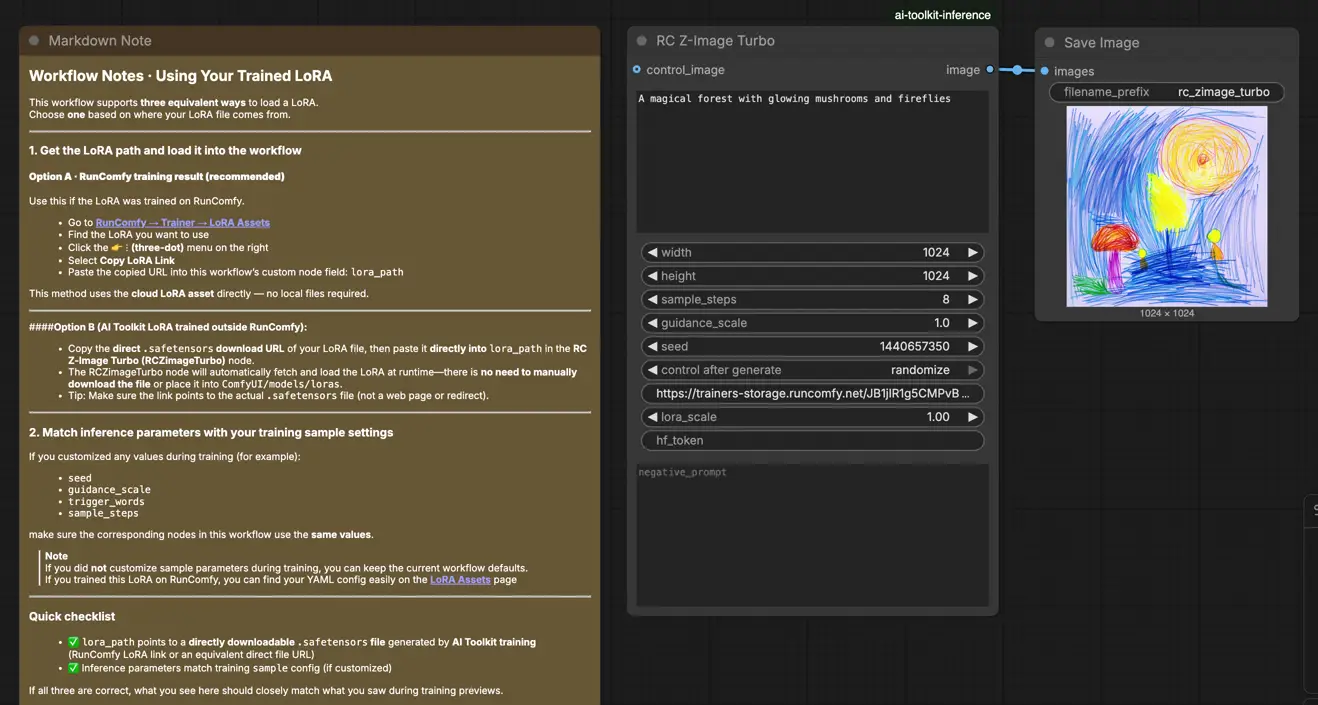
This workflow runs Z-Image Turbo Lora Inference with AI Toolkit–trained LoRAs through the RC Z‑Image Turbo (RCZimageTurbo) custom node. RunComfy built and open-sourced this custom node for Z-Image Turbo Lora Inference—see the code in the runcomfy-com GitHub organization repositories.
If you trained a LoRA on AI Toolkit (RunComfy Trainer or elsewhere) and your Z-Image Turbo Lora Inference results in ComfyUI look “off” compared to training previews, this workflow is the fastest way to get back to training‑matched behavior.
Why Z-Image Turbo Lora Inference often looks different in ComfyUI#
The real goal is alignment with the AI Toolkit training pipeline for Z-Image Turbo Lora Inference. Most Z-Image Turbo Lora Inference mismatches aren’t caused by one wrong knob—they happen because the inference pipeline changes.
AI Toolkit training previews are generated through a model‑specific Z-Image Turbo Lora Inference implementation. In ComfyUI, people often reconstruct Z-Image Turbo with generic graphs (or a different LoRA injection method), then try to “match” training previews by copying steps/CFG/seed. But even with the same numbers, a different pipeline can change.
What the RCZimageTurbo custom node does#
The RC Z‑Image Turbo (RCZimageTurbo) node wraps a Z‑Image‑Turbo‑specific inference pipeline (see the reference implementation in `src/pipelines/zimage_turbo.py` so Z-Image Turbo Lora Inference stays aligned with the AI Toolkit training preview pipeline.
How to use the Z-Image Turbo Lora Inference workflow#
Step 1: Open the workflow#
Open the RunComfy Z-Image Turbo Lora Inference workflow.
Step 2: Import your LoRA (2 options)#
- Option A (RunComfy training result):
RunComfy → Trainer → LoRA Assets → find your LoRA → ⋮ → Copy LoRA Link**
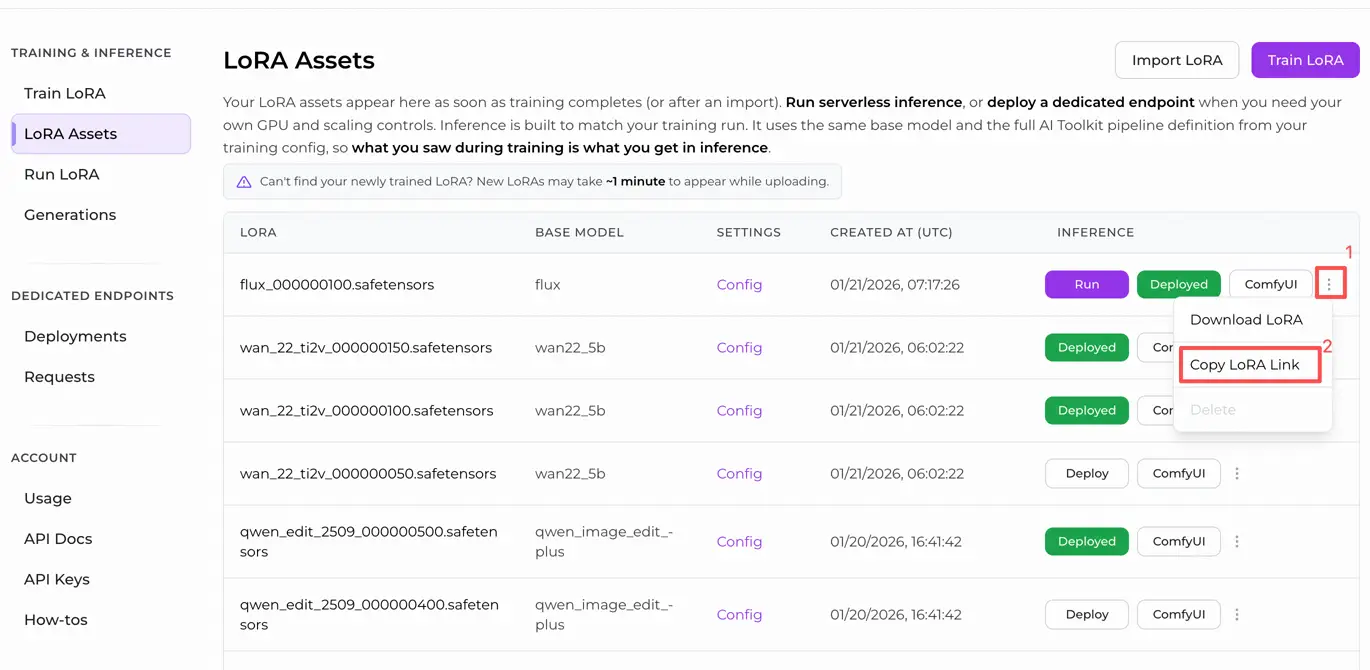
- Option B (AI Toolkit LoRA trained outside RunComfy):
Copy a direct .safetensors download link for your LoRA and paste that URL into lora_path (no need to download it into ComfyUI/models/loras).
Step 3: Configure the RCZimageTurbo custom node for Z-Image Turbo Lora Inference#
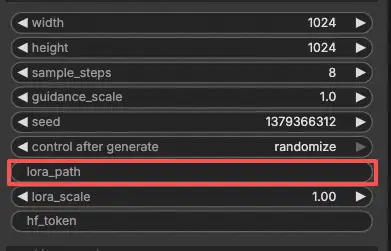
- In the Z-Image Turbo Lora Inference workflow, select RC Z‑Imfage Turbo (RCZimageTurbo) and paste your LoRA into
lora_path
- Configure the rest of the parameters for Z-Image Turbo Lora Inference (these are all in the node UI):
prompt: your main text prompt (include trigger words if you used them in training)width/height: output resolutionsample_steps: inference steps (Turbo is typically low‑step)guidance_scale: guidance / CFGseed: fixed seed to reproduce, random seed to exploreseed_mode: choose randomize (or equivalent) to explore, or keep a fixed seed to reproducelora_scale: LoRA intensity/strengthnegative_prompt(optional): only if you used one during sampling/traininghf_token(optional): only needed when loading from a private Hugging Face asset
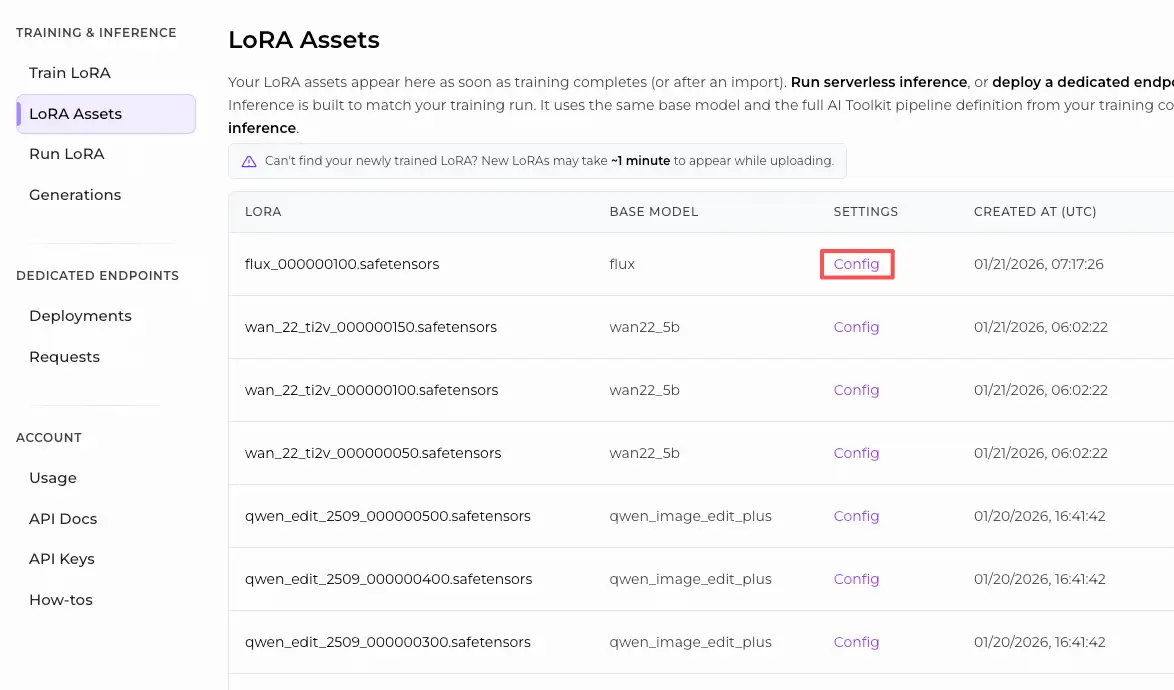
If you customized sampling during training, open the training YAML you used in AI Toolkit and mirror the same values here (especially width, height, sample_steps, guidance_scale, seed). If you trained on RunComfy, you can also open the LoRA Config in Trainer → LoRA Assets and copy the values you used during training previews:
Step 4: Run Z-Image Turbo Lora Inference#
- Click Queue/Run → output is saved automatically via SaveImage
Troubleshooting Z-Image Turbo LoRA Inference#
Most “training preview vs ComfyUI inference” problems are caused by pipeline mismatches, not a single wrong parameter. The fastest way to recover training-matched results is to run inference through RunComfy’s RCZimageTurbo custom node, which aligns LoRA injection, preprocessing, and sampling at the pipeline level with AI Toolkit training previews.
1. Why does the sample preview in aitoolkit look great, but the same prompt words look much worse in ComfyUI? How can I reproduce this in ComfyUI?#
Why this happens
Even with identical prompt, steps, CFG, and seed, using a different inference pipeline (generic sampler graph vs training preview pipeline) changes:
- where/how the LoRA is applied
- prompt & negative prompt handling
- preprocessing defaults
- reload and caching behavior
How to fix (recommended)
- Run inference with RCZimageTurbo so the pipeline matches AI Toolkit training previews.
- Mirror training preview values exactly:
width,height,sample_steps,guidance_scale,seed. - Include the same trigger words used during training and keep
lora_scaleconsistent.
2. When using Z-Image LoRA with ComfyUI, the message "lora key not loaded" appears#
Why this happens
The LoRA is being injected through a loader or graph that does not match the target modules expected by Z-Image Turbo, so some keys fail to apply or are ignored.
How to fix (most reliable)
- Use RCZimageTurbo and load the LoRA via
lora_pathinside the node. This performs model-specific, pipeline-level LoRA injection, which avoids most key mismatch issues. - Verify:
lora_scale > 0- the file is a
.safetensorsLoRA, not a base checkpoint - the file is fully downloaded (not truncated)
3. Enabling ai-toolkit z-image-turbo loras#
Why this happens
Some standard ComfyUI Z-Image Turbo workflows are not fully compatible with ai-toolkit-trained Z-Image Turbo LoRAs.
How to fix
- Use RCZimageTurbo for inference so the inference pipeline stays aligned with the AI Toolkit training preview pipeline.
- Treat RCZimageTurbo as the reference implementation when comparing outputs.
4. Z-Image Turbo LoKR: "lora key not loaded" and weights ignored (LoRA works)#
Why this happens LoKR adapters behave differently from standard LoRA, and some inference paths in ComfyUI may silently ignore LoKR weights.
Recommended approach
- For training-matched inference, prefer LoRA and run it through RCZimageTurbo.
- If you trained LoKR specifically, use an inference pipeline that explicitly supports LoKR, or export/train a LoRA variant for consistent results.
5. The safetensors file is incomplete#
Why this happens
The .safetensors file is partially downloaded or corrupted (often due to redirects or interrupted downloads).
How to fix
- Re-download using a direct
.safetensorsfile URL (avoid page links). - If downloading via workflow Assets, wait until the download fully completes before running inference.
- If unsure, compare file size against the expected size.
6. Error: Could not detect model type when loading checkpoint#
Why this happens
A LoRA or adapter file is being loaded with the wrong loader (e.g., treated as a base model checkpoint).
How to fix
- Do not load LoRAs as checkpoints.
- Always pass the LoRA through
lora_pathin RCZimageTurbo, which handles correct loading and injection at the pipeline level. - Double-check that base models, LoRAs, and adapters are each loaded in their correct places.
Run Z-Image Turbo Lora Inference now#
Open the RunComfy Z-Image Turbo Lora Inference workflow, paste your LoRA into lora_path, and run RCZimageTurbo for training‑matched inference in ComfyUI.