Z-Image De-Turbo LoRA Inference: training‑matched, minimal‑step generation in ComfyUI#
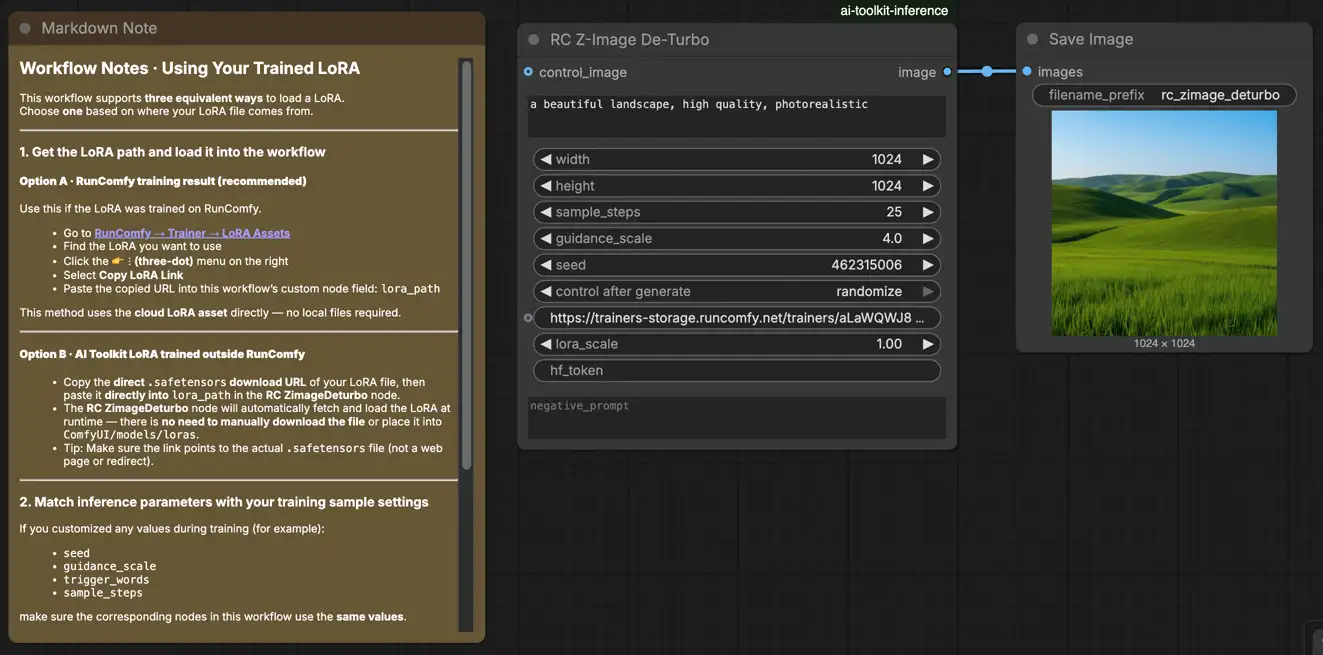
Z-Image De-Turbo LoRA Inference is a RunComfy workflow for running AI Toolkit–trained LoRA adapters on Z-Image De-Turbo in ComfyUI with training-matched behavior. It uses RC Z-Image De-Turbo (RCZimageDeturbo)—an open-sourced RunComfy custom node that aligns inference at the pipeline level (not a generic sampler graph) while applying your adapter via lora_path and lora_scale (source).
Most “training preview vs ComfyUI inference” issues are pipeline mismatches. RCZimageDeturbo addresses that by routing Z-Image De-Turbo through a preview-aligned inference pipeline and applying your single LoRA inside it—so when you need a training-matched baseline, start with this workflow and mirror your preview sampling values. Reference implementation: `src/pipelines/flex1_alpha.py`.
What the RCZimageDeturbo custom node does#
RCZimageDeturbo loads the De-Turbo transformer from ostris/Z-Image-De-Turbo, pairs it with the tokenizer/text encoder/VAE from Tongyi-MAI/Z-Image-Turbo, and assembles the pipeline explicitly to avoid meta-tensor swap issues—then applies your adapter via lora_path / lora_scale. Reference: `src/pipelines/flex1_alpha.py`
How to use the Z-Image De-Turbo LoRA Inference workflow#
Step 1: Import your LoRA (2 options)#
- Option A (RunComfy training result): RunComfy → Trainer → LoRA Assets → find your LoRA → ⋮ → Copy LoRA Link
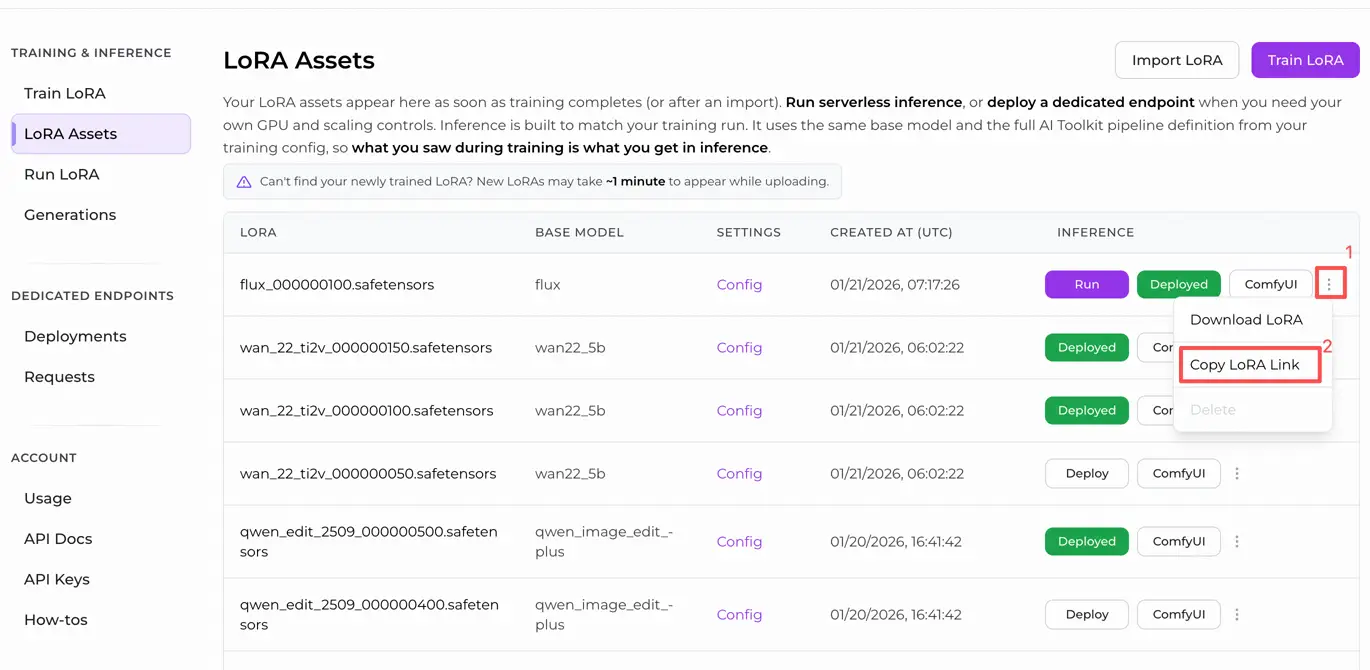
- Option B (AI Toolkit LoRA trained outside RunComfy): Copy a direct
.safetensorsdownload link for your LoRA and paste that URL intolora_path(no need to download intoComfyUI/models/loras).
Step 2: Configure the RCZimageDeturbo custom node for Z-Image De-Turbo LoRA Inference#
Configure the rest of the settings for Z-Image De-Turbo LoRA Inference (all in the node UI):
prompt: your text prompt (include the trigger tokens you used during training, if any)negative_prompt: optional; keep it empty if your preview sampling didn’t use negativeswidth/height: output resolution (for clean comparisons, match your preview size; multiples of 32 are recommended)sample_steps: inference steps (De-Turbo usually needs more steps than “Turbo”-style graphs; start with the same step count you previewed during training)guidance_scale: guidance/CFG strength (match your preview value first, then tune in small increments)seed: set a fixed seed to reproduce; change it to explore variationslora_scale: LoRA strength (start near your preview strength, then adjust)
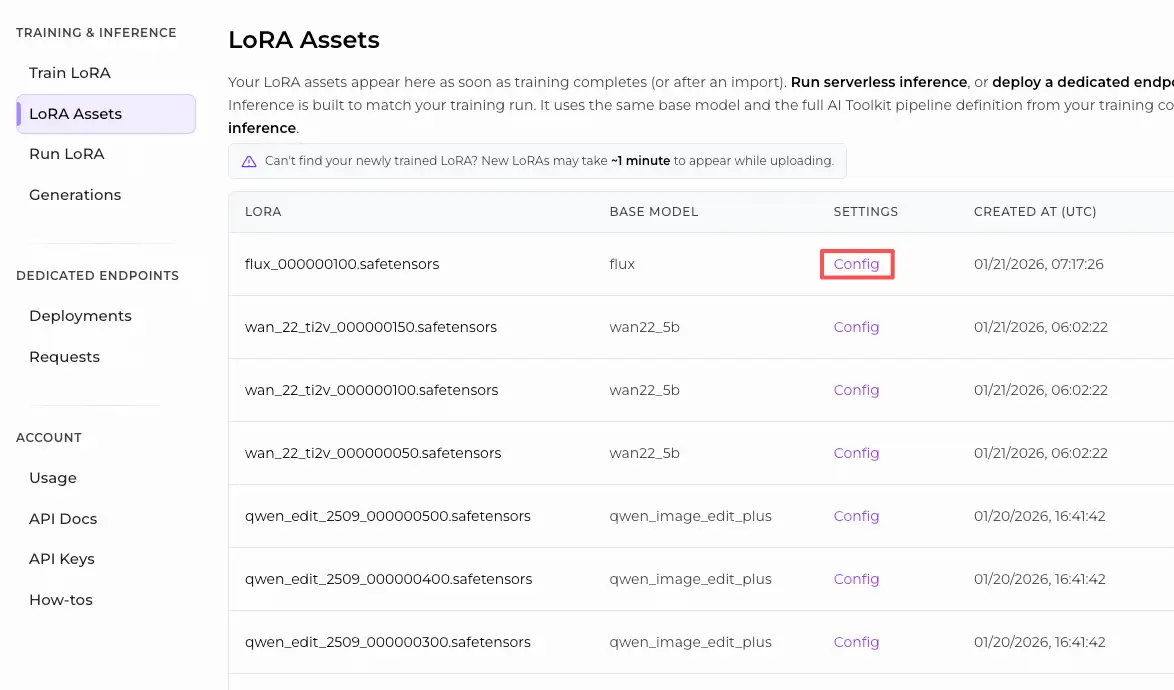
Training alignment tip: mirror the sampling values from the AI Toolkit training YAML you used for previews—especially width, height, sample_steps, guidance_scale, seed. If you trained on RunComfy, open Trainer → LoRA Assets → Config and copy the preview settings into the node.
Step 3: Run Z-Image De-Turbo LoRA Inference#
- Click Queue/Run → SaveImage writes results to your ComfyUI output folder automatically
Troubleshooting Z-Image De-Turbo LoRA Inference#
Most issues people hit after training a Z-Image De‑Turbo LoRA in AI Toolkit come from pipeline mismatch—AI Toolkit’s preview sampler is not the same as a generic ComfyUI sampler graph.
RunComfy’s RC Z-Image De‑Turbo (RCZimageDeturbo) custom node is built to keep inference pipeline-aligned with AI Toolkit‑style preview sampling (model‑specific wrapper + consistent LoRA injection). When troubleshooting, test your LoRA through RCZimageDeturbo first, then tune parameters.
(1)Why does the sample preview in aitoolkit look great, but the same prompt words look much worse in ComfyUI? How can I reproduce this in ComfyUI?#
Why this happens
Even if you copy the same prompt / steps / guidance / seed, the output can drift when ComfyUI is running a different pipeline than the AI Toolkit preview pipeline (different defaults, conditioning behavior, and LoRA injection path).
How to fix (training-matched approach)
- Run inference through RCZimageDeturbo so the model executes a Z‑Image De‑Turbo–specific inference pipeline and applies your LoRA via
lora_path/lora_scaleinside that pipeline. - Mirror the preview sampling values you used during AI Toolkit sampling when comparing:
width,height,sample_steps,guidance_scale,seed. - Keep the same prompt format and trigger tokens you trained with.
(2)When using Z-Image LoRA with ComfyUI, the message "lora key not loaded" appears.#
Why this happens
This usually means the LoRA is being injected through a path that doesn’t match the Z‑Image (De‑Turbo) modules you trained against—most commonly because:
- the base model variant doesn’t match what the LoRA expects, or
- the LoRA format / key mapping doesn’t match the loader/pipeline you’re using.
How to fix (reliable options)
- Use pipeline-level LoRA injection: load the adapter only via
lora_pathon RCZimageDeturbo (avoid stacking an extra LoRA loader path on top of it). - Prefer Diffusers-format assets for pipeline inference: if you’re mixing formats, try the Diffusers version for training/pipeline usage first.
- If formats don’t match, convert the LoRA weights: use a known conversion route for Z‑Image LoRA weights so they match the format expected by your inference stack (Diffusers/pipeline vs Comfy-native loader).
(3)Can't load config for ‘"XXXXX"#
Why this happens
This is commonly caused by incomplete model downloads (you’ll often see .incomplete blobs in the Hugging Face cache) or a filesystem/runtime that prevents proper caching, which makes the transformer/config fail to load.
How to fix (user-verified download + folder build) A working approach reported by users is to download a clean Turbo base + the De‑Turbo transformer, then assemble a complete folder locally:
- Download both repos with
huggingface-cli download ... --local-dir-use-symlinks False - Replace
Z-Image-Turbo/transformerwith theZ-Image-De-Turbo/transformerfolder - Point your model path (or the environment that loads the base) at the resulting completed directory
After the base loads cleanly, run inference through RCZimageDeturbo and match the preview sampling values to compare against AI Toolkit previews.
Run Z-Image De-Turbo LoRA Inference now#
Open the RunComfy Z-Image De-Turbo LoRA Inference workflow, set lora_path, and run RCZimageDeturbo to keep ComfyUI results aligned with your AI Toolkit training previews.