




Qwen Image 2512 ComfyUI workflow for text-accurate portraits and scenes#
This workflow turns your prompt into a high‑fidelity image using Qwen Image 2512. It is designed for creators who need strong text-to-image alignment, realistic people, and reliable bilingual text rendering inside the scene. The graph comes prewired with Qwen’s VAE and text encoder, plus an optional Lightning LoRA for few‑step generation, so you can move from prompt to result with minimal setup.
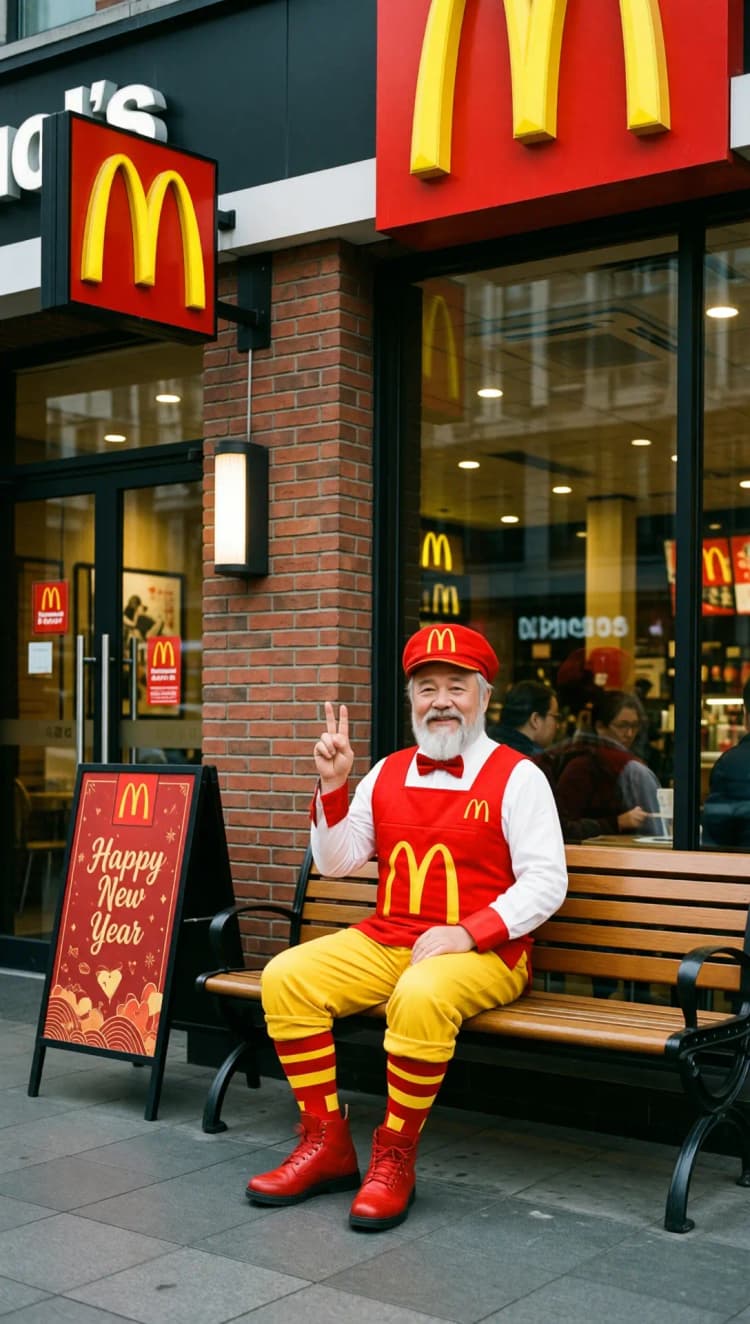
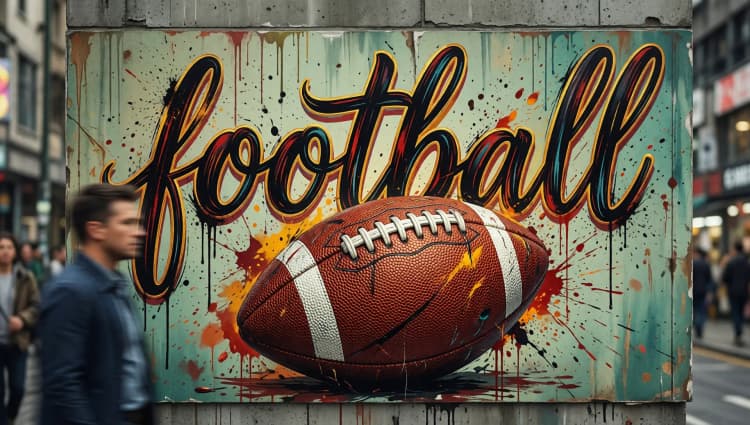
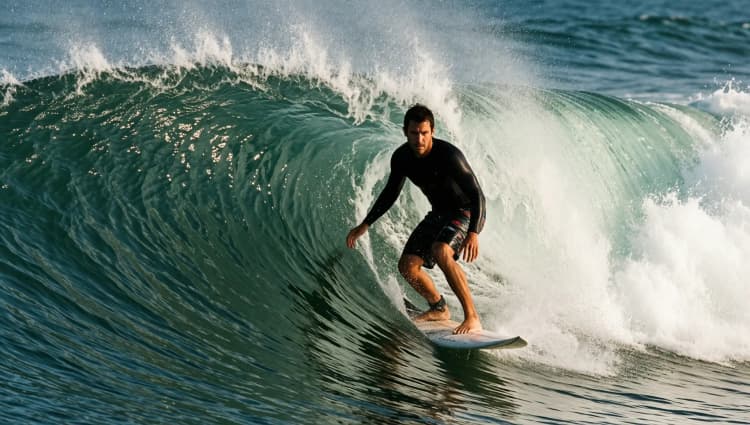
Use it for concept art, illustration, signage, posters, and everyday photo styles. Qwen Image 2512 brings stable composition and crisp typography, making it a solid choice for prompts that mix people, environments, and readable text.
Key models in Comfyui Qwen Image 2512 workflow#
- Qwen-Image 2512 base model (bfloat16). Core diffusion model that synthesizes the image from conditioning. The Comfy‑ready weights are provided in the Comfy‑Org package. Model files
- Qwen2.5‑VL 7B text encoder. Encodes your prompt into conditioning vectors that drive Qwen Image 2512’s layout, style, and text rendering. Text encoder files
- Qwen Image VAE. Decodes the latent produced by the sampler back to an RGB image with faithful color and detail. VAE file
- Qwen‑Image‑2512‑Lightning‑4steps‑V1.0 LoRA (optional). A community LoRA tuned for few‑step generation to accelerate rendering with minor quality tradeoffs. LoRA card
- For background on the model family and training approach, see the Qwen‑Image technical report. Paper
How to use Comfyui Qwen Image 2512 workflow#
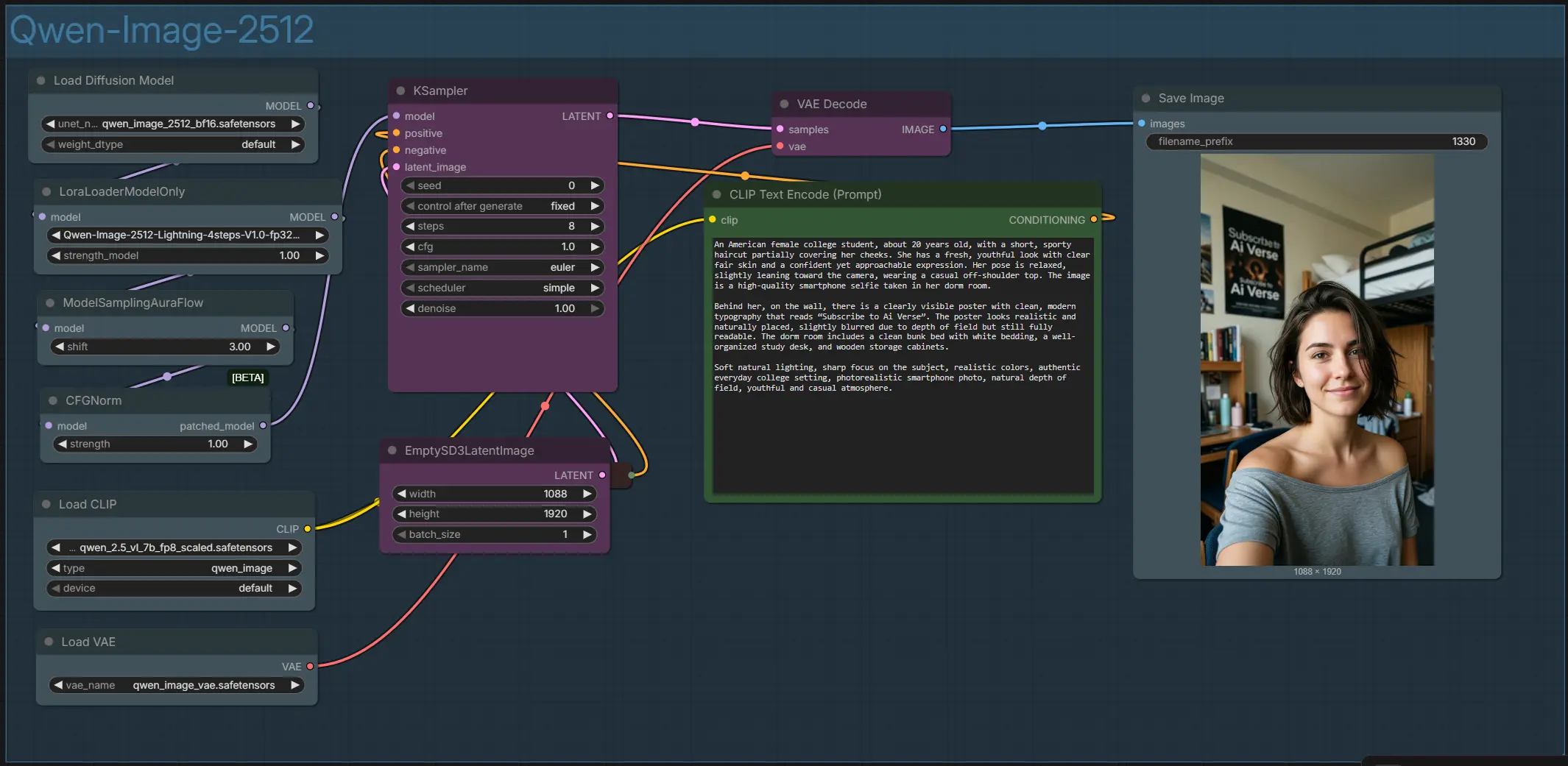
Overall flow: your prompt is encoded, a latent canvas is created at the chosen resolution, the model stack applies the base model and optional LoRA, the sampler iterates to refine the latent, and the VAE decodes the final image for saving.
- Qwen‑Image‑2512 group overview
- The entire graph is organized inside a single group named “Qwen‑Image‑2512.” It wires together the text encoder, model and LoRA stack, sampling helpers, and VAE decode. You control the look with your positive and negative prompts, canvas size, and a few sampler settings. The output is a high‑resolution portrait‑style image saved to your ComfyUI output folder.
- Prompts with
CLIPTextEncode(#52) and optional negativesCLIPTextEncode(#32)- Enter your main description in
CLIPTextEncode(#52). Write the scene, subjects, and any in‑image text you want rendered; Qwen Image 2512 is particularly strong at signage, posters, UI mockups, and bilingual captions. UseCLIPTextEncode(#32) for optional negatives to steer away from artifacts or unwanted styles. Keep text snippets inside quotes if you need precise wording.
- Enter your main description in
- Canvas and aspect ratio with
EmptySD3LatentImage(#57)- Choose your target width and height here to set the composition. Portrait formats work well for people and selfies, while square and landscape ratios suit product and scene layouts. Larger canvases give finer detail at the cost of memory and time; start modest, then scale up once you like the framing. Consistency improves when you keep the same aspect ratio across iterations.
- Model and LoRA stack with
UNETLoader(#100) andLoraLoaderModelOnly(#101)- The base generator is Qwen Image 2512 loaded by
UNETLoader(#100). If you want faster renders, enable the Lightning LoRA inLoraLoaderModelOnly(#101) to switch to a few‑step workflow. This stack sets the model’s capabilities for realism, layout, and text-to-image alignment before sampling begins.
- The base generator is Qwen Image 2512 loaded by
- Sampling helpers with
ModelSamplingAuraFlow(#43) andCFGNorm(#55)- These two nodes prepare the model for stable, contrast‑balanced sampling.
ModelSamplingAuraFlow(#43) adjusts the schedule to keep details sharp without over‑cooking textures.CFGNorm(#55) normalizes guidance to maintain consistent color and exposure while following your prompt.
- These two nodes prepare the model for stable, contrast‑balanced sampling.
- Denoising and refinement with
KSampler(#54)- This is the workhorse stage that iteratively improves the latent from noise to a coherent image. You set the seed for repeatability, select the sampler and scheduler, and choose how many steps to run. With Lightning enabled, you can aim for few steps; with the base model alone, use more steps for maximum fidelity.
- Decode and save with
VAEDecode(#45) andSaveImage(#117)- After sampling, the VAE cleanly reconstructs RGB from the latent and
SaveImagewrites the final PNG. If colors or contrast look off, revisit guidance or prompt phrasing rather than post‑processing; Qwen Image 2512 responds well to descriptive lighting and material cues.
- After sampling, the VAE cleanly reconstructs RGB from the latent and
Key nodes in Comfyui Qwen Image 2512 workflow#
UNETLoader(#100)- Loads the Qwen‑Image‑2512 base model that determines overall capability and style space. Use the bf16 build for maximum quality if your GPU allows. Switch to an fp8 or compressed variant only if you need to fit memory or increase throughput.
LoraLoaderModelOnly(#101)- Applies the Qwen‑Image‑2512‑Lightning‑4steps‑V1.0 LoRA over the base model. Raise or lower
strength_modelto blend speed tuning with base fidelity, or set it to 0 to disable. When this LoRA is active, reducestepsinKSamplerto a few iterations to realize the speedup.
- Applies the Qwen‑Image‑2512‑Lightning‑4steps‑V1.0 LoRA over the base model. Raise or lower
ModelSamplingAuraFlow(#43)- Patches the model’s sampling behavior for a flow‑style schedule that often yields crisper edges and fewer smudges. If results look over‑sharpened or under‑detailed, nudge the
shiftparameter slightly and re‑sample. Keep other variables stable while you test to isolate the effect.
- Patches the model’s sampling behavior for a flow‑style schedule that often yields crisper edges and fewer smudges. If results look over‑sharpened or under‑detailed, nudge the
CFGNorm(#55)- Normalizes classifier‑free guidance to prevent washed‑out or overly saturated outputs. Use
strengthto decide how assertively the normalization should act. If text accuracy drops when you push CFG higher, increase normalization strength instead of raising CFG further.
- Normalizes classifier‑free guidance to prevent washed‑out or overly saturated outputs. Use
EmptySD3LatentImage(#57)- Sets the latent canvas size that defines framing and aspect ratio. For people, portrait ratios reduce distortion and help with body proportions; for posters, square or landscape ratios emphasize layout and text blocks. Increase resolution only after you are happy with composition.
CLIPTextEncode(#52) andCLIPTextEncode(#32)- The positive encoder (#52) turns your description into conditioning, including explicit text strings to be rendered in the scene. The negative encoder (#32) suppresses unwanted traits like artifacts, extra fingers, or noisy backgrounds. Keep prompts concise and factual for best alignment.
KSampler(#54)- Controls seed, sampler, scheduler, steps, CFG, and denoise strength. With Qwen Image 2512, moderate CFG values typically preserve the model’s strong text alignment; if letters deform, lower CFG before changing the sampler. For fast drafts enable Lightning and try very few steps, then increase steps for final renders if needed.
VAELoader(#34) andVAEDecode(#45)- Load and apply Qwen’s VAE to reconstruct faithful color and fine detail. Keep the VAE paired with the base model to avoid color shifts. If you switch base weights, also switch to the matching VAE build.
Optional extras#
- Prompting for in‑image text
- Put exact words in straight quotes, and add brief typography cues like “clean modern typography” or “bold sans serif.” Include placement hints such as “wall poster” or “storefront sign” to anchor where the text should appear.
- Faster iteration with Lightning
- Enable the Lightning LoRA and use few steps for previews. Once framing and wording are correct, disable or reduce the LoRA strength and raise steps to recover maximum fidelity.
- Aspect ratio choices
- Stick to consistent ratios across variations. Use portrait for people, square for product or logo studies, and landscape for environments or slides. If you upscale later, keep the same ratio to maintain composition.
- Guidance discipline
- Qwen Image 2512 usually prefers modest CFG. If text fidelity slips, lower CFG or increase
CFGNormstrength rather than piling on more guidance.
- Qwen Image 2512 usually prefers modest CFG. If text fidelity slips, lower CFG or increase
- Reproducibility
- Lock a seed when you like a result so you can iterate safely. Change one control at a time to understand its impact before moving on.
Acknowledgements#
This workflow implements and builds upon the following works and resources. We gratefully acknowledge Comfy-Org for Qwen Image 2512 Model Files for their contributions and maintenance. For authoritative details, please refer to the original documentation and repositories linked below.
Resources#
- Comfy-Org/Qwen Image 2512 Model Files
- Hugging Face: Comfy-Org/Qwen-Image_ComfyUI
- Docs / Release Notes: Qwen Image 2512 Model Files
Note: Use of the referenced models, datasets, and code is subject to the respective licenses and terms provided by their authors and maintainers.