
Krea 2 reference image editing ComfyUI workflow#
This RunComfy-ready Krea 2 reference image editing ComfyUI workflow turns a reference image plus a plain‑English instruction into a new render that preserves the subject, pose, and composition while applying your changes. It uses Krea‑2 Turbo for fast, high‑quality generation, Qwen3‑VL text encoding to understand both language and visuals, and the Qwen Image VAE for stable image latents.
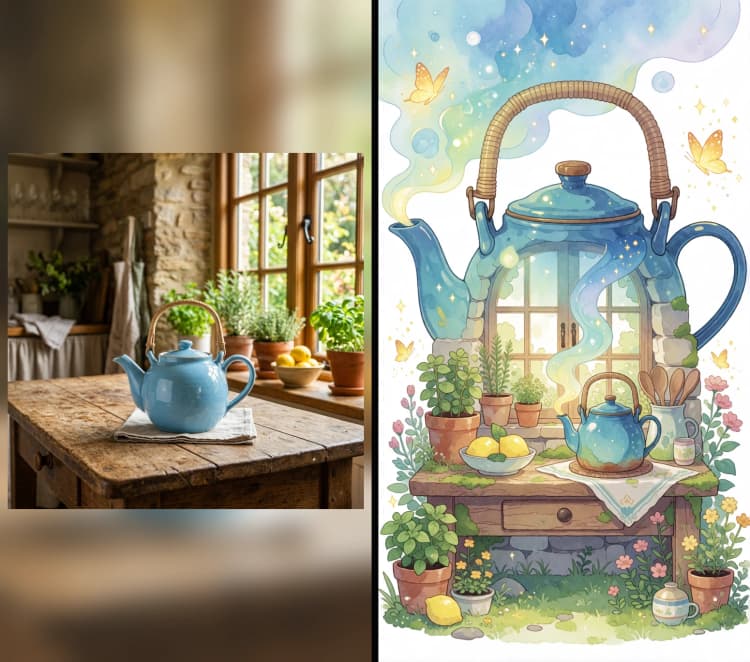
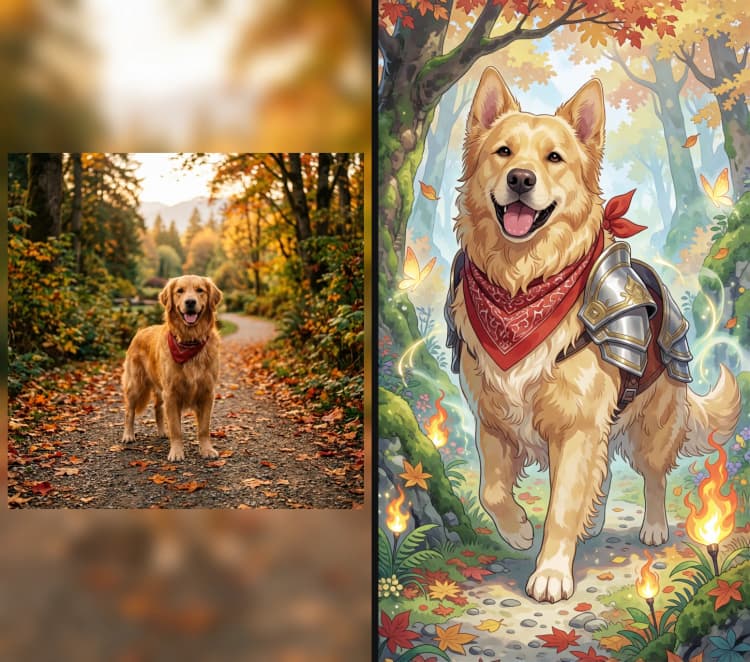
Instead of relying on a separate “edit” checkpoint, the workflow treats reference‑image editing as a workflow‑level adaptation. With Krea2EditRebalance and two paths powered by Krea2TextEncoder and Qwen Image Edit Plus, it supports instruction‑guided character edits, object stylization, and before‑after transformations in a single graph.
Key models in Comfyui Krea 2 reference image editing ComfyUI workflow#
- Krea‑2 Turbo. The diffusion backbone that drives fast image generation and robust image‑to‑image editing. Source: krea/Krea-2-Turbo.
- Qwen3‑VL 4B text encoder. A multimodal encoder packaged for Krea 2 that turns your instruction prompt and visual cues into conditioning. Source: Comfy-Org/Krea-2.
- Qwen Image VAE. The VAE that encodes and decodes images to latents compatible with Krea 2 for faithful reconstructions. Source: Comfy-Org/Krea-2.
- Optional Krea 2 style LoRAs. Lightweight adapters such as krea2_darkbrush for global style control when desired. Source: Comfy-Org/Krea-2.
How to use Comfyui Krea 2 reference image editing ComfyUI workflow#
The graph contains five independent groups. Pick the group that best fits your edit style, supply a reference image and an instruction, then run. All groups save decoded images automatically.
Workflow-1 Krea 2 Basic image-to-image#
This path recreates the reference with your instruction using standard text conditioning. Load your image in LoadImage (#39), pick an output size with ResolutionSelector (#38), and write the instruction in CLIPTextEncode (#42). UNETLoader (#29) brings in Krea‑2 Turbo and LoraLoaderModelOnly (#40) can apply an optional style LoRA. KSampler (#41) generates the new latent, VAEDecode (#33) converts it to pixels, and SaveImage (#34) writes the result.
Workflow-2 Krea 2 with 'Qwen Image Edit Plus' node image-to-image#
Use this when you want the model to read the reference more literally. Feed your reference to LoadImage (#55) and your instruction to TextEncodeQwenImageEditPlus (#56), which combines the prompt with features extracted by Qwen3‑VL and the Qwen VAE. The resulting conditioning flows to KSampler (#52) with Krea‑2 Turbo from UNETLoader (#43) and an optional style from LoraLoaderModelOnly (#50). VAEDecode (#46) and SaveImage (#47) produce the final image.
Workflow-3 Krea 2 with custom node 'Krea2TextEncoder' reference image is analyzed by Qwen3-VL for new image generation#
Choose this for instruction‑guided resynthesis that strongly preserves subject, pose, and framing. Load the reference in LoadImage (#26), set size with ResolutionSelector (#25), and enter your instruction in TextEncodeKrea2 (#27). The helper Krea2SystemPrompt (#57) steers how the reference description and your edit instruction are fused. Krea‑2 Turbo arrives through UNETLoader (#14) and LoraLoaderModelOnly (#18), KSampler (#19) renders, then VAEDecode (#20) and SaveImage (#21) export.
Workflow-4 Krea 2 with custom node 'Krea2TextEncoder' reference Mask is analyzed by Qwen3-VL for new image generation#
Pick this to target changes to a region while keeping the rest untouched. Load an image and mask in LoadImage (#70); the mask is previewed in MaskPreview (#72). TextEncodeKrea2 (#69) uses the masked area as the primary visual cue along with your instruction, then conditions Krea‑2 Turbo from UNETLoader (#58) and LoraLoaderModelOnly (#67). KSampler (#68) generates, VAEDecode (#61) converts, and SaveImage (#62) writes the image.
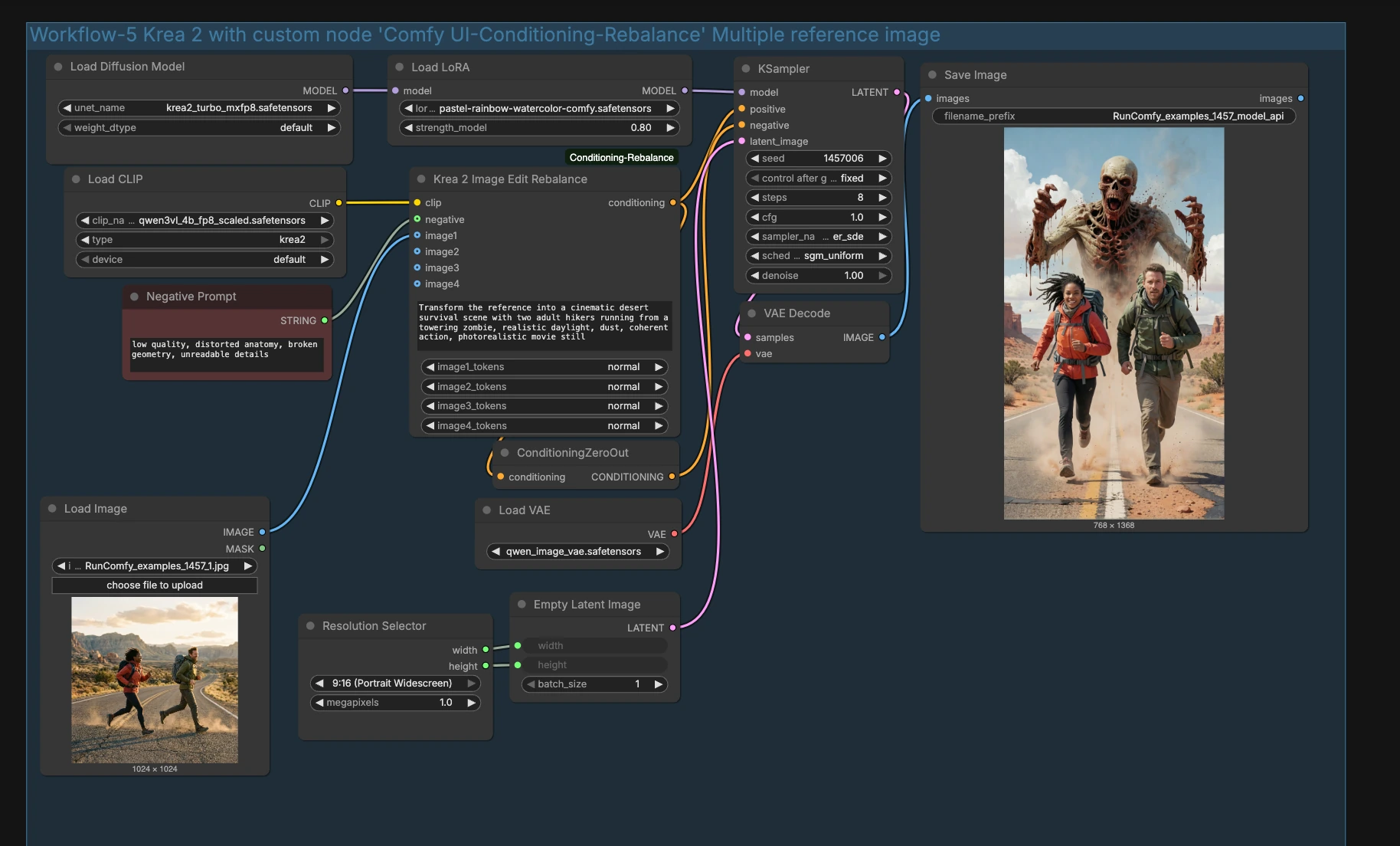
Workflow-5 Krea 2 with custom node 'Comfy UI-Conditioning-Rebalance' Multiple reference image#
This route derives both positive and negative conditioning directly from the reference, which helps keep identity and layout stable as you change context or style. Provide your image to LoadImage (#11) and optional negatives to the “Negative Prompt” panel feeding Krea2EditRebalance (#10). The node outputs a rebalanced pair of conditionings to KSampler (#4), which runs on Krea‑2 Turbo from UNETLoader (#2) with an optional style via LoraLoaderModelOnly (#12). VAEDecode (#7) and SaveImage (#6) finish the pass.
Key nodes in Comfyui Krea 2 reference image editing ComfyUI workflow#
TextEncodeKrea2 (#27) Generates instruction‑plus‑reference conditioning using a system prompt and the loaded image. Adjust the instruction to describe desired changes clearly, then refine how strongly the reference guides the result. If you later enable a style LoRA, reduce reliance on the reference to avoid over‑constraining the look. Source: ethanfel/ComfyUI-Krea2TextEncoder.
TextEncodeKrea2 (#69) Same encoder as above but with mask support for local edits. Provide a mask to focus the analyzer on what should change, and keep the instruction specific to that region. For cleaner backgrounds, keep masked edits concise and avoid conflicting global style pushes. Source: ethanfel/ComfyUI-Krea2TextEncoder.
TextEncodeQwenImageEditPlus (#56) Combines your instruction with Qwen‑extracted image features for faithful image‑to‑image edits. Use it when you want the output to closely track surface details from the reference. If results become too literal, simplify the instruction or switch to TextEncodeKrea2 for more conceptual control. Source: Comfy-Org/Krea-2.
Krea2EditRebalance (#10) Builds a balanced positive and negative conditioning pair from the reference plus your negative list, helping preserve identity and composition while moving the scene to a new context. Start with moderate rebalancing and only increase if the subject drifts. When stacking a style LoRA, keep rebalancing conservative to prevent oversaturation. Source: nova452/ComfyUI-Conditioning-Rebalance.
Optional extras#
- Keep the instruction concrete and short. Describe the change, not the whole image.
- Crop the reference tightly around the subject when identity matters most.
- For A/B testing, keep the seed fixed and vary only the instruction or mask.
- Increase resolution after you are happy with composition to save time.
Acknowledgements#
This workflow implements and builds upon the following works and resources. We gratefully acknowledge AiNinja94 for the Krea2 ComfyUI workflows (including the Krea 2 Ref Image Simple JSON), krea for the Krea 2 Turbo model, and Comfy-Org and ethanfel for the Krea 2 ComfyUI weights and the Krea2 text encoder custom node for their contributions and maintenance. For authoritative details, please refer to the original documentation and repositories linked below.
Resources#
- AiNinja94/Krea2-ComfyUI-Workflow
- Hugging Face: AiNinja94/Krea2-ComfyUI-Workflow
- AiNinja94/Krea2-Ref-Image-Simple.json
- Hugging Face: Krea2-Ref-Image-Simple.json
- krea/Krea-2-Turbo
- Hugging Face: krea/Krea-2-Turbo
- Comfy-Org/Krea-2
- Hugging Face: Comfy-Org/Krea-2
- ethanfel/ComfyUI-Krea2TextEncoder
Note: Use of the referenced models, datasets, and code is subject to the respective licenses and terms provided by their authors and maintainers.