

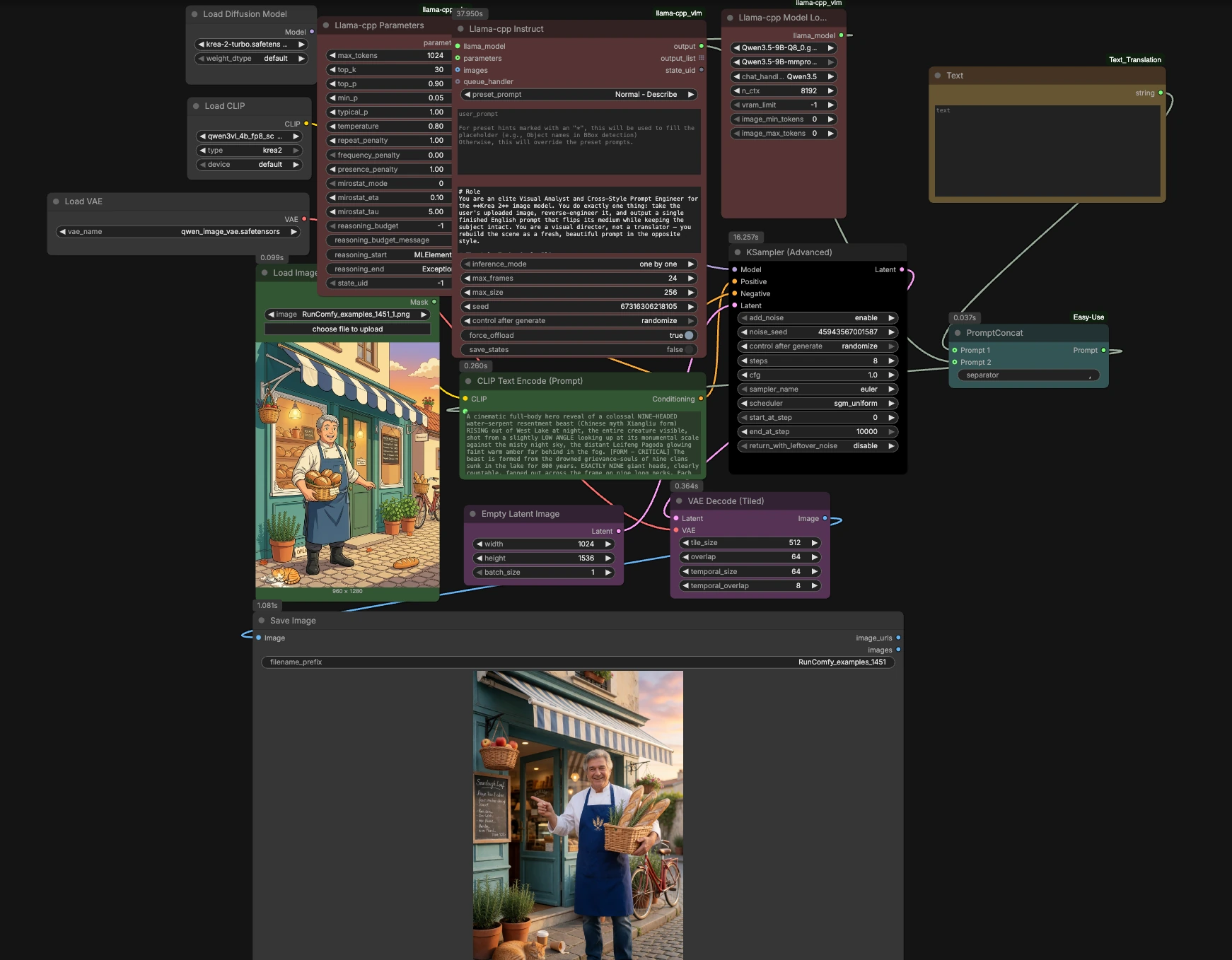


Krea 2 Turbo image-to-image ComfyUI workflow#
This workflow is a style-flip and redraw system that turns any uploaded image into its opposite visual medium while preserving the subject, colors, pose, framing, and scene logic. Stylized sources (anime, illustration, 3D, painting) are reimagined as believable photographs; true photographs are reinterpreted as crisp 2D anime. Built around Krea 2 Turbo with a local llama.cpp vision prompt step, Qwen3‑VL text encoding, and the Qwen Image VAE, it gives creators fast, faithful, and repeatable results for visual refinement and style transfer inside RunComfy. If you need a reusable, production-ready Krea 2 Turbo image-to-image ComfyUI workflow for rapid iterations, this is it.
Key models in Comfyui Krea 2 Turbo image-to-image ComfyUI workflow#
- Krea 2 Turbo huggingface.co/krea/Krea-2-Turbo. The open-weight, text-to-image diffusion transformer optimized for few-step, fast inference. Turbo is distilled for speed and consistent prompt following while maintaining high visual quality and style control.
- Qwen3‑VL 4B Text Encoder (Krea 2 edition) huggingface.co/Comfy-Org/Krea-2. Provides the language-to-vision embedding used to condition Krea 2; this release includes the Krea-ready Qwen3‑VL encoder weights.
- Qwen Image VAE huggingface.co/Comfy-Org/Krea-2. The autoencoder used by Krea 2 to move between latent space and pixels with high fidelity at large resolutions.
- Qwen 3.5 9B Vision‑Language Model (GGUF) via llama.cpp github.com/mickeylan/ComfyUI-llama-cpp_vlm and github.com/ggml-org/llama.cpp. Runs locally to analyze the uploaded image and author a single polished prompt that flips medium while locking in concrete visual facts.
How to use Comfyui Krea 2 Turbo image-to-image ComfyUI workflow#
The workflow analyzes your image with a local VLM, produces a clean opposite‑medium prompt, encodes it for Krea 2, then redraws with Krea 2 Turbo. The pipeline is organized into five stages from input to output, with a few optional touches for control.
1) Upload and analyze image#
Start by dropping an image into LoadImage (#128). The picture feeds into llama_cpp_model_loader (#127) and llama_cpp_instruct_adv (#125), which run a local Qwen‑family vision‑language model through llama.cpp. A carefully crafted system_prompt instructs the VLM to preserve subject identity, exact colors, composition, and camera logic while flipping the medium: stylized sources become photographs; genuine photos become vivid 2D anime. The output is a single, natural‑language prompt ready for Krea 2.
2) Assemble the generation prompt#
Use Text (#130) to add any short guidance you want to prepend or append, such as a project tag, brand term, or lens note. easy promptConcat (#129) merges your manual text with the VLM‑authored description into one coherent prompt. Keep additions minimal; the VLM already describes all visible elements precisely so the Krea 2 Turbo image-to-image ComfyUI workflow can stay faithful.
3) Encode text for Krea 2#
CLIPLoader (#106) loads the Qwen3‑VL 4B text encoder bundled for Krea 2, and CLIPTextEncode (#5) turns the final prompt into conditioning. This encoder is designed to pair with Krea 2’s tokenizer and preserves detailed scene semantics, color statements, and camera cues. ConditioningZeroOut (#124) provides a deliberately empty negative branch, which tends to suit Krea 2 Turbo’s distilled guidance behavior.
4) Generate with Krea 2 Turbo#
UNETLoader (#107) loads the Krea 2 Turbo checkpoint and passes it to KSamplerAdvanced (#12). EmptyLatentImage (#10) sets the canvas size; choose the width and height you want to produce. Krea 2 Turbo is built for few‑step sampling with very low or zero classifier‑free guidance, so start near zero CFG and raise it only if you need stricter prompt adherence. The sampler and scheduler work together to deliver fast, sharp results that respect the prompt’s locked colors and composition.
5) Decode and save output#
VAELoader (#105) provides the Qwen Image VAE used by VAEDecodeTiled (#123) to reconstruct pixels from latents with VRAM‑friendly tiling for large images. SaveImage (#35) writes the final render. The result is a clean, faithful redraw in the opposite medium, ready for review or another quick pass.
Key nodes in Comfyui Krea 2 Turbo image-to-image ComfyUI workflow#
llama_cpp_instruct_adv (#125)#
This node is the style‑flip brain. Adjust system_prompt only if you want to change flip policy or preservation rules; the default is tuned to keep identity, pose, framing, and exact colors. Use preset_prompt and custom_prompt for small nudges such as naming a lens for photo outputs or adding a gentle palette note for anime. Keep the output to one fluent paragraph; Krea 2 responds best to natural language.
KSamplerAdvanced (#12)#
Controls speed, sharpness, and adherence. Krea 2 Turbo is distilled for few‑step sampling with low or zero cfg (see the official guidance in the model card and code) so begin with minimal guidance and adjust upward only if you need tighter prompt following. Switch sampler_name and scheduler if you favor a different tradeoff between crisp edges and ultra‑smooth gradients. Lock the noise_seed when you want consistent variations.
EmptyLatentImage (#10)#
Sets output size and batch. Use this to choose aspect ratio and resolution that match your intended framing; the VLM prompt carries composition, so avoid cropping changes afterward. Larger frames benefit from the tiled decode stage to stay memory‑efficient.
ConditioningZeroOut (#124)#
Disables the negative prompt by design, which generally suits Krea 2 Turbo. If your project requires traditional negative prompting, replace this with a second CLIPTextEncode feeding the negative input on KSamplerAdvanced (#12).
VAEDecodeTiled (#123)#
Performs tiled decoding to keep VRAM usage stable at higher resolutions. If you see seams at extreme sizes, gently increase overlap; if memory is tight, increase tiling granularity.
Optional extras#
- For stylization control, you can load Krea‑2 LoRAs from the Comfy‑Org repack (links listed in the files) and apply them in ComfyUI like any other LoRA huggingface.co/Comfy-Org/Krea-2. Krea recommends training LoRAs on Raw and applying them on Turbo; see the official repo for details github.com/krea-ai/krea-2.
- Keep manual edits short. The Krea 2 Turbo image-to-image ComfyUI workflow is designed to preserve exact hues and scene logic; long manual prompts can unintentionally override the VLM’s color locks.
- For fastest iterations, work at moderate resolution, review composition, then upscale or raise resolution for finals after you are satisfied with the flip.
Acknowledgements#
This workflow implements and builds upon the following works and resources. We gratefully acknowledge RunningHub for Image-to-Image workflow source, Krea AI for Krea 2 and Krea-2-Turbo, and Comfy-Org and mickeylan for ComfyUI Krea 2 weights and the ComfyUI llama-cpp VLM custom node for their contributions and maintenance. For authoritative details, please refer to the original documentation and repositories linked below.
Resources#
- RunningHub/Image-to-Image Workflow
- Docs / Release Notes: RunningHub post
- krea-ai/Krea 2
- GitHub: krea-ai/krea-2
- Krea/Krea-2-Turbo
- Hugging Face: krea/Krea-2-Turbo
- Comfy-Org/Krea-2
- Hugging Face: Comfy-Org/Krea-2
- mickeylan/ComfyUI-llama-cpp_vlm
- GitHub: mickeylan/ComfyUI-llama-cpp_vlm
Note: Use of the referenced models, datasets, and code is subject to the respective licenses and terms provided by their authors and maintainers.