

HiDream O1 Image ComfyUI Image Editing: structure‑preserving, prompt‑guided image-to-image edits#
This workflow delivers HiDream O1 Image ComfyUI Image Editing for creators who want reliable, prompt-guided changes while keeping the original composition intact. Point it at a portrait, product shot, or interior photo, describe the change you want, and generate controlled variants you can compare and rerun inside RunComfy.
Built around a compact model loader, clear text conditioning, and a single sampler path, the graph is easy to read and fast to iterate. If you need a practical starting point for portrait restyling, product concept tweaks, decor changes, or broader visual styling tests, this HiDream O1 Image ComfyUI Image Editing workflow gets you there with minimal setup.
Key models in Comfyui HiDream O1 Image ComfyUI Image Editing workflow#
- HiDream O1 Image (BF16). Core diffusion model that powers the image-to-image editing and enables text-conditioned modifications while preserving scene layout. The BF16 weights balance quality with VRAM efficiency. Model project: HiDream O1 Image. BF16 weights: HiDream-O1-Image-BF16.
How to use Comfyui HiDream O1 Image ComfyUI Image Editing workflow#
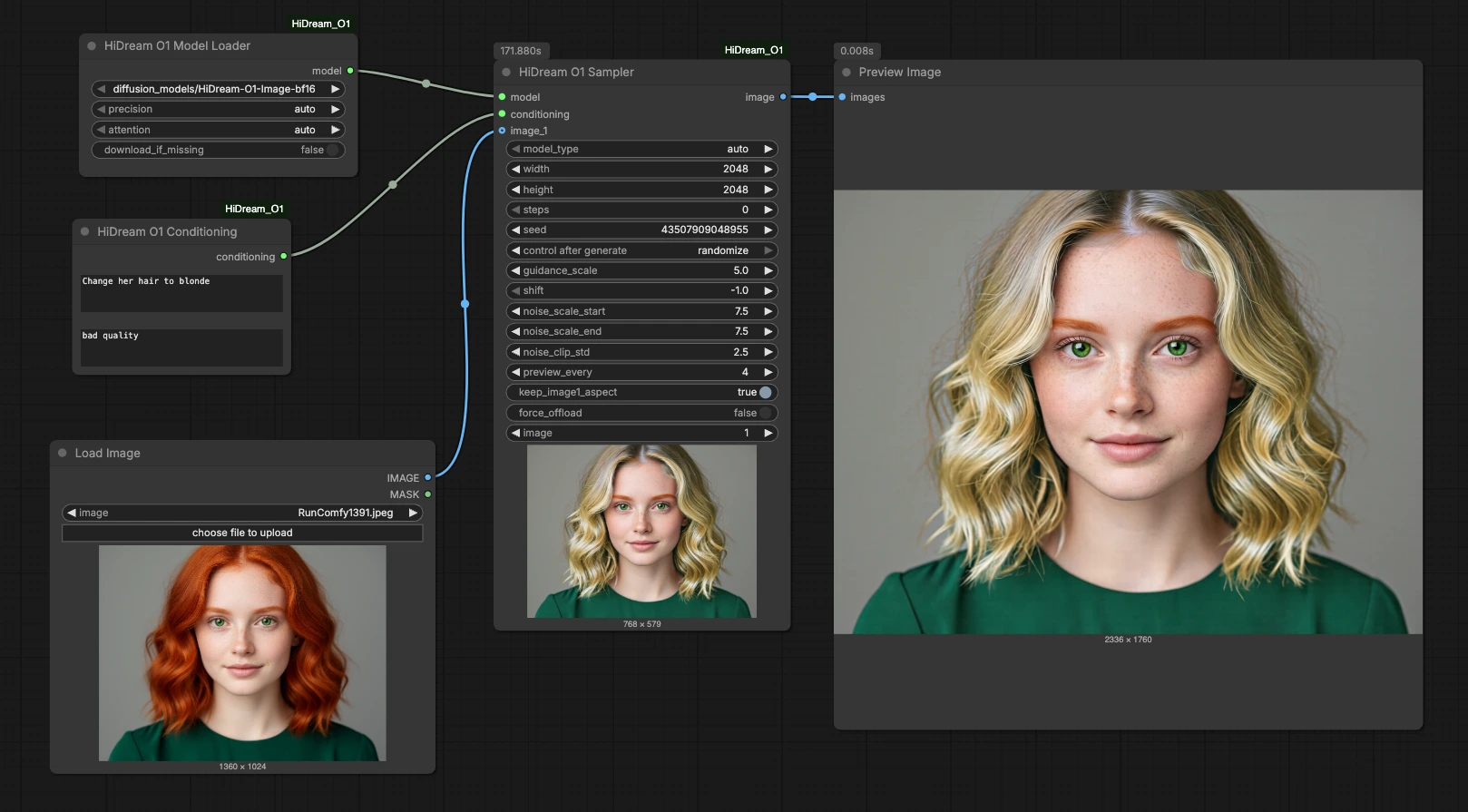
The workflow follows a straightforward path: load a reference image, set positive and negative prompts, load the HiDream O1 Image BF16 model, run the sampler, and preview the result. Each stage is tuned for quick iteration so you can lock a seed for reproducibility or randomize it for fresh variations.
LoadImage (#10)#
Load the source photograph or render you want to edit. The workflow is designed to preserve composition, so choose an input with framing you already like. If you plan to change details rather than structure, keep the input resolution close to your target output size to maintain sharpness. This node also exposes a mask output for future region-limited workflows, but in this graph the global image is used.
HiDreamO1Conditioning (#9)#
Enter the instruction for what should change in the positive prompt, and list unwanted traits in the negative prompt. Short, direct directives work best, for example “change hair to blonde,” “switch the mug to matte black,” or “replace the sofa fabric with linen.” Use the negative prompt to steer away from artifacts such as “bad quality,” “oversaturated,” or “distorted hands.” Conditioning is applied to the entire image, guiding the model to keep global structure while modifying the requested attributes. The output is a compact conditioning packet that the sampler consumes.
HiDreamO1ModelLoader (#2)#
This node loads the HiDream O1 Image BF16 weights so the sampler can run edits efficiently. Use it as is for the provided BF16 model, or switch to another HiDream O1 Image checkpoint if you have a specialized variant. The loader abstracts precision and backend details, keeping the graph simple and portable.
HiDreamO1Sampler (#8)#
The sampler performs the actual HiDream O1 Image ComfyUI Image Editing step by fusing your reference image, conditioning, and model into a new image. You can keep a fixed seed for deterministic reruns or enable randomization for exploration. Resolution controls set the output size; for best fidelity, match aspect ratio to your input. Guidance and image-conditioning strength govern how strictly the edit follows the prompt versus how much of the original look is retained. Run a few passes, compare results, then refine prompts or seed to converge on a final look.
PreviewImage (#5)#
This node displays the generated output so you can quickly judge the edit. Use it to compare successive runs when you change the prompt, seed, or guidance. If you like a result, save it and keep the seed for reproducibility. Iterate until the visual goal is met, then export the final image.
Key nodes in Comfyui HiDream O1 Image ComfyUI Image Editing workflow#
HiDreamO1Sampler (#8)#
This is the heart of the pipeline where edits are synthesized. Parameters that matter most are output resolution, sampling steps, guidance scale, image-conditioning strength, and seed. Keep resolution aligned with your input’s aspect ratio, raise steps for tougher edits, and balance guidance with conditioning strength to trade off prompt obedience versus source fidelity.
HiDreamO1Conditioning (#9)#
Defines what to change and what to avoid. Favor concise, unambiguous instructions in the positive prompt and reserve stylistic or artifact-avoidance terms for the negative prompt. When edits feel too strong or off-target, simplify the instruction or reduce conflicting style words.
HiDreamO1ModelLoader (#2)#
Loads the HiDream O1 Image BF16 checkpoint used by the sampler. Use BF16 for a good balance of speed and memory usage, and switch checkpoints when you need a different aesthetic or domain. If you swap models, recheck guidance and conditioning strength, since optimal values can shift across checkpoints.
Optional extras#
- Install the official HiDream O1 ComfyUI nodes for the latest fixes and features: HiDream_O1-ComfyUI.
- For portraits, use brief attribute edits like “change hair to blonde” or “add subtle freckles,” then refine with small wording changes rather than long, complex prompts.
- For product and interior scenes, name materials and finishes explicitly, for example “matte black ceramic mug” or “oak dining table with linen runner.”
- Lock the seed when you want reproducible comparisons, and toggle randomization to explore alternatives quickly.
- Keep the input’s aspect ratio close to your target output to preserve composition and avoid unwanted cropping.
Acknowledgements#
This workflow implements and builds upon the following works and resources. We gratefully acknowledge HiDream-ai for HiDream‑O1‑Image, drbaph for the HiDream‑O1‑Image‑BF16 model, and Saganaki22 for the HiDream_O1‑ComfyUI nodes for their contributions and maintenance. For authoritative details, please refer to the original documentation and repositories linked below.
Resources#
- YouTube/YouTube workflow reference
- Docs / Release Notes: video @Ai Verse
- HiDream-ai/HiDream O1 Image project
- GitHub: HiDream-ai/HiDream-O1-Image
- drbaph/HiDream O1 Image BF16 model source
- Hugging Face: drbaph/HiDream-O1-Image-BF16
- Saganaki22/HiDream O1 ComfyUI nodes
- GitHub: Saganaki22/HiDream_O1-ComfyUI
Note: Use of the referenced models, datasets, and code is subject to the respective licenses and terms provided by their authors and maintainers.