



Mage Flow Edit ComfyUI workflow: multi‑reference, prompt‑guided image editing with consistent structure#
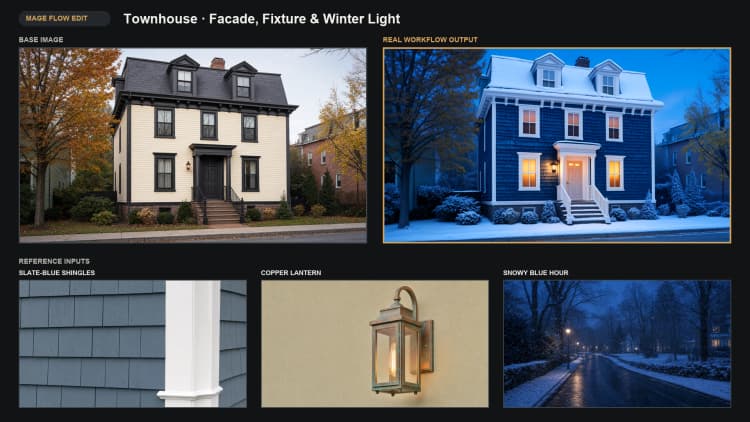
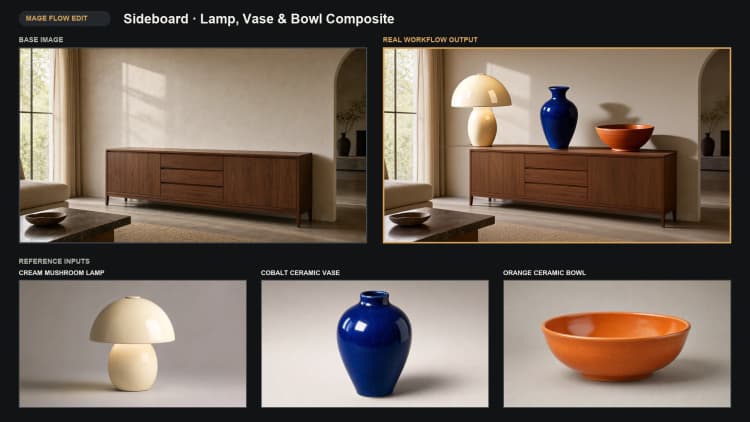
This RunComfy‑ready Mage Flow Edit ComfyUI workflow turns a single source photo plus multiple visual references into clean, controlled edits that preserve identity, pose, lighting, and camera perspective. It couples Microsoft’s official Mage‑Flow‑Edit with Qwen3‑VL 4B conditioning and the Mage Flow VAE to deliver faithful before‑and‑after results for background swaps, wardrobe/object changes, restorations, and look development.
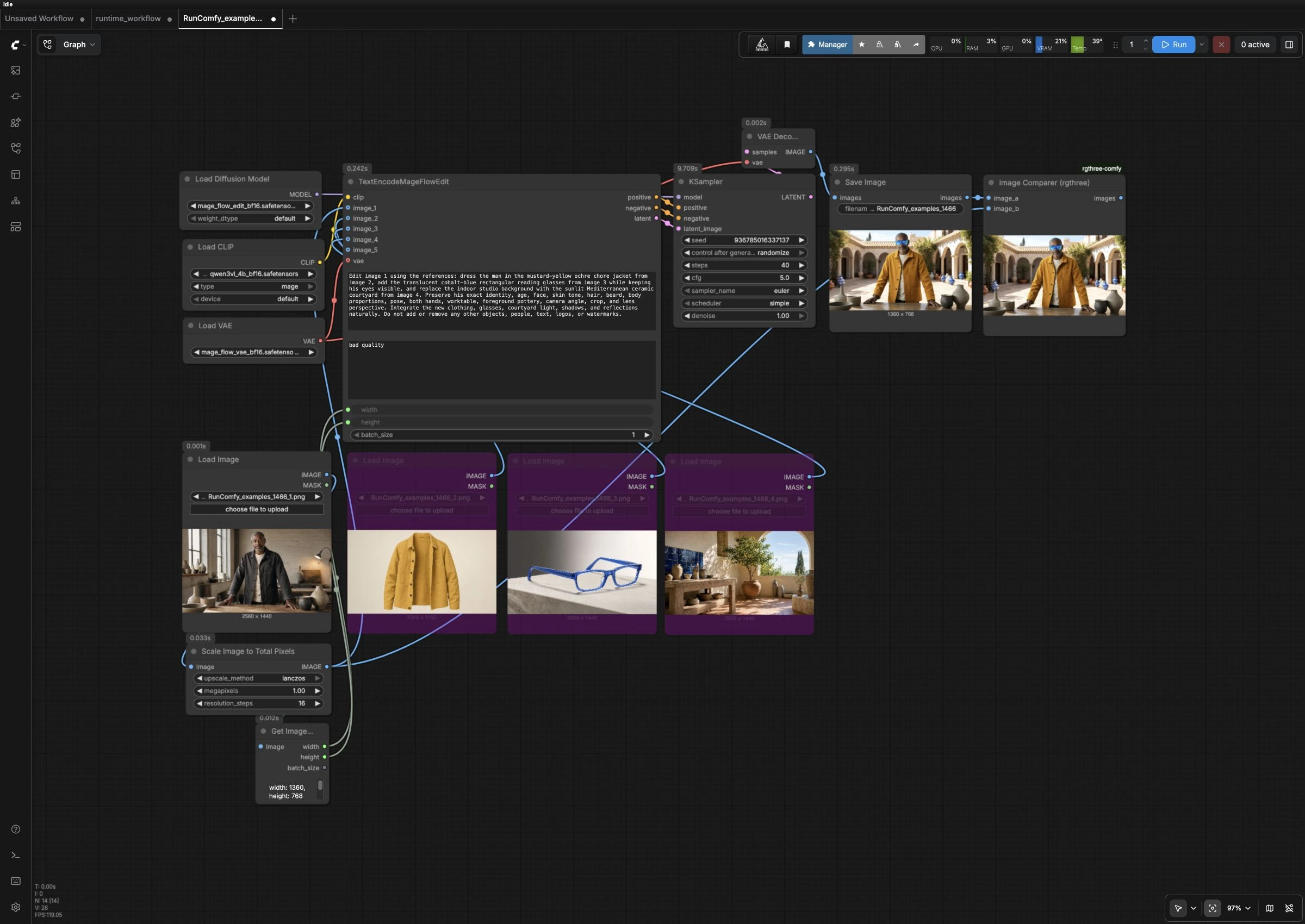
Built for practical production, the graph accepts up to four reference images, encodes them alongside your instruction prompt, samples edits with Mage‑Flow‑Edit, decodes with the Mage Flow VAE, and saves outputs while providing an interactive before/after comparer. If you need a dependable image editor that respects subject integrity, this Mage Flow Edit ComfyUI workflow is designed for you.
- Source: AxiomGraph workflow JSON (for reference and provenance) link
Key models in the Mage Flow Edit ComfyUI workflow#
- Microsoft Mage‑Flow‑Edit. The core instruction‑based editing model used to apply prompt‑guided changes without drifting identity or composition. See the official model card for capabilities and examples. microsoft/Mage-Flow-Edit
- Mage Flow VAE. The paired VAE used to encode/decode latents on the same distribution as Mage‑Flow and Mage‑Flow‑Edit, helping preserve structure and fine detail when moving between image and latent spaces. Files are repackaged for ComfyUI. Comfy-Org/Mage-Flow
- Qwen3‑VL 4B. A compact vision‑language model used here as the text‑image encoder to fuse your instruction prompt with multiple visual references for conditioning Mage‑Flow‑Edit. Qwen/Qwen3-VL-4B-Instruct
For background on the architecture and native‑resolution training that powers both generation and editing, see the Mage‑Flow paper. arXiv: Mage‑Flow
How to use the Mage Flow Edit ComfyUI workflow#
This graph follows a simple path from inputs to output: load a source image and references, prepare resolution, encode an instruction with multi‑image conditioning, sample edits with Mage‑Flow‑Edit, decode with the Mage Flow VAE, then save and compare. The subsections below map the main stages and the few places where you interact.
Inputs and smart resizing#
Use LoadImage (#6) to choose your source image, and LoadImage (#7–#9) to add up to three visual references for style, objects, or backgrounds. The source is passed through ImageScaleToTotalPixels (#22) to set an edit‑friendly working size while keeping aspect ratio. GetImageSize (#23) reads the resulting width and height so the rest of the pipeline stays in sync. Keeping the source as “image 1” and references as “image 2–4” matches how conditioning is wired in later steps. This stage ensures your edit runs efficiently without unintended resampling artifacts.
Text and visual conditioning#
CLIPLoader (#4) loads the Qwen3‑VL 4B encoder that understands both text and images for conditioning. TextEncodeMageFlowEdit (#1) takes your positive instruction, an optional negative instruction, the scaled source as image_1, and up to three references as image_2–image_4. Write the prompt like a clear set of editing directions, for example “replace the background with a sunlit courtyard; keep identity, pose, hands, and lens perspective.” The node produces “positive” and “negative” conditioning plus an aligned latent that anchors the subject’s structure. If fidelity is critical, explicitly state preservation constraints in your instruction.
Model and sampling#
UNETLoader (#3) loads mage_flow_edit_bf16.safetensors, the standard Mage‑Flow‑Edit model for high‑quality edits. KSampler (#18) then performs the actual editing steps using the model plus your conditioning and latent. Guidance, steps, and the denoise strength determine how strong the edit is: lower denoise favors subtle changes; higher values push larger transformations. Locking a seed gives you repeatable results when iterating on prompts or reference images. If you need faster previews, you can later swap the model file to a Turbo variant as noted in Key nodes.
Latent decoding and saving#
VAELoader (#5) provides mage_flow_vae_bf16.safetensors so VAEDecode (#19) can transform the edited latent back to RGB. The decoded image flows into SaveImage (#20), which writes a timestamped file so every run is preserved. This stage is automatic; you generally do not need to change anything unless you want to organize outputs into different subfolders.
Before/after comparison#
To verify that the edit honors your constraints, the graph includes Image Comparer (rgthree) (#27). It displays the edited result from SaveImage alongside the scaled source from ImageScaleToTotalPixels in a slide view. Use it to check identity retention, pose, lighting continuity, and object integration quickly. This makes the Mage Flow Edit ComfyUI workflow ideal for QA in production photo pipelines.
Key nodes in the Mage Flow Edit ComfyUI workflow#
TextEncodeMageFlowEdit (#1)#
This is the heart of instruction‑based editing for Mage‑Flow‑Edit. It merges your positive and negative instructions with the source image and up to three references to produce conditioning and a structure‑aligned latent. For stronger preservation, include explicit phrases like “preserve identity, pose, hands, camera angle, and lens perspective.” If you see unwanted additions, add brief negatives to steer the model away. This node relies on the Qwen3‑VL 4B encoder and the Mage Flow VAE described above. References: microsoft/Mage-Flow-Edit, Comfy-Org/Mage-Flow, Qwen/Qwen3-VL-4B-Instruct.
KSampler (#18)#
Controls how the edit is applied. Steps and guidance influence detail and adherence to the instruction, while denoise strength governs how much the image can change. Keep denoise conservative for wardrobe swaps or restorations and increase it for background replacement or heavy style changes. Fix the seed when comparing small prompt tweaks so differences are attributable to your edits rather than randomness.
UNETLoader (#3)#
Loads the specific Mage‑Flow‑Edit checkpoint. For interactive previews, you can switch to a Turbo variant to reduce latency, then return to the standard bf16 model for final quality. Low‑VRAM environments can use the INT8 ConvRot variants with a small quality trade‑off. See the Comfy‑ready file set for available options. Comfy-Org/Mage-Flow
ImageScaleToTotalPixels (#22)#
Sets an efficient working resolution while maintaining the source aspect. Pick a total‑pixel target that fits your GPU memory and desired detail level; higher totals yield finer results but cost more VRAM and time. Keep the working size consistent across iterations to make A/B comparisons meaningful. This node is the easiest way to balance speed and fidelity before the encode and sample stages.
Optional extras#
- Write instructions as edits, not descriptions. “Replace the background with a sunlit Mediterranean courtyard; keep identity and pose” works better than a generic aesthetic prompt.
- Use clean, well‑lit reference crops that clearly show the attributes you want transferred (e.g., garment color/texture, eyewear shape, background materials).
- Start with conservative denoise for preservation tasks, then increase gradually until the change is sufficient without harming identity.
- Lock the sampler seed when iterating so you can evaluate only the effect of prompt or reference changes.
- For rapid exploration, try a Turbo Mage‑Flow‑Edit variant; for finals, switch back to the standard bf16 weights. Comfy-Org/Mage-Flow
Acknowledgements#
This workflow implements and builds upon the following works and resources. We gratefully acknowledge Microsoft for Mage-Flow and Mage-Flow-Edit, Comfy-Org for the Mage-Flow model files for ComfyUI, and AxiomGraph for the “Mage Flow Edit.json” ComfyUI workflow for their contributions and maintenance. For authoritative details, please refer to the original documentation and repositories linked below.
Resources#
- Microsoft/Mage-Flow
- GitHub: microsoft/Mage
- Hugging Face: microsoft/Mage-Flow
- arXiv: 2607.19064
- Docs / Release Notes: Mage-Flow project page
- Microsoft/Mage-Flow-Edit
- Hugging Face: microsoft/Mage-Flow-Edit
- arXiv: 2607.19064
- Comfy-Org/Mage-Flow
- Hugging Face: Comfy-Org/Mage-Flow
- AxiomGraph/Mage Flow Edit.json
- GitHub: axiomgraph/ComfyUIWorkflow
Note: Use of the referenced models, datasets, and code is subject to the respective licenses and terms provided by their authors and maintainers.