


MOSS-Image Edit HQ: Single and Reference-Guided Editing#
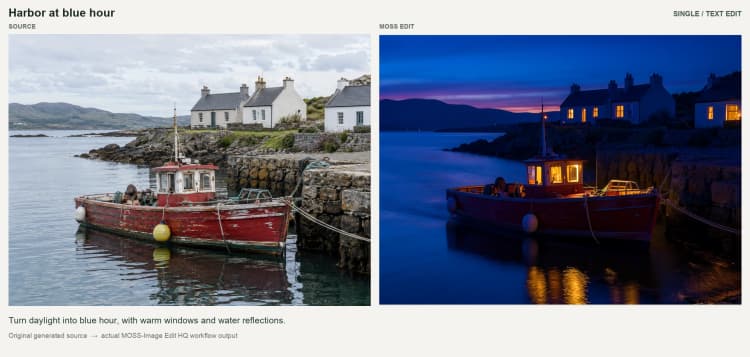
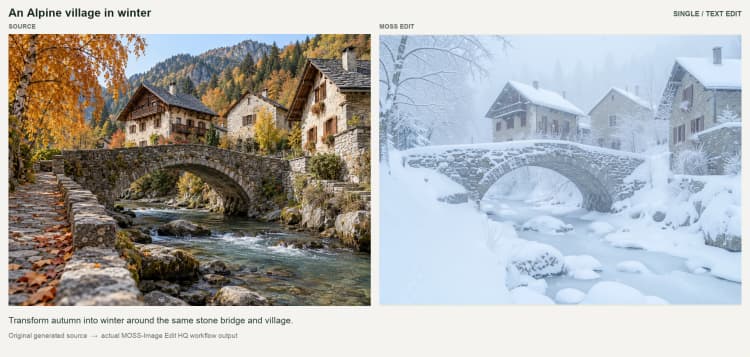
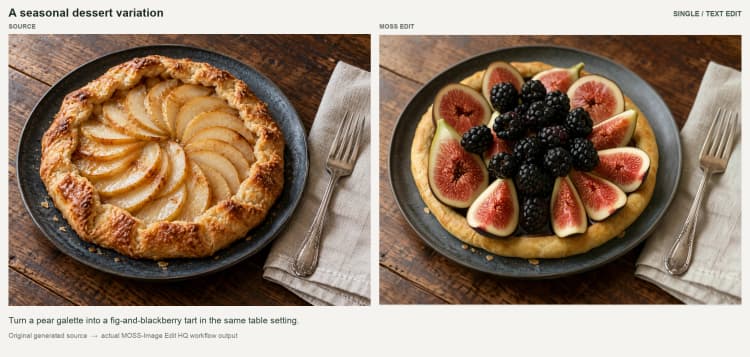
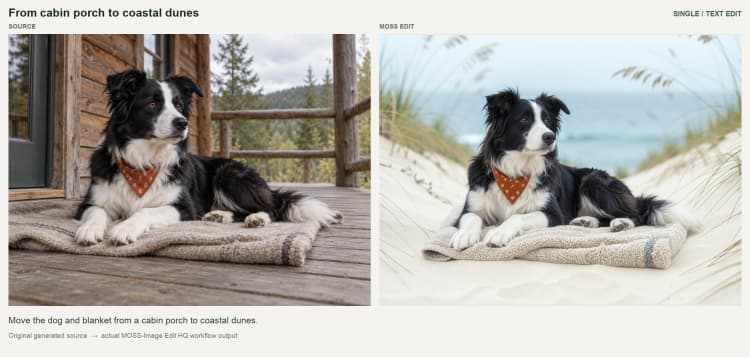
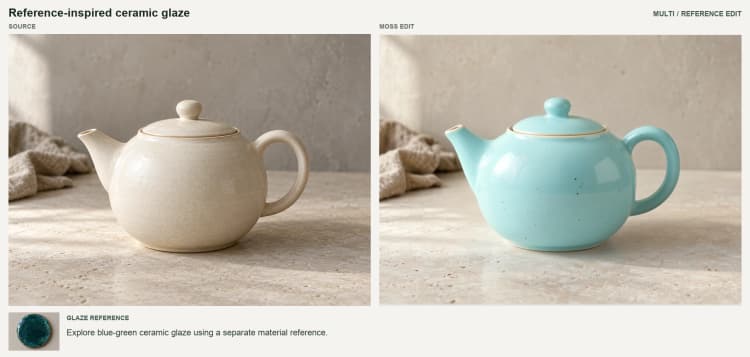
MOSS-Image Edit HQ is a ComfyUI workflow for editing existing images using plain-text instructions. It is powered by the community armV6 editing LoRA for MOSS-Image-SFT and includes a default single-image branch plus an optional reference-guided branch. With one branch enabled, each run produces one edited image. Edits can reinterpret fine details; when a reference is used, colors and textures are influenced but not guaranteed to match exactly. Models and the original example workflows are available on Hugging Face, and the custom node set is open source on GitHub (MOSS-Image Edit HQ, ComfyUI-Moss-Image-Edit).
This ComfyUI workflow suits creators, product teams, and retouchers who need lighting, seasonal, material, and style changes without repainting entire scenes. Use the default path to edit one image, or enable the reference path to let a second image guide color or material. Compare the result with the source because subject details and composition can change.
Key models in Comfyui MOSS-Image Edit HQ workflow#
- MOSS-Image SFT (int8, convrot) image backbone. This is the MOSS-Image-SFT backbone used with the separate editing LoRA. See the model pack and examples in the MOSS-Image Edit HQ repository on Hugging Face for details and updates.
- armV6 MOSS Edit LoRA. A lightweight LoRA patch trained for targeted, instruction-driven edits on MOSS-Image-SFT. It specializes in attribute changes such as color, material, and style while aiming to preserve identity and layout. LoRA assets are included alongside the workflow release on Hugging Face.
- Qwen 3.5 9B based text encoder for MOSS-Image. This encoder turns your edit instruction into text conditioning. This workflow has no mask input or guaranteed protected region.
- FLUX.2 VAE small (
flux2-vae_small.safetensors). The VAE compresses and decodes images to and from the latent space used by the model, helping maintain structure and detail during editing.
How to use Comfyui MOSS-Image Edit HQ workflow#
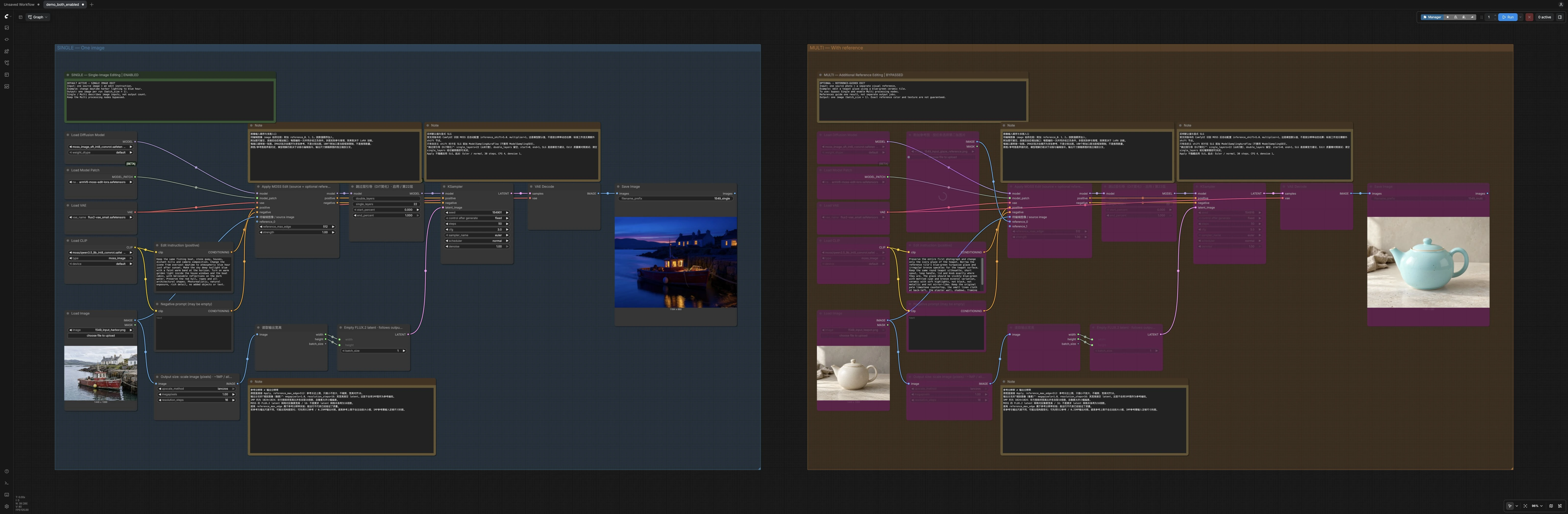
The graph has two independent branches. SINGLE is enabled by default and MULTI is bypassed. Use SINGLE for instruction-based edits to one source image. To use MULTI, bypass the SINGLE processing nodes and enable the MULTI processing nodes, then provide a source and a separate reference image. Keep the explanatory Notes enabled. Each branch has batch size 1; enabling both branches runs both outputs. Single and Multi describe image inputs, not output counts.
The saved graph uses 50 steps, CFG 3, Euler / normal, denoise 1, LoRA strength 1, reference long-edge limit 512, and approximately 1 MP output. Start with these tested settings; some inherited canvas Notes describe different generic defaults.
SINGLE — One image#
- Load your source image with
LoadImage(#6) and write a concise instruction inEdit instruction (positive)(#9). The optionalNegative prompt(#10) can list things to avoid. ImageScaleToTotalPixels(#7) sets the output size to a practical pixel budget and aligns dimensions to a multiple-of-16 grid for stable decoding.GetImageSize(#17) forwards those dimensions intoEmpty FLUX.2 latent(#13), which prepares the blank latent canvas for sampling.Apply MOSS Edit (source + optional references)(#5) applies the armV6 editing LoRA to the base model and attaches source-image latents to the positive and negative conditioning. The CLIP text nodes encode the instruction separately. No reference is needed in this branch.SkipLayerGuidanceDiTSimple(#18) applies the recommended skip-layer guidance for this model family, thenKSampler(#14) performs denoising to realize the edit. The result is decoded byVAEDecode(#15) and saved bySaveImage(#16).
MULTI — With reference#
- Load the same kind of source image with
LoadImage(#106) and add one clear reference image withLoadImage(#119). Keep the reference simple and representative of the color or material you want. - Provide an instruction in
Edit instruction (positive)(#109) that names exactly what should change and what must stay the same. UseNegative prompt(#110) only if necessary. Apply MOSS Edit (source + optional references)(#105) encodes the source and reference once and feeds both into the model so the edit follows your text while being nudged by the reference. The reference is resized internally to a capped long edge for stable conditioning; this is separate from the final output size.- As in SINGLE, the branch uses
SkipLayerGuidanceDiTSimple(#118), samples withKSampler(#114), decodes withVAEDecode(#115), and writes one output withSaveImage(#116). Reference-guided edits are approximate, not one-to-one transfers.
Key nodes in Comfyui MOSS-Image Edit HQ workflow#
Apply MOSS Edit (source + optional references) (#5)#
This node applies the editing LoRA and VAE-encodes the source image and any additional references, adding those latents to the existing positive and negative text conditioning. strength controls the LoRA patch weight; it is not a guaranteed detail-preservation control. Keep the tested value of 1 as a starting point. reference_max_edge limits the long edge of the source and each reference independently, with dimensions aligned to 16. Increasing it changes conditioning resolution and memory use, not a dedicated reference influence weight. The same guidance applies to MULTI (#105). Reference: ComfyUI-Moss-Image-Edit.
ImageScaleToTotalPixels (#7)#
Sets a target pixel budget for the output while preserving aspect ratio and snapping both dimensions to a multiple-of-16 grid that matches the model’s latent stride. The saved graph uses approximately 1 MP. Larger dimensions increase resource requirements and do not guarantee more faithful detail. This node only controls the final output size. It does not upscale the reference; reference resizing is handled inside the Apply node.
SkipLayerGuidanceDiTSimple (#18)#
Applies the base model’s recommended skip-layer guidance using single layer 22. It is enabled in this saved workflow, but does not guarantee better edit quality. If you see artifacts or want a pure baseline, bypass the node to disable guidance. When you customize sampling behavior elsewhere, apply guidance before sampling so it affects the effective model.
KSampler (#14)#
Samples the output from EmptyFlux2LatentImage, while source and reference images enter through conditioning. Keep the tested 50 steps, CFG 3, Euler / normal, and denoise=1 as a starting point. Lowering denoise is not an ordinary source-preservation slider here because the sampled latent does not contain the encoded original image. Change the seed to try another interpretation of the same instruction.
Optional extras#
- Write instructions like “Change only the blazer to cobalt blue. Keep the face, hair, pose, background and lighting unchanged.” Always inspect the result for unintended changes.
- If composition drifts, try a simpler reference or a clearer instruction, then compare another seed. Treat LoRA strength and reference resolution changes as experiments; they do not guarantee preservation.
- For natural results, prefer moderate
cfgand avoid overly long prompts; list what must remain unchanged explicitly. - Use one strong reference image rather than many weak ones. Multiple references are encoded as guidance for one result, not separate outputs.
- SINGLE vs MULTI describes image inputs only. Both branches in MOSS-Image Edit HQ produce one image per run.
Acknowledgements#
This workflow implements and builds upon the following works and resources. We gratefully acknowledge akhaliq for the MOSS-Image-Edit-HQ model and original workflows, and Chenkin-x for the MOSS-Image-Edit custom nodes for their contributions and maintenance. For authoritative details, please refer to the original documentation and repositories linked below.
Resources#
- akhaliq/MOSS-Image-Edit-HQ
- Hugging Face: akhaliq/MOSS-Image-Edit-HQ
- Docs / Release Notes: MOSS-Image-Edit-HQ model and original workflows
- Chenkin-x/ComfyUI-Moss-Image-Edit
- GitHub: Chenkin-x/ComfyUI-Moss-Image-Edit
- Docs / Release Notes: MOSS-Image-Edit custom nodes
Note: Use of the referenced models, datasets, and code is subject to the respective licenses and terms provided by their authors and maintainers.