Qwen Image 2.1 Turbo Edit: fast, faithful image editing with text instructions#
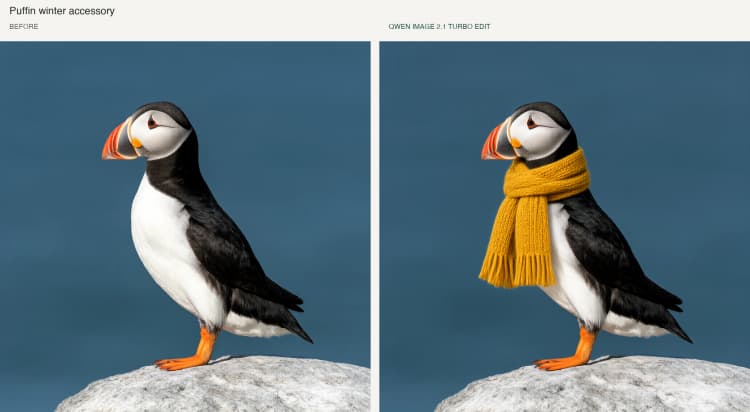
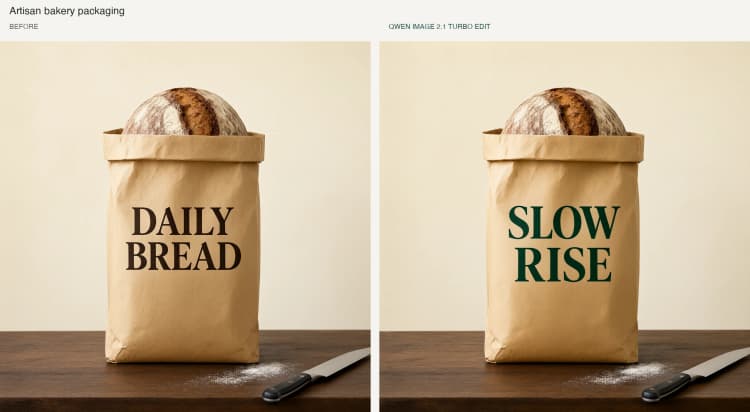
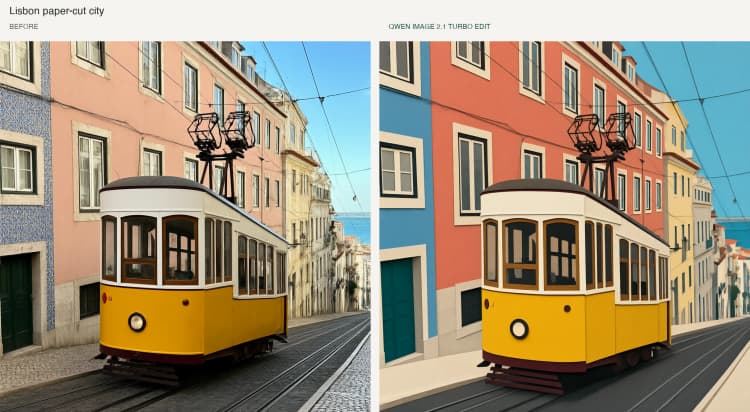
Qwen Image 2.1 Turbo Edit is a ComfyUI workflow for editing an image with natural language instructions using the official Qwen Image 2.1 Turbo template. The INT8, eight-step schedule delivers fast relighting, scene swaps, color and material changes, accessory additions, text replacement, and restyling while preserving the subject, composition, and framing.
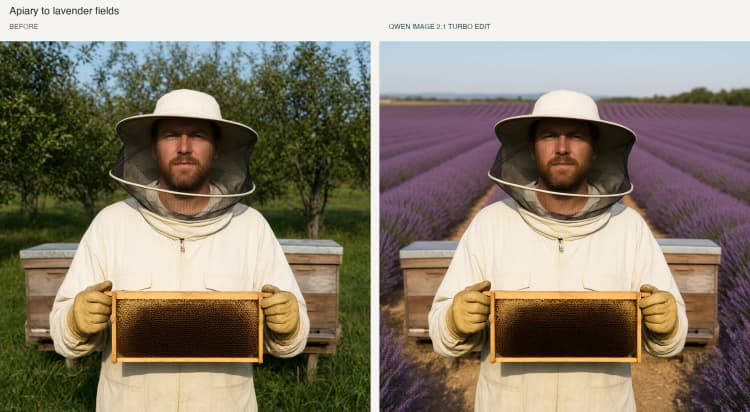
Upload a target image, optionally add reference images, type the change you want, and run. The workflow produces an interactive before and after comparison so you can verify that Qwen Image 2.1 Turbo Edit applied the requested change without drifting from the input. It is designed for artists, photographers, and product teams who need repeatable, high‑quality edits.
Key models in ComfyUI Qwen Image 2.1 Turbo Edit workflow#
- Qwen Image 2.1 Turbo. The diffusion backbone that performs the actual image edit from text conditioning and the input image. See the official model card for capabilities and constraints. Model
- Qwen-Image-2.1 VAE (bf16). Encodes the target image to a latent space for editing and decodes the final latent back to RGB for saving and comparison. The VAE and companion assets are distributed in the Comfy-Org package. Repository
- Qwen3-VL 8B text encoder (INT8 convrot). Provides the multimodal text conditioning used by Qwen Image 2.1 for precise attribute control during editing. Distributed with the official Comfy-Org model files. Repository
- Qwen 3.5 9B Prompt Enhancer (INT8 convrot). A lightweight instruction rewriter that clarifies your edit request before it reaches the editor, improving faithfulness on complex tasks. Packaged with the Comfy-Org release. Repository
How to use ComfyUI Qwen Image 2.1 Turbo Edit workflow#
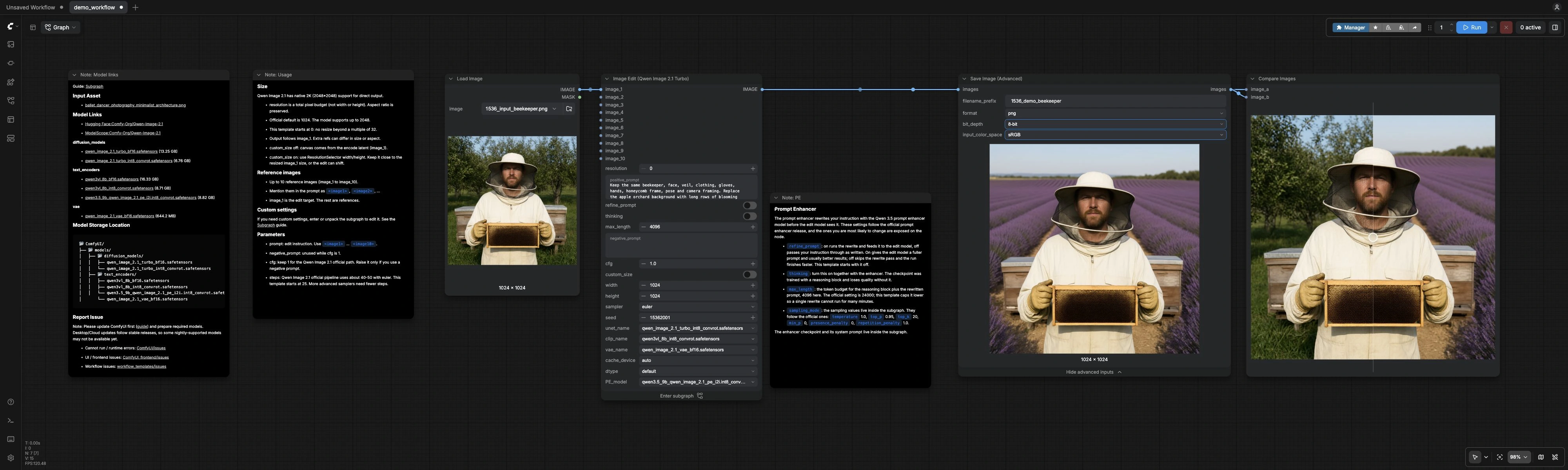
The workflow follows the official template path from input images and text to a guided, eight‑step INT8 sampler, finishing with a side‑by‑side compare. Groups run in sequence and keep the edit anchored to the input image.
Prompt Enhancer#
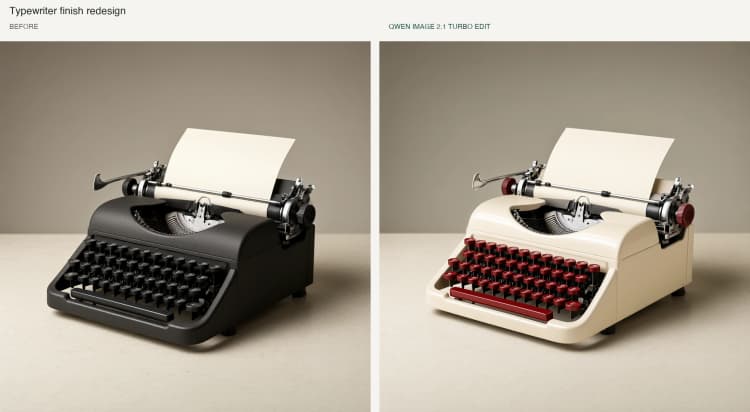
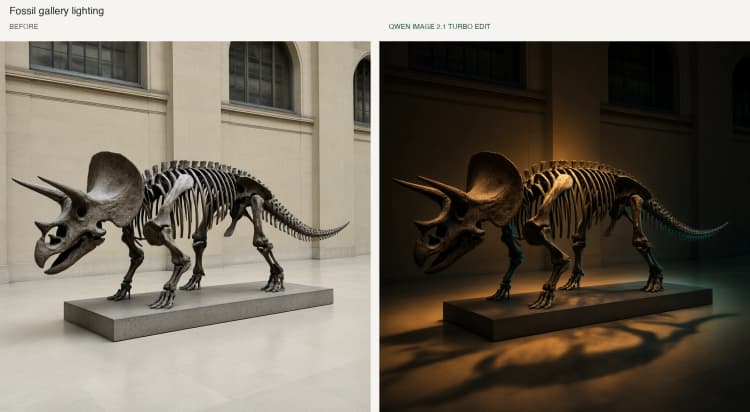
The saved workflow starts with refine_prompt and thinking off. All six examples on this page use that configuration.
This group optionally rewrites your instruction to make it specific and actionable. The TextGenerate (#500) node takes your prompt, the system prompt, and a mini-batch of input images to produce a refined directive. Toggle refine_prompt to choose between the original instruction and the rewrite using ComfySwitchNode (#484). Turn on thinking when you use the enhancer to keep its reasoning block active. The final text is previewed by PreviewAny (#480) so you always see what the editor will read.
Models#
The workflow loads the official checkpoints once and keeps them in memory for speed. UNETLoader (#451) brings in Qwen Image 2.1 Turbo, CLIPLoader (#453) loads the Qwen3-VL 8B text encoder, and VAELoader (#454) prepares the VAE. QwenImage21Cache (#469) pins the diffusion model to your chosen device and dtype for stable throughput. This mirrors the upstream template so results are consistent with the reference implementation. Template
Image Size#
The saved workflow sets resolution to 0 and custom_size to false: the output follows the input dimensions, adjusted to multiples of 32.
Use this group to control canvas behavior. By default the edit runs at the latent size encoded from the target image to preserve framing and proportions. If you need a custom canvas, set custom_size to true and provide width and height to EmptyLatentImage (#456), with ComfySwitchNode (#468) selecting the custom latent. Keeping custom dimensions close to the resized target image avoids unintended shifts.
Conditioning#
TextEncodeQwenImage21 (#474) turns your instruction and images into edit conditioning and also encodes the target into a latent. Image roles are simple: image_1 is the edit target and images 2 to 10 are optional references. When you reference other inputs in the prompt, use tokens like <image2> and <image5> to point at them explicitly. The resolution input is a pixel budget that preserves aspect ratio, and most edits work well without a negative prompt. If you plan to rely on a negative prompt, adjust guidance strength accordingly in Sampling.
Sampling#
This group performs the actual edit with an INT8, eight‑step schedule. KSampler Select (euler) (#503) picks the sampler, Manual Sigmas (Qwen-Image-2.1-Turbo 8-step schedule) (#502) supplies the official schedule, and Random Noise (#504) sets a seed for reproducibility. CFGGuider (#507) controls how strongly the prompt steers the edit, and Sampler Custom Advanced (#505) combines the guider, sampler, sigmas, and the chosen latent to produce the edited latent. VAEDecode (#457) converts the result to an image for saving and comparison.
Save and compare#
Enable Modern Node Design (Nodes 2.0) in the ComfyUI frontend to view the interactive ImageCompare preview. The legacy renderer can show “Image compare: Node2.0 only” even when generation succeeds.
SaveImageAdvanced saves the output with your chosen format, and ImageCompare (#472) renders an interactive slider showing the original and edited images side by side. This makes it easy to confirm that Qwen Image 2.1 Turbo Edit changed only what you asked for.
Key nodes in ComfyUI Qwen Image 2.1 Turbo Edit workflow#
TextGenerate (#500)#
Role: optional prompt enhancer that rewrites your instruction to be specific and unambiguous. Turn on thinking together with refine_prompt for best results. Increase max_length if your edit brief is long; lower it if you prefer faster rewrites. Use a fixed sampling_mode.seed to make the rewrite deterministic across runs.
TextEncodeQwenImage21 (#474)#
Role: converts text and images into conditioning for Qwen Image 2.1 and encodes the target into a latent. Use <image1>...<image10> tags in the prompt to cite reference images explicitly. The resolution input acts as a total pixel budget that keeps aspect ratio, so raise it for more detail or keep it near the target’s effective size to minimize drift.
ComfySwitchNode (#468) — custom size#
Role: switches between the encoded latent from the target image and a user-defined empty latent. Leave custom_size off to preserve the original composition. Enable it only when you truly need a different canvas, and keep width and height close to the resized target to maintain alignment.
CFGGuider (#507)#
Role: sets guidance strength for how firmly text drives the edit. Keep cfg at 1 to follow the official Qwen Image 2.1 Turbo path where a negative prompt is not required. If you introduce a negative prompt, raise cfg moderately so the model balances additions and suppressions without oversteering.
Manual Sigmas (Qwen-Image-2.1-Turbo 8-step schedule) (#502)#
Role: enforces the official eight-step schedule that makes Turbo fast and consistent. Keep this schedule for speed-sensitive work. If you switch schedules, expect different step counts and retune guidance to match.
KSampler Select (euler) (#503) and Sampler Custom Advanced (#505)#
Role: sampler selection and execution. Euler works well with the Turbo schedule; other samplers may require fewer or more steps and different guidance to reach similar strength. Fix the seed when you need reproducible edits across prompt iterations.
ImageCompare (#472)#
Role: interactive QA tool that displays input and output together. Use it to confirm attribute disentanglement, for example that relighting did not alter pose, clothing, or layout.
Optional extras#
- Write the operation first, for example “Relight to a cool moonlit night” or “Replace the poster text with ‘Spring Sale’,” then name what must stay fixed.
- For text replacement, wrap the exact words you want drawn in double quotes so the model renders them literally.
- Image references: image_1 is the edit target. Add up to nine more reference images and cite them with
<image2>...<image10>in your instruction. - Resolution: treat
resolutionas a pixel budget, not width or height. For most edits, keep it near the input’s natural size; raise it for more detail on close crops. - Performance: the INT8 path keeps memory low and pairs with the eight-step schedule for speed. If you switch to bf16 checkpoints, expect higher VRAM use with potential quality gains.
Acknowledgements#
This workflow implements and builds upon the following works and resources. We gratefully acknowledge Comfy-Org for the workflow template image_qwen_image_2_1_turbo_image_edit.json, Comfy-Org for the ComfyUI model files for Qwen-Image-2.1, and Qwen for the Qwen-Image-2.1-Turbo model for their contributions and maintenance. For authoritative details, please refer to the original documentation and repositories linked below.
Resources#
- Comfy-Org/workflow_templates — image_qwen_image_2_1_turbo_image_edit.json
- GitHub: Comfy-Org/workflow_templates
- Comfy-Org/Qwen-Image-2.1
- Hugging Face: Comfy-Org/Qwen-Image-2.1
- Qwen/Qwen-Image-2.1-Turbo
- GitHub: QwenLM/Qwen-Image-2.1
- Hugging Face: Qwen/Qwen-Image-2.1-Turbo
Note: Use of the referenced models, datasets, and code is subject to the respective licenses and terms provided by their authors and maintainers.