

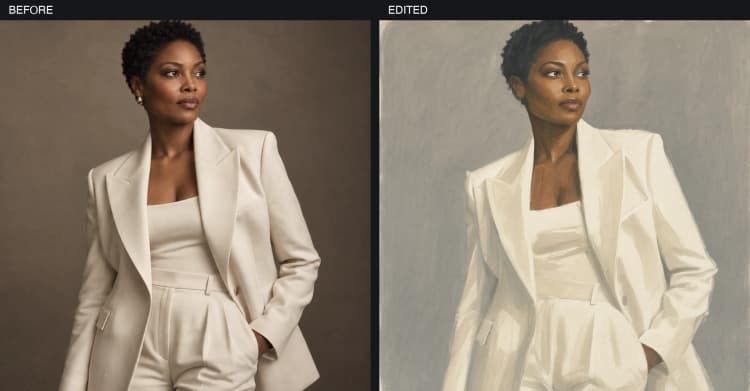
Flux 3 Klein Image Editing for layout‑aware, reference‑preserving image edits in ComfyUI#
Flux 3 Klein Image Editing is a layout‑aware ComfyUI workflow for transforming a reference image with natural‑language instructions while preserving the overall scene. Instead of hard pixel masks, you sketch intent with bounding boxes and describe the change in plain English; the model localizes the edit while keeping the surrounding composition intact.
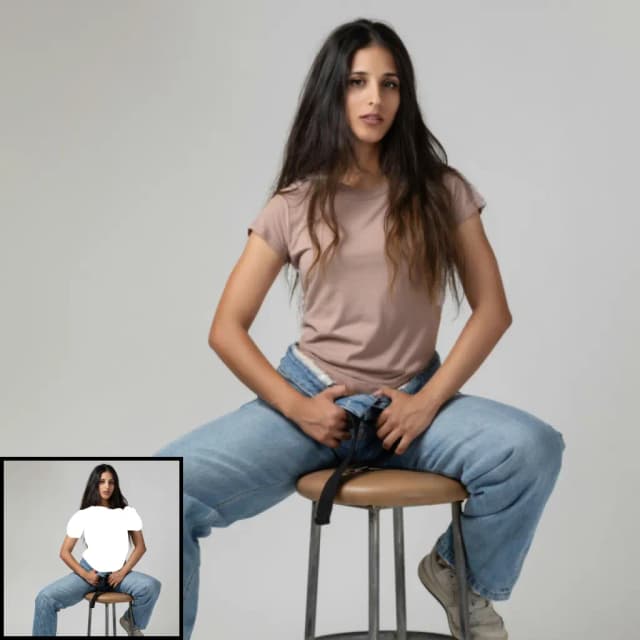
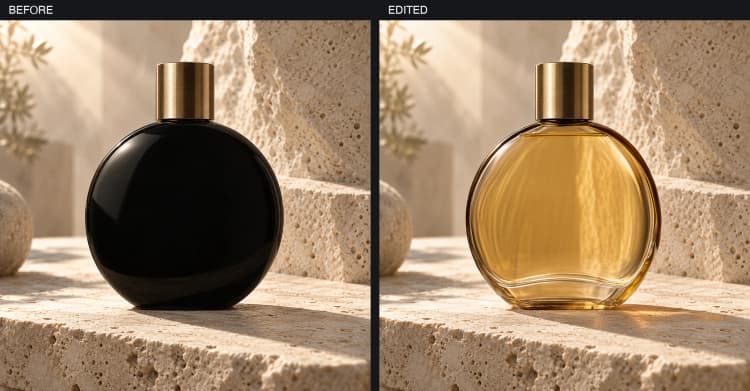
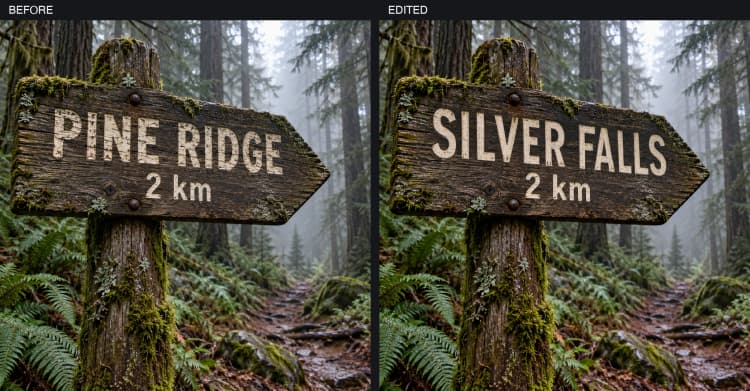
Built around the FLUX.3 Image Klein Base INT8 denoiser, bounding‑box layout prompts, and a Qwen‑powered prompt expander, this workflow excels at editorial retouching, targeted wardrobe or material swaps, localized redesigns, and cinematic scene updates. Provide one or more reference images, draw boxes for the objects you plan to change, and guide the result with a concise instruction such as “change the dress color to red.”
Key models in Comfyui Flux 3 Klein Image Editing workflow#
- FLUX.3 Image Klein Base (INT8). The core diffusion model that performs the actual denoising and editing, optimized for single‑image tasks and efficient VRAM use. Source: black-forest-labs/flux-3-image-klein-base.
- FLUX.2 VAE. Encodes the reference into latents and decodes the edited result back to RGB with faithful color handling. Packaged in the Comfy bundle: black-forest-labs/flux-3-image-klein-comfy.
- Qwen text encoders and prompt upsampler. A lightweight VL encoder guides instruction understanding, and a Qwen‑based upsampler expands terse edits into precise, model‑friendly prompts. Packaged in: black-forest-labs/flux-3-image-klein-comfy.
How to use Comfyui Flux 3 Klein Image Editing workflow#
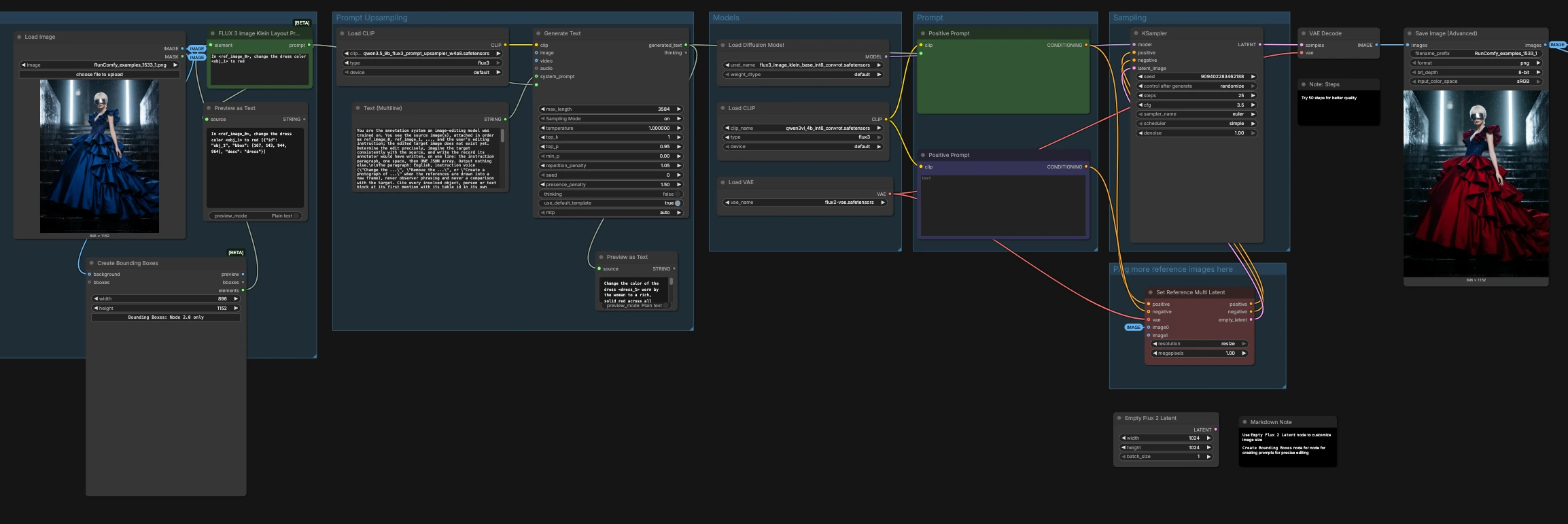
The workflow reads a reference image, turns your bounding boxes into a layout‑aware instruction, optionally expands it with Qwen, conditions FLUX.3 on both the instruction and the reference, and then samples an edited image at the reference’s resolution. Groups below run in sequence from left to right, with outputs saved and compared side‑by‑side.
- Reference Image & Prompt
- Load a single reference with
LoadImage(#11). UseCreateBoundingBoxes(#33) to draw one box per element you intend to edit and give each box a short noun descriptor such as “dress” or “logo.” FLUX 3 Image Klein Layout Prompt(#49) converts your boxes into a compact, location‑aware prompt that refers to each box and the reference image. This acts like a soft target region: it guides attention without acting as a hard mask.- Keep the English instruction clear and outcome‑focused (for example, “change the dress color to red”); the surrounding scene is preserved unless you explicitly change it.
- Load a single reference with
- Prompt Upsampling
- The upsampler uses
TextGenerate(#46) with a Qwen encoder (CLIPLoader(#47)) and a built‑in system template (PrimitiveStringMultiline(#48)) to expand your layout prompt. - It returns a single, structured instruction that calls out edited objects and keeps everything else consistent with the source.
PreviewAny(#50) lets you inspect the expanded text before sampling. - If you prefer manual control, you can bypass upsampling by writing your own detailed instruction and feeding it directly to the prompt encoder.
- The upsampler uses
- Prompt
- The positive prompt encoder
CLIPTextEncode(#4) receives the generated instruction. The optional second encoderCLIPTextEncode(#45) can be left empty or used to list things you want to avoid. - Both pass through a reference‑aware stage so the model understands which regions should change and which should remain stable.
- The positive prompt encoder
- Models
UNETLoader(#1) loads FLUX.3 Image Klein Base (INT8).CLIPLoader(#2) loads the lightweight text encoder used by FLUX.3.VAELoader(#3) provides the VAE for latent encode/decode.- These components work together so that edits respect scene layout, perspective, and lighting from the reference.
- Plug more reference images here
ReferenceMultiLatent(#17) accepts additional references to stabilize identity, materials, or style. The first image anchors the scene; subsequent images can contribute details you mention in the instruction.- You can keep the output size tied to the main reference, or adjust this stage when you need more fidelity or a different canvas.
- Sampling
KSampler(#7) performs the diffusion steps guided by the positive/negative conditioning and the reference‑sized latent fromReferenceMultiLatent(#17).- Use a fixed
seedfor reproducibility, increasestepsfor quality at extra time, and adjustcfgmoderately to balance instruction adherence and naturalness.denoisecontrols edit strength from subtle retouches to larger changes.
- Save and compare
VAEDecode(#8) converts the final latent to an image.SaveImageAdvanced(#51) writes it to disk.ImageCompare(#18) shows the original next to the edited result for quick A/B review.
Key nodes in Comfyui Flux 3 Klein Image Editing workflow#
CreateBoundingBoxes(#33)- Draw simple, non‑overlapping or lightly overlapping boxes around items you plan to change and name each with a short, singular noun. These boxes steer attention but are not hard masks, so edges remain naturally integrated. Prefer one box per concrete change to keep instructions unambiguous.
FLUX 3 Image Klein Layout Prompt(#49)- Converts boxes and descriptors into a compact, layout‑aware instruction that references the source image. Keep descriptors stable across runs and phrase the edit in imperative voice. This helps the model target the intended region while preserving scene context.
TextGenerate(#46)- Expands brief directions into a richly specified instruction consistent with the reference. Use it when you want precise, reproducible edits; bypass it when you already wrote a complete, self‑contained prompt. If the expansion feels too verbose, simplify your initial phrasing and regenerate.
ReferenceMultiLatent(#17)- Builds a reference‑sized latent canvas and injects both positive and negative conditioning so edits respect identity, pose, lighting, and materials from the source. Add secondary references to borrow style or details you explicitly mention. When you need more detail, increase this stage’s resolution setting rather than forcing scale elsewhere.
KSampler(#7)- The main lever for look and edit strength. Use
seedto lock a result,stepsto trade time for detail,cfgfor instruction fidelity versus realism, anddenoiseto move from gentle retouching to stronger alterations. Switch sampler algorithms if you see artifacts or want a different noise trajectory.
- The main lever for look and edit strength. Use
Optional extras#
- Write a full target caption that “folds in” the edit (“a studio portrait, change the dress to red, everything else identical to the source”).
- Name boxes with short nouns; avoid adjectives in the box name and put end states (new color, text, pose) in the instruction.
- For identity or fabric fidelity, add a second reference and mention it in your instruction when borrowing content.
- Start at the reference’s native scale for speed; raise the reference stage’s resolution only after you like the composition.
- Fix the
seedwhen comparing small prompt tweaks; randomize it when exploring alternatives. - Models used by this Flux 3 Klein Image Editing template are available from Black Forest Labs on Hugging Face: flux-3-image-klein-base and the Comfy bundle flux-3-image-klein-comfy.
Acknowledgements#
This workflow implements and builds upon the following works and resources. We gratefully acknowledge ComfyUI for Official FLUX.3 Klein ComfyUI tutorial, Black Forest Labs for Official FLUX.3 Klein ComfyUI model files, and Black Forest Labs for Official FLUX.3 Klein Base model for their contributions and maintenance. For authoritative details, please refer to the original documentation and repositories linked below.
Resources#
- ComfyUI/Official FLUX.3 Klein ComfyUI tutorial
- GitHub: comfy-org/docs
- Docs / Release Notes: Official FLUX.3 Klein ComfyUI tutorial
- Black Forest Labs/Official FLUX.3 Klein ComfyUI model files
- GitHub: black-forest-labs/flux-3-image-klein
- Hugging Face: black-forest-labs/flux-3-image-klein-comfy
- Black Forest Labs/Official FLUX.3 Klein Base model
- GitHub: black-forest-labs/flux-3-image-klein
- Hugging Face: black-forest-labs/flux-3-image-klein-base
Note: Use of the referenced models, datasets, and code is subject to the respective licenses and terms provided by their authors and maintainers.