FLUX.2 Klein Unified Image Editing (Inpaint / Remove / Outpaint)#
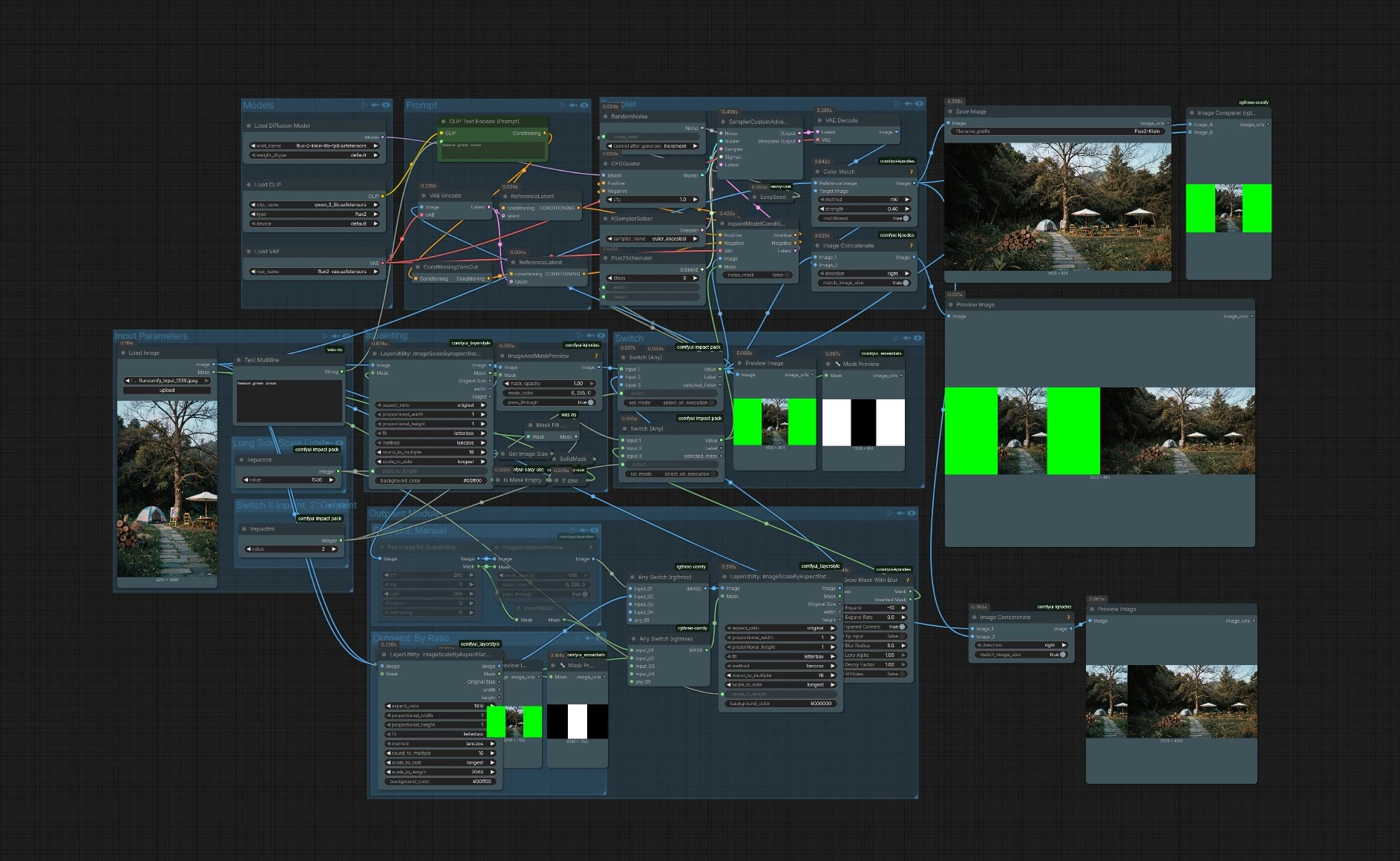
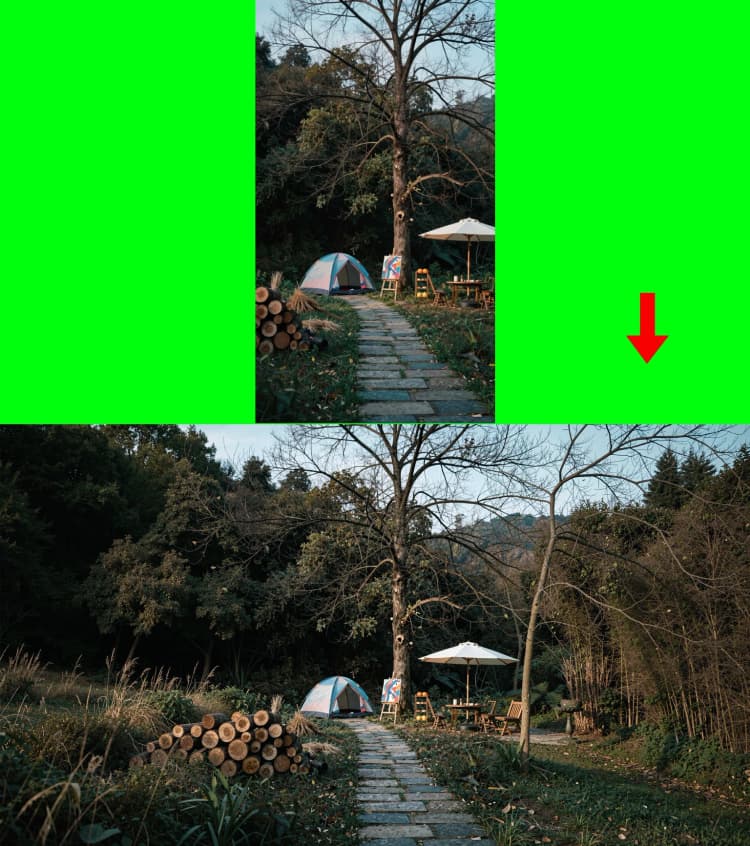
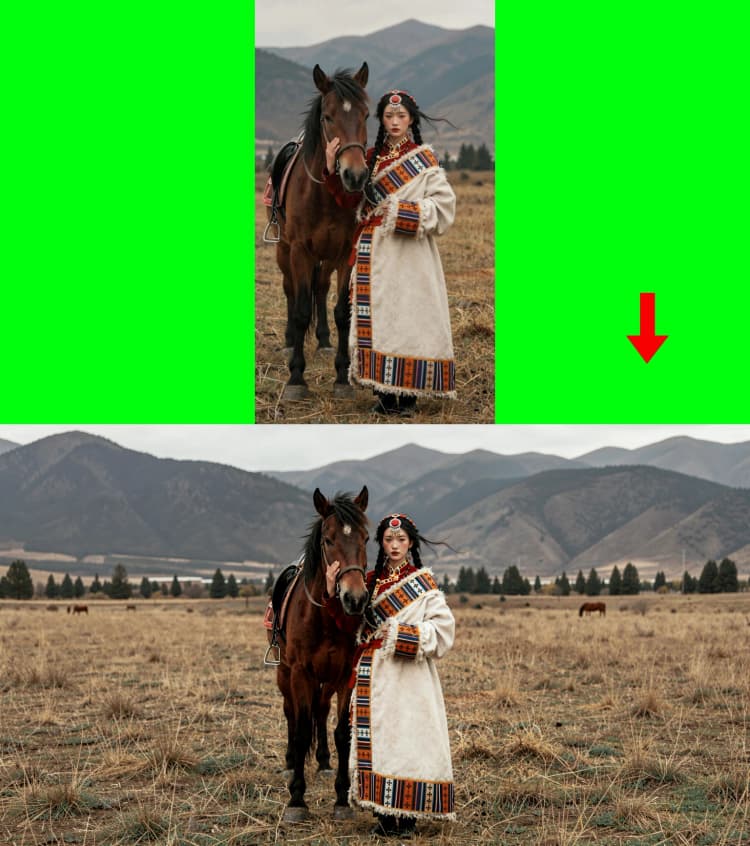
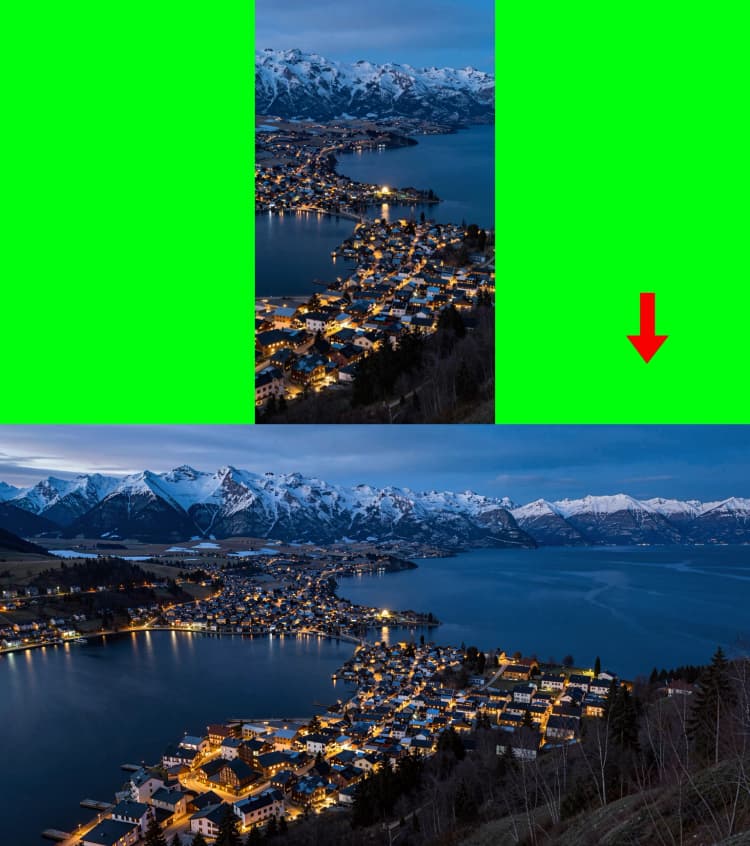
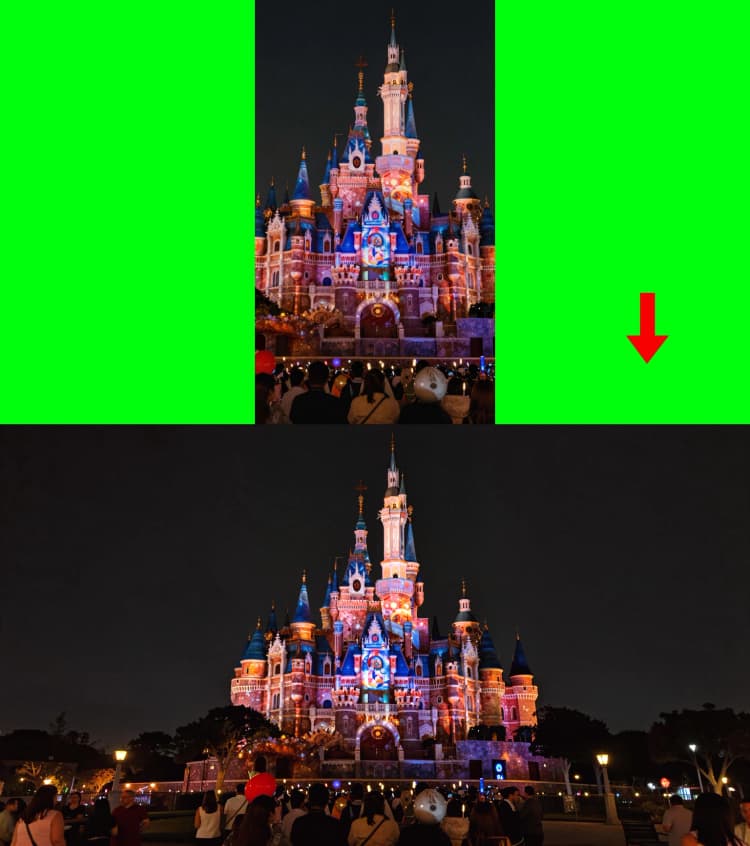
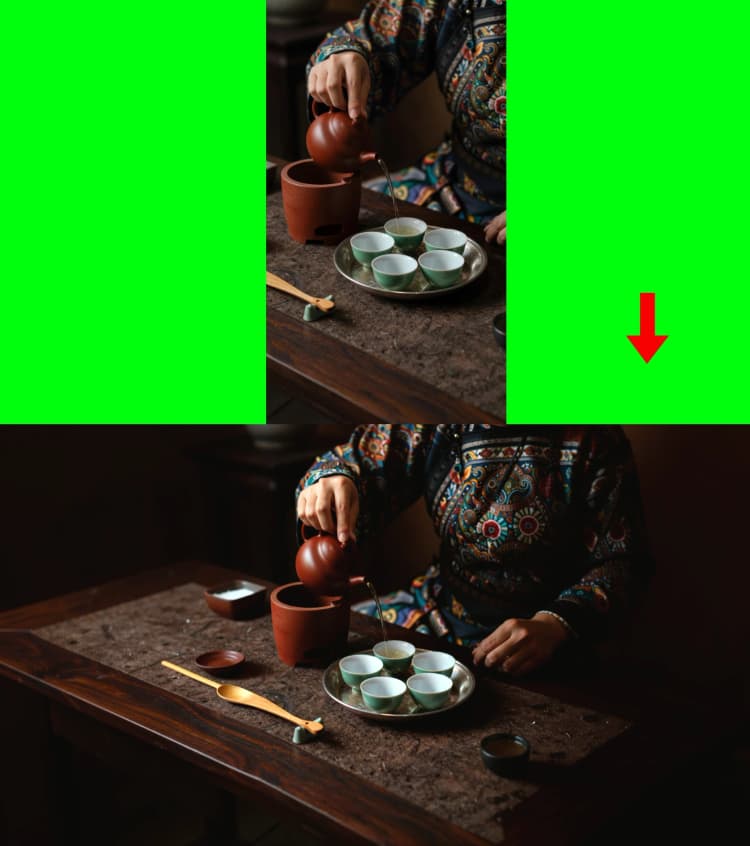
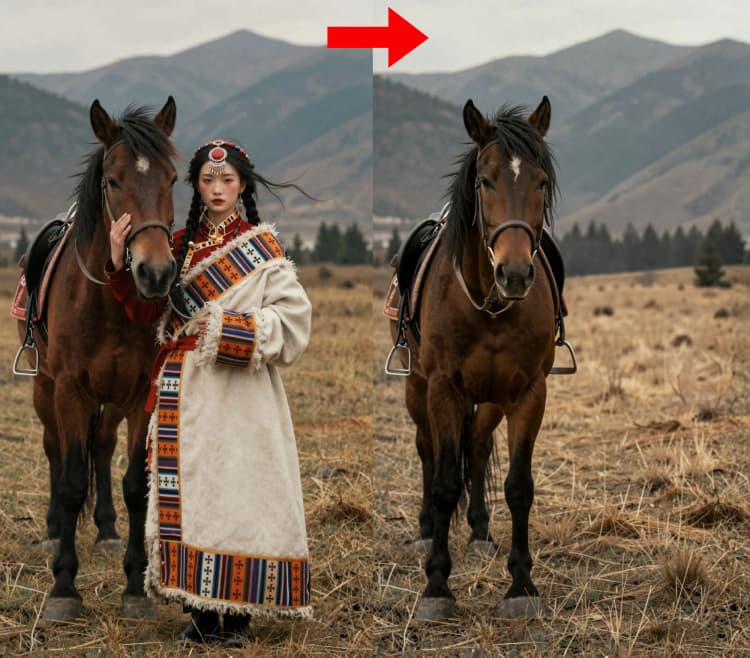
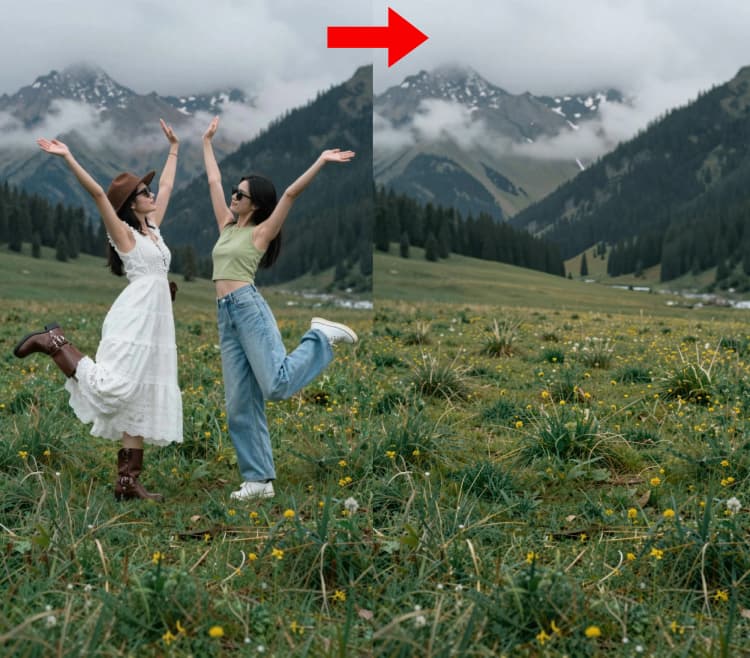
FLUX.2 Klein Unified Image Editing is a single ComfyUI workflow for precision inpainting, object removal, and scene outpainting. It combines the FLUX Klein model family with mask-aware conditioning, multi-reference latent guidance, and robust color harmonization so edits blend naturally with your source image.
Built for artists, retouchers, and creative teams, the workflow preserves style, texture, and perspective while letting you erase distractions, fill gaps, or extend the canvas with minimal effort. A live preview path and side-by-side comparers make it easy to validate changes and iterate quickly.
Key models in Comfyui FLUX.2 Klein Unified Image Editing workflow#
- FLUX.2 Klein 4B diffusion model – the generative backbone used for high-fidelity, structure-aware edits. Model card
- FLUX.2 VAE – encodes the input image to latents and decodes the edited result back to pixels with minimal loss. Model card
- Flux-compatible Qwen-based text encoder – translates your edit instructions into conditioning for the model. Repository
How to use Comfyui FLUX Klein Unified Image Editing (Inpaint / Remove / Outpaint) workflow#
At a high level, you load an image and optional mask, choose whether you are inpainting/removing or outpainting, set your intent in the prompt, then run the sampler. The workflow routes your selection through mask-aware conditioning, sampling with the FLUX scheduler, and an optional color-match pass before saving and previewing.
Input Parameters#
Load your source under LoadImage (#76). You can provide an external mask or let the workflow create one automatically if none is present. The Long Side Scale Limit control sets a target long-edge for internal processing so the model works at an efficient, high-quality scale. Use the viewer nodes to confirm orientation and aspect before committing to a pass.
Models#
This group preloads the FLUX UNet, VAE, and text encoder. No user action is required here. Keeping these models loaded ensures consistent results across multiple runs of FLUX Klein Unified Image Editing (Inpaint / Remove / Outpaint).
Prompt#
Write what you want to happen, not just what to see. For removals, phrase intent clearly, for example “remove the electrical wires and reconstruct sky.” For inpainting or outpainting, describe the desired fill or extension so the text encoder can steer composition and texture. The negative channel is automatically handled, and multi-reference latent guidance reinforces style and structure coherence.
Inpainting#
The inpainting path centers on InpaintModelConditioning (#156), which merges your image, the active mask, and the prompt into a masked latent. Two ReferenceLatent nodes (#124, #126) provide multi-reference guidance that helps maintain style, lighting, and geometry around the edit region. This makes removals look seamless and fills match surrounding context.
Outpaint: Manual#
Use ImagePadForOutpaint (#102) to extend the canvas in specific directions. It outputs a padded image plus a mask that targets the new border area for synthesis. ImageAndMaskPreview (#127) overlays the mask for quick inspection, and InvertMask (#177) offers alternate coverage depending on whether you want to protect or regenerate certain regions.
Outpaint: By Ratio#
If you prefer to grow the canvas to a target aspect, use LayerUtility: ImageScaleByAspectRatio V2 (#152). It automatically scales and letterboxes to reach your chosen ratio, while also producing a matching mask for the new area. This is ideal for social crops, print formats, or cinematic frames.
Outpaint Module#
The module provides quality-of-life tools for mask handling and compositing. Mask Fill Holes (#181) and an automatic fallback path ensure a usable mask is always available. GrowMaskWithBlur (#168) expands and feathers coverage so transitions look natural. Two Any Switch (rgthree) nodes (#159, #158) and ImpactSwitch (#174) route the correct image and mask to the inpainting core, letting you mix manual and ratio-based outpainting within the same run.
Switch#
ImpactSwitch (#171) selects the working canvas. Set the selector to 1 for inpainting on the original composition or to 2 for outpainting on a scaled or padded canvas. This keeps the FLUX Klein Unified Image Editing (Inpaint / Remove / Outpaint) workflow unified while giving you precise control over which path runs.
Sampler#
The sampler stack combines Flux2Scheduler (#116), KSamplerSelect (#107), and SamplerCustomAdvanced (#108). Image size is read automatically with GetImageSize (#119), and easy seed (#99) plus RandomNoise (#110) control reproducibility. CFGGuider (#115) balances how strictly the model follows your prompt versus preserving existing content, which is critical for realistic inpainting and clean removals.
Output and review#
After decoding, ColorMatch (#195) harmonizes the edited result to your original reference to avoid hue or luminance drift. The workflow saves the color-matched image and also provides side-by-side comparisons through ImageConcanate (#100, #179) and an interactive Image Comparer (#131). Use these viewers to confirm edges, grain, and global color before exporting.
Optional extras#
- For object removal, expand and slightly blur the mask so the model has context to rebuild edges cleanly.
- For outpainting, start with a modest extension, generate, then iterate by growing the mask to avoid abrupt background shifts.
- Keep the seed fixed while you tune prompt and mask, then randomize it to explore alternates once composition is locked.
- Use
ColorMatchafter large outpaints to re-anchor global tonality to the source image. - When results are over-creative, lower guidance and keep masks tighter around the target area to preserve structure.
Acknowledgements#
This workflow implements and builds upon the following works and resources. We gratefully acknowledge RunningHub Creator for the referenced resource and its maintenance. For authoritative details, please refer to the original documentation and repositories linked below.
Resources#
Source - RunningHub Post
Note: Use of the referenced models, datasets, and code is subject to the respective licenses and terms provided by their authors and maintainers.