Fibo 2 Edit Turbo: 4-Step Image Editing in ComfyUI#
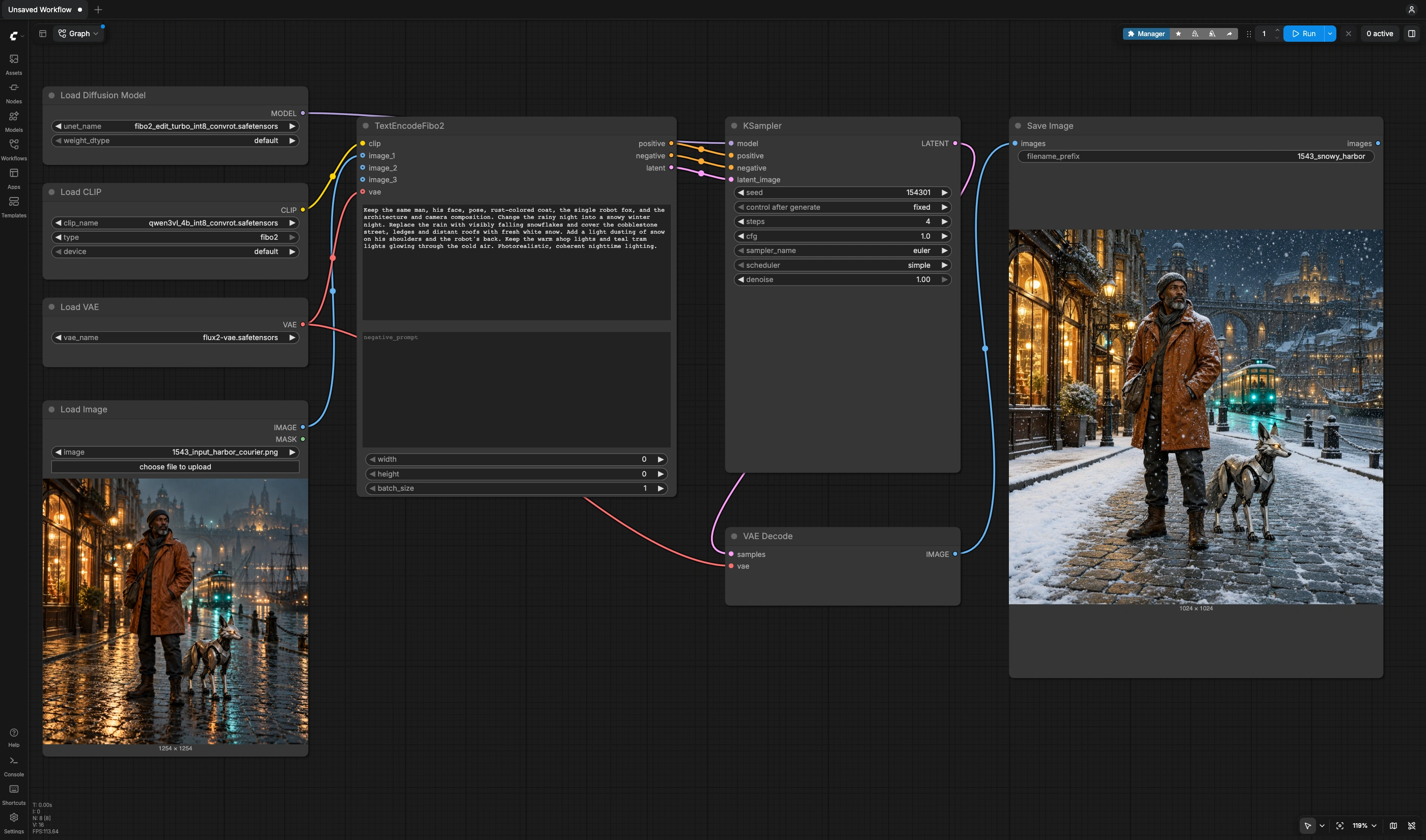
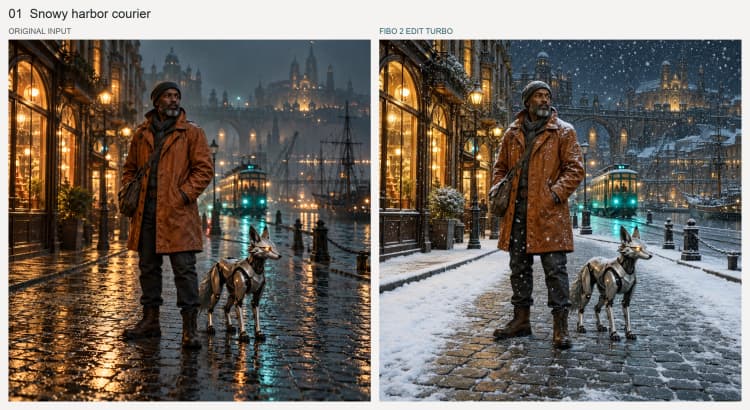
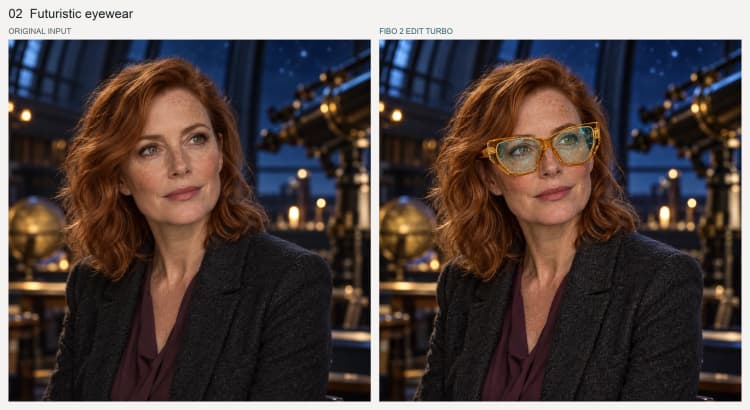
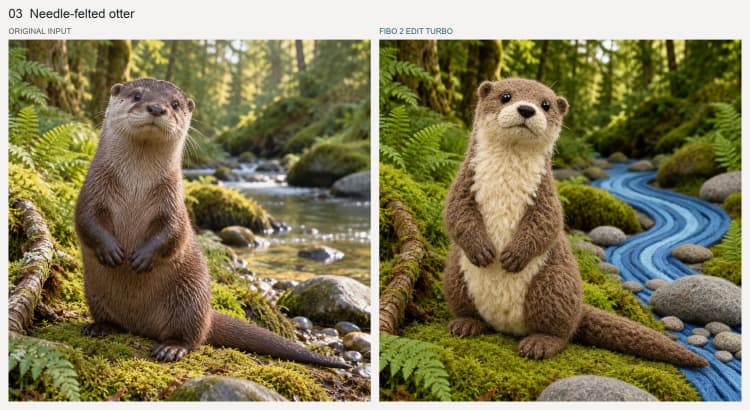
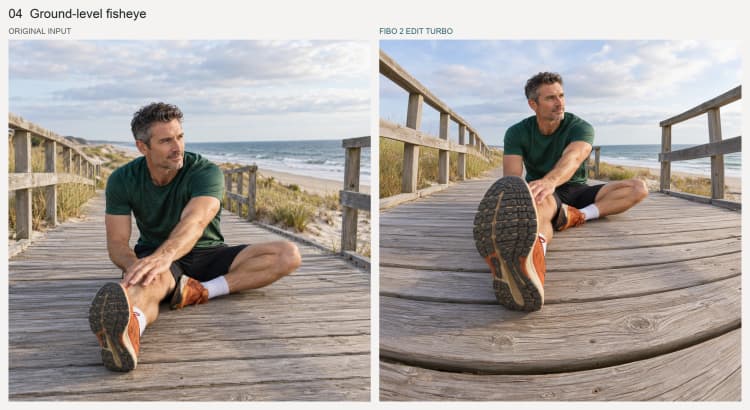
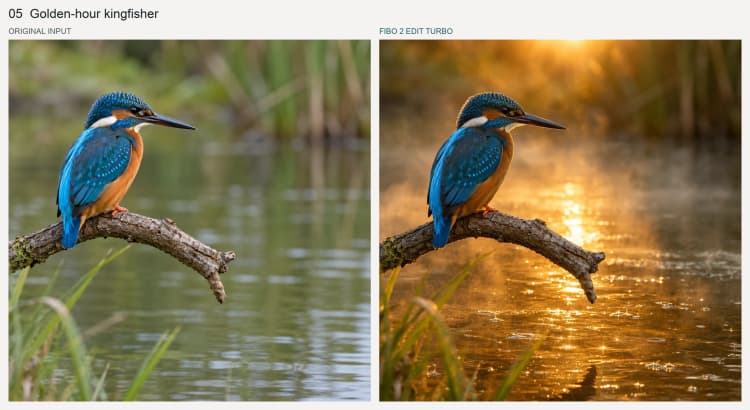
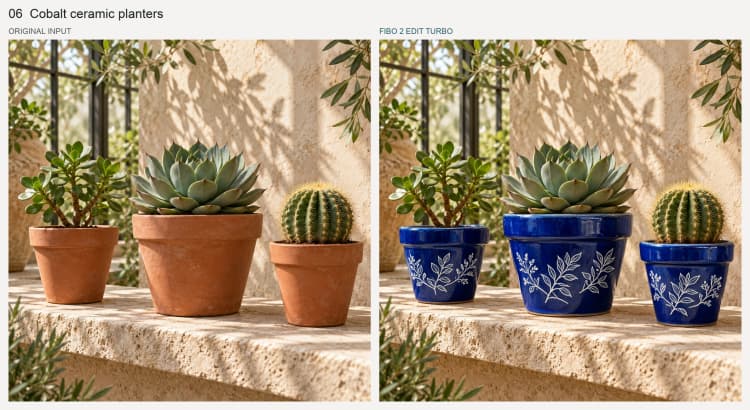
This workflow lets you edit a source image with plain-language instructions using Bria’s Fibo 2.0 Edit Turbo. It runs in four sampling steps with INT8 ConvRot weights for fast, consistent results. Use it to change weather and lighting, add or remove accessories, adjust camera viewpoint, swap materials, or shift overall visual style while keeping the rest of the image stable.
Designed for speed and reliability, Fibo 2 Edit Turbo in ComfyUI combines a robust vision-language encoder with the FLUX.2 VAE latent space. The graph is streamlined: you load an image, describe the edit, sample for four steps, and get your final render. It is an excellent choice for creative iteration, product visualization, and batch-friendly photo adjustments.
Key models in Comfyui Fibo 2 Edit Turbo workflow#
- Bria AI Fibo 2.0 Edit Turbo. The distilled, production-ready editing checkpoint that delivers high-quality edits in four steps with guidance-free sampling. It operates in the FLUX.2 VAE latent space and supports single or multi-reference editing. See the official model card for details and recommendations. Model card Paper
- Qwen3-VL-4B-Instruct. The vision-language encoder used to turn your instruction into conditioning tokens that steer Fibo 2.0’s edits. It provides strong instruction following and multimodal grounding for edit requests. Model card
- FLUX.2 VAE. The autoencoder that defines the latent space where Fibo 2.0 operates; it encodes context images and decodes final results with photoreal fidelity. Use the standard FLUX.2 VAE or an approved decoder variant as provided by reputable sources. Collection Repo
How to use Comfyui Fibo 2 Edit Turbo workflow#
The workflow follows a simple path from inputs to output. You provide a source image and an edit instruction, the encoder prepares text-and-image conditioning, the sampler performs a four-step edit using Fibo 2 Edit Turbo, and the VAE decodes the final image for saving.
Load the source image
- Use
LoadImage(#14) to bring in the photo you want to edit. Keep the subject framed the way you want because the edit respects composition. This node supplies the main reference image to the encoder stage and acts as the anchor for identity, layout, and lighting that should stay unchanged.
Prepare encoders
CLIPLoader(#2) loads the Qwen3-VL 4B text encoder packaged for Fibo 2.0.VAELoader(#3) initializes the FLUX.2 VAE used both to encode the context image and to decode the final result. Together they provide the multimodal signals Fibo 2 Edit Turbo needs to localize the requested change while preserving everything you did not ask to modify.
Encode instruction and context
TextEncodeFibo2(#4) takes your instruction and the source image to build edit conditioning and a starting latent. Under the hood, the instruction is processed by the vision-language encoder and summarized into “gist” tokens that condition the diffusion transformer. You can add up to four reference images for style or object transfer when a task benefits from extra guidance. Write direct, action-first instructions such as “replace the jacket with a red leather one” or “make it rainy at night with neon reflections”.
Sample the edit
UNETLoader(#1) brings the Fibo 2.0 Edit Turbo checkpoint into the graph, andKSampler(#6) performs the actual edit in four steps. Because Turbo is distilled for few-step, guidance-free editing, sampling is fast and reproducible across seeds. Keep the instruction-focused phrasing tight; this model aims to change only what you asked for while preserving identity and fine details.
Decode and save
VAEDecode(#7) transforms the latent result back into an RGB image using FLUX.2’s decoder.SaveImage(#8) writes the edited frame to disk. If you plan to iterate, save several seeds so you can quickly compare subtle variations.
Key nodes in Comfyui Fibo 2 Edit Turbo workflow#
TextEncodeFibo2 (#4)
- Central to instruction-following, this node builds the positive and negative conditioning and prepares the initial latent from your source image. Use the
promptfield for the change you want; keep language explicit about objects, attributes, and locations. Negative prompts are not used by Fibo 2.0 Edit Turbo, so focus effort on the positive instruction. For multi-reference edits, connect additional images and refer to them in your instruction in order.
KSampler (#6)
- Runs the four-step edit that defines Fibo 2 Edit Turbo’s speed profile. Keep
stepsat 4 for best latency and quality trade-off recommended by the model card. Useseedfor reproducibility; try a few seeds to explore micro-variations. Leavecfgat 1 because Turbo is trained guidance-free; lowerdenoiseif you need a gentler touch that preserves more of the original image.
UNETLoader (#1)
- Loads the main Fibo 2.0 Edit Turbo checkpoint. The provided workflow uses an INT8 ConvRot single-file weight for maximum throughput on common GPUs. If you switch checkpoints, keep to Edit Turbo variants for editing tasks and ensure the quantization format matches your runtime.
CLIPLoader (#2)
- Provides the Qwen3-VL-4B text encoder used by Fibo 2.0. Choose an INT8 ConvRot or BF16 build consistent with your GPU memory and performance goals. Clear, concise phrasing in
TextEncodeFibo2will yield better grounding from this encoder.
VAELoader (#3)
- Supplies the FLUX.2 VAE used to encode the context image and decode the final output. You may experiment with approved decoder variants from the FLUX.2 family if you need faster decoding; expect small differences in micro-contrast or texture rendering across decoders.
LoadImage (#14)
- Feeds the primary reference image into the encoder. Use high-quality, in-focus images and keep the subject centered when identity preservation matters. For product scenes, align the camera angle and distance to your desired outcome to minimize unintended reframing.
Optional extras#
- Write action-first instructions with clear objects and attributes: “make the scene overcast,” “add a gold ring,” “switch to a 35 mm wide shot,” “replace the wood with brushed steel,” “render in cinematic teal-and-orange.”
- For style or object transfer, add reference images to
TextEncodeFibo2(#4) and mention their order in the prompt, for example “dress the person in image 1 using the fabric from image 2.” - Keep four steps; increasing steps often adds time without meaningful gains for Fibo 2 Edit Turbo. The official guidance is four steps and guidance scale 1.0. Model card
- If the edit is too strong, lower
denoiseinKSampler(#6) to preserve more of the original; if it is too subtle, raise it slightly toward a full rewrite. - INT8 ConvRot weights offer a strong speed-to-quality balance for this workflow; for background on the approach, see rotation-based quantization research. Paper
Acknowledgements#
This workflow implements and builds upon the following works and resources. We gratefully acknowledge BRIA AI for the Fibo 2.0 Edit Turbo model, Comfy-Org for the Fibo 2.0 model downloads, and the r/StableDiffusion community for the source workflow discussion for their contributions and maintenance. For authoritative details, please refer to the original documentation and repositories linked below.
Resources#
- BRIA AI/Fibo 2.0 Edit Turbo
- Hugging Face: briaai/Fibo-2.0-edit-turbo
- arXiv: 2511.06876
- Comfy-Org/Fibo 2.0
- Hugging Face: Comfy-Org/Fibo-2.0
- arXiv: 2511.06876
- r/StableDiffusion/Source workflow discussion
- Docs / Release Notes: Source workflow discussion
Note: Use of the referenced models, datasets, and code is subject to the respective licenses and terms provided by their authors and maintainers.