



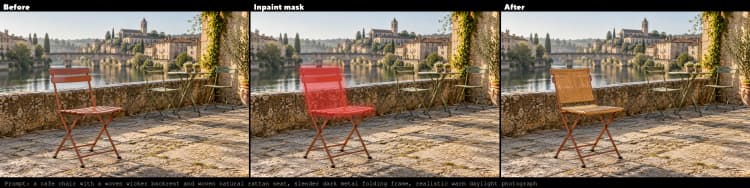
MOSS-Image Inpainting: localized edits that blend cleanly into the scene#
MOSS-Image Inpainting is a focused ComfyUI workflow for replacing or adding details only inside a painted mask while keeping everything else pixel-exact. It crops the masked region with generous context, applies MOSS-Image guided by your prompt and Differential Diffusion, then pastes the result back with seamless edges.
Use MOSS-Image Inpainting for accessories, color changes, product tweaks, small repairs, and material swaps. The workflow is fast to operate, prompt-light, and designed to preserve the surrounding scene so your edits look native rather than patched in.
Key models in Comfyui MOSS-Image Inpainting workflow#
- Comfy-Org MOSS-Image diffusion model. Provides the image prior used to redraw the masked region. Use the SFT builds shipped in the official repository: int8 convrot or bf16 variants depending on your hardware needs. See the model hub at Comfy-Org/MOSS-Image and the file-level entries for moss_image_sft_int8_convrot.safetensors or moss_image_sft_bf16.safetensors.
- Qwen 3.5 9B W4A8 GPTQ text encoder. Encodes your prompt into conditioning for the MOSS-Image UNet and is included with the MOSS release. See text_encoders/qwen3.5_9b_w4a8_gptq.safetensors.
- Flux 2 VAE Small. Compresses the cropped image into latent space and decodes the result back to pixels, keeping colors stable while editing. See vae/flux2-vae_small.safetensors.
- Optional LoRA. A MOSS-optimized LoRA can be loaded to steer surface realism and product-like finishes. It is not required; bypass it if you prefer the base MOSS-Image look.
How to use Comfyui MOSS-Image Inpainting workflow#
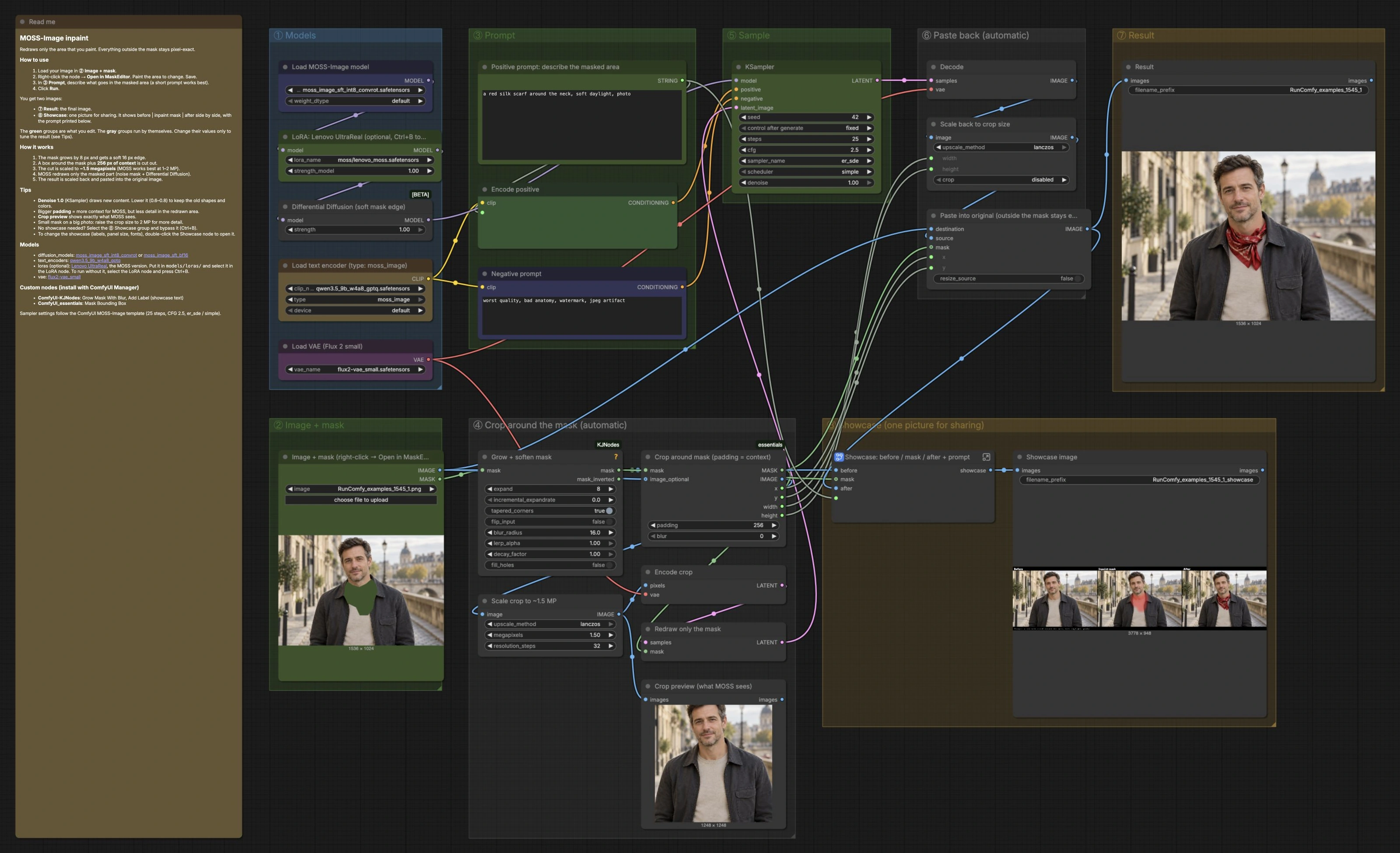
This workflow runs in a single pass: you load an image and paint a mask, the pipeline crops around that mask with context, MOSS-Image redraws only the masked area, then the edited crop is returned to the original frame. Green groups are the parts you typically touch; gray groups are automatic.
① Models#
The pipeline first loads the MOSS-Image UNet in Load MOSS-Image model (#1), an optional LoRA in LoRA: Lenovo UltraReal (optional, Ctrl+B to skip) (#5), the MOSS text encoder in Load text encoder (type: moss_image) (#2), and the VAE in Load VAE (Flux 2 small) (#3). Pick the MOSS-Image variant that fits your memory and precision preferences. If you want a neutral baseline, keep the LoRA bypassed; enable it when you want extra gloss or tactile detail. No other tuning is required at this stage.
② Image + mask#
Import your source in Image + mask (right-click → Open in MaskEditor) (#10), then open the Mask Editor and paint the area you want to change. The white region defines what will be regenerated, while the untouched pixels remain exact. Aim for a mask that follows real edges for cleaner blends. Save to return the mask back to the graph.
③ Prompt#
Describe only what goes inside the mask using Positive prompt: describe the masked area (#19) and Encode positive (#20). Keep prompts short and specific to the object, color, or material you want to appear. Use Negative prompt (#21) to nudge away from artifacts like low quality or watermarks. Because the crop includes surrounding context, you usually do not need to mention the background.
④ Crop around the mask (automatic)#
Grow + soften mask (#30) gently expands the mask and feathers its edge so seams blend when pasted back. Crop around mask (padding = context) (#31) finds a tight bounding box around the mask and adds context padding so MOSS-Image understands how the new content should fit. Scale crop to ~1.5 MP (#32) resizes the cutout to an ideal working resolution for detail without wasting compute. Encode crop (#33) moves the crop into latents and Redraw only the mask (#34) ensures denoising happens only inside the mask. Use Crop preview (what MOSS sees) (#35) to sanity check the crop and context before sampling.
⑤ Sample#
Differential Diffusion (soft mask edge) (#4) protects unmasked content by dampening updates near mask boundaries and prioritizing coherence. KSampler (#40) then generates the inpainted content using the MOSS-Image model and your positive and negative conditioning. The balance you choose here governs how literally the prompt is followed versus how much of the original structure is preserved. For conservative edits, bias toward lower redraw strength; for full replacements, use higher redraw strength.
⑥ Paste back (automatic)#
After sampling, Decode (#50) converts latents to pixels and Scale back to crop size (#51) restores the edited crop to the exact dimensions captured earlier. Paste into original (outside the mask stays exact) (#52) composites the result back into your original image using the saved x, y coordinates, so alignment is perfect and the rest of the frame is untouched.
⑦ Result#
Result (#60) writes the final image. File naming is handled for you; rerun to iterate quickly on the same source and mask.
⑧ Showcase (one picture for sharing)#
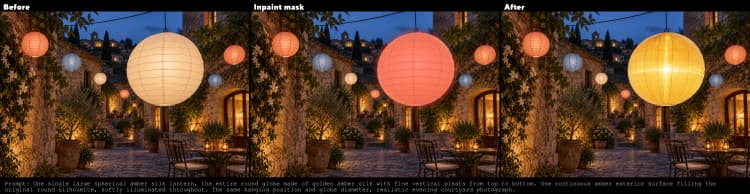
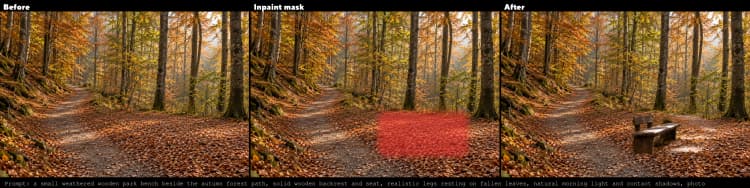
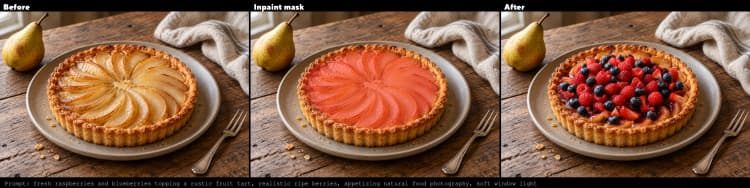
Showcase: before / mask / after + prompt (#70) builds a side-by-side panel showing the original, the red tint overlay of your mask, and the inpainted result, with the prompt printed below. This is helpful for documentation or client approvals. Save the panel with Showcase image (#71). If you do not need a showcase output, you can bypass this group to speed up execution.
Key nodes in Comfyui MOSS-Image Inpainting workflow#
Grow + soften mask (#30) Expands the painted area slightly and applies a soft blur to its edge for natural transitions. Adjust expand when you see hard seams or missed fringe, and tune blur_radius if the edge looks too sharp or too mushy. Use higher expansion for hair, fur, and soft fabrics where boundary ambiguity helps blending.
Crop around mask (padding = context) (#31) Computes a bounding box for the mask and adds extra scene context around it. The padding value controls how much environment is sent into the model, which influences perspective and lighting consistency. More padding gives MOSS-Image better global cues but reduces per-pixel detail at a fixed megapixel target; reduce padding for small, intricate inserts.
Scale crop to ~1.5 MP (#32) Resizes the cropped patch to a practical working resolution. Raising the megapixel target improves fine detail inside the mask at the cost of speed and memory. Lower it for quick previews or very broad masks where micro-detail matters less.
Redraw only the mask (#34) Sets a noise mask on the latent so denoising stays confined to your painted area. This is what guarantees that unmasked pixels remain unchanged. Keep it enabled for true inpainting; disable only for troubleshooting when you need to confirm model behavior on the full crop.
Differential Diffusion (soft mask edge) (#4) Suppresses unwanted spillover around mask edges by attenuating updates as they approach the boundary. Increase strength when you notice color bleeding or texture creep outside the mask, and reduce it when you want a bolder merge between old and new content. It works hand in hand with feathering from the mask growth stage.
KSampler (#40) Drives the actual generation using the MOSS-Image model and your conditioning. denoise controls how drastically the masked content is reimagined: values near 1 draw fresh content, mid values preserve structure and recolor, lower values make subtle refinements. Adjust steps for quality versus speed, and change seed to explore alternates while keeping all other conditions constant.
Paste into original (outside the mask stays exact) (#52) Composites the edited crop back into the original frame using coordinates from the bounding box. Leave resize_source off to avoid scaling artifacts. If edges show slight halos, revisit the earlier mask growth and blur rather than compensating here.
Optional extras#
- Keep prompts short and literal for MOSS-Image Inpainting. Focus on the object, color, material, and finish you want inside the mask.
- For recolors or material swaps, reduce redraw strength in
KSamplerto keep existing shape and shading while changing appearance. - If the masked area is tiny on a very large photo, raise the megapixel target in
Scale crop to ~1.5 MPso the model has enough pixels to resolve small details. - Increase context
paddingwhen perspective or lighting of the insert must match complex surroundings such as hands, reflections, or patterned surfaces. - Use
Crop preview (what MOSS sees)to verify that the crop contains both the masked region and enough surrounding cues before you sample.
Acknowledgements#
This workflow implements and builds upon the following works and resources. We gratefully acknowledge Comfy-Org for the MOSS-Image model files, the Civitai community for the MOSS Image Inpainting Workflow template, and OpenMOSS for the MOSS-Image research code and technical report for their contributions and maintenance. For authoritative details, please refer to the original documentation and repositories linked below.
Resources#
- Civitai/MOSS Image Inpainting Workflow
- GitHub: Comfy-Org/workflow_templates
- Docs / Release Notes: MOSS Image Inpainting Workflow
- Comfy-Org/MOSS-Image
- GitHub: OpenMOSS/MOSS-Image
- Hugging Face: Comfy-Org/MOSS-Image
- arXiv: arXiv:2610.23374
Note: Use of the referenced models, datasets, and code is subject to the respective licenses and terms provided by their authors and maintainers.