
Qwen Image 2.1 Inpainting: No‑Offset local editing workflow for precise, instruction‑guided changes#
This ComfyUI workflow delivers targeted local edits with Qwen Image 2.1 Inpainting using an input image, a user mask, and clear English instructions. It follows a no‑offset strategy that keeps the working image and mask perfectly aligned, then applies latent noise only inside the masked region so the model focuses on your requested change while preserving surrounding composition.
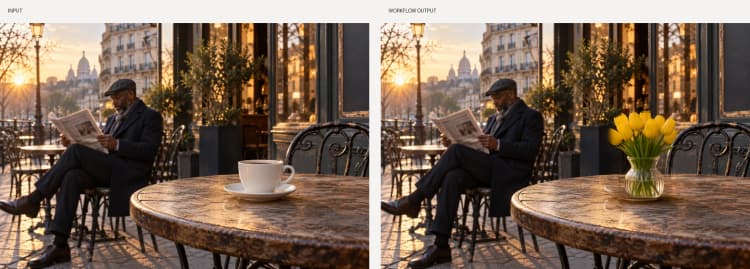
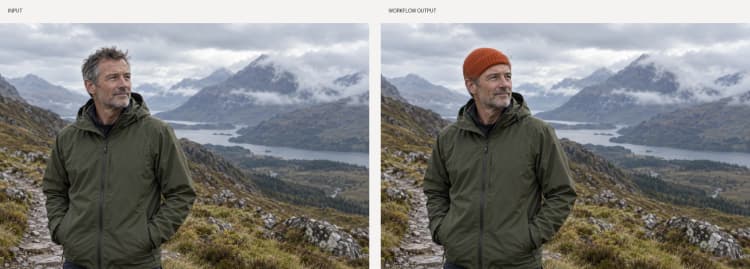
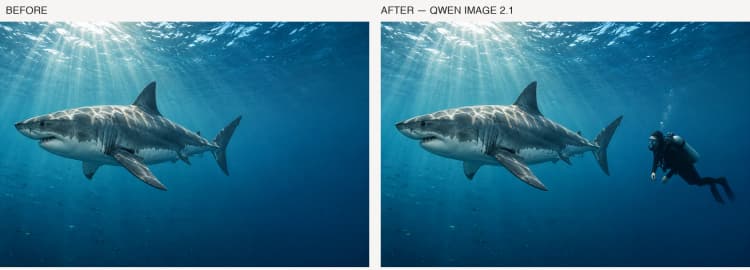
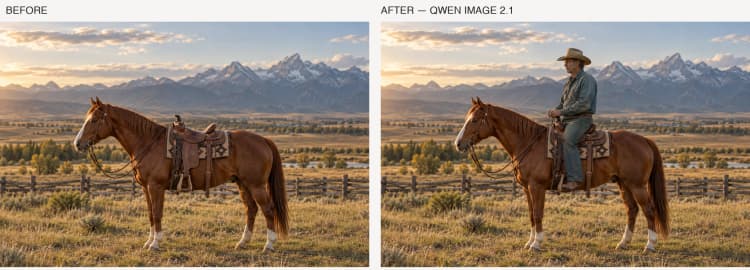
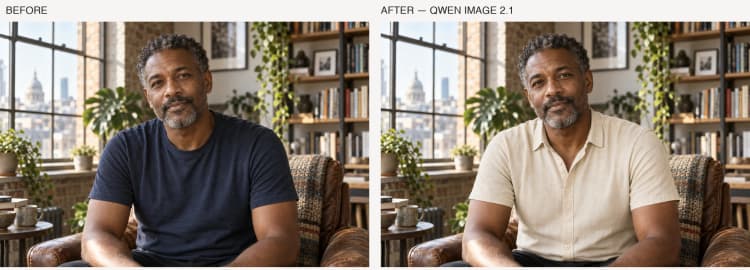
Use it to add or replace localized details such as a diver, a cowboy, or a linen shirt. The design emphasizes realism and scene consistency with optional reference images, but it does not guarantee pixel‑identical results outside the mask. Expect faithful inserts, natural lighting and contact shadows, and minimal collateral changes near the mask boundary.
Key models in Comfyui Qwen Image 2.1 Inpainting workflow#
- Qwen-Image 2.1 diffusion model. The core image generator that performs instruction‑guided inpainting and local editing, conditioned by your prompt and reference images. Model card
- Qwen-Image 2.1 VAE. Encodes the input image to latents and decodes the edited latents back to pixels, helping preserve global appearance and color space. Model card
- Qwen-Image 2.1 text/image encoder. Transforms English editing instructions and scene references into conditioning signals that steer the diffusion process toward your requested edit. Model card
How to use Comfyui Qwen Image 2.1 Inpainting workflow#
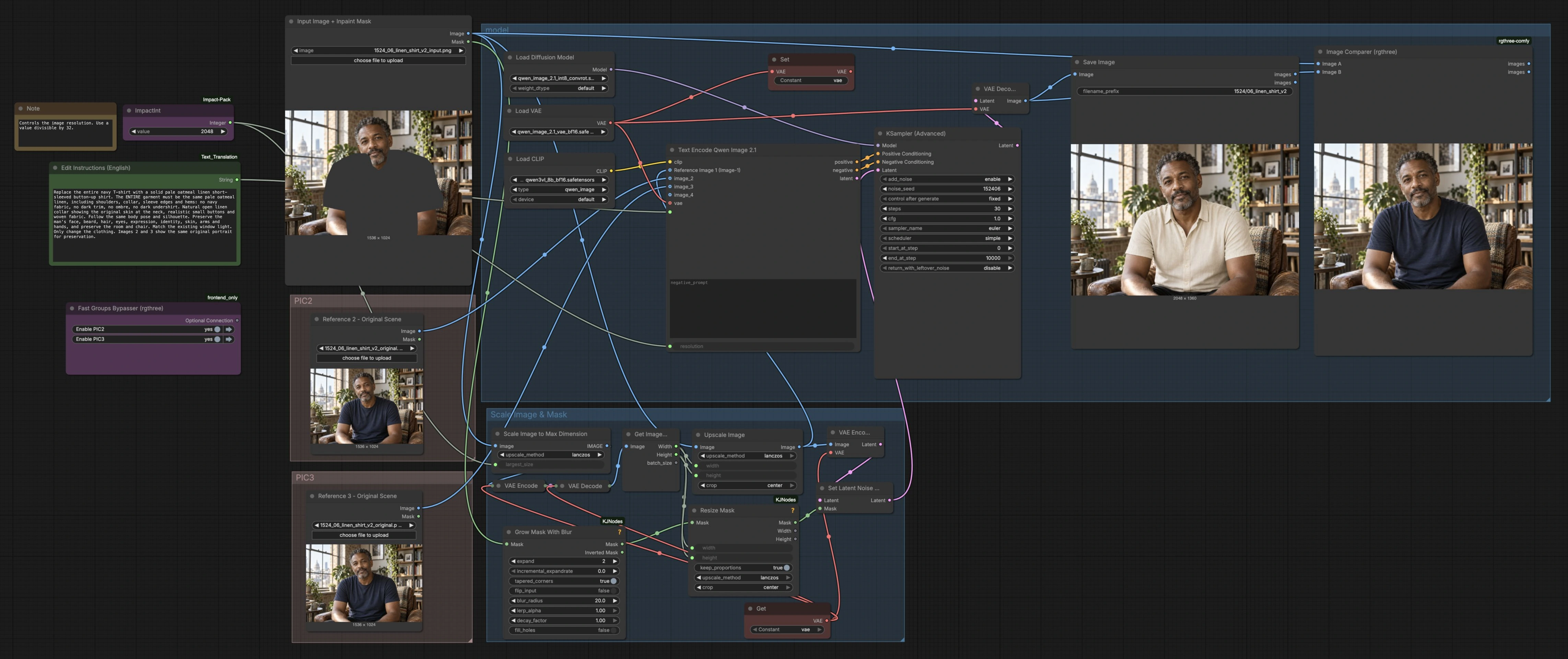
At a glance: you supply an image, paint a mask over the area to change, and write concise English instructions. The workflow scales the image for the model, aligns the mask with no offset, seeds noise only where edits are needed, encodes your prompt and optional reference images, denoises to realize the change, and saves a side‑by‑side comparison.
Input Image + Inpaint Mask (LoadImage (#11))#
Load the working image and its inpaint mask. The mask should cover only the region you want to change, with a small buffer around edges for blending. Softer edges typically produce cleaner seams. Keep the rest of the image unmasked so the model prioritizes the targeted insert or replacement.
Edit Instructions (English) (Text (#165))#
Write clear, specific instructions that describe what to add or modify, where it should appear, and how it should look relative to the scene. Mention scale, pose, perspective, and lighting to match the photo. Brief constraints such as “preserve the house and coastline” help maintain context. Negative phrasing is optional but can nudge the model away from undesired attributes.
Reference 2 – Original Scene (LoadImage (#134))#
Add an original, unedited view of the same scene as a preservation reference. The workflow uses it to anchor composition and lighting so the inpaint blends naturally. Matching camera viewpoint and framing are most effective. This step is optional but recommended for realism.
Reference 3 – Original Scene (LoadImage (#136))#
Optionally add a second original‑scene reference. Providing multiple consistent references improves structure and color stability around the edit. Use images with the same lens, time of day, and exposure when possible.
Scale Image & Mask (group)#
This group standardizes resolution and guarantees mask alignment with a no‑offset approach. The image is scaled to a model‑friendly size, round‑tripped through the VAE to lock in dimensions, then GetImageSize (#132) feeds those exact dimensions to ImageScale (#158) and ResizeMask (#148) so pixels and mask match perfectly. GrowMaskWithBlur (#128) can gently expand and feather the mask to reduce hard seams. Finally, SetLatentNoiseMask (#126) ensures fresh noise is applied only inside the masked region, focusing edits where you painted.
model (group)#
Model components are loaded, your instruction and reference images are encoded, and the denoising step runs. UNETLoader (#192), VAELoader (#178), and CLIPLoader (#177) bring in the Qwen-Image 2.1 model suite. TextEncodeQwenImage21 (#191) converts your prompt plus references into conditioning, while KSamplerAdvanced (#193) performs inpainting using the masked latents from SetLatentNoiseMask (#126). VAEDecode (#194) returns the final image.
Compare and save#
Image Comparer (rgthree) (#51) shows a live before/after view that helps you judge alignment, lighting, and seam quality. SaveImage (#201) writes the result to disk using your chosen prefix so you can iterate quickly and keep organized versions.
Key nodes in Comfyui Qwen Image 2.1 Inpainting workflow#
TextEncodeQwenImage21 (#191)#
Encodes English instructions together with up to three scene images into conditioning for Qwen Image 2.1 Inpainting. Use the prompt field for what to add or change and negative_prompt for traits to avoid. The resolution control sets the model’s internal working scale; values divisible by 32 are recommended. Higher values can increase global detail but may require more VRAM and time.
SetLatentNoiseMask (#126)#
Applies a noise mask so new signal is introduced primarily inside the region you painted, enabling local edits with strong background preservation. Pair this with a softly feathered mask for seamless transitions. Unmasked areas are respected but not frozen at the pixel level, so tiny incidental changes near edges are possible.
GrowMaskWithBlur (#128)#
Preprocesses your mask for clean boundaries. Expanding slightly can ensure the entire new object is within the editable zone, and adding blur feathers edges to minimize seams. If precision is paramount, reduce expansion and blur; if blending is the priority, increase them modestly.
KSamplerAdvanced (#193)#
Runs the denoising process that realizes your instruction within the masked region. Adjust steps and sampler to balance speed and fidelity, and set a seed to reproduce results during iteration. Lower guidance often blends inserts more naturally, while higher guidance can enforce stronger adherence to text.
ImageScaleToMaxDimension (#138)#
Sets the long edge of the working image for a good tradeoff between detail and compute cost. Larger values yield crisper inserts but increase memory usage and render time. Start moderately, then scale up only if you need more fine detail.
ResizeMask (#148)#
Resizes the inpaint mask to exactly match the model’s working dimensions determined earlier. This no‑offset alignment prevents “mask shift” artifacts and keeps your painted region perfectly registered with the image pixels.
Optional extras#
- Keep instructions concise and concrete: what, where, scale, perspective, lighting, and any must‑preserve elements.
- Design masks with a small buffer and soft edges; include the full object footprint plus contact shadows for realistic grounding.
- Provide one or two original‑scene references for better composition and color stability, especially with complex backgrounds.
- Use a resolution divisible by 32; increase gradually if you need more detail, watching VRAM and time.
- Lock a seed for reproducibility when comparing prompt or mask tweaks.
- For stubborn seams, run a light second pass with a tighter, softer mask that only covers the transition zone.
This no‑offset ComfyUI pipeline makes Qwen Image 2.1 Inpainting practical and predictable for everyday object insertions and local replacements. With aligned masks, masked latent noise, and reference‑guided conditioning, you can add believable elements that match your scene’s geometry and light.
Acknowledgements#
This workflow implements and builds upon the following works and resources. We gratefully acknowledge RunningHub for the workflow source, Qwen for the Qwen-Image-2.1 model, and Qwen for the official local editing examples for their contributions and maintenance. For authoritative details, please refer to the original documentation and repositories linked below.
Resources#
- RunningHub/Workflow source
- Docs / Release Notes: Workflow source
- Qwen/Qwen-Image-2.1
- GitHub: QwenLM/Qwen-Image-2.1
- Hugging Face: Qwen/Qwen-Image-2.1
- Qwen/Official local editing examples
- Docs / Release Notes: Official local editing examples
Note: Use of the referenced models, datasets, and code is subject to the respective licenses and terms provided by their authors and maintainers.