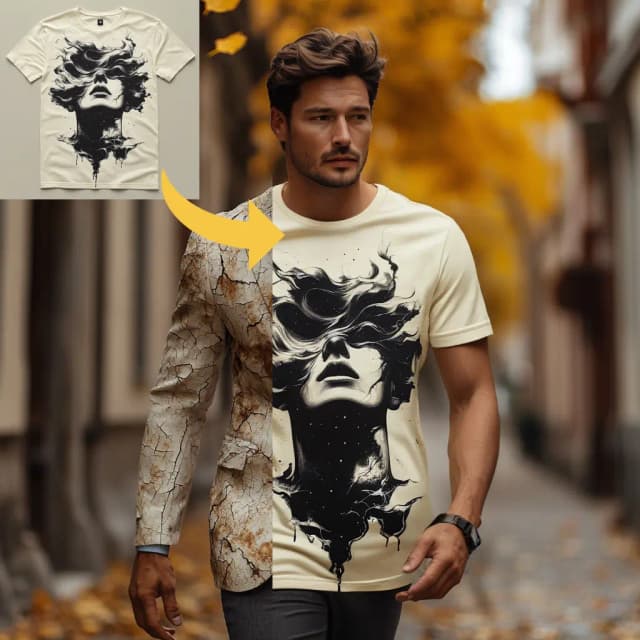
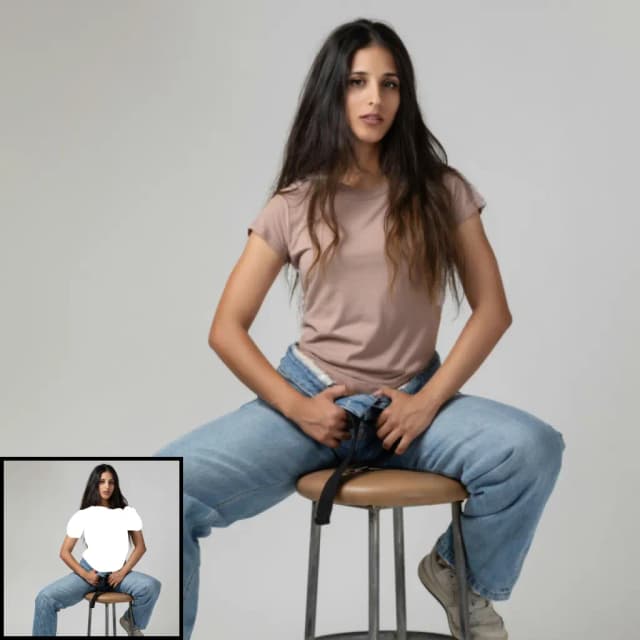
Qwen Edit 2511 LoRA Inference: training-consistent AI Toolkit edits in ComfyUI#
Qwen Edit 2511 LoRA Inference is a ready-to-run RunComfy workflow for applying an AI Toolkit–trained LoRA on Qwen Image Edit Plus 2511 inside ComfyUI with training-matched behavior. It’s built around RC Qwen Image Edit Plus 2511 (RCQwenImageEditPlus2511)—a RunComfy-built, open-sourced custom node (source) that routes editing through a Qwen-specific inference pipeline (instead of a generic sampler graph), while loading your adapter through lora_path and lora_scale.
Why Qwen Edit 2511 LoRA Inference often looks different in ComfyUI#
AI Toolkit preview images come from a Qwen Image Edit Plus 2511–specific edit pipeline, including how the prompt is encoded against the control image and how guidance is applied. If you rebuild the same task as a generic ComfyUI sampler graph, defaults can change and the LoRA can end up patching a different part of the stack—so matching prompt/steps/seed still doesn’t guarantee matching edits. When results drift, it’s usually a pipeline-level mismatch rather than a single parameter you missed.
What the RCQwenImageEditPlus2511 custom node does#
RCQwenImageEditPlus2511 routes Qwen Image Edit Plus 2511 editing through a preview-aligned inference pipeline and applies your AI Toolkit adapter via lora_path / lora_scale inside that pipeline to keep inference consistent with training previews. Reference implementation: `src/pipelines/qwen_image.py`.
How to use the Qwen Edit 2511 LoRA Inference workflow#
Step 1: Import your LoRA (2 options)#
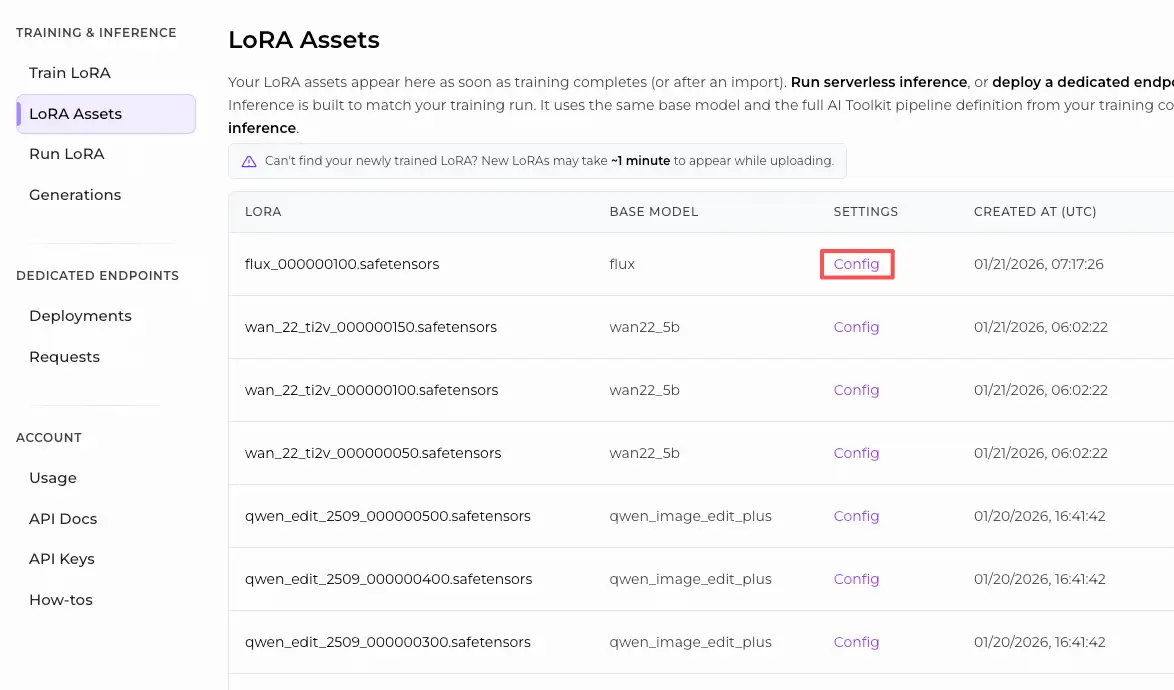
- Option A (RunComfy training result): RunComfy → Trainer → LoRA Assets → find your LoRA → ⋮ → Copy LoRA Link
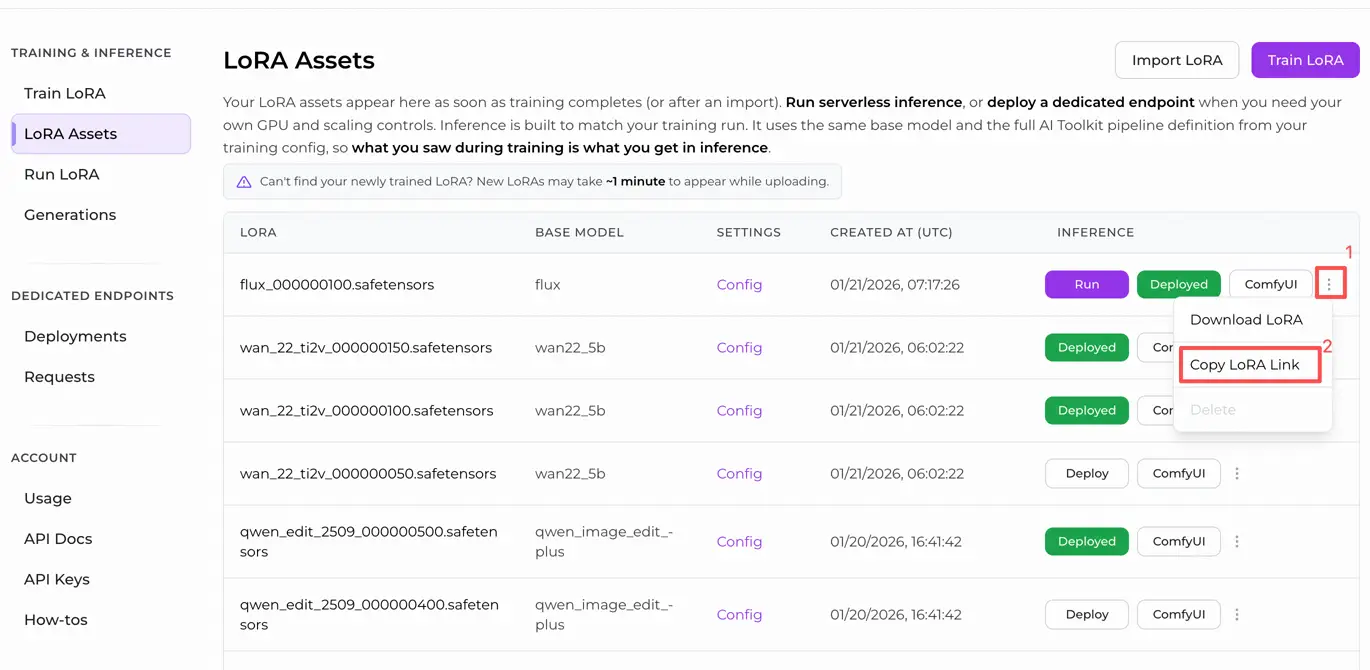
- Option B (AI Toolkit LoRA trained outside RunComfy): Copy a direct
.safetensorsdownload link for your LoRA and paste that URL intolora_path(no need to download intoComfyUI/models/loras).
Step 2: Configure the RCQwenImageEditPlus2511 custom node for Qwen Edit 2511 LoRA Inference#
Paste your LoRA link into lora_path on RCQwenImageEditPlus2511 (either the RunComfy LoRA link from Option A, or a direct .safetensors URL from Option B).
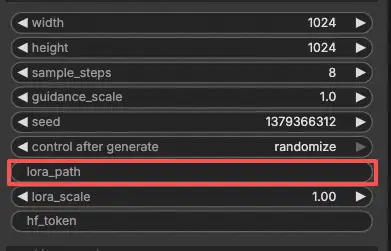
Then set the rest of the node parameters (match your AI Toolkit preview/sample values when you’re comparing results):
prompt: the edit instruction (include your training trigger tokens if your LoRA uses them)negative_prompt: optional; keep it empty if you didn’t use negatives in previewswidth/height: output size (multiples of 32 are recommended for this pipeline)sample_steps: inference steps (start by mirroring your preview step count; 25 is a common baseline)guidance_scale: guidance strength (Qwen uses a “true CFG” scale; validate the preview-matching value before tuning)seed: fixed seed for repeatable edits while you diagnose alignment by setting the control_after_generate to 'fixed'lora_scale: LoRA strength (begin at your preview strength, then adjust gradually)
This workflow is an image-edit setup, so it also requires an input image:
control_image(required input): connect a LoadImage node tocontrol_image, and replace the sample image with the photo you want to edit.
Training alignment note: if you changed sampling settings during training, open your AI Toolkit training YAML and mirror width, height, sample_steps, guidance_scale, seed, and lora_scale. If you trained on RunComfy, go to Trainer → LoRA Assets → Config and copy the preview values into RCQwenImageEditPlus2511.
Step 3: Run Qwen Edit 2511 LoRA Inference#
Click Queue/Run. The SaveImage node writes the edited result to your standard ComfyUI output directory.
Troubleshooting Qwen Edit 2511 LoRA Inference#
Most issues people hit after training a Qwen-Image-Edit-2511 LoRA in Ostris AI Toolkit show up at inference time because of pipeline mismatch—AI Toolkit’s preview sampler is model/pipeline-specific, while many ComfyUI graphs (or accelerated backends) are not.
RunComfy’s RC Qwen Image Edit Plus 2511 (RCQwenImageEditPlus2511) custom node is built to keep inference pipeline-aligned with AI Toolkit–style preview sampling.
(1)qwen image edit does not support Lora loading#
Why this happens
Some accelerated Qwen Image Edit paths (e.g., Nunchaku’s Qwen Image Edit route) don’t currently patch LoRA weights the same way the official Qwen edit pipeline expects. The usual symptom is weight loading failed / lora key not loaded and the adapter having little to no visible effect.
How to fix (training-consistent approach)
- If you’re running Qwen Image Edit through Nunchaku, switch to a non‑Nunchaku Qwen Image Edit 2511 workflow for LoRA validation (this was reported as unsupported for LoRA loading in the issue).
- In RunComfy, validate your adapter through RCQwenImageEditPlus2511 first and inject the LoRA only via
lora_path+lora_scale(avoid stacking an extra LoRA loader path on top of the RC node). - Keep the same control image,
seed,sample_steps,guidance_scale, andwidth/heightfixed while you compare against AI Toolkit previews.
(2)Question about qwen-image-edit-2511 loading warning#
Why this happens
Qwen-Image-Edit-2511 introduces new config fields (notably zero_cond_t). If your local runtime is behind the model’s expected library support, you can see warnings like: config attribute zero_cond_t was passed ... but is ignored That’s a strong signal your pipeline defaults may not match the preview sampler you trained/validated against.
How to fix (known-working upgrade path)
- Upgrade to a Diffusers/stack build that includes Qwen-Image-Edit-2511 support. A commonly shared fix in the AI Toolkit ecosystem is installing Diffusers from GitHub main for Qwen Edit 2511 compatibility (see the support PR): https://github.com/ostris/ai-toolkit/pull/611
- Then re-test through RCQwenImageEditPlus2511 (pipeline-aligned) while mirroring your preview values (
sample_steps,guidance_scale,seed,lora_scale,width/height).
(3)--zero_cond_t # This is a special parameter introduced by Qwen-Image-Edit-2511. Please enable it for this model.#
Why this happens
Some Qwen Edit 2511 training/inference stacks require zero_cond_t to be enabled to match the intended conditioning/guidance behavior. If your training previews were produced with one configuration and your ComfyUI inference runs with another, edits can look “off” even if prompt/seed/steps match.
How to fix (training-matched behavior)
- Ensure your training preview sampler and your inference pipeline are using the same Qwen Edit 2511 configuration (including
zero_cond_twhen your stack exposes it). - For ComfyUI inference, prefer RCQwenImageEditPlus2511 so the edit pipeline stays pipeline-aligned, and the LoRA is injected where the preview-style pipeline expects it (via
lora_path/lora_scale).
(4)Qwen Image Edit 2511 - Square output degradation on single image editing#
Why this happens
Users report Qwen-Image-Edit-2511 can lose coherence at square outputs (e.g., 1024×1024) for certain edits, while non-square aspect ratios produce noticeably cleaner and more faithful results—even with the same seed/prompt/settings.
How to fix (user-reported workaround)
- When validating your LoRA, test a non-square output (e.g., 832×1216 or 1216×832) while keeping the same
seed,sample_steps,guidance_scale, and control image. - Once you find an aspect ratio that matches your preview expectations, keep that ratio fixed and only then start tuning
lora_scale.
Run Qwen Edit 2511 LoRA Inference now#
Open the workflow, set lora_path, connect your control_image, and run RCQwenImageEditPlus2511 to keep ComfyUI edits aligned with your AI Toolkit training previews.