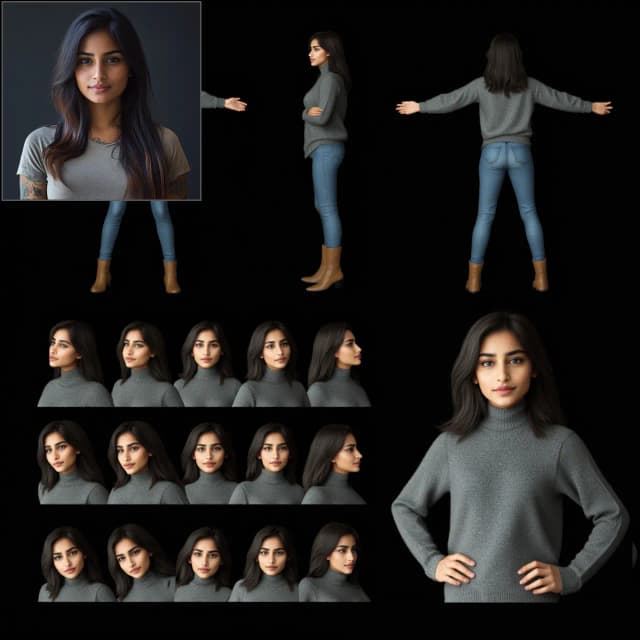
Z Image Turbo Headswap for Characters: Fast, precise head replacement for character portraits#
Z Image Turbo Headswap for Characters is a focused ComfyUI workflow for swapping a character’s head while preserving the original lighting, pose, and style. It guides Z-Image Turbo to edit only the head region, producing seamless, photoreal results that avoid the halos and plastic textures typical of generic swaps.
Built for creators, character artists, and portrait editors, this Z Image Turbo Headswap for Characters workflow uses automatic captioning for smart prompts, SAM‑style segmentation for robust face and hair masks, and an inpaint crop-and-stitch pass that keeps backgrounds untouched. Optional character LoRAs let you steer identity and styling with precision.
Key models in Comfyui Z Image Turbo Headswap for Characters workflow#
- Z-Image Turbo (bf16). The diffusion backbone that performs the actual inpainting and reconstruction, prized for speed and photoreal fidelity. Model card
- Z-Image Turbo VAE. Paired VAE used for encoding and decoding latents in and out of Z-Image Turbo for crisp reconstructions. Included with the Z-Image Turbo release.
- Qwen3‑4B Z‑Image Engineer V4 (GGUF). High‑quality text encoder for prompt conditioning; improves semantic steering of attributes like hair, expression, and accessories. Model card
- Z‑Image AbliteratedV1 (GGUF). Alternative text encoder with a slightly different prompt “feel,” useful when you want a stronger push toward descriptive prompts. Model card
- SAM‑style segmentation checkpoint (sam3.pt). Provides robust, promptable segmentation to isolate face and hair for targeted edits via the ComfyUI‑SAM3 extension. Repository
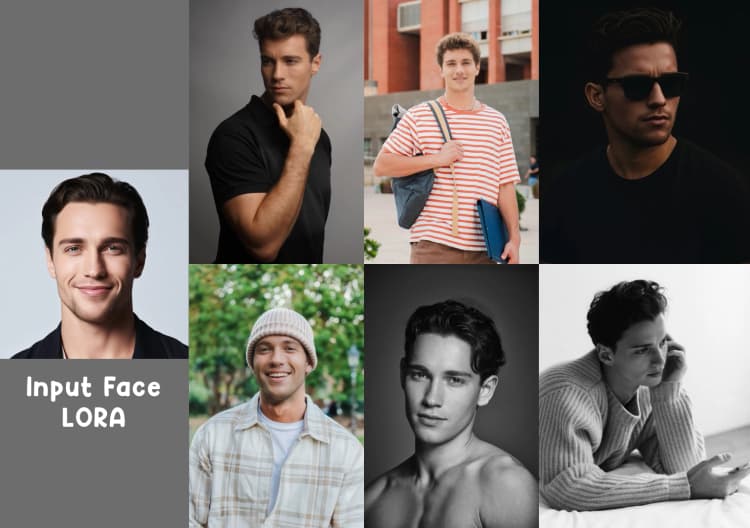
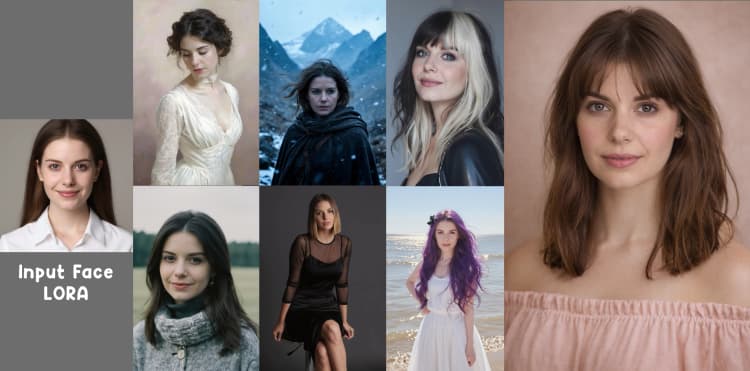
- Optional character LoRA adapters. Lightweight adapters to reinforce identity or style within Z-Image Turbo; use them when you need a consistent character look across edits.
How to use Comfyui Z Image Turbo Headswap for Characters workflow#
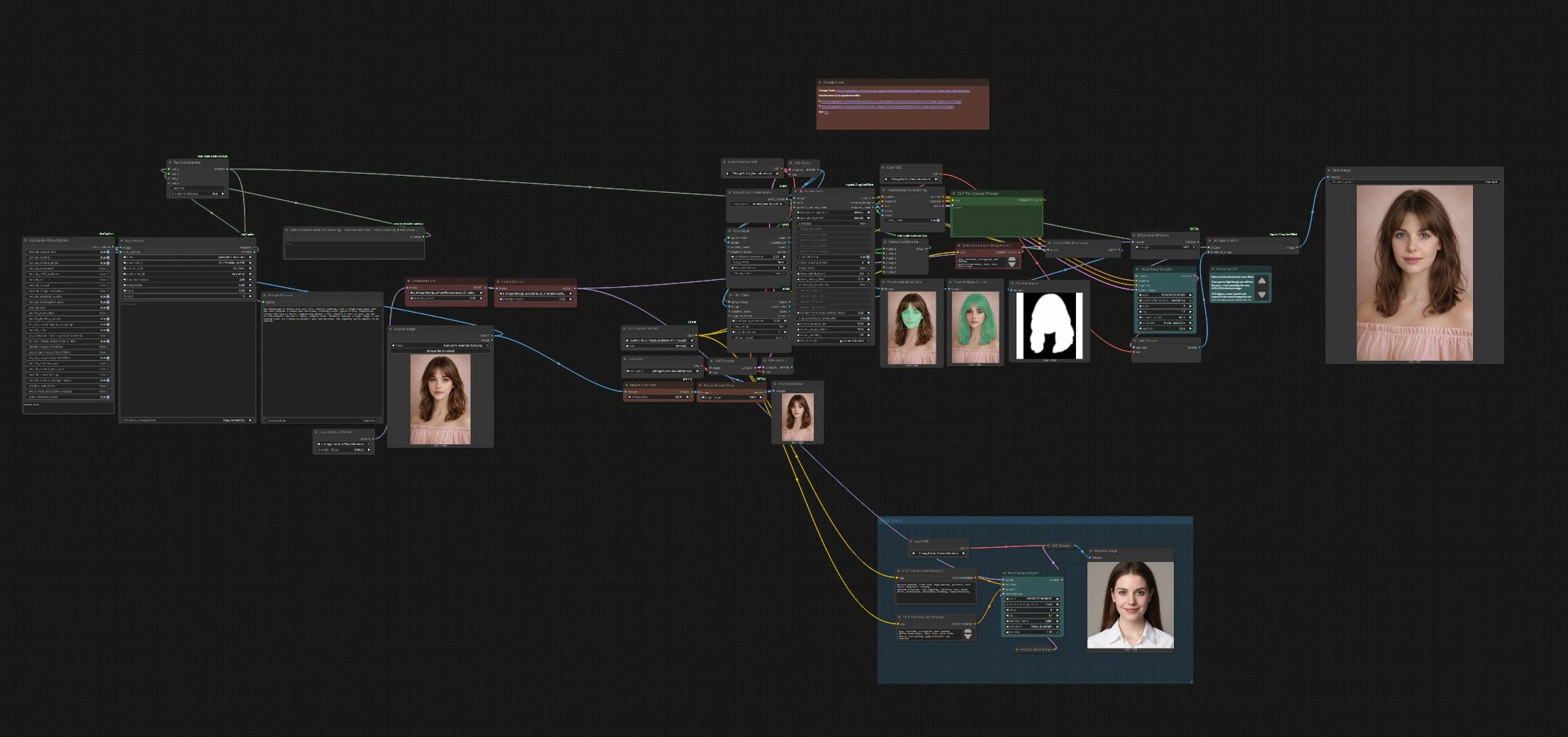
The workflow isolates the head with strong masks, crops for a high‑resolution inpaint, diffuses only inside that region, then stitches the result back into the original. A separate Test Lora group runs independently for quick LoRA/prompt trials.
Prepare the source and prompt#
- Load your base image in
Source Image(#958). This is the portrait whose head you want to replace. Auto Prompt(#1018) analyzes the image and generates a descriptive prompt. Add any critical notes inText Multiline(#1071) such as hair color, head angle, or accessories you want to keep or change.- The workflow merges these into a single prompt with
Text Concatenate(#1070) and encodes it using your chosen GGUF text encoder viaCLIPLoaderGGUF(#164) andCLIPTextEncode(#944). - A curated
CLIP Text Encode (Negative Prompt)(#1082) counterbalances unwanted traits, nudging Z Image Turbo Headswap for Characters toward clean, realistic outputs.
Build precise head masks#
- The resized image passes to two SAM‑style segmenters:
Face Mask(#939) andHair Mask(#1078). Using grounded textual hints, they isolate facial features and hair with high recall. Masks Combine Regions(#1079) fuses these regions so the swap operates across face and hairlines together, reducing visible seams.- Dedicated previews (
Preview Mask for Face(#954),Preview Mask for Hair(#1080), and the combined mask view) help you confirm the target area before any diffusion occurs. - This dual‑mask approach is central to Z Image Turbo Headswap for Characters, keeping skin, hair, and edge detail coherent.
Crop for inpainting and condition the model#
InpaintCropImproved(#1024) crops to the masked region and ensures a minimum working resolution so the diffusion pass has enough pixels to model pores, strands, and edges.InpaintModelConditioning(#943) prepares positive and negative conditioning tied to the cropped image and mask, plus latent inputs aligned with the selected VAE.- At this stage the workflow fully constrains the edit to the head region while letting the prompt and optional LoRAs define the new identity or attributes.
Head swap diffusion pass#
- The LoRA‑augmented Z‑Image Turbo model flows through
DifferentialDiffusion(#949) so the edit concentrates inside the mask and preserves unmasked context. Head Swap Sampler(#1022) performs the inpaint. For stronger changes, increase denoise; for better pose and lighting retention, keep it moderate. Higher CFG tightens adherence to the prompt and source but can over‑sharpen; lower CFG looks softer and can blend more naturally.- Because this is Z Image Turbo Headswap for Characters, the model respects your prompt wording and LoRA selection, letting you dial in identity, hairstyle, and expression without disturbing the scene.
Stitch and save#
- The inpainted patch is decoded with
VAEDecode(#947) and seamlessly merged back usingInpaintStitchImproved(#950), preserving original resolution and background integrity. SaveImage(#1084) writes the final image. UseImage Comparer (rgthree)(#1092) to slide between before and after for quick QA and iteration.- This final stage completes the Z Image Turbo Headswap for Characters pipeline, yielding a cohesive portrait without telltale swap artifacts.
Test Lora (independent)#
- The Test Lora group lets you preview LoRA influence without touching your source. Load adapters in
Character Lora(#1083 and #1057), provide a short positive prompt withCLIPTextEncode(#1088), and a matching negative withCLIPTextEncode(#1087). - The auxiliary
Head Swap Sampler(#1091) generates quick portraits intoVAEDecode(#1089) so you can judge identity lock and styling before running the main swap. - When you like the look, reuse the same LoRA weights and wording in the main flow for a predictable Z Image Turbo Headswap for Characters result.
Key nodes in Comfyui Z Image Turbo Headswap for Characters workflow#
Face Mask (#939)#
Generates a precise face region using SAM‑style grounding so the model knows exactly where to replace features. Adjusting the textual hint strengthens detection of the correct facial area, which directly improves blending at cheeks, jawline, and ears.
Hair Mask (#1078)#
Targets the hair region to capture fringes, flyaways, and hairlines that typically betray swaps. Including hair with the face mask greatly reduces seam visibility and prevents mismatched shading around the forehead and temples.
Masks Combine Regions (#1079)#
Fuses face and hair masks into one edit region. This combined mask ensures consistent texture and lighting where skin meets hair, avoiding the “cutout” look during inpainting.
InpaintCropImproved (#1024)#
Crops around the combined mask and upscales the working area so the sampler has adequate pixel density. Use context expansion when needed to include hats, bangs, or accessories that interact with the head region.
InpaintModelConditioning (#943)#
Builds positive/negative conditioning tied to the cropped patch and mask. This ensures the sampler reads both your descriptive prompt and the local image context, aligning identity changes with scene lighting and camera angle.
DifferentialDiffusion (#949)#
Focuses changes within the masked area while protecting unmasked content. It is especially helpful when the backdrop is detailed or when small lighting shifts outside the head would be noticeable.
Head Swap Sampler (#1022)#
Runs the inpaint diffusion. Two controls matter most: denoise strength and CFG guidance. Higher denoise increases transformation but can drift from the original pose; higher CFG enforces the prompt and LoRA at the risk of a harsher, more stylized finish. Tune both together for natural swaps.
InpaintStitchImproved (#950)#
Re‑integrates the edited crop at full resolution using the stitcher from the crop stage. This maintains global sharpness and color continuity across boundaries for a seamless final portrait.
Optional extras#
- Prefer front or three‑quarter angles when possible; match the target description or LoRA to the source angle for the cleanest Z Image Turbo Headswap for Characters results.
- If the fringe or hat blends poorly, expand the combined mask slightly before the inpaint pass.
- Keep denoise moderate on first runs, then inch up only as needed to reach the new identity.
- Use the Auto Prompt baseline and add just a few decisive tokens (hair color, expression, accessories) rather than long lists.
- The ComfyUI‑SAM3 and Crop‑and‑Stitch extensions are powerful; updating to their latest releases can improve mask quality and stitching in complex scenes. ComfyUI‑SAM3 • ComfyUI‑Inpaint‑CropAndStitch
Acknowledgements#
This workflow implements and builds upon the following works and resources. We gratefully acknowledge @RetroGazzaSpurs and r/StableDiffusion for Z Image Turbo Headswap for Characters Workflow Source for their contributions and maintenance. For authoritative details, please refer to the original documentation and repositories linked below.
Resources#
- r/StableDiffusion/Z Image Turbo Headswap for Characters Workflow Source
- Docs / Release Notes: Z Image Turbo Headswap for Characters Workflow Source
Note: Use of the referenced models, datasets, and code is subject to the respective licenses and terms provided by their authors and maintainers.