ComfyUI UltraShape 1.0: Mesh refinement and shape optimization for production-ready 3D#
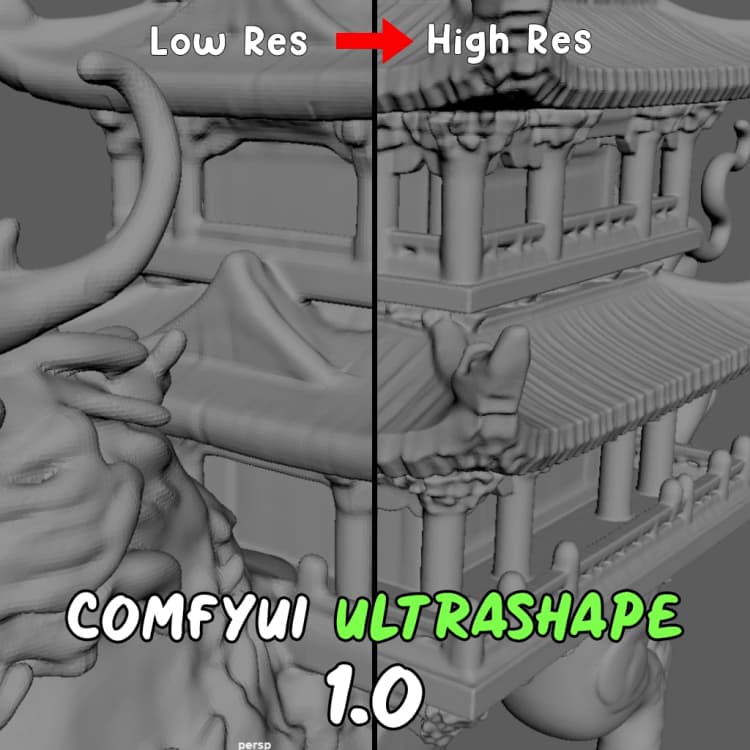
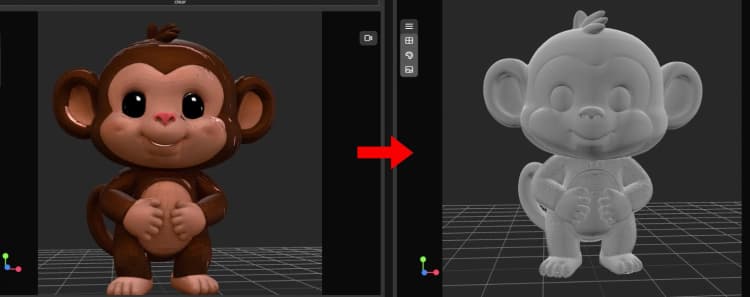
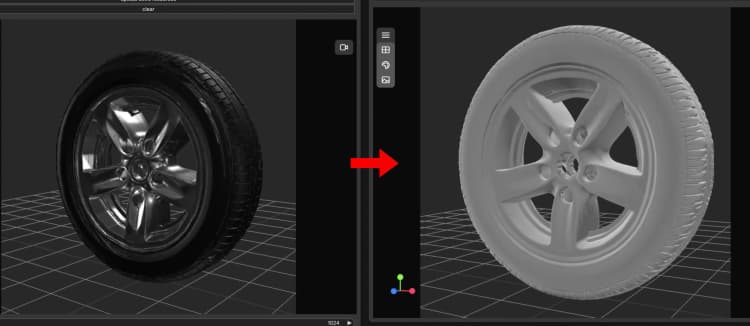
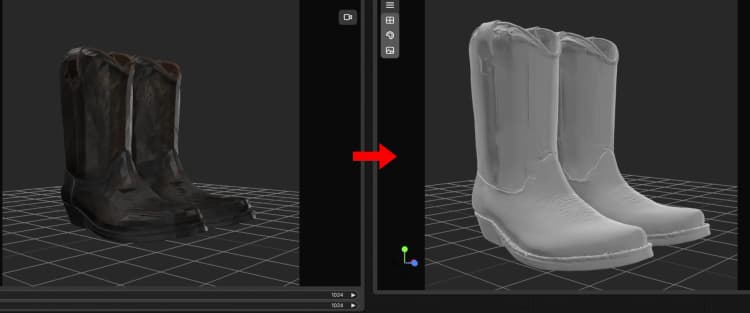
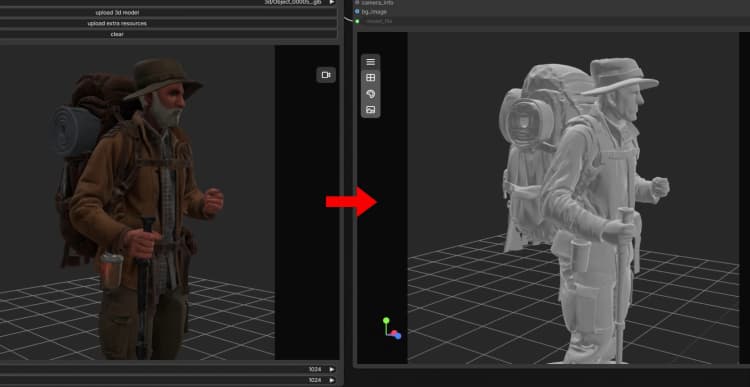
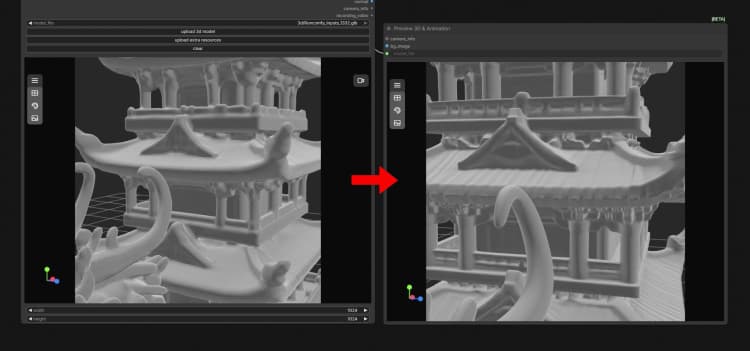
ComfyUI UltraShape 1.0 is a focused mesh refinement pipeline that upgrades coarse or noisy geometry into smoother, more coherent assets ready for rendering, animation, and downstream production. It is especially useful for AI-generated or scanned meshes that need surface cleanup, structural consistency, and improved detail.
The workflow runs end to end inside ComfyUI. You provide a coarse 3D mesh and, optionally, a guiding image. ComfyUI UltraShape 1.0 loads its refinement model, sanitizes the input geometry, performs shape optimization, saves a GLB, and displays an interactive 3D preview, all in one pass.
Key models in Comfyui ComfyUI UltraShape 1.0 workflow#
- UltraShape v1 checkpoint. The core refinement model that drives mesh cleanup, surface smoothing, and detail reconstruction. In this workflow it is loaded by
UltraShapeLoadModeland configured by a YAML that uses a refinement strategy consistent with diffusion-transformer style designs. See the project repository for the packaged checkpoint and configuration files: ComfyUI-UltraShape1. For architectural background on Diffusion Transformers, see DiT: Scalable Diffusion Models with Transformers.
How to use Comfyui ComfyUI UltraShape 1.0 workflow#
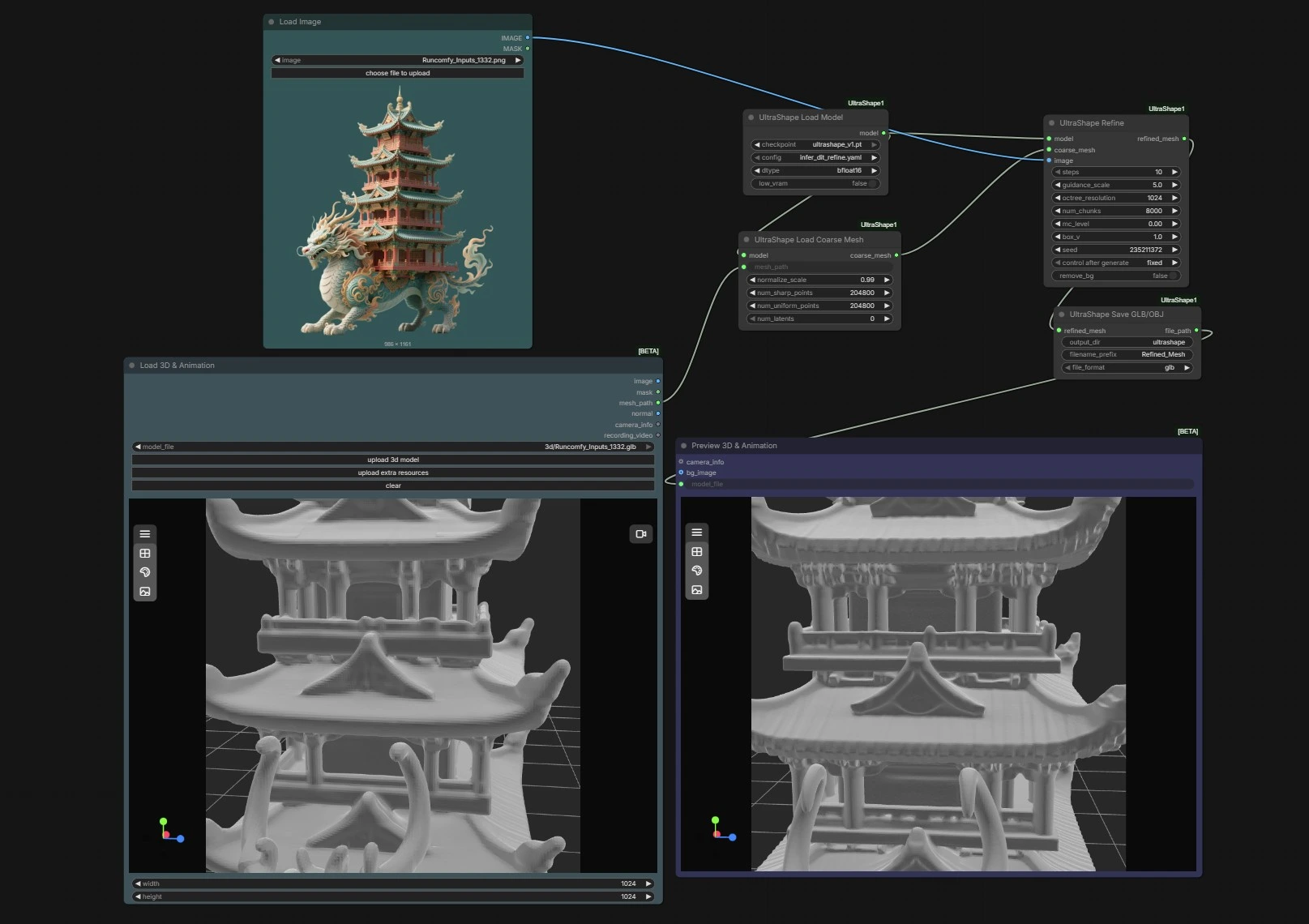
This graph follows a clear path from inputs to outputs: load the model, import a coarse mesh, optionally supply a reference image, refine the shape, then export and preview the result. The stages below describe what each part does and where you provide inputs.
Stage 1: Reference image input (LoadImage (#7))
- Load an image that represents target proportions, silhouette cues, or characteristic details of the object. The image is optional and used as a soft guide during refinement rather than strict texture projection. Using a well-lit, front or three-quarter view works well for many assets. You can skip this step if you want purely geometry-driven refinement. ComfyUI UltraShape 1.0 will still produce a coherent improved mesh without an image.
Stage 2: 3D model import (Load3D (#8))
- Point the node to your coarse mesh file. GLB is preferred for this workflow, though other common formats may work if supported by your build. The node passes a path string downstream so the loader can fetch and precondition the mesh reliably. Keep filenames simple and avoid unusual characters to prevent path issues. If your scene has multiple objects, start with a single mesh for predictable results.
Stage 3: Model setup (UltraShapeLoadModel (#1))
- Load the UltraShape v1 checkpoint and its corresponding configuration. Precision can be set to bfloat16 or another supported choice to balance speed and memory. The node initializes once and feeds both the mesh loader and the refiner so that preprocessing and optimization share consistent weights. ComfyUI UltraShape 1.0 benefits from modern GPUs but will run on a range of hardware depending on precision and mesh complexity.
Stage 4: Coarse mesh loading and sanitation (UltraShapeLoadCoarseMesh (#3))
- The node ingests the file path from Stage 2 and prepares a stable, normalized mesh representation for refinement. It resolves scale and orientation, removes obvious artifacts, and ensures the geometry is in a model-friendly state. This preparation reduces downstream instability and helps preserve large-scale structure. If your mesh appears tiny or gigantic in the preview, revisit this stage and adjust input scale or upstream units before refining.
Stage 5: Refinement and shape optimization (UltraShapeRefine (#2))
- This is the heart of ComfyUI UltraShape 1.0. The node receives the model, the prepared coarse mesh, and optionally the reference image. It runs an iterative optimization that smooths noise, sharpens salient features, and improves structural coherence while respecting the input topology. A seed is provided for reproducibility, and a topology mode is available so you can preserve connectivity when you need consistent vertex indexing for rigging or blendshapes.
Stage 6: Export and 3D review (UltraShapeSaveGLB (#4) and Preview3D (#6))
- The refined mesh is written to disk in GLB format, suitable for DCC tools and real-time engines. The file path feeds directly into a viewer that lets you orbit, zoom, and inspect the surface right in the graph. This tight loop makes it fast to compare variants and confirm that smoothing and detail landed where you expect. If needed, rerun with a new seed or slightly different settings to generate controlled variations with ComfyUI UltraShape 1.0.
Key nodes in Comfyui ComfyUI UltraShape 1.0 workflow#
UltraShapeLoadModel (#1)
- Loads the UltraShape v1 checkpoint and its YAML configuration, and sets compute precision. Choose the checkpoint that matches the config, and prefer bfloat16 on supported GPUs for a good speed and memory balance. If you switch precision or config, keep them consistent across runs so refinements are comparable.
UltraShapeLoadCoarseMesh (#3)
- Reads the mesh path and produces a stable coarse representation for the refiner. Use it to ensure consistent units, orientation, and reasonable face density before optimization. If your source mesh is extremely dense or extremely sparse, prepare it upstream for better convergence.
UltraShapeRefine (#2)
- Performs the core shape optimization using the loaded model, the coarse mesh, and the optional reference image. Increase iterations for higher quality at the cost of time. Use the seed to lock results when you need determinism. When topology mode is set to
fixed, expect vertex count and connectivity to remain stable, which is important for rigged assets and morph targets.
UltraShapeSaveGLB (#4)
- Exports the refined mesh to disk and returns the file path for downstream use. Set folder, base name, and extension to organize multiple takes. Because the viewer listens to this path, you can quickly compare outputs by adjusting names between runs.
LoadImage (#7)
- Supplies an optional 2D cue that helps anchor global proportions or surface cues. Use neutral lighting and avoid heavy perspective distortion for the most reliable guidance. If the image is unrelated, omit it rather than injecting conflicting signals.
Load3D (#8)
- Provides the source mesh path used by the loader. GLB is the most straightforward choice for this workflow. Keep transforms baked and avoid non-uniform scaling to prevent surprises during normalization.
Optional extras#
- Start from a watertight or near-watertight mesh whenever possible to help the refiner maintain clean surfaces.
- Keep units consistent across tools so ComfyUI UltraShape 1.0 does not need to perform large rescaling during sanitation.
- Begin with moderate iteration counts, review in the viewer, then dial up quality only where it pays off.
- Use different seeds to explore subtle geometric variants while holding other settings constant in ComfyUI UltraShape 1.0.
- Save intermediate versions with distinct filenames to quickly A/B compare outputs in external DCCs.
Acknowledgements#
This workflow implements and builds upon the following works and resources. We gratefully acknowledge jtydhr88 for ComfyUI-UltraShape1 for their contributions and maintenance. For authoritative details, please refer to the original documentation and repositories linked below.
Resources#
- jtydhr88/ComfyUI-UltraShape1
- GitHub: jtydhr88/ComfyUI-UltraShape1
- Hugging Face: infinith/UltraShape
- arXiv: 2512.21185
Note: Use of the referenced models, datasets, and code is subject to the respective licenses and terms provided by their authors and maintainers.