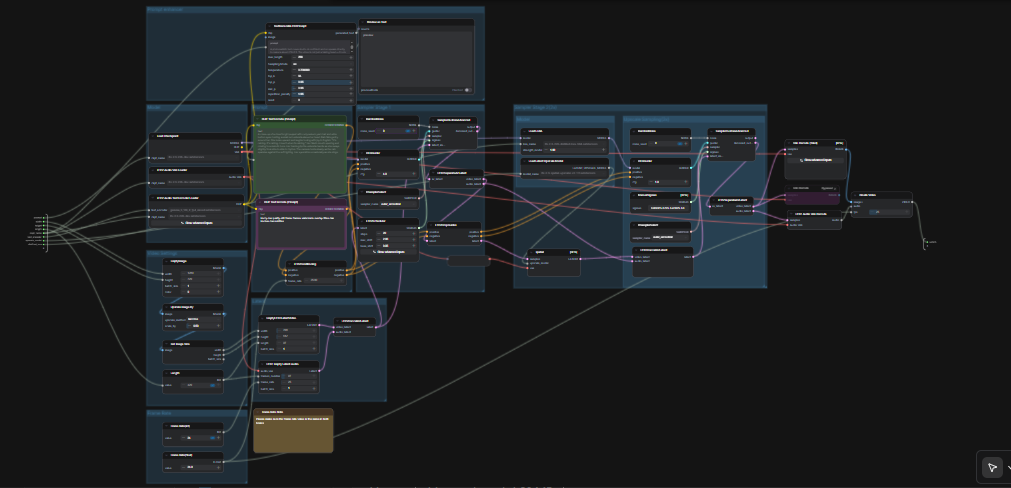
LTX 2.3 ComfyUI: Text‑to‑Video with clean audio, two‑stage sampling, and 2× spatial upscaling#
This LTX 2.3 ComfyUI workflow turns short prompts into polished, cinematic video with synchronized audio. It is built around Lightricks’ LTX‑2.3 model and configured for high visual coherence, stable motion, and broadcast‑friendly output. Creators, editors, and technical artists can go from a single prompt to an MP4 with audio in one pass, using a streamlined graph that includes a prompt enhancer, two sampling stages, and a 2× latent upscaler.
Compared to typical text‑to‑video setups, this graph emphasizes scene consistency and prompt fidelity. The default path generates an AV latent, upscales it in‑latent space for sharper detail, then decodes to frames and audio before packaging everything into a ready‑to‑share video file. If you are exploring modern open‑source video models, this LTX 2.3 ComfyUI workflow is a fast way to get production‑quality motion.
Key models in Comfyui LTX 2.3 ComfyUI workflow#
- LTX‑2.3 22B (dev) checkpoint by Lightricks. The core text‑to‑video model that produces high‑coherence motion and strong scene consistency. Hugging Face • GitHub
- Gemma 3 12B Instruct text encoder (FP4 mixed). Provides robust language understanding for better prompt grounding and richer scene details. Hugging Face
- LTX‑2.3 Spatial Upscaler x2 1.0. A latent‑space upscaler that sharpens spatial detail without breaking motion consistency. Hugging Face
- LTX‑2.3 22B Distilled LoRA (384). A distilled adapter that refines texture fidelity and stabilizes style during the upscale/refine stage. Hugging Face
- LTX Audio VAE. The audio module paired with LTX‑2.3 that enables clean, synchronized sound generation from the same prompt. Hugging Face
How to use Comfyui LTX 2.3 ComfyUI workflow#
The graph runs in two coordinated passes. First it generates an AV latent at a working resolution with your prompt. Then it performs a 2× latent upscale and a second sampling pass with a distilled LoRA before decoding to frames and audio, finally muxing to MP4.
Prompt enhancer#
The TextGenerateLTX2Prompt (#149) node rewrites plain language into a model‑friendly prompt that covers actions, visuals, and audio cues. Feed it your scene description; optional reference imagery can be connected when you want guidance for framing or style. The generated text is routed to a positive encoder while a quality‑focused negative prompt keeps artifacts down. This balance helps the LTX‑2.3 model stay on brief without over‑constraining creativity.
Model#
The CheckpointLoaderSimple (#146) loads the LTX‑2.3 22B checkpoint and exposes both the model and its VAE. LTXAVTextEncoderLoader (#147) brings in the Gemma 3 12B Instruct text encoder that the workflow uses for both positive and negative conditioning. Keep these selections unless you are testing other LTX variants, since the rest of the graph is tuned for this pairing.
Video Settings#
Resolution and duration are set with a lightweight image scaffold and the Length control. The graph reads the image size, scales it for a working resolution, and forwards those values into the video latent creator. LTX models have stride constraints; stick to sizes that follow a 32‑stride pattern and lengths that align with the model’s frame cadence. The graph will gently snap illegal values to the nearest valid ones, but choosing valid sizes up front yields the best composition.
Frame Rate#
Two small controls set FPS for both conditioning and final encoding: Frame Rate(int) (#141) and Frame Rate(float) (#140). Keep them identical so motion timing and audio alignment remain consistent across the pipeline. Choose a filmic rate if you want smoother motion or match platform defaults when targeting social formats.
Latent#
EmptyLTXVLatentVideo (#121) initializes the video latent and LTXVEmptyLatentAudio (#119) does the same for audio. LTXVConcatAVLatent (#122) merges them into a single AV latent so that text guidance can steer both modalities together. LTXVConditioning (#120) attaches positive and negative conditioning, and LTXVCropGuides (#115) adapts guidance to the latent’s spatial layout for more reliable framing.
Sampler Stage 1#
This stage creates the initial AV latent using RandomNoise (#151), KSamplerSelect (#144), and the LTX‑aware LTXVScheduler (#112) with a CFGGuider (#139). The scheduler is tailored for LTX to balance temporal stability with prompt adherence. If you want more variation, change the noise seed; for steadier adherence to the script, favor samplers that maintain temporal coherence.
Model (LoRA)#
LoraLoaderModelOnly (#143) applies the LTX‑2.3 distilled LoRA before refinement. This adapter subtly improves texture polish and style fidelity without losing motion consistency. It is most noticeable on skin, fabric, and specular highlights.
Upscale Sampling (2×)#
LTXVLatentUpsampler (#130) performs a 2× spatial upscale in latent space using the loaded LatentUpscaleModelLoader (#114) and the base VAE. Because upscaling happens before decoding, you retain temporal smoothness while gaining fine spatial detail. The upscaled video and audio latents are then re‑joined with LTXVConcatAVLatent (#129) for the refinement pass.
Sampler Stage 2 (2×)#
The second pass refines the upscaled latent using RandomNoise (#127), KSamplerSelect (#145), and a ManualSigmas schedule (#113) under a CFGGuider (#116). This stage is where micro‑detail and edge sharpness are finalized. It works best when the LoRA is active and the prompt is specific about textures and lighting.
Decode and Output#
LTXVSeparateAVLatent (#135) splits the refined latent so VAEDecodeTiled (#137) can reconstruct frames while LTXVAudioVAEDecode (#138) restores audio. CreateVideo (#133) muxes frames and audio at the chosen FPS, and the top‑level SaveVideo node writes an MP4 to the workflow’s video folder. The result is a clean, ready‑to‑share file produced entirely inside the LTX 2.3 ComfyUI pipeline.
Key nodes in Comfyui LTX 2.3 ComfyUI workflow#
TextGenerateLTX2Prompt(#149): Converts simple descriptions into structured prompts that cover motion, visual attributes, and audio. Tweak your wording here first when steering story beats or pacing; it usually yields bigger gains than sampler tweaks.LTXVScheduler(#112): An LTX‑specific scheduler that shapes how noise is removed over time. Pair it thoughtfully with your chosen sampler to balance temporal stability and prompt fidelity.LTXVLatentUpsampler(#130): Performs a 2× spatial upscale directly in latent space, preserving motion continuity while adding crisp detail. Use it when you want sharper results without resorting to post‑decode upscalers.LoraLoaderModelOnly(#143): Applies the LTX‑2.3 distilled LoRA for refinement. Increase influence for tighter style control; reduce it if you want the base model’s broader look.CreateVideo(#133): Muxes decoded frames with generated audio at the selected FPS so timing and lip‑sync remain intact. If you change FPS, keep both frame‑rate controls matched.
Optional extras#
- Prompting tips: Describe actions over time, list key visual elements, and specify sound or dialogue you expect. Clear, concise phrasing gives the LTX‑2.3 encoder the best signal.
- Dimensions and length: Favor sizes on a 32‑stride and lengths that respect the model’s frame cadence. Although the graph auto‑snaps near‑miss values, valid inputs improve composition and reduce subtle jitter.
- Fast iteration: Change the
RandomNoiseseed between runs to explore variants while keeping the same prompt and settings. - Model switching: The defaults are tuned for LTX‑2.3 22B with Gemma 3 12B IT and the 2× spatial upscaler. Swap models only if you understand how each affects conditioning and decoding.
Acknowledgements#
This workflow implements and builds upon the following works and resources. We gratefully acknowledge Lightricks for the LTX-2.3 model and EyeForAILabs for the YouTube tutorial for their contributions and maintenance. For authoritative details, please refer to the original documentation and repositories linked below.
Resources#
- Lightricks/LTX-2.3
- GitHub: Lightricks/LTX-2
- Hugging Face: Lightricks/LTX-2.3
- arXiv: 2601.03233
- EyeForAILabs/YouTube Tutorial
- Docs / Release Notes: YouTube Channel from @eyeforailabs
Note: Use of the referenced models, datasets, and code is subject to the respective licenses and terms provided by their authors and maintainers.