

ComfyUI Trellis2: Image to 3D, refinement, multi-view, low-poly, and PBR texturing in one workflow#
Note: This workflow was updated on February 28, 2026.
ComfyUI Trellis2 brings Microsoft's TRELLIS.2 image-to-3D model into a practical, creator-friendly ComfyUI pipeline. Starting from one or more reference images, it can generate meshes, refine existing assets, unwrap UVs, bake PBR textures, produce low-poly variants, and export ready-to-use files for DCC tools and game engines. In addition to the original single-image and mesh-texturing paths, this updated workflow now includes dedicated high-quality and max-quality pipelines, dedicated multi-view generation and multi-view texturing branches, a low-poly branch, and a Qwen + RMBG assisted batch mesh pipeline.
The graph is organized into clear groups for fast one-click outputs, advanced control, refinement, mesh-only generation, texture-only generation, stronger texture-first generation, high-end staged generation, multi-view generation, multi-view mesh-only conversion, multi-view texturing, and a Qwen/RMBG-assisted helper workflow. Compared with earlier versions, several branches now use Trellis2ReconstructMeshWithQuad, Trellis2FillHolesWithMeshlib, and Trellis2SmoothNormals, and the multi-view routes now use dedicated TRELLIS.2 multi-view nodes instead of batching images into a regular single-view generator.
Source nodes are primarily provided by the ComfyUI extension visualbruno/ComfyUI-Trellis2.
Note: This workflow can only run on Medium, Large, X Large Machine. 2X Large or larger machines will throw an error.
Note: In the
Using_Qwen_Rembgsection, a red node outline may appear in the frontend. This is a false frontend warning and does not block execution. If the workflow runs successfully, you can ignore it.
Key models and helper systems used in this workflow#
- Microsoft TRELLIS.2-4B The core image-to-3D model used throughout the workflow. It generates voxel-aware 3D structure, supports mesh refinement, and drives texture generation. See microsoft/TRELLIS.2-4B and microsoft/TRELLIS.2.
- BRIA RMBG-2.0 Used in the
Using_Qwen_Rembghelper pipeline to remove backgrounds before mesh generation and again after the generated normal-map-style guide image. This helps isolate the subject and reduce background contamination. - Qwen Image Edit stack Used in the
Using_Qwen_Rembghelper workflow to generate a normal-map-style guide image before mesh generation. The configured stack includes a GGUF Qwen Image Edit UNet, Qwen image VAE/CLIP assets, and a Qwen Image Edit Lightning LoRA.
Workflow overview#
At a high level, the workflow now supports the following categories of tasks:
- Single-image textured generation:
Simple,Advanced - Existing mesh refinement:
MeshRefiner - Mesh-only generation:
Only_Mesh_Simple,Only_Mesh_Advanced - Texture-only generation:
TextureMesh - Stronger single-image geometry + texturing:
Better_Texture - Staged quality pipelines:
High_Quality,Max_Quality - Low-poly generation and texturing:
Lowpoly - Dedicated multi-view generation and texturing:
MultViews,MultViews_MeshOnly,MultViews_TextureMesh - Qwen + RMBG assisted batch workflow:
Using_Qwen_Rembg
Each group is self-contained and produces its own export and preview.
How to use each group#
1) Simple#
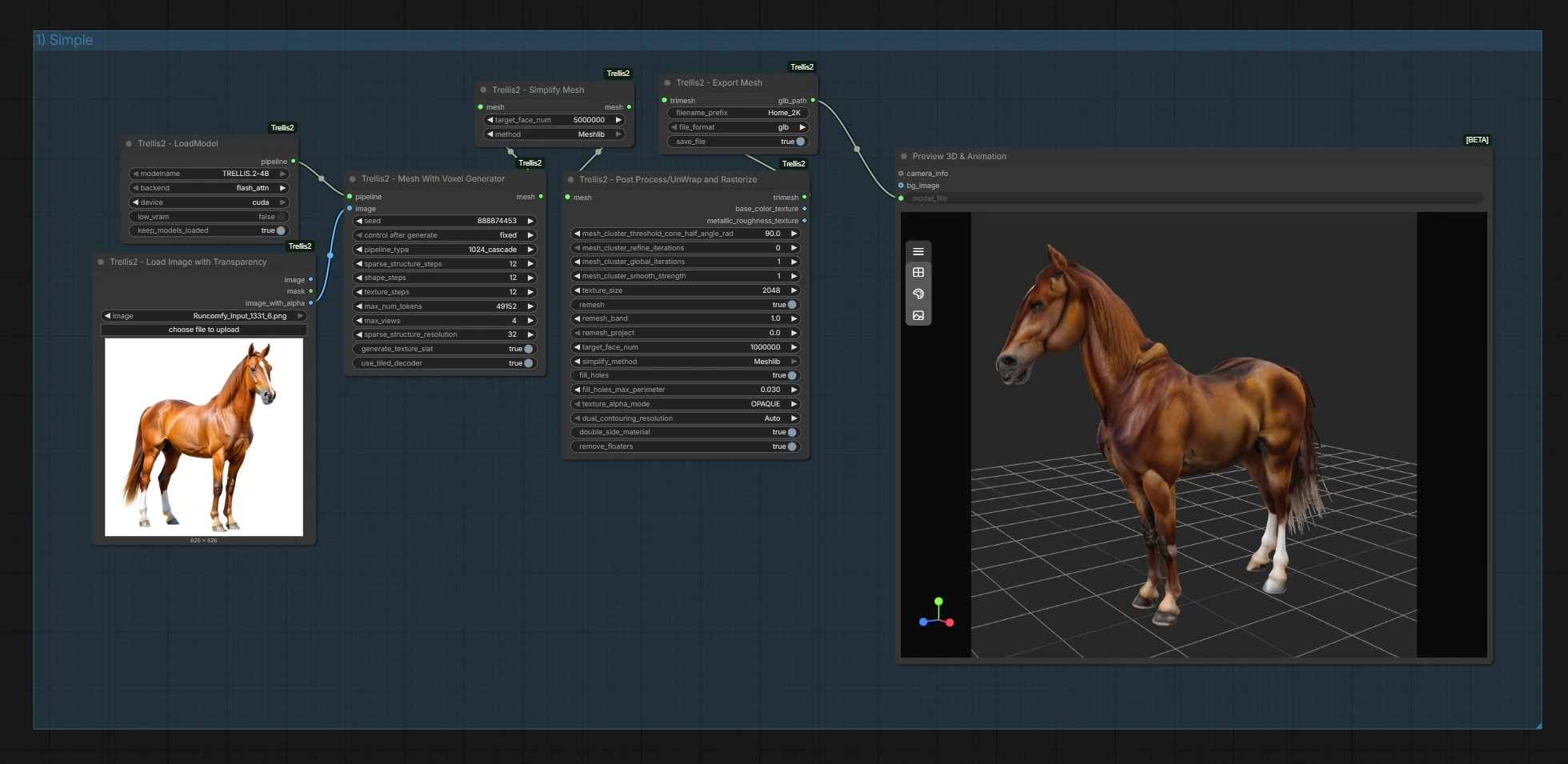
This is the fastest single-image route to a textured GLB. Load the TRELLIS.2 pipeline with Trellis2LoadModel (#139), load your subject image with transparency via Trellis2LoadImageWithTransparency (#279), and clean it with Trellis2PreProcessImage (#142). Trellis2MeshWithVoxelGenerator (#278) produces the voxelized asset, and Trellis2PostProcessAndUnWrapAndRasterizer (#141) handles cleanup, UV unwrap, and PBR texture baking in one step. Export with Trellis2ExportMesh (#140) and inspect the result in Preview3D (#149).
This branch is now simpler than before: it no longer uses a separate Trellis2SimplifyMesh node before unwrap. Cleanup, rasterization, and baking are handled inside the post-process/unwarp/rasterizer stage.
2) Advanced#
Use this branch when you want more control over structure and appearance inference from a single image. Load the model with Trellis2LoadModel (#144), the source image with Trellis2LoadImageWithTransparency (#299), and preprocess it with Trellis2PreProcessImage (#148). Trellis2MeshWithVoxelAdvancedGenerator (#146) exposes more detailed generation controls than the Simple path, and Trellis2PostProcessAndUnWrapAndRasterizer (#147) performs cleanup, UV generation, and texture baking. Export with Trellis2ExportMesh (#145) and review in Preview3D (#314).
This branch also no longer uses a separate Trellis2PostProcessMesh step. The unwrap and baking stage is now the main downstream processing block.
3) MeshRefiner#
Choose this branch when you already have a mesh and want to improve it with image guidance. Load your model with Trellis2LoadModel (#157), an existing mesh with Trellis2LoadMesh (#293), and a guiding reference image with Trellis2LoadImageWithTransparency (#280) followed by Trellis2PreProcessImage (#156). Trellis2MeshRefiner (#153) updates the geometry while staying tied to the input mesh and the guide image.
After refinement, the branch now performs a stronger cleanup sequence than the earlier version: Trellis2Remesh (#281), Trellis2SimplifyMesh (#150), Trellis2FillHolesWithMeshlib (#155), and Trellis2MeshWithVoxelToTrimesh (#151). Export with Trellis2ExportMesh (#154) and inspect in Preview3D (#315).
4) Only_Mesh_Simple#
This is the quick mesh-only route for single-image generation. Load the model with Trellis2LoadModel (#165), load the image with Trellis2LoadImageWithTransparency (#282), and preprocess it with Trellis2PreProcessImage (#164). Trellis2MeshWithVoxelGenerator (#162) generates the initial mesh. The branch then runs Trellis2Remesh (#291), Trellis2SimplifyMesh (#161), Trellis2FillHolesWithMeshlib (#163), and Trellis2MeshWithVoxelToTrimesh (#159). Export with Trellis2ExportMesh (#160) and inspect in Preview3D (#316).
This path is now more robust than the older version because it fills holes before conversion to trimesh.
5) Only_Mesh_Advanced#
Use this path when you want geometry only, but with more control than the simple mesh-only route. Load the model with Trellis2LoadModel (#166), your source image with Trellis2LoadImageWithTransparency (#283), and preprocess it with Trellis2PreProcessImage (#173). Trellis2MeshWithVoxelAdvancedGenerator (#169) produces the initial structure, then Trellis2Remesh (#292), Trellis2SimplifyMesh (#171), Trellis2FillHolesWithMeshlib (#172), and Trellis2MeshWithVoxelToTrimesh (#168) clean and convert it for export. Export with Trellis2ExportMesh (#170) and inspect in Preview3D (#317).
This branch is well suited to subjects where topology matters more than immediate texture output.
6) TextureMesh#
If you already have a clean mesh and only need textures, use this route. Load the TRELLIS.2 pipeline with Trellis2LoadModel (#177), load your reference image with Trellis2LoadImageWithTransparency (#297), preprocess it with Trellis2PreProcessImage (#180), and load your mesh using Trellis2LoadMesh (#294). Trellis2MeshTexturing (#174) bakes textures onto the mesh and outputs the updated trimesh plus texture images. PreviewImage (#175, #178) lets you inspect the baked texture maps, and Preview3D (#318) shows the final shaded result. Export with Trellis2ExportMesh (#179).
7) Better_Texture#
This branch is a stronger single-image generate-and-texture workflow than the Simple/Advanced routes. It starts with Trellis2LoadModel (#189), Trellis2LoadImageWithTransparency (#285), and Trellis2PreProcessImage (#181), then generates geometry with Trellis2MeshWithVoxelAdvancedGenerator (#184). The mesh is cleaned using Trellis2Remesh (#295), Trellis2SimplifyMesh (#182), Trellis2FillHolesWithMeshlib (#186), and Trellis2MeshWithVoxelToTrimesh (#187) before being textured by Trellis2MeshTexturing (#188). Export with Trellis2ExportMesh (#185) and inspect in Preview3D (#320).
This branch is useful when you want a better geometry foundation before texturing, but do not need the full staged refinement flow of the high-quality presets.
8) High_Quality#
This is a staged quality pipeline that exports intermediate meshes and a final textured asset. Start with a name in PrimitiveString (#203), a source image in Trellis2LoadImageWithTransparency (#284), and Trellis2PreProcessImage (#191). The first stage uses Trellis2LoadModel (#192), Trellis2MeshWithVoxelAdvancedGenerator (#207), Trellis2ReconstructMeshWithQuad (#206), Trellis2SimplifyMesh (#190), Trellis2FillHolesWithMeshlib (#204), and Trellis2MeshWithVoxelToTrimesh (#197) to build a clean white mesh, which is exported with Trellis2ExportMesh (#196).
The second stage continues from that result using Trellis2Continue (#198), then refines it with Trellis2MeshRefiner (#208), Trellis2ReconstructMeshWithQuad (#209), Trellis2SimplifyMesh (#193), Trellis2FillHolesWithMeshlib (#205), and Trellis2MeshWithVoxelToTrimesh (#200). The refined mesh is exported with Trellis2ExportMesh (#201).
The final stage uses Trellis2Continue (#202), Trellis2MeshTexturing (#213), and Trellis2SmoothNormals (#211) before final export through Trellis2ExportMesh (#212). Review the textured result in Preview3D (#319).
This branch is ideal when you want a cleaner staged workflow with intermediate checkpoints: white mesh, refined mesh, and final textured mesh.
9) Lowpoly#
Use this route when you need a controlled low-poly asset from the start. The branch begins with a name in PrimitiveString (#224), a target triangle/face budget in PrimitiveInt (#228), and a reference image via Trellis2LoadImageWithTransparency (#298) and Trellis2PreProcessImage (#214). Trellis2LoadModel (#227) and Trellis2MeshWithVoxelAdvancedGenerator (#216) create the base mesh. The cleanup path then runs Trellis2Remesh (#296), Trellis2SimplifyMesh (#218) using the target face number, Trellis2FillHolesWithMeshlib (#219), and Trellis2MeshWithVoxelToTrimesh (#220).
A key difference in this branch is that the white mesh export uses Trellis2ExportMesh (#217) with OBJ output, not GLB. After that, Trellis2Continue (#222) passes the mesh onward to Trellis2MeshTexturing (#221), Trellis2SmoothNormals (#229), and a final textured GLB export through Trellis2ExportMesh (#223). Inspect the final output in Preview3D (#322).
10) Max_Quality#
This branch is the heaviest staged pipeline in the workflow and is intended for maximum quality. It follows the same three-stage structure as High_Quality, but with more aggressive generation and texturing settings. Start with PrimitiveString (#243), Trellis2LoadImageWithTransparency (#286), and Trellis2PreProcessImage (#231). The initial mesh stage uses Trellis2LoadModel (#232), Trellis2MeshWithVoxelAdvancedGenerator (#251), Trellis2ReconstructMeshWithQuad (#246), Trellis2SimplifyMesh (#230), Trellis2FillHolesWithMeshlib (#244), and Trellis2MeshWithVoxelToTrimesh (#237), then exports the white mesh with Trellis2ExportMesh (#236).
The refinement stage continues with Trellis2Continue (#238), Trellis2MeshRefiner (#252), Trellis2ReconstructMeshWithQuad (#247), Trellis2SimplifyMesh (#233), Trellis2FillHolesWithMeshlib (#245), and Trellis2MeshWithVoxelToTrimesh (#240), then exports the refined mesh with Trellis2ExportMesh (#241).
The final stage continues with Trellis2Continue (#242), then textures through Trellis2MeshTexturing (#253), smooths shading with Trellis2SmoothNormals (#249), and exports the final textured mesh with Trellis2ExportMesh (#250). Review in Preview3D (#321).
Use this route when the subject has fine features and you are willing to spend more time and memory for better output fidelity.
11) MultViews#
This is the main dedicated multi-view generation path. Unlike the earlier workflow, it now uses the dedicated Trellis2MeshWithVoxelMultiViewGenerator node instead of batching multiple images into a regular advanced generator. Load the model with Trellis2LoadModel (#256), then load your views with Trellis2LoadImageWithTransparency (#287, #288) and preprocess them through Trellis2PreProcessImage (#255, #257). The example wiring currently uses front and back inputs, while the node also supports left and right if you want to connect them.
Trellis2MeshWithVoxelMultiViewGenerator (#254) generates the asset, Trellis2PostProcessAndUnWrapAndRasterizer (#258) unwraps and bakes textures, and Trellis2ExportMesh (#259) writes the result. Inspect it in Preview3D (#324).
12) MultViews_MeshOnly#
Use this branch when you want multi-view geometry only. Load the model with Trellis2LoadModel (#262), two or more reference views with Trellis2LoadImageWithTransparency (#300, #301), and preprocess them through Trellis2PreProcessImage (#261, #263). Trellis2MeshWithVoxelMultiViewGenerator (#264) handles the view fusion, then Trellis2RemeshWithQuad (#302), Trellis2SimplifyMesh (#265), Trellis2FillHolesWithMeshlib (#266), and Trellis2MeshWithVoxelToTrimesh (#268) convert it into a clean mesh-only output. Export with Trellis2ExportMesh (#267) and inspect in Preview3D (#325).
As in the textured multi-view branch, the sample wiring uses front and back images, while left/right remain optional.
13) MultViews_TextureMesh#
If you already have a mesh and want to texture it from multiple views, use this route. Load the model with Trellis2LoadModel (#271), load the mesh with Trellis2LoadMesh (#275), and load the reference views through Trellis2LoadImageWithTransparency (#289, #290) plus Trellis2PreProcessImage (#272, #274). The dedicated node Trellis2MeshTexturingMultiView (#276) projects and bakes textures using multiple views. Export the result with Trellis2ExportMesh (#273) and inspect it in Preview3D (#326).
Again, the example currently uses front and back views, but the node also supports left and right inputs.
14) Using_Qwen_Rembg#
This is the most specialized helper workflow in the graph. It combines automated background removal, Qwen-based normal map generation, batch mesh generation at multiple face budgets, mesh selection, and final texturing.
Start in the Name - Nb Faces - Image section with StringConstant nodes for the asset name (#91) and target face counts (#113), plus your source image in Trellis2LoadImageWithTransparency (#127). The first Remove Background subgraph (#133) isolates the subject. Generate Normal Map (#116) then creates a normal-map-style image using the Qwen Image Edit stack. The second Remove Background subgraph (#115) cleans that generated normal map again before it is passed into Generate Meshes (#114).
Inside Generate Meshes, the workflow preprocesses the guide image, generates a high-quality mesh, runs additional post-processing and quad reconstruction, and then uses batch simplification/export to produce multiple mesh variants from the face-count list. Trellis2StringSelector (#132) lets you choose one of those exported mesh paths. Finally, the Texture Mesh subgraph (#131) loads the selected mesh, textures it using the original cleaned reference image, and exports the final GLB, which you can inspect in Preview3D (#323).
This branch is especially useful when you want to:
- isolate the subject automatically,
- generate multiple geometry variants in one pass,
- choose a preferred face-count version,
- and only then run final texturing.
Key nodes in this updated workflow#
Trellis2PreProcessImageUsed throughout the graph before most generation or texturing nodes. It standardizes the input image and is now present in almost every major branch.Trellis2MeshWithVoxelGeneratorThe fast single-image generator used in the Simple and Only_Mesh_Simple branches.Trellis2MeshWithVoxelAdvancedGeneratorThe main controlled single-image generator used in Advanced, Better_Texture, High_Quality, Max_Quality, Lowpoly, and the Qwen/RMBG-assisted mesh batch pipeline.Trellis2MeshRefinerRefines an existing mesh with image guidance. It is used in MeshRefiner, High_Quality, and Max_Quality.Trellis2PostProcessAndUnWrapAndRasterizerHandles cleanup, UV generation, and baking. In the current workflow, it is the main textured finishing node in Simple, Advanced, and MultViews.Trellis2ReconstructMeshWithQuadRebuilds mesh structure with a quad-oriented reconstruction step. This is now a major part of the High_Quality, Max_Quality, and Qwen-assisted batch mesh pipeline.Trellis2RemeshandTrellis2RemeshWithQuadUsed to regularize topology before simplification, conversion, or further processing.Trellis2RemeshWithQuadappears in the multi-view mesh-only branch.Trellis2SimplifyMeshReduces triangle counts and is now used in many branches together with hole filling.Trellis2FillHolesWithMeshlibA new important cleanup step in multiple branches. It helps close small holes before conversion to trimesh or further processing.Trellis2MeshWithVoxelToTrimeshConverts TRELLIS voxel-mesh output into a regular triangle mesh for export or texturing.Trellis2MeshTexturingThe main texture baking node for single-image texture projection. It is used in TextureMesh, Better_Texture, High_Quality, Max_Quality, Lowpoly, and the Qwen-assisted path.Trellis2MeshWithVoxelMultiViewGeneratorThe dedicated multi-view mesh generation node. This replaces the older "batch multiple images into a normal generator" approach.Trellis2MeshTexturingMultiViewThe dedicated multi-view texturing node for projecting textures from several views onto an existing mesh.Trellis2SmoothNormalsUsed in several advanced texturing branches to improve the final shaded look before export.Trellis2BatchSimplifyMeshAndExportUsed inside the Qwen/RMBG-assisted batch generation subgraph to export multiple mesh variants at different face counts.Trellis2StringSelectorLets you choose one mesh path from a batch export list before running final texturing.
Practical tips#
- Use subject-centric images with a transparent or already isolated background whenever possible.
- The multi-view branches support front/back/left/right inputs, but the sample workflow currently wires front and back only. Add left/right if you have them.
- Use
SimpleorAdvancedfor fast iteration, then move toBetter_Texture,High_Quality, orMax_Qualitywhen you need cleaner structure or better materials. - Use
Only_Mesh_*when you plan to unwrap, retopo, or texture externally. - Use
Lowpolywhen you need controlled face counts and a lighter asset for game or real-time use. - In staged branches such as
High_QualityandMax_Quality, keep the intermediate white and refined exports. They are useful checkpoints if the final textured result needs to be redone. - For multi-view generation, keep scale, framing, and lighting consistent across views.
- For image-guided texturing, keep lighting neutral to avoid baking harsh highlights or shadows into albedo.
- If you see a false red node outline in the
Using_Qwen_Rembgsection, try running the workflow anyway before assuming the branch is broken.
Resources#
- TRELLIS.2 model card: microsoft/TRELLIS.2-4B
- TRELLIS.2 repository: microsoft/TRELLIS.2
- Original TRELLIS repository: microsoft/TRELLIS
- ComfyUI extension used: visualbruno/ComfyUI-Trellis2
- Background removal model used in helper flow: briaai/RMBG-2.0
Acknowledgements#
This workflow implements and builds upon the following works and resources. We gratefully acknowledge visualbruno for ComfyUI-Trellis2 and the maintainers of the supporting nodes and helper models used in this graph, including TRELLIS.2, RMBG, and the Qwen-based image-edit assets configured in the workflow.
Note: Use of the referenced models, datasets, and code is subject to the respective licenses and terms provided by their authors and maintainers.