

MiniMax music video: song‑to‑scene generation in ComfyUI#
This workflow turns a full song into a sequence of rhythm‑aware video shots using MiniMax H3, with optional music creation powered by MiniMax Music 3. It blends text prompts, reference images, and a master audio track to produce cinematic clips that track vocals, beat, and mood. The result is a cohesive MiniMax music video with consistent character identity and natural shot transitions.
Built for artists, editors, and creators, the workflow supports performance cuts, lyric‑driven visuals, and narrative inserts. You can bring your own track or generate one first, then assemble a MiniMax music video that keeps visual continuity while evolving with the structure of the song.
Key models in Comfyui MiniMax music video workflow#
- MiniMax H3 diffusion model. Core video generator that uses references and prompt conditioning to synthesize shot sequences aligned to audio. Model assets are published under the Comfy‑Org namespace on Hugging Face, including the video VAE and text encoder. Comfy‑Org/MiniMax‑H3
- MiniMax H3 Video VAE. Decodes latent frames to images for preview and export. minimax_h3_video_vae_fp16.safetensors
- MiniMax H3 Audio VAE. Decodes the model’s auxiliary audio latent when needed. minimax_h3_audio_vae_fp32.safetensors
- MiniMax H3 text encoder (Qwen3VL 32B variant packaged for H3). Provides multimodal prompt understanding for reference‑to‑video generation. qwen3vl_32b_minimax_h3_nvfp4_awq.safetensors
- MiniMax Music 3 diffusion model. Text‑to‑music generator that creates complete songs from a caption and lyric plan; used here when you want to author the track inside ComfyUI. Comfy‑Org/MiniMax‑Music‑3
- MiniMax Music 3 text encoder. Encodes caption and lyrics into conditioning for music generation. minimax_music3_text_encoder_pruned_int8_convrot.safetensors
- MiniMax Music 3 DAV VAE. Decodes audio latents into the final waveform. minimax_music3_dav.safetensors
How to use Comfyui MiniMax music video workflow#
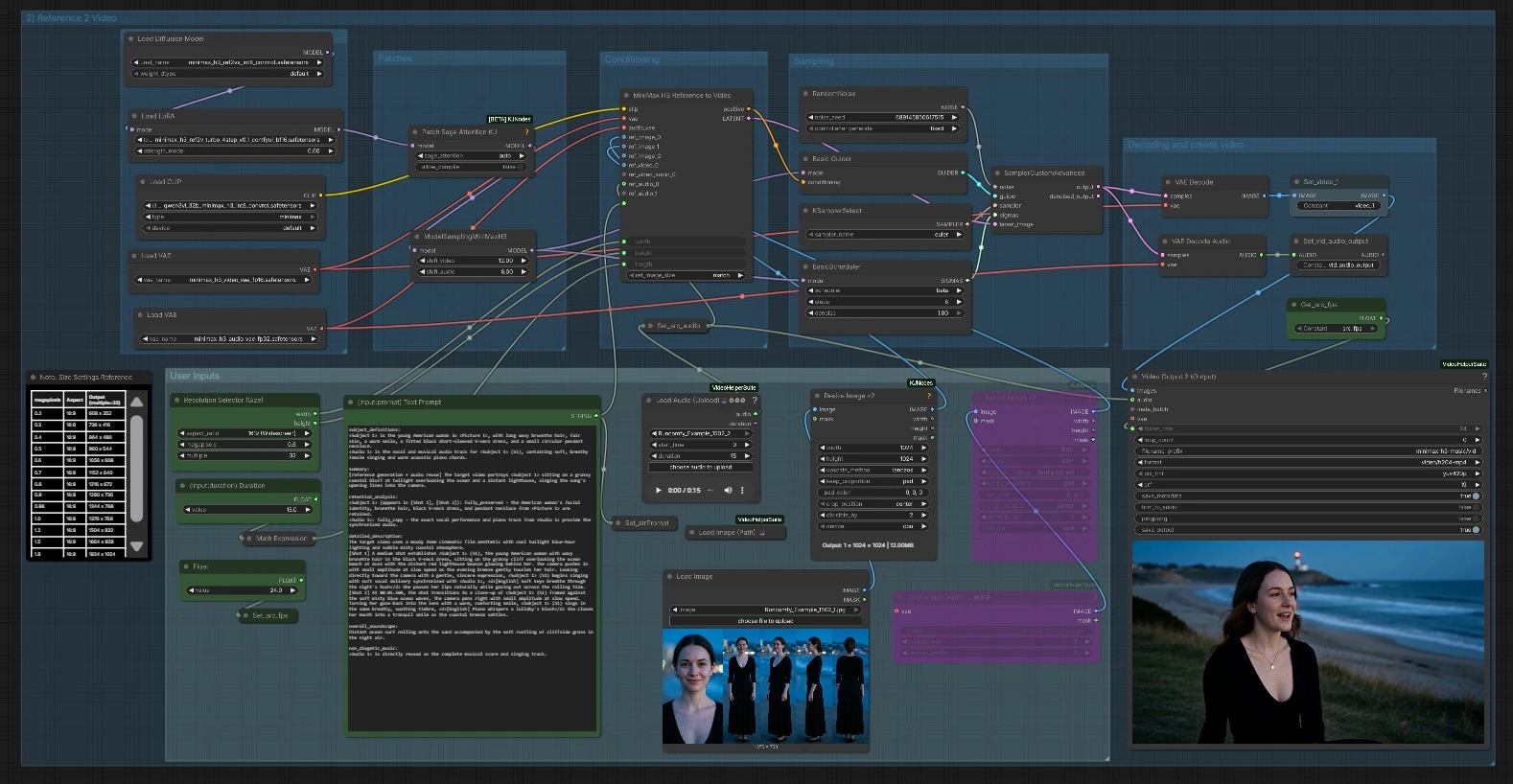
Overall flow. The graph has two cooperating parts: 1) optional music creation that generates a master track, and 2) reference‑to‑video synthesis that builds visually coherent shots synced to the song. You can run them together or plug in your own audio and skip music creation. The final step assembles frames and audio into a rendered MiniMax music video.
1) Music Creation (optional)#
This group plans and synthesizes a track with MiniMax Music 3. Start with M3SongPlanner (#6171) to draft a structured caption and lyrics; both are editable in the on‑canvas text viewers before encoding. MiniMaxMusic3TextEncode (#6157) turns that plan into conditioning and provides the target duration. A latent audio container is created, sampled by KSampler (#6162) with the MiniMax Music 3 UNet (UNETLoader (#6156)), then decoded through the DAV VAE using either standard or tiled decode depending on VRAM. The generated audio is saved and set as the workflow’s source track for video.
2) User Inputs#
Provide or generate a master song. Upload an external track with VHS_LoadAudioUpload (#6170), or use the song produced in step 1. Add one or more reference images for look and identity using LoadImage (#6110) or a path loader; the images are normalized by ImageResizeKJv2 (#6090, #6091) for stable conditioning. Set your creative brief in (input:prompt) Text Prompt (#138) — this prompt supports subject definitions, shot notes, and timing hints. Choose aspect and approximate duration via Resolution Selector (Size) (#115) and (input:duration) Duration (#132).
3) Patches#
PathchSageAttentionKJ (#142) activates an optimized attention implementation that can improve throughput and memory behavior on some GPUs. This patch operates on the loaded MiniMax H3 model before sampling. Keep it enabled unless you encounter device‑specific issues.
4) Models#
UNETLoader (#127) loads the MiniMax H3 backbone for reference‑to‑video, and an optional Turbo LoRA is applied with LoraLoaderModelOnly (#5959) for faster, punchier results. Video and audio VAEs (VAELoader (#119), VAELoader (#120)) are prepared for decoding. These assets define the quality envelope and should remain consistent across shots to keep a uniform look.
5) Conditioning#
MiniMaxH3ReferenceToVideo (#136) fuses your text prompt, reference images, target size, and length into conditioning and an initial latent. It is the bridge between the creative brief and what the sampler will render. You can feed two reference images in this template to guide wardrobe, identity, and palette. The group also computes a shot length from the requested duration so frames line up musically.
6) Sampling#
The sampling stack combines BasicScheduler (#124), BasicGuider (#126), and SamplerCustomAdvanced (#125) with RandomNoise (#129). MiniMaxH3SigmaShift (#5960) sits upstream to bias sigma ranges for crisper video motion and stable audio alignment. Together they iterate the latent toward images that follow your references and the beat. For reproducibility, keep your seeds fixed while iterating on prompt and references.
7) Decoding and create video#
VAEDecode (#122) turns the sampled latents into frames and Set_video_1 (#5651) prepares them for export. The final assembly uses VHS_VideoCombine (#5645), which stitches frames to the chosen source audio and applies your target frame rate from the stored src_fps value. The output is a ready‑to‑share MiniMax music video clip that stays in sync with the track.
8) Reference 2 Video#
This group is the creative heart of the pipeline for building shot sequences against the master song. It receives the prepared H3 model, your references, and the computed shot length, then runs one pass of sampling per clip. Use it to iterate multiple connected cuts around the same subject so identity, wardrobe, and palette stay consistent. Repeat per section of the song to cover intros, verses, choruses, and bridges with matching visuals.
Key nodes in Comfyui MiniMax music video workflow#
MiniMaxH3ReferenceToVideo (#136)#
Creates the conditioning that ties prompt, references, and target geometry to a latent for sampling. Use it to steer identity and art direction with a small set of high‑quality images and clear shot notes. If a shot needs stronger adherence to a face or outfit, keep the references stylistically similar and avoid extreme crops. Adjust prompt phrasing before changing sampling settings, as this node most strongly influences who and what appears on screen.
MiniMaxH3SigmaShift (#5960)#
Offsets sigma schedules in the MiniMax H3 stack to balance temporal change and audio alignment. Increase the video shift when you want more motion and visual evolution inside a shot; increase the audio shift to favor tight rhythm and lip feel. Use modest changes and test on a short clip before committing an entire scene.
SamplerCustomAdvanced (#125)#
Runs the denoising loop with the selected scheduler and guider. This is where you trade time for quality and texture. For rapid ideation, reduce steps and keep seeds fixed; for finals, give it more steps and nudge guidance to refine detail without losing identity. When results overshoot your brief, first simplify the prompt or reduce conflicting references.
VHS_VideoCombine (#5645)#
Assembles decoded frames with the chosen audio into a single video file. Keep frame rate constant across all clips meant to be edited together. If visuals drift against the beat, confirm the shot length and fps are consistent with the source track. Trim in your NLE only after renders match tempo and lyric cues inside the workflow.
MiniMaxMusic3TextEncode (#6157)#
Encodes the caption and lyrics that define structure, arrangement, and vocal character for MiniMax Music 3. Write captions in sections that cover global metadata, vocal details, and arrangement so the model understands intent. Use lyric section tags like [Intro], [Verse], and [Chorus] to mark transitions the generator can follow. For prompt help, see the official repository’s guidance and tools. MiniMax‑AI/MiniMax‑Music3
ComfyMathExpression (#131)#
Calculates an internal frame count from your target duration and snaps it to a cadence that the H3 temporal stack prefers at the selected fps. This avoids subtle desync and stutter. If you change fps or duration, let this node recalc the length so sampling lands on beat.
Optional extras#
- Write prompts with a stable structure: subject definitions, a one‑sentence summary, then 1–3 shot paragraphs with time cues. Keep tense and voice consistent.
- Use 1–2 clean reference images per subject. Favor neutral lighting and a medium crop that includes hair and outfit details to improve identity retention.
- Map scenes to the song first. Render short clips per section (intro, verse, chorus) and concatenate them; this keeps the MiniMax music video coherent while allowing local variation.
- Keep resolution and frame rate consistent across all clips you plan to edit together. Changing either mid‑project makes continuity harder.
- On low‑VRAM machines, enable tiled audio decode for long songs; on high‑VRAM, standard decode is usually a bit cleaner.
- For reliable re‑renders, lock seeds on both the video sampler and the music sampler before exporting finals.
Acknowledgements#
This workflow implements and builds upon the following works and resources. We gratefully acknowledge Innovate Futures @ Benji for MiniMax Music VideoWorkflow Source for their contributions and maintenance. For authoritative details, please refer to the original documentation and repositories linked below.
Resources#
- Innovate Futures @ Benji/MiniMax Music VideoWorkflow Source
- Docs / Release Notes: MiniMax Music VideoWorkflow Source
Note: Use of the referenced models, datasets, and code is subject to the respective licenses and terms provided by their authors and maintainers.