

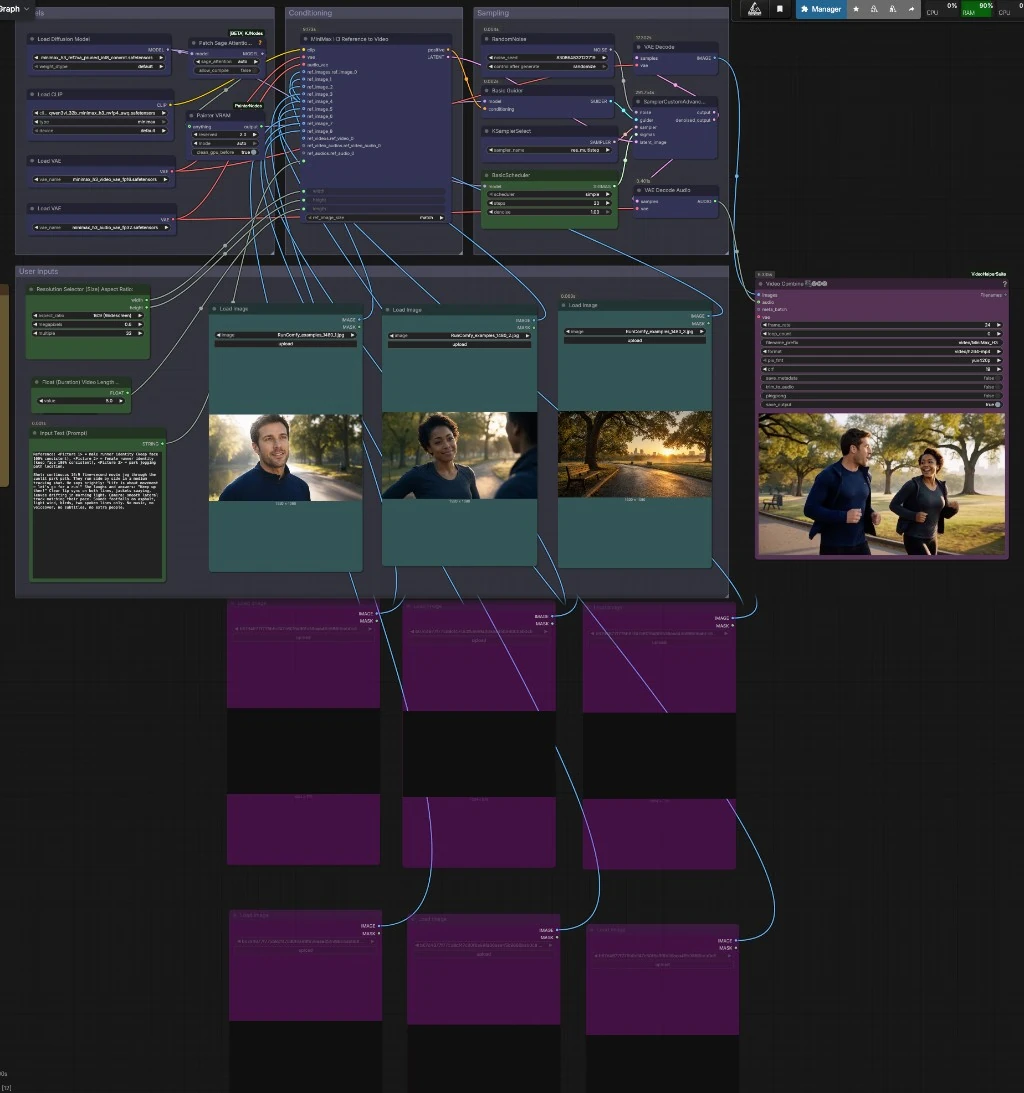
All-in-One MiniMax H3 ComfyUI Multi References Accelerated: multi‑reference Ref2VA video with synchronized stereo audio#
This All-in-One MiniMax H3 ComfyUI Multi References Accelerated workflow turns up to nine visual references plus optional video and audio cues into a short cinematic clip with a native stereo soundtrack. It is designed for creators who want character‑consistent shots that merge multiple identities, props, or locations while keeping prompt tags like <Picture 1> aligned to the correct reference.
Built around the open Comfy‑Org MiniMax‑H3 Ref2VA stack, the graph enables SageAttention acceleration for faster sampling on supported GPUs and uses an int8‑pruned model to keep VRAM in check without sacrificing coherence. The result is a single RunComfy‑ready canvas for MiniMax H3 where multi‑reference guidance, timing, resolution, and export are wired end‑to‑end.
Key models in Comfyui All-in-One MiniMax H3 ComfyUI Multi References Accelerated workflow#
- MiniMax‑H3 Ref2VA diffusion model (pruned int8 convrot). Core generator that fuses your references and prompt into joint video and audio latents. Weights: Comfy‑Org/MiniMax‑H3.
- Qwen3‑VL 32B text‑image‑language encoder (AWQ, packaged with the MiniMax‑H3 release). Interprets your prompt, including tags such as <Picture 1>, and conditions the generator. Weights are included in Comfy‑Org/MiniMax‑H3.
- MiniMax H3 Video VAE (FP16). Decodes video latents to frames with high fidelity. Weights: Comfy‑Org/MiniMax‑H3.
- MiniMax H3 Audio VAE (FP32). Decodes audio latents to a clean, stereo waveform ready for muxing. Weights: Comfy‑Org/MiniMax‑H3.
How to use Comfyui All-in-One MiniMax H3 ComfyUI Multi References Accelerated workflow#
At a high level, you load models, supply references and a prompt, the workflow builds MiniMax‑H3 conditioning, runs an accelerated sampler, then decodes and combines video frames with the generated stereo audio. Groups work in sequence: User Inputs feed Conditioning, which drives Sampling; the decoded results go to Export.
User Inputs#
Use the LoadImage nodes to connect up to nine references. Keep a consistent order so prompt tags like <Picture 1>, <Picture 2>, and so on match the intended images. Write your scene and dialogue in the Input Text (Prompt) field, explicitly mapping identities or assets to the numbered tags at the top of the prompt. Choose aspect and size in Resolution Selector (Size); it outputs width and height snapped to a 32‑pixel multiple for stability. Set clip duration in seconds; an internal expression converts it to a frame count near 24 fps and aligns it to a model‑friendly multiple for smooth sampling.
Models#
This group loads the MiniMax‑H3 UNet, the Qwen3‑VL 32B text encoder, and both VAEs. The int8‑pruned Ref2VA model reduces memory while preserving motion and lip‑sync quality. The text encoder is initialized for MiniMax‑H3 so visual tags in your prompt bind to the right references. Separate VAEs for video and audio keep decoding accurate and efficient. The models are the same family used by the official Ref2VA template, adapted here for multi‑reference control and joint audio. Reference: MiniMax‑H3 R2V template.
Conditioning#
MiniMaxH3ReferenceToVideo builds the actual H3 conditioning and a starter latent clip. It ingests your CLIP, VAEs, all connected reference images, the prompt, and the chosen width, height, and length. The node respects placeholder tags so identities, locations, and props remain attached to the correct references. Use the reference size mode to keep composition in scale relative to your output. The node emits a positive conditioning stream and a latent clip that together drive the sampler.
Sampling#
Before sampling, the graph wraps the model with PathchSageAttentionKJ to enable SageAttention acceleration, then routes through a VRAM manager so large clips can fit more comfortably. BasicGuider, BasicScheduler, and KSamplerSelect define the guidance strategy, step schedule, and sampler algorithm. RandomNoise seeds the process and SamplerCustomAdvanced performs the denoising passes against the model and conditioning, producing refined video and audio latents. The layout balances speed and quality for MiniMax‑H3 while keeping settings approachable.
Export#
VAEDecode and VAEDecodeAudio convert the final latents into frames and a stereo waveform. VHS_VideoCombine then muxes frames and audio into a single MP4 at your chosen frame rate, with a quality control via CRF and a simple filename prefix for organization. You can preview the result immediately and save it to your output folder. If you later feed an external reference audio, the exporter can trim to that track length for perfect alignment. The exporter comes from the widely used Video Helper Suite for ComfyUI: ComfyUI‑VideoHelperSuite.
Key nodes in Comfyui All-in-One MiniMax H3 ComfyUI Multi References Accelerated workflow#
MiniMaxH3ReferenceToVideo (#136) This is the heart of the workflow where references, prompt, size, and length are fused into MiniMax‑H3 conditioning and a latent clip. Adjust prompt text with explicit tag mappings like <Picture 1> = character A to lock identities. Tune width, height, and length to set composition and runtime; the upstream selector and duration control take care of safe multiples. Use the reference size mode to balance subject scale against the output frame. The node underpins the official Ref2VA path and is tailored here for multi‑reference control.
PathchSageAttentionKJ (#144) Wraps the model with SageAttention to speed up attention layers and reduce memory pressure on supported GPUs. Leave the acceleration mode on auto for most cards; enable model compilation only if your environment benefits from it. If you observe instability, switch the mode off to compare performance. Source: ComfyUI‑KJNodes.
BasicScheduler (#124) Defines the sigma schedule and total steps used during denoising. Increasing steps can add detail but raises render time; pair any change here with a compatible sampler type. Keep denoise near full for pure generation, and consider lowering it only when doing strength‑limited refinement.
SamplerCustomAdvanced (#125) Runs the diffusion loop with the chosen sampler, schedule, and guider. The default sampler balances temporal stability and motion smoothness for MiniMax‑H3. If you change the scheduler family, choose a sampler designed for it to avoid artifacts.
Resolution Selector (Size) (#115) Outputs width and height snapped to a 32‑pixel multiple for GPU‑friendly shapes. Set megapixels for a quick quality vs. speed tradeoff, and pick an aspect such as 16:9 for widescreen shots. Use modest sizes for draft previews, then scale up once timing and framing are locked.
ComfyMathExpression (#131) Transforms the requested seconds into a frame count near 24 fps and aligns it to a multiple that cooperates with the sampler and model. This helps avoid temporal jitter and off‑by‑one timing issues. You rarely need to touch it; control timing from the seconds input.
VHS_VideoCombine (#143) Muxes frames and the generated stereo audio into a final deliverable. Set frame_rate to match your target timeline and adjust crf for quality. Use trim_to_audio when you supply an external track and want a perfect cut to length.
Optional extras#
- Quick 16:9 sizes that render fast and look clean: 1056×608 (0.6 MP), 1216×672 (0.8 MP), 1344×768 (0.98 MP), 1664×928 (1.5 MP), 1920×1088 (2.0 MP).
- Keep prompts explicit: start with a mapping block that binds
<Picture 1..9>to identities, outfits, props, or locations before describing the shot. - For consistent faces, use sharp, front‑facing images and vary only lighting or angle slightly across references.
- Dialogue and foley work well when written as short, natural sentences; the audio VAE will synthesize a clean stereo track from the Ref2VA latent.
- If VRAM is tight, render a shorter clip first or drop megapixels, then upscale or extend once satisfied with motion and framing.
- This layout follows the official Ref2VA template lineage, adapted for multi‑reference control and acceleration. See the base template for context: MiniMax‑H3 R2V template.
Acknowledgements#
This workflow implements and builds upon the following works and resources. We gratefully acknowledge MiniMax for MiniMax H3, Comfy-Org for the MiniMax-H3 model weights and the MiniMax H3 R2V workflow template, and Comfy.org for the MiniMax H3 tutorial for their contributions and maintenance. For authoritative details, please refer to the original documentation and repositories linked below.
Resources#
- MiniMax H3 official announcement
- Docs / Release Notes: MiniMax H3 announcement
- Comfy-Org MiniMax-H3 model weights
- Hugging Face: Comfy-Org/MiniMax-H3
- Comfy.org MiniMax H3 tutorial
- Docs / Release Notes: Comfy.org tutorial
- Comfy.org MiniMax H3 R2V template
- GitHub: Comfy-Org/workflow_templates
Note: Use of the referenced models, datasets, and code is subject to the respective licenses and terms provided by their authors and maintainers.