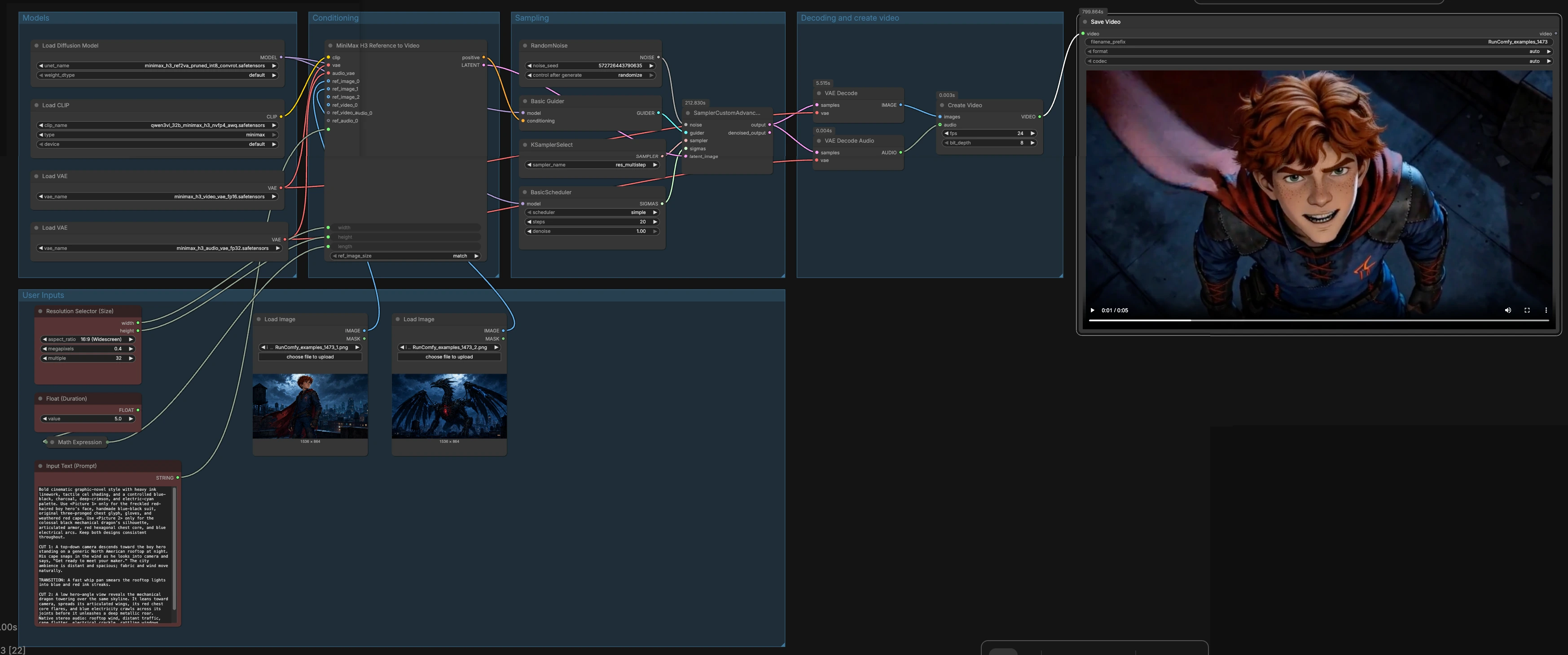
MiniMax H3 Reference to Video ComfyUI: native stereo audio Ref2VA workflow#
This RunComfy-ready MiniMax H3 Reference to Video ComfyUI workflow turns connected reference images into a short cinematic video with jointly generated native stereo audio. Built from the Comfy.org Reference-to-Video template and verified against the open Comfy-Org MiniMax-H3 weights, it is ideal for character-consistent, reference-driven shots, stylized scene tests, and concept clips where prompt wording and tags like <Picture 1> and <Picture 2> matter.
Out of the box, the graph wires two image references and a free-form prompt to produce a video with synchronized sound in one pass. The core node also exposes optional inputs for more reference images, reference videos with their audio, and standalone audio references, so you can scale conditioning strength as needed. If you want a starting point aligned with the original design, see the Comfy.org template file on GitHub video_minimax_h3_r2v.json.
Key models in the MiniMax H3 Reference to Video ComfyUI workflow#
- Comfy-Org/MiniMax-H3 diffusion weights (Ref2VA): The generative core specialized for reference-to-video-and-audio, used via
UNETLoader. It learns from text and visual/audio references to produce a single latent that carries both video and stereo audio. Model card and files - MiniMax H3 Video VAE (FP16): Decodes the video half of the joint latent to frames with high visual fidelity. minimax_h3_video_vae_fp16.safetensors
- MiniMax H3 Audio VAE (FP32): Decodes the audio half of the joint latent to native stereo waveform. minimax_h3_audio_vae_fp32.safetensors
- Qwen3-VL 32B MiniMax-H3 text-image encoder (AWQ): Encodes your prompt plus reference tags and visual tokens for conditioning. qwen3vl_32b_minimax_h3_nvfp4_awq.safetensors
How to use the MiniMax H3 Reference to Video ComfyUI workflow#
This workflow routes your references and prompt into MiniMax H3’s Ref2VA core, samples a single latent that contains both video and audio, then decodes and muxes the result to an MP4 with synced sound. The groups below map to the graph so you can see what to change and why.
User Inputs#
Use LoadImage (#137) and LoadImage (#139) to supply two visual references. The prompt goes in Input Text (Prompt) (#138); reference each input explicitly by tag in the order you connected them, for example <Picture 1> and <Picture 2>, before describing the scene, motion, and sound. Set your target aspect and pixel count in Resolution Selector (Size) (#115). Choose video duration in seconds with Float (Duration) (#132); it is automatically converted to a valid frame length by ComfyMathExpression (#131) so audio and video remain aligned.
Models#
UNETLoader (#127) loads the MiniMax H3 Ref2VA diffusion weights that drive generation. CLIPLoader (#128) loads the Qwen3-VL 32B encoder used to tokenize your text and reference tags. Two VAELoader nodes (#119 video, #120 audio) provide the paired decoders that will later unpack the joint latent back into frames and stereo audio. These models are the only assets you need to swap when migrating to different MiniMax H3 variants within the same task family.
Conditioning#
MiniMaxH3ReferenceToVideo (#136) is the heart of the pipeline. It accepts your text prompt, width, height, and the computed length (frames), plus any connected ref_images, ref_videos, and optional audio references. The node emits a positive conditioning stream for guidance and an initialized latent that anchors identity, composition, motion, and sound design according to your references and tags. For identity fidelity from images, connect well-lit, on-model references and reference them precisely in the prompt; for motion or pacing, you can add video references with or without their audio.
Sampling#
RandomNoise (#129) seeds the process, while KSamplerSelect (#123) picks the sampler variant and BasicScheduler (#124) sets the step schedule. BasicGuider (#126) applies the conditioning produced by the MiniMax H3 node, and SamplerCustomAdvanced (#125) performs the actual denoising steps to evolve the joint audio+video latent. The choices here mainly trade speed for fidelity and reference adherence; keep the defaults to start, then experiment once you have a baseline look and sound.
Decoding and create video#
The sampler’s joint latent goes to VAEDecode (#122) for frames and VAEDecodeAudio (#121) for stereo sound. CreateVideo (#130) muxes the decoded images and audio into a playable stream, and SaveVideo (#92) writes the final file to your output folder. Because the video and audio were generated together, timing is consistent without any post-alignment or external TTS.
Key nodes in the MiniMax H3 Reference to Video ComfyUI workflow#
MiniMaxH3ReferenceToVideo (#136) This node composes text, visual, and optional audio references into MiniMax H3’s Ref2VA conditioning and an initial latent that already “knows” about identity, style, motion, and sound. Use exact reference tags in your prompt that match connection order, and choose ref_image_size based on your goal: faster iterations when matching generation resolution, stronger identity when keeping larger reference tokens. For longer shots, favor clear scene and action descriptions so the model can maintain continuity.
Resolution Selector (Size) (#115) Controls the target aspect and pixel count the whole graph will honor. Pick a shape that matches how you will present the clip, and balance detail with throughput so you can iterate quickly. Higher resolutions raise VRAM and time but better preserve fine features from your references.
ComfyMathExpression (#131) Converts a user-facing duration in seconds into a frame count that the sampler and decoder like. The expression clamps to a sensible minimum and snaps to an internal-friendly step so video and audio stay in lockstep. Adjust only the seconds input; the node handles the math.
KSamplerSelect (#123) and BasicScheduler (#124) Together they determine the denoising pathway. Start with the provided sampler and schedule for robust reference adherence; if your shot drifts or feels under-detailed, test an alternative schedule or a slightly different sampler family and compare results side by side.
Optional extras#
- Keep prompts concrete and reference-first: lead with tags like <Picture 1> and <Picture 2>, then describe shot type, motion, lighting, and the sounds you expect.
- For stronger identity from images, increase reference fidelity by using the larger reference size mode; for faster look-dev, use the matched-size mode.
- If you do not connect any audio references, MiniMax H3 will synthesize native stereo audio from the prompt alone; describe ambience, foley, and voice tone to guide it.
- Add a short reference video when you care most about motion cadence or camera behavior; add its paired audio when you want that sonic character carried into the generation.
- Iterate at modest resolution and duration first, then scale up once timing, identity, and composition hold together.
References#
- MiniMax H3 weights and model assets on Hugging Face: Comfy-Org/MiniMax-H3
- Official Comfy.org template this workflow follows: video_minimax_h3_r2v.json
- Upstream ComfyUI integration for MiniMax H3: ComfyUI PR #15224
Acknowledgements#
This workflow implements and builds upon the following works and resources. We gratefully acknowledge Comfy-Org for the MiniMax H3 R2V ComfyUI workflow template and the MiniMax H3 tutorial, MiniMax for the MiniMax H3 model and official announcement, and Comfy-Org for the MiniMax-H3 model weights for their contributions and maintenance. For authoritative details, please refer to the original documentation and repositories linked below.
Resources#
- Comfy-Org/MiniMax H3 R2V workflow template
- Comfy-Org/MiniMax H3 tutorial
- GitHub: Comfy-Org/docs
- Hugging Face: Comfy-Org/MiniMax-H3
- Docs / Release Notes: MiniMax H3 tutorial
- MiniMax/MiniMax H3 official announcement
- Docs / Release Notes: MiniMax H3 official announcement
- Comfy-Org/MiniMax-H3 model weights
- Hugging Face: Comfy-Org/MiniMax-H3
Note: Use of the referenced models, datasets, and code is subject to the respective licenses and terms provided by their authors and maintainers.