

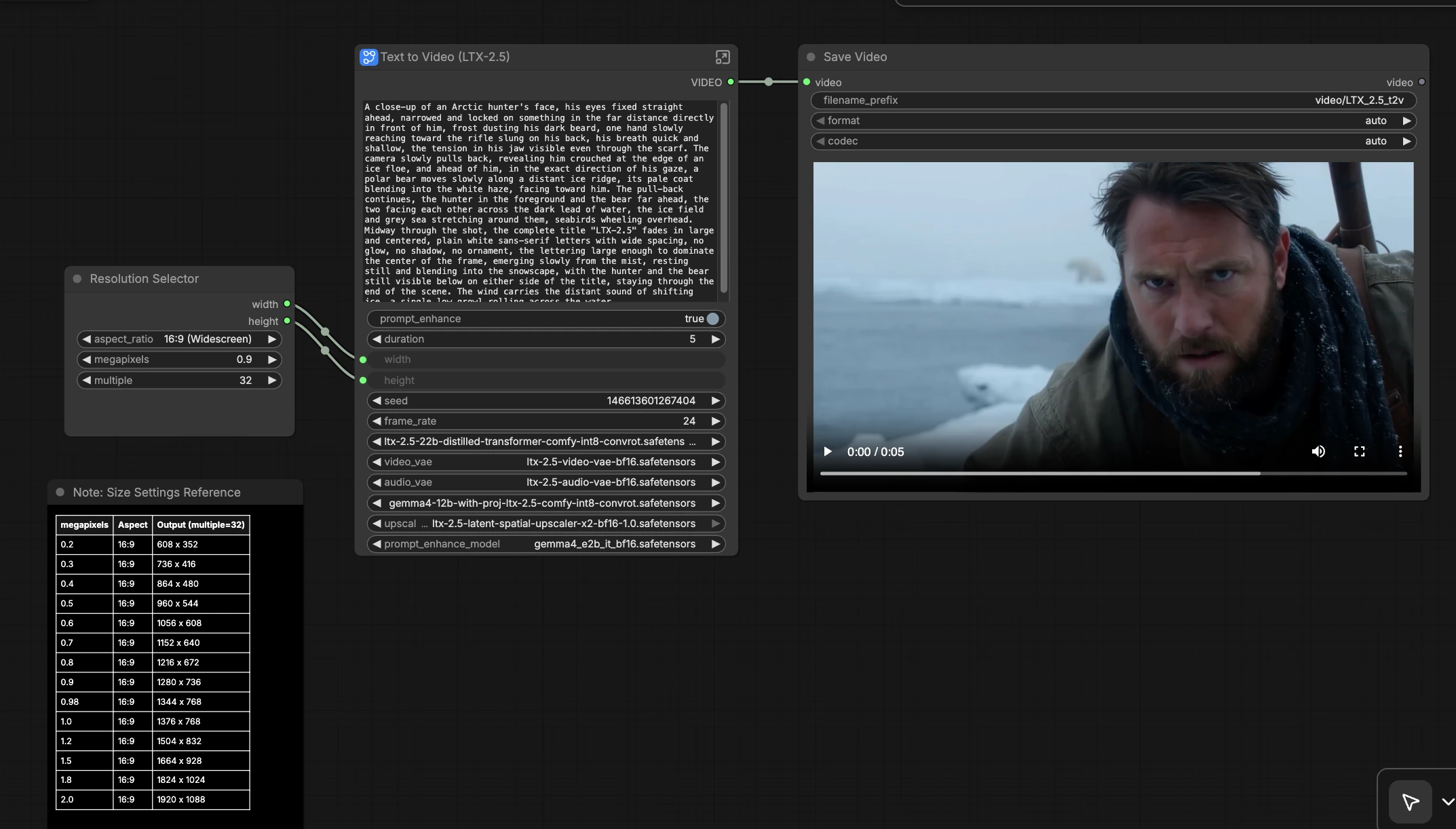
LTX 2.5 ComfyUI Text to Video: Prompt-to-video with synchronized audio#
LTX 2.5 ComfyUI Text to Video is a RunComfy-ready workflow that turns a short written prompt into a cinematic video with an aligned audio track. It combines Lightricks’ LTX-2.5 distilled transformer for text-to-video generation, compact video/audio VAEs for reconstruction, a latent upscaler for sharper detail, and Gemma-based prompt enhancement for stronger prompt adherence.
Built for creators who want fast, local-first iteration inside ComfyUI, this graph excels at atmospheric scenes, product shots, character moments, and mood pieces. With LTX 2.5 ComfyUI Text to Video you can move from idea to preview in minutes, then refine motion, look, and timing without leaving RunComfy.
Key models in Comfyui LTX 2.5 ComfyUI Text to Video workflow#
- Lightricks LTX-2.5. The core distilled transformer that synthesizes temporally coherent video from text. It balances prompt faithfulness and motion realism while keeping inference fast. See the official model card at Lightricks/LTX-2.5 and the reference pipeline at Lightricks/LTX-2.5-Diffusers.
- Google Gemma 2 Instruct. A compact instruction-tuned language model used to expand and clarify user prompts before generation, improving style guidance and shot intent. A representative checkpoint is google/gemma-2-9b-it.
- Lightricks organization hub. Central listing for LTX releases and updates to the text-to-video family, useful for model notes and known behaviors: huggingface.co/Lightricks.
How to use Comfyui LTX 2.5 ComfyUI Text to Video workflow#
This workflow follows a clean path from prompt to video: prompt enhancement, text conditioning, latent video synthesis, upscaling, decoding, audio alignment, and export. The sections below explain each stage in plain language so you know what to change and why.
Prompting and presets#
Start by writing a concise prompt that states subject, setting, lighting, lens or camera feel, and motion intent. Optionally add a negative prompt to steer away from unwanted elements. Choose a style preset if provided to quickly set color and contrast tendencies. If the graph exposes seed control, keep the seed stable while you iterate wording so differences reflect your edits, not randomness. LTX 2.5 ComfyUI Text to Video benefits from explicit motion verbs like “slow dolly in,” “handheld,” or “subtle breeze.”
Text conditioning#
Your prompt is tokenized and encoded, then lightly rewritten by Gemma to strengthen intent and remove ambiguity. The enhanced text creates conditioning vectors the video model uses to decide layout, subject appearance, and motion cues. Keep descriptions concrete and visual; avoid long lists of modifiers that compete with each other. If you need consistent identity or branding, place those terms early in the prompt. This step is where LTX 2.5 ComfyUI Text to Video locks onto meaning before any pixels are generated.
Latent video synthesis#
The workflow initializes a latent timeline sized to your chosen aspect ratio and duration. LTX-2.5 iteratively denoises this latent video, weaving structure, motion, and appearance into each frame while maintaining temporal coherence. Shorter shots converge faster and are easier to direct; extend duration only after you like the first beat. Use negative prompts to suppress artifacts like extra limbs, flicker, or text overlays. The goal here is a clean, on-brief latent clip that already reads as your intended scene.
Motion and timing#
During denoising, the model balances spatial detail with smooth motion. Strong motion cues in your prompt help avoid static-looking clips; too many fine-grain texture demands can reduce motion clarity. If the graph includes a motion-strength control, increase it for dynamic shots and reduce it for portraits or macro product angles. When testing variations, change one element at a time so you can attribute differences to a specific edit. LTX 2.5 ComfyUI Text to Video typically rewards clear camera verbs and a single subject focus.
Latent upscaling#
A dedicated latent upscaler refines detail without breaking temporal stability. Enable this pass once the base motion and composition look right. If highlights bloom or edges oversharpen, reduce strength slightly and re-run; if the image feels soft, increase it. Upscaling after motion settles preserves coherence better than starting at a higher base resolution. This stage gives LTX 2.5 ComfyUI Text to Video its crispness without introducing shimmer.
Decode and color#
The video VAE decodes latents into frames, applying color space and tone mapping suitable for preview and export. If available, choose a look profile that matches your intent: neutral for grading later, cinematic for ready-to-share dailies. Minor banding or flicker often indicates too-aggressive sharpening upstream; adjust upscaler strength rather than forcing heavier post contrast. Keep aspect ratio consistent across runs to compare results fairly. Decoding is where your frames become pixels you can evaluate.
Audio generation and sync#
An audio module generates a lightweight soundtrack from the same prompt and aligns it to the video timeline. Use mood words like “eerie drone,” “upbeat synth,” or “soft rain foley” to steer the bed. If the workflow exposes an audio toggle, you can disable it while exploring motion, then enable it for finals. Slight prompt tweaks can shift rhythm and intensity; lock your visual seed when auditioning audio variations. The aim is cohesive audio that supports the scene without fighting it.
Export and review#
Choose your container and codec preset for a compact preview or a higher-quality shareable file. If the graph includes a frame export, you can inspect individual frames for artifacts before committing to a full run. Keep a record of prompt, seed, and any toggles so you can reproduce or branch ideas. For social or product review, use the preview preset; for reels or client decks, use the high-quality preset. LTX 2.5 ComfyUI Text to Video is optimized so you can iterate quickly, then upscale and export when ready.
Optional extras#
- Write prompts in shot language: subject + setting + lighting + lens + motion (for example, “product hero on marble, soft backlight, 50 mm, slow arc left”).
- Prefer one decisive style cue over many weak ones. Too many adjectives dilute guidance.
- Use negative prompts to suppress text overlays, excessive grain, or logo-like shapes when not desired.
- Lock the seed to compare prompt edits; change the seed to explore fresh compositions.
- Start short, then extend duration once motion reads clearly; longer clips compound small issues.
- If faces are central, keep camera motion gentle and lighting stable to reduce temporal drift.
- For clean exports, avoid resizing in post; set aspect and resolution in-graph and keep them consistent.
This LTX 2.5 ComfyUI Text to Video workflow is designed to help you get convincing motion, sharp detail, and aligned audio with minimal setup. Iterate quickly, guide with clear intent, and let the graph handle the heavy lifting from text to video.
Acknowledgements#
This workflow implements and builds upon the following works and resources. We gratefully acknowledge Comfy.org for the source workflow template, Lightricks for the LTX-2.5 model weights, and Lightricks for the LTX-2.5 Diffusers project for their contributions and maintenance. For authoritative details, please refer to the original documentation and repositories linked below.
Resources#
- Comfy.org/Source workflow template
- Docs / Release Notes: Source workflow template
- Lightricks/LTX-2.5
- Hugging Face: Lightricks/LTX-2.5
- Lightricks/LTX-2.5-Diffusers
- Hugging Face: Lightricks/LTX-2.5-Diffusers
- Lightricks/Hugging Face organization
- Hugging Face: Lightricks
Note: Use of the referenced models, datasets, and code is subject to the respective licenses and terms provided by their authors and maintainers.