

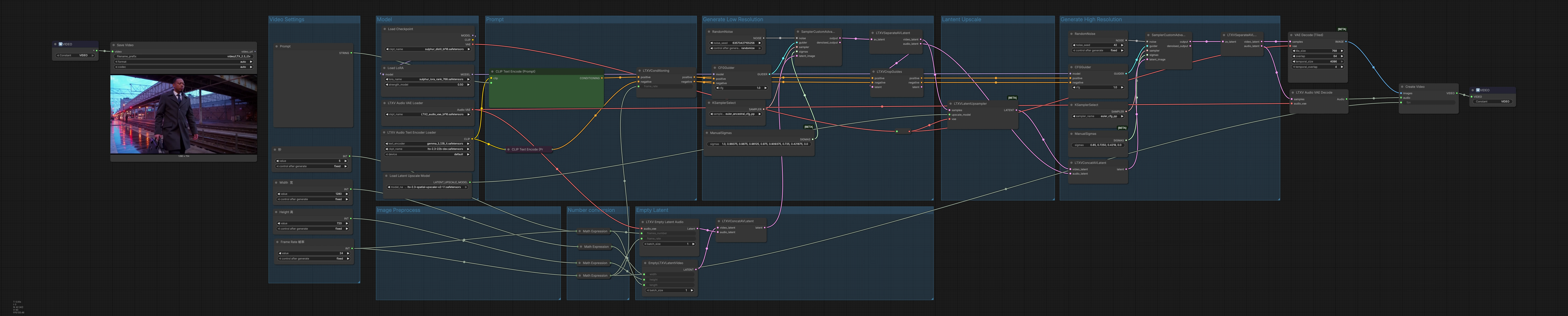
LTX 2.3 Sulphur 2 text to video workflow for cinematic character animation#
This ComfyUI pipeline turns natural-language prompts into short, cinematic, character‑focused videos with optional audio, built around Lightricks LTX‑2.3 and Sulphur 2 components. It stages generation in low resolution for motion planning, upscales the latent sequence, then refines at high resolution before decoding to frames and muxing a synced audio track.
The LTX 2.3 Sulphur 2 text to video workflow is ideal for quick character animation tests, D‑Human style motion concepts, and polished text‑to‑video experiments. It does not rely on image‑to‑video inputs or prompt relays; everything starts from text, with LTXV conditioning guiding both video and audio latents end to end.
Key models in Comfyui LTX 2.3 Sulphur 2 text to video workflow#
- Lightricks LTX‑2.3. Core text‑to‑video generator used for spatiotemporal synthesis and multimodal AV latents. See the official model repository for weights and notes on capabilities and limitations. Hugging Face: Lightricks/LTX-2.3
- Lightricks LTX‑2.3 FP8 checkpoint. Memory‑efficient variant of LTX‑2.3 that speeds up inference and enables longer clips or higher resolutions on constrained GPUs. Hugging Face: Lightricks/LTX-2.3-fp8
- Sulphur 2 base model. Provides style priors and character detail via LoRA in this workflow, helping achieve crisp faces and cinematic tonality. Hugging Face: SulphurAI/Sulphur-2-base
- LTX‑2.3 Spatial Upscaler x2 1.1. Latent‑space upscaler that increases spatial detail before the high‑res refinement pass. Hugging Face: Lightricks/LTX-2.3 file ltx-2.3-spatial-upscaler-x2-1.1.safetensors
- LTX text encoder (Gemma 3 12B IT packaged for LTX). Supplies the text embedding space matched to LTX‑2.3 conditioning for faithful prompt following. Hugging Face: Comfy-Org/ltx-2
- LTX Audio VAE. Decodes the audio latent generated alongside video so the final render can include a synchronized soundtrack. Hugging Face: Lightricks/LTX-2.3
How to use Comfyui LTX 2.3 Sulphur 2 text to video workflow#
Overall logic The pipeline runs in three acts: low‑resolution generation to establish motion and composition, latent upscaling to increase spatial detail, and a high‑resolution refinement pass that also yields the final audio. Latents are decoded to frames and waveform, then muxed into an MP4 container ready for delivery.
Video Settings Use the “Video Settings” group to define width, height, frame rate, and duration. The frame count is computed automatically from your duration and fps so timing and cadence stay consistent. These values drive latent allocation and decoding, so set them first to match your target aspect ratio and runtime. Adjusting fps here also informs conditioning so motion smoothness and audio alignment use the same clock.
Prompt In “Prompt,” load the LTX text encoder with LTXAVTextEncoderLoader (#316), then write your positive description in CLIPTextEncode (#303) and any unwanted traits in CLIPTextEncode (#312). The node LTXVConditioning (#304) merges positive and negative conditioning and adds the chosen frame rate so temporal guidance matches your fps. Treat the positive prompt like a shot brief: subject, camera, lighting, mood, and style cues. Keep the negative list focused on artifacts you regularly see and want removed.
Model The “Model” group loads the main checkpoint via CheckpointLoaderSimple (#315) and applies a Sulphur 2 LoRA with LoraLoaderModelOnly (#285) to infuse cinematic texture and character fidelity. This is where you can swap checkpoints or LoRAs to change overall look and motion priors. The model output is routed to both the initial and refinement guiders so style and identity are consistent across passes. Pairing LTX‑2.3 with Sulphur 2 yields punchy contrast and detailed faces that read well in motion.
Number conversion Utility expressions convert your fps and seconds into the integer frame count used downstream. This keeps the audio and video timelines aligned without manual math. If you revise fps or duration later, the graph updates dependent nodes automatically.
Empty Latent “Empty Latent” creates aligned containers for generation: EmptyLTXVLatentVideo (#295) defines the spatial size and length of the video latent, LTXVEmptyLatentAudio (#305) allocates the audio latent at the same frame rate, and LTXVConcatAVLatent (#321) merges them into a single AV latent. Starting from empty latents ensures the diffusion pass fully reflects your prompt and conditioning rather than any preexisting content.
Generate Low Resolution The first sampling stage establishes motion and composition at lower cost. CFGGuider (#313), KSamplerSelect (#291), and ManualSigmas (#306) govern how strongly the prompt steers generation and the overall noise schedule. SamplerCustomAdvanced (#283) then denoises the AV latent to a coherent clip. The result is split by LTXVSeparateAVLatent (#307), and LTXVCropGuides (#284) refines spatial attention so the subject framing you want is preserved during later upscaling.
Lantent Upscale LTXVLatentUpsampler (#287) uses the LTX‑2.3 x2 upscaler to lift spatial detail while staying in latent space for speed and stability. Feeding the upscaled video latent forward improves texture and readability before the high‑res refinement. This preserves the motion you liked from the first pass while opening headroom for crisper edges and richer materials.
Generate High Resolution The upscaled video latent is rejoined with the audio latent in LTXVConcatAVLatent (#278) and guided again for final quality. CFGGuider (#282), KSamplerSelect (#280), and ManualSigmas (#281) give the last word on prompt strength, detail, and temporal coherence, with SamplerCustomAdvanced (#308) producing the refined AV latent. LTXVSeparateAVLatent (#309) hands the video to VAEDecodeTiled (#314) for memory‑friendly frame decoding and the audio to LTXVAudioVAEDecode (#297) for waveform reconstruction. CreateVideo (#310) muxes frames and audio at your target fps, and SaveVideo (#75) writes an MP4/H.264 file.
Image Preprocess This area routes the base VAE and upscaler models so tiling and latent upscaling work within your VRAM budget. If you experience memory pressure, favor FP8 LTX‑2.3 weights and keep tiled decoding enabled to maintain throughput and quality.
Key nodes in Comfyui LTX 2.3 Sulphur 2 text to video workflow#
LTXVConditioning (#304) Merges positive and negative text conditioning and attaches the working frame rate so temporal guidance matches your render. Strong, specific scene language improves shot structure; concise negatives reduce artifacts. See the LTX‑2.3 model card for conditioning notes. Hugging Face: Lightricks/LTX-2.3
LTXVCropGuides (#284) Softly steers composition to keep the main subject framed as intended. Use it to protect face size, horizon placement, or a centered subject before upscaling and refinement. It is especially helpful for dialogue‑style shots and medium closeups.
CFGGuider (#313, #282) Controls how aggressively the prompt influences the diffusion trajectory in both passes. Use the first guider to lock in motion and staging, then the second to add crispness without drifting away from the established shot.
ManualSigmas (#306, #281) Defines the noise schedule. Front‑loading more noise encourages larger motion exploration; a gentler schedule emphasizes temporal consistency. Keep the low‑res and high‑res schedules complementary rather than identical.
LTXVLatentUpsampler (#287) Performs x2 latent upscaling using the official LTX upscaler so you gain detail before the refinement sampler. Swapping to another LTX‑2.3 upscaler variant can slightly change sharpness and grain. Hugging Face: Lightricks/LTX-2.3
VAEDecodeTiled (#314) Decodes long or large clips in manageable tiles to avoid VRAM spikes. If you change spatial size or clip length, adjust tiling to balance memory headroom and decode speed.
LoraLoaderModelOnly (#285) Applies the Sulphur 2 LoRA to the base model path so character fidelity and style cues transfer into both sampling stages. Use this to switch looks quickly while keeping the same LTX‑2.3 backbone. Hugging Face: SulphurAI/Sulphur-2-base
Optional extras#
- Seed control: set fixed values in both
RandomNoisenodes so takes are reproducible; change one seed to explore alternates. - Prompting: write prompts as shot directions (subject, camera, lighting, mood). Keep the negative list focused and short.
- Performance: if VRAM is limited, prefer the FP8 LTX‑2.3 weights and keep tiled decoding enabled.
- Output: the graph writes MP4/H.264; change container or codec in
SaveVideoif you need ProRes proxy workflows.
This LTX 2.3 Sulphur 2 text to video workflow offers a clean, end‑to‑end path from prompt to polished video with synced audio, built for fast iteration on cinematic character animation.
Acknowledgements#
This workflow implements and builds upon the following works and resources. We gratefully acknowledge RunningHub for the Sulphur2 Basic Workflow for Video Production, SulphurAI for the Sulphur-2-base model, Lightricks for the LTX-2.3 and LTX-2.3-fp8 models, and Comfy-Org for the LTX-2 text encoder for their contributions and maintenance. For authoritative details, please refer to the original documentation and repositories linked below.
Resources#
- RunningHub/Sulphur2 Basic Workflow for Video Production
- Docs / Release Notes: Sulphur2 Basic Workflow for Video Production
- SulphurAI/Sulphur-2-base
- Hugging Face: SulphurAI/Sulphur-2-base
- Lightricks/LTX-2.3
- GitHub: Lightricks/LTX-2
- Hugging Face: Lightricks/LTX-2.3
- arXiv: LTX-2: Efficient Joint Audio-Visual Foundation Model (2601.03233)
- Lightricks/LTX-2.3-fp8
- GitHub: Lightricks/LTX-2
- Hugging Face: Lightricks/LTX-2.3-fp8
- arXiv: LTX-2: Efficient Joint Audio-Visual Foundation Model (2601.03233)
- Comfy-Org/ltx-2
- Hugging Face: Comfy-Org/ltx-2
Note: Use of the referenced models, datasets, and code is subject to the respective licenses and terms provided by their authors and maintainers.