

Flex.1 LoRA Inference: Run AI Toolkit LoRA in ComfyUI for Training‑Matched Results#
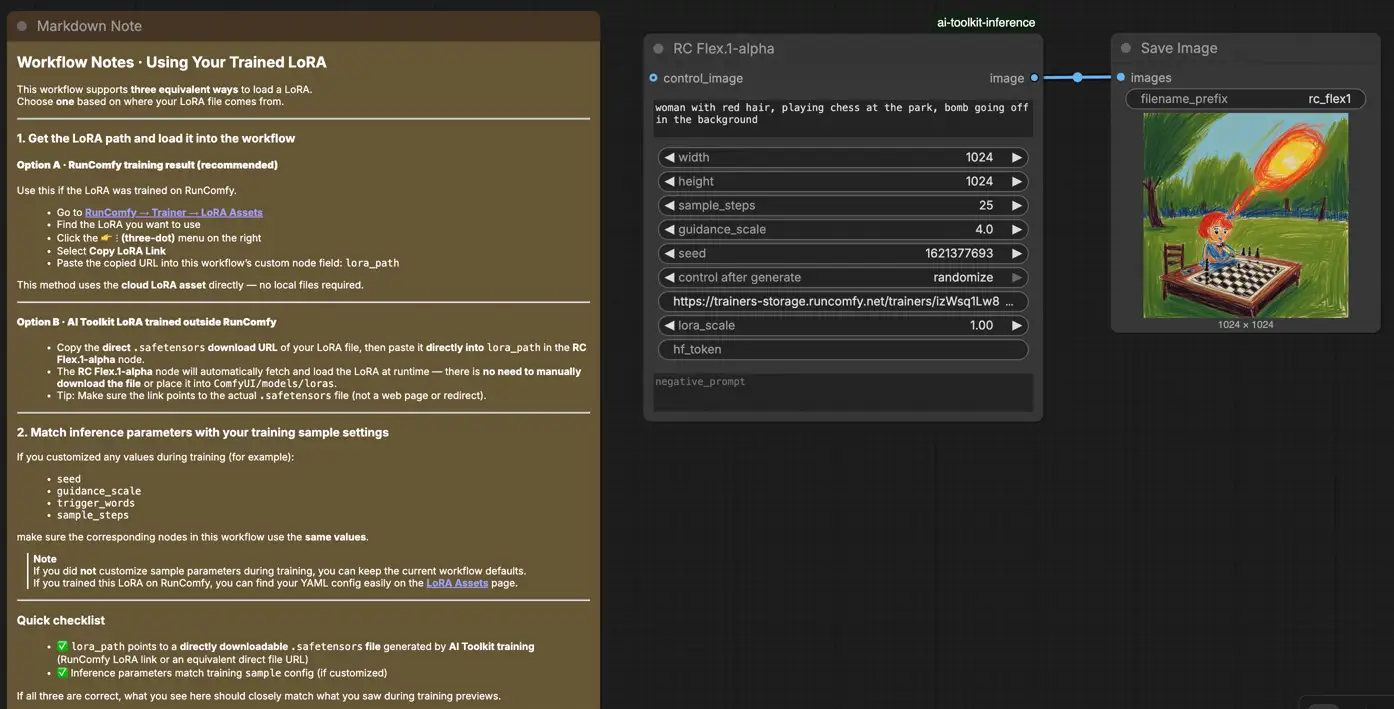
Flex.1 LoRA Inference: training‑matched, minimal‑step generation in ComfyUI. Flex.1 LoRA Inference is a production-ready RunComfy workflow for running AI Toolkit–trained Flex.1 LoRAs in ComfyUI with training-matched behavior. It’s built around RC Flex.1 (RCFlex1), which wraps a Flex.1‑specific inference pipeline (instead of a generic sampler graph) and applies your LoRA consistently via lora_path and lora_scale; RunComfy built and open-sourced this node—see the code in the runcomfy-com GitHub organization repositories.
Use it when your LoRA inference looks different than training—for example, AI Toolkit previews look right, but the same LoRA + prompt feels off once you switch to ComfyUI.
Why Flex.1 LoRA Inference often looks different in ComfyUI & What the RCFlex1 custom node does#
AI Toolkit previews come from a Flex.1‑specific inference pipeline. Many ComfyUI graphs rebuild the stack from generic loaders and samplers, so “matching the numbers” (prompt/steps/CFG/seed) isn’t always enough—differences in the pipeline can change defaults and where/how the LoRA is applied.
RCFlex1 routes inference through a Flex.1‑specific pipeline wrapper aligned with AI Toolkit previews, keeping LoRA injection consistent for Flex.1. Reference implementation: `src/pipelines/flex1_alpha.py`
How to use the Flex.1 LoRA Inference workflow#
Step 1: Open the workflow#
Open the RunComfy Flex.1 LoRA Inference workflow in ComfyUI.
Step 2: Import your LoRA (2 options)#
- Option A (RunComfy training result): RunComfy → Trainer → LoRA Assets → find your LoRA → ⋮ → Copy LoRA Link
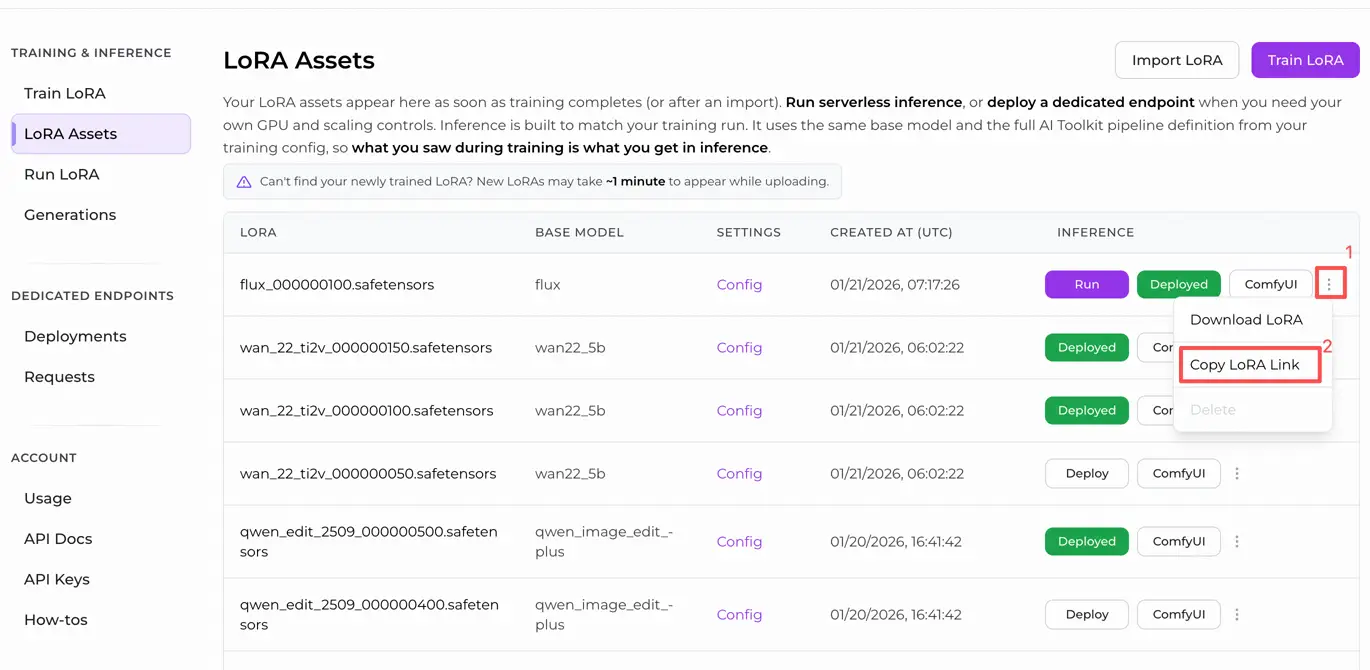
- Option B (AI Toolkit LoRA trained outside RunComfy): Copy a direct
.safetensorsdownload link for your LoRA and paste that URL intolora_path(no need to download it intoComfyUI/models/loras).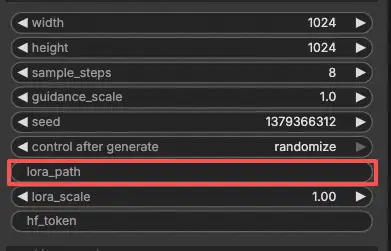
Step 3: Configure RCFlex1 for Flex.1 LoRA Inference#
In the RCFlex1 Flex.1 LoRA Inference node UI, set the remaining parameters:
prompt: your main text prompt (include any trigger tokens you used during training)negative_prompt: optional; leave blank if you didn’t use one in preview samplingwidth/height: output resolutionsample_steps: sampling steps (match your preview settings when comparing results)guidance_scale: CFG / guidance (match your preview CFG)seed: use a fixed seed for reproducibility; change it to explore variationslora_scale: LoRA strength/intensity
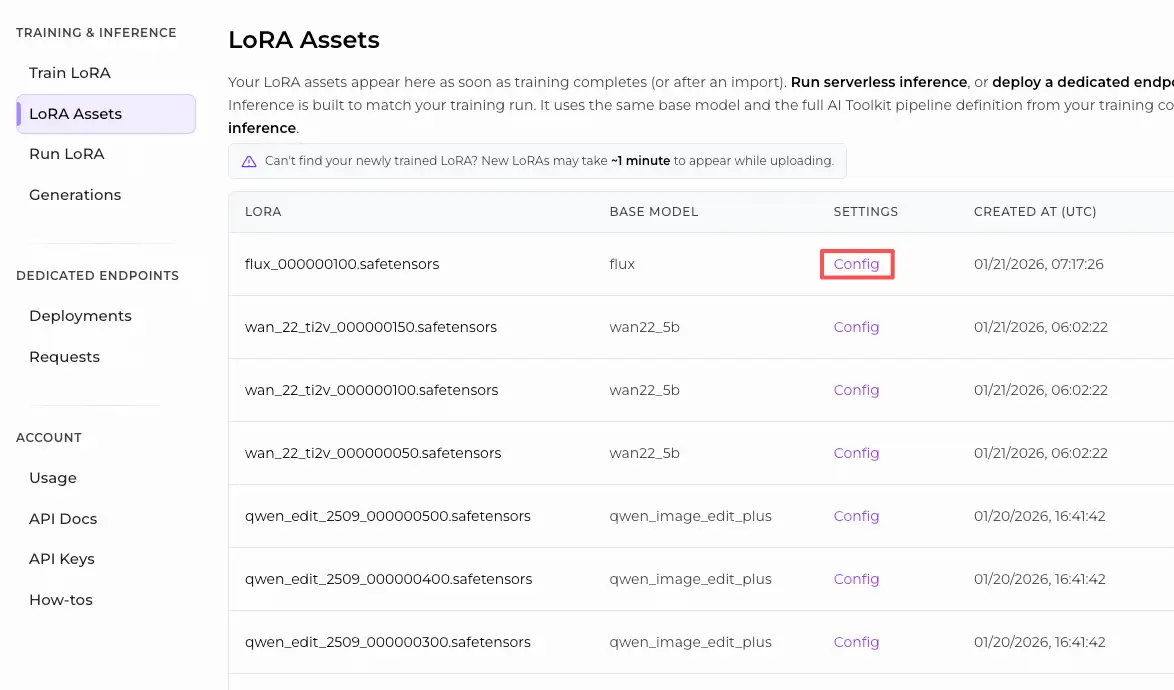
For training‑matched results, open your AI Toolkit training YAML and apply the same sampling values here—especially width, height, sample_steps, guidance_scale, and seed. If you trained on RunComfy, open Trainer → LoRA Assets → Config and reuse the preview/sample values.
Step 4: Run Flex.1 LoRA Inference#
- Click Queue/Run → SaveImage writes the output automatically
Troubleshooting Flex.1 LoRA Inference#
Most “training preview vs ComfyUI inference” mismatches come from pipeline differences (not a single wrong knob). The fastest way to recover training‑matched results is to run inference through RunComfy’s RC Flex.1 (RCFlex1) custom node, which keeps Flex.1 sampling + LoRA injection aligned at the pipeline level with AI Toolkit’s preview pipeline.
(1) Why does the sample preview in AI Toolkit look great, but the same prompt looks different in ComfyUI? How can I reproduce this in ComfyUI?#
Why this happens
Even with the same prompt / seed / steps, results can drift when ComfyUI is running a different inference pipeline than AI Toolkit’s preview pipeline. With Flex.1 specifically, pipeline differences can change model defaults and where/how the LoRA is injected, which shows up as “same prompt, different look”.
How to fix (recommended)
- Run inference with RCFlex1 to keep inference pipeline‑aligned with AI Toolkit previews (this is the main lever).
- Mirror your AI Toolkit preview sampling settings:
width,height,sample_steps,guidance_scale,seed. - Use the same trigger words (if you trained with them) and keep
lora_scalethe same as your preview strength.
(2) How to load flux lora into flex using diffusers#
Why this happens
Flex.1 has diverged from Flux, so “load it like a normal Flux LoRA” can lead to partial application, weak effect, or unexpected behavior—especially if the LoRA wasn’t trained for Flex.1.
How to fix (most reliable)
- For AI Toolkit–trained Flex.1 LoRAs: load via
lora_pathin RCFlex1 so LoRA injection happens inside the aligned Flex.1 inference pipeline. - If the LoRA was trained for a different base model, don’t expect perfect transfer—retrain the LoRA on Flex.1 in AI Toolkit for the cleanest results.
(3) Flux' object has no attribute 'process_timestep#
Why this happens
This usually indicates a mismatch between the nodes/code you’re running and the model/pipeline you think you’re running (version drift, wrong node set, or mixing incompatible Flex/Flux tooling).
How to fix
- Prefer running Flex.1 inference through RCFlex1, which keeps the execution path in the intended Flex.1 pipeline wrapper.
- If you updated ComfyUI or custom nodes recently, update the related nodes and restart ComfyUI to clear stale imports/caches.
- Double-check you are actually loading Flex.1 as the base model for this workflow (not a different Flux variant).
Run Flex.1 LoRA Inference now#
Open the RunComfy Flex.1 LoRA Inference workflow, paste your LoRA into lora_path, and run RCFlex1 for training‑matched Flex.1 LoRA inference in ComfyUI.
