



Flux 3 Klein Text to Image for ComfyUI#
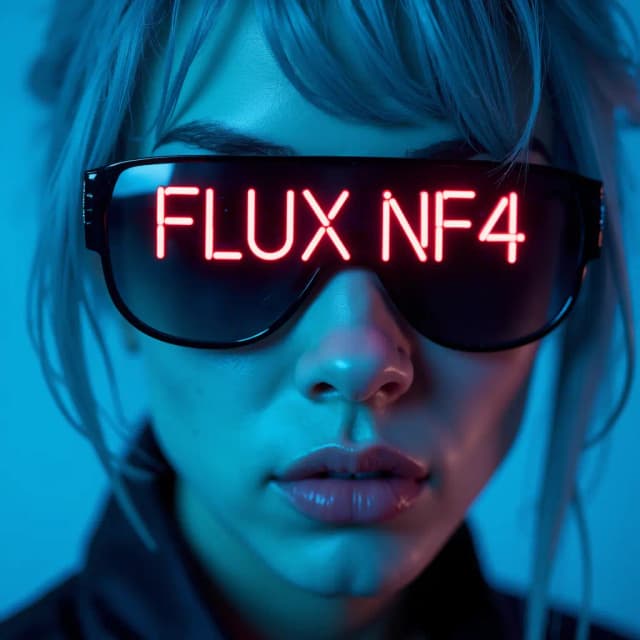
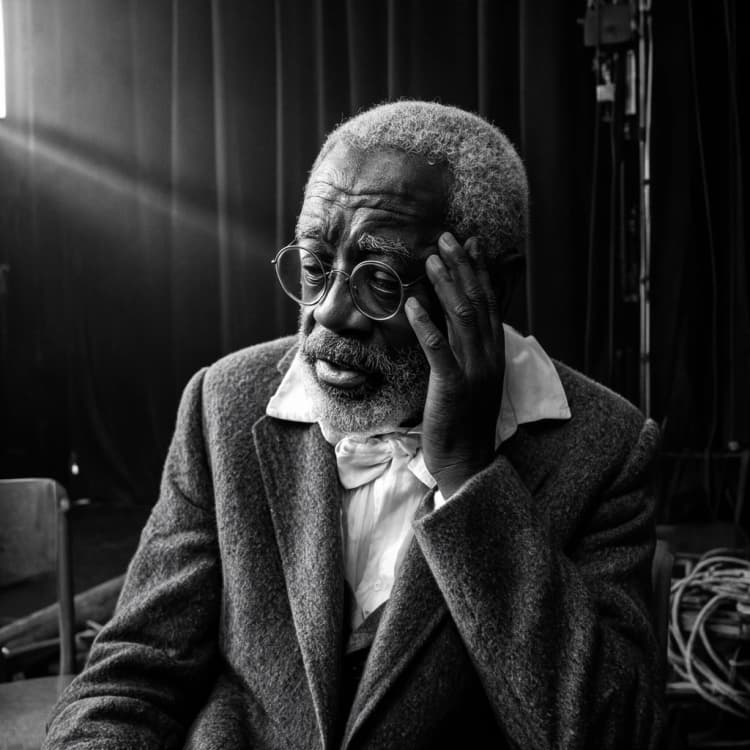
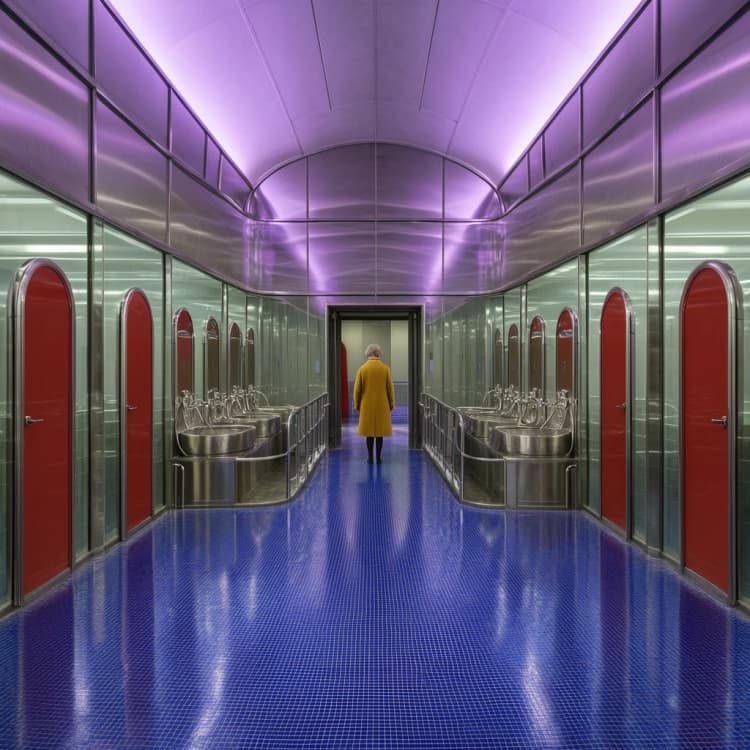
Flux 3 Klein Text to Image is a streamlined ComfyUI workflow for turning natural-language prompts into polished images across illustration, portrait, cinematic landscape, architecture, and science‑fiction styles. It pairs the Black Forest Labs FLUX.3 Image Klein Base model with an optional Qwen prompt upsampler that expands terse ideas into rich, model-ready captions while keeping direct control over resolution, seed, sampling, and guidance.
Designed for concept art, editorial visuals, and production-ready drafts, this Flux 3 Klein Text to Image template favors speed and clarity. You write a prompt, optionally enable the caption upsampler, set image size, and generate. The graph previews the final caption, produces the image, and saves results automatically.
Key models in ComfyUI Flux 3 Klein Text to Image workflow#
- Black Forest Labs FLUX.3 Image Klein Base. The diffusion backbone that turns encoded text into images. Model card
- Qwen3‑VL 4B text encoder for FLUX.3. Translates your caption into conditioning for the image model. Files are packaged in the official Comfy bundle. Repository
- Qwen 3.5 9B prompt upsampler. Expands short user prompts into detailed, consistent captions when enabled. Included in the same repository. Repository
- FLUX.2 VAE. Decodes the model’s latent output into a full‑resolution image with faithful color and detail. Repository
How to use ComfyUI Flux 3 Klein Text to Image workflow#
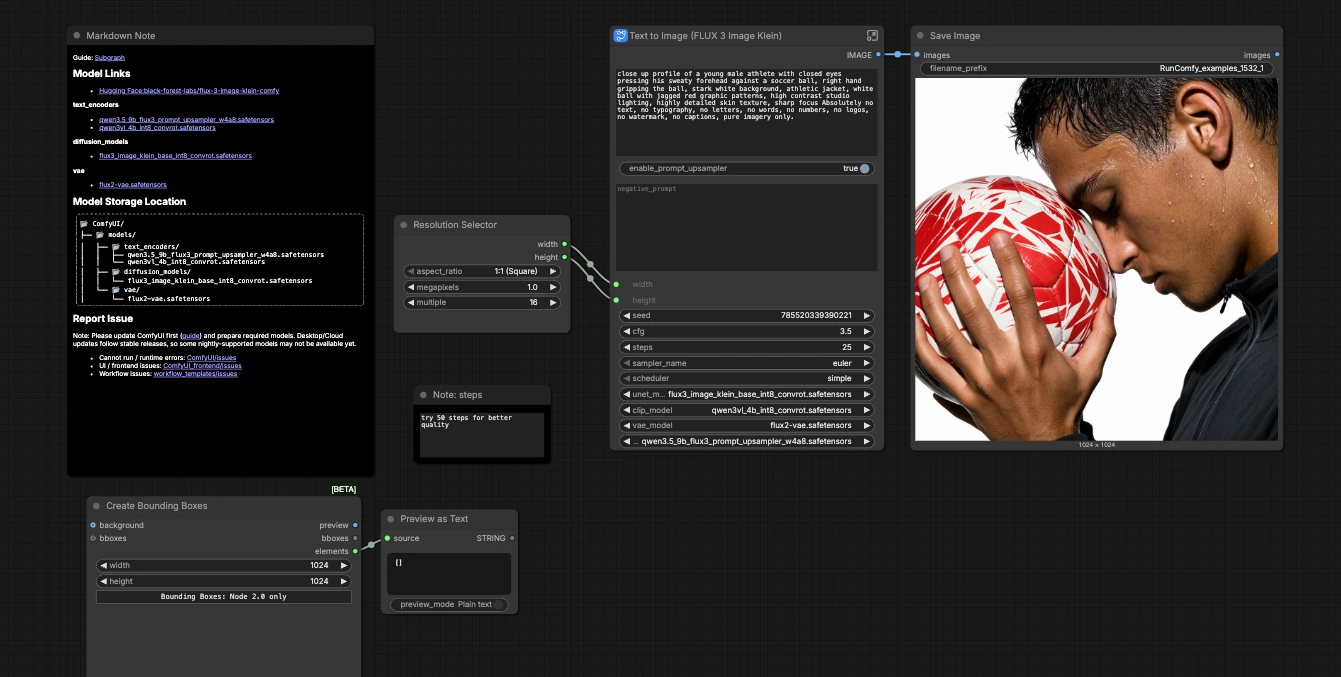
This workflow is organized around four logical groups plus a short generate stage. You can run them top to bottom or jump straight to the parts you need.
Prompt Enhancer#
The Prompt Enhancer group drives the optional caption expansion using Qwen. Your initial text enters TextGenerate (#11), which follows a task‑specific system instruction to produce one self‑contained image caption. The ComfySwitchNode (#16) routes either the original or the enhanced caption downstream based on the enable_prompt_upsampler toggle. Use this when you want more scene layout, lighting, and subject specifics without hand‑writing them. The generated caption is previewed so you can verify wording before sampling.
Prompt#
The Prompt group encodes the positive caption and, optionally, a negative prompt. The selected caption flows into Positive Prompt (CLIPTextEncode, #4) using the FLUX‑compatible text encoder. If you need to steer away from artifacts or styles, add a few concise terms to Negative Prompt (empty = reference default) (#5). Keep prompts literal and concrete; the Flux 3 Klein Text to Image pipeline favors clear nouns, attributes, and spatial cues.
Image Size#
The Image Size group defines the canvas for generation. Width and height feed an EmptyFlux2LatentImage (#6), establishing the latent grid the model will fill. A helper ResolutionSelector node outside the subgraph offers quick aspect‑ratio and megapixel picks; adjust these to match your target use like square avatars, vertical posters, or cinematic frames. Larger canvases need more steps and computation, so scale thoughtfully.
Models#
The Models group loads the assets required by the graph: the FLUX.3 Klein UNet, the FLUX‑ready text encoder, and the FLUX.2 VAE. If you are running on a managed ComfyUI environment these will typically be preselected. Advanced users can swap compatible checkpoints in UNETLoader, CLIPLoader, and VAELoader when experimenting with new releases from Black Forest Labs. The Flux 3 Klein Text to Image workflow expects this trio to remain in sync to avoid color or alignment drift.
Generate, preview, and save#
Sampling is handled by KSampler (#7). You can vary seed for new compositions, adjust steps for detail, and balance adherence with cfg. sampler_name and scheduler let you trade speed for quality depending on your deadline. The output latent is decoded by VAEDecode and displayed, then SaveImage writes files to your output folder. The template also includes a lightweight canvas preview node for layout experiments; it does not affect the final image.
Key nodes in ComfyUI Flux 3 Klein Text to Image workflow#
KSampler(#7). Core diffusion loop for FLUX.3 Klein. Increasestepsto refine fine textures and edges, and lower or raisecfgto balance prompt faithfulness against variety. Changingsampler_nameorschedulercan speed drafts or stabilize details. See ComfyUI’s core implementation for reference. ComfyUI repositoryTextGenerate(#11). Qwen‑based captioner that turns a short idea into a complete, model‑ready description. It respects explicit subjects and constraints, and itsseedallows subtle paraphrase variations that can nudge composition without changing meaning. Use it to quickly explore scenes with fuller lighting and layout guidance.ComfySwitchNode(#16). Non‑destructive on/off for the upsampler. Disable it for style‑locked or brand‑critical prompts where wording must stay exactly as written; enable it when you want a richer caption to guide FLUX.3 Klein.Positive Prompt(CLIPTextEncode, #4). Encodes the final caption into conditioning. Keep phrasing concrete and avoid long lists of synonyms. Specific scene nouns, materials, and left/right or foreground/background cues work best in this encoder family.ResolutionSelector(#19). Convenience picker that sets width and height consistently. Choose an aspect ratio first, then scale pixel count to your target use. This keeps sampling settings independent from composition choices.
Optional extras#
- Start with a plain, literal prompt, then enable the upsampler to see how a richer caption affects framing and light. If it drifts from your intent, toggle it off and add two to three precise details by hand.
- If fine detail is missing, increase
stepsor try a slowerscheduler. For faster ideation, do the opposite and iterate with newseedvalues. - Use a short negative prompt only when you consistently see an unwanted feature; avoid long “laundry lists” that can dilute guidance.
- For photography, open with the medium and a few specifics like time of day and lens feel; for illustration or concept art, name the medium first and call out material qualities. This matches how the Flux 3 Klein Text to Image encoder weights cues.
Links to official resources
- FLUX.3 Image Klein Base by Black Forest Labs: Model card
- Official ComfyUI‑ready files for FLUX.3 Klein (UNet, text encoders, VAE): Repository
- ComfyUI core and node implementations: GitHub
Acknowledgements#
This workflow implements and builds upon the following works and resources. We gratefully acknowledge ComfyUI for the Official FLUX.3 Klein ComfyUI tutorial, Black Forest Labs for the Official FLUX.3 Klein ComfyUI model files, and Black Forest Labs for the Official FLUX.3 Klein Base model for their contributions and maintenance. For authoritative details, please refer to the original documentation and repositories linked below.
Resources#
- ComfyUI/Official FLUX.3 Klein ComfyUI tutorial
- GitHub: Comfy-Org/docs
- Docs / Release Notes: Official FLUX.3 Klein ComfyUI tutorial
- Black Forest Labs/Official FLUX.3 Klein ComfyUI model files
- GitHub: black-forest-labs/flux-3-image-klein
- Hugging Face: black-forest-labs/flux-3-image-klein-comfy
- Black Forest Labs/Official FLUX.3 Klein Base model
- GitHub: black-forest-labs/flux-3-image-klein
- Hugging Face: black-forest-labs/flux-3-image-klein-base
Note: Use of the referenced models, datasets, and code is subject to the respective licenses and terms provided by their authors and maintainers.