

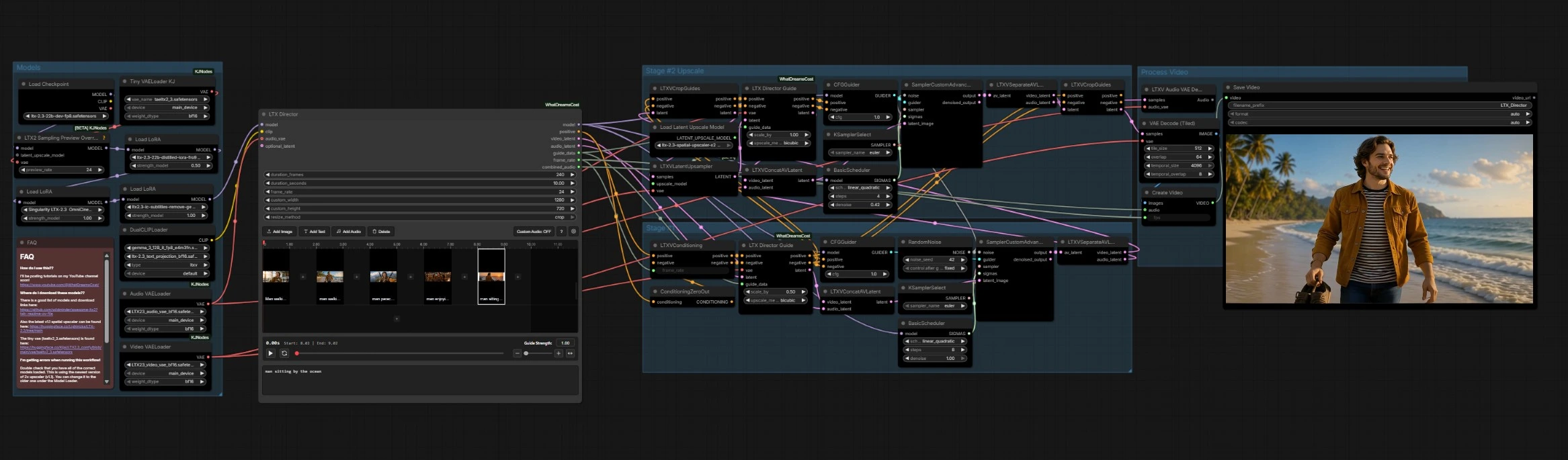
LTX 2.3 Director: Timeline‑Based AI Filmmaking for ComfyUI#
LTX 2.3 Director is a cinematic, timeline-driven workflow for creating structured AI videos with precise creative control. Built around the LTX‑2.3 video model, it lets you direct multi‑scene sequences by arranging prompts, reference images, transitions, and music along a familiar timeline. The result is a director‑style experience inside ComfyUI where motion continuity, shot composition, and audio sync are handled coherently from start to finish.
Designed for storytellers, music video makers, trailer editors, and anyone building AI filmmaking pipelines, LTX 2.3 Director converts prompt engineering into a full production flow. You set the global tone, refine each shot with local prompts, and preview quickly before committing to a high‑quality upscale and final export.
Key models in Comfyui LTX 2.3 Director workflow#
- LTX‑2.3 22B (FP8) video generation model. Core diffusion backbone that turns text and references into coherent video latents. Model repo
- LTX‑2.3 Video VAE (bf16). Encodes and decodes video frames to a compact latent space for efficient sampling and high‑fidelity reconstruction. Model repo
- LTX‑2.3 Audio VAE (bf16). Packs and restores audio into the joint AV latent so motion and soundtrack stay synchronized. Model repo
- LTX‑2.3 Spatial Upscaler x2 v1.1. Dedicated x2 latent upscaler that boosts detail and sharpness in the refinement pass. Model repo
- LTX‑2.3 22B Distilled LoRA (384). Optional LoRA that improves quality/efficiency and can shift the model’s look. Model card
- Tiny VAE (taeltx2_3). Lightweight VAE for fast previews during iteration before the upscale pass. Model repo
- LTX‑2.3 Text Projection (bf16). The official text‑to‑video projection used for high‑quality prompt conditioning. Model repo
How to use Comfyui LTX 2.3 Director workflow#
The workflow runs in two stages. Stage #1 establishes composition, motion, and audio alignment at preview speed. Stage #2 upsamples, re‑guides, and refines details for final quality. A finishing block decodes, muxes audio, and writes the video.
Models#
This section prepares the model stack and text encoder that power LTX 2.3 Director. Load the LTX‑2.3 base model and, if desired, add LoRAs to tune style or efficiency. A tiny VAE accelerates previews while the full VAEs ensure fidelity later. The dual text components bundled with LTX‑2.3 provide robust prompt conditioning without extra setup.
Key nodes to look for: CheckpointLoaderSimple (#77), DualCLIPLoader (#84), LoraLoaderModelOnly (#80, #93, #95), VAELoaderKJ (#78, #4, #3), and LTX2SamplingPreviewOverride (#79).
Stage #1#
Stage #1 converts your timeline into a coherent first‑pass video with synchronized audio. Feed your global tone and per‑shot prompts into LTXDirector (#46) and assemble a sequence of segments with images and durations; the node returns combined AV latents, guide data, and a frame rate. LTXVConditioning (#5) and LTXDirectorGuide (#8) transform those directions into structured guidance. A sampler stack with CFGGuider (#9), BasicScheduler (#11), KSamplerSelect (#29), and SamplerCustomAdvanced (#10) produces the initial AV latent for the whole timeline. Use this pass to validate scene order, pacing, and broad motion before investing compute in upscaling.
Stage #2 Upscale#
Stage #2 improves resolution and fidelity while preserving the intent of the first pass. LTXVCropGuides (#55) aligns composition across shots, then LTXVLatentUpsampler (#52) applies the x2 spatial upscaler loaded by LatentUpscaleModelLoader (#57). A second LTXDirectorGuide (#58) re‑injects the timeline cues at higher detail, and the sampler stack (CFGGuider (#49), BasicScheduler (#54), KSamplerSelect (#53), SamplerCustomAdvanced (#47)) refines textures, faces, and edges. The AV latent is then separated for final decoding while retaining linked audio and video timing.
Process Video#
The finishing block decodes frames and audio, reconstructs the sequence, and saves the result. LTXVCropGuides (#14) ensures coverage for the chosen aspect, and VAEDecodeTiled (#94) safely decodes high‑res video without exhausting memory. LTXVAudioVAEDecode (#16) restores the soundtrack from the audio latent. CreateVideo (#17) assembles frames and audio at your chosen fps, and SaveVideo (#30) writes the final file.
Key nodes in Comfyui LTX 2.3 Director workflow#
LTXDirector(#46). The heart of LTX 2.3 Director. It accepts a global prompt, a timeline of shot segments, and optional per‑shot local prompts, then outputs structured guidance plus synchronized AV latents. Tune the balance between global and local prompts to control how tightly each shot follows its own description. For cut‑driven edits, keep segment definitions clean; for fluid transitions, allow overlap and consistent style language.LTXDirectorGuide(#8). Turns the director’s cues into actionable guides for Stage #1. Adjust its scale and resampling method to trade speed for fidelity during the preview pass. If scenes look too coarse, increase its influence; if over‑constrained, reduce it so the sampler can breathe.LTXDirectorGuide(#58). A second, higher‑fidelity guide for Stage #2. Use it to re‑assert framing, camera intent, and style after upscaling. Balance this node with the upscaler: stronger guidance locks composition, while a lighter touch lets the upscaler emphasize detail and micro‑texture.LTXVCropGuides(#55). Normalizes composition and enforces aspect rules before upscaling. Use it to stabilize horizons, headroom, and center of interest across cuts. If a character drifts frame to frame, strengthen these crop guides before resampling.LTXVLatentUpsampler(#52). Applies the LTX‑2.3 Spatial Upscaler x2 to the latent. This is the main lever for recovering crisp detail from the Stage #1 preview. Ensure the chosen upscaler model matches your VAE pair to avoid mismatch artifacts.CFGGuider(#9, #49). Controls prompt adherence during sampling. Lower values typically yield smoother motion and more natural transitions; higher values enforce textual precision. If faces or props drift, raise guidance slightly; if motion looks stiff, ease it.BasicScheduler(#11, #54) andKSamplerSelect(#29, #53). Define the noise schedule and sampling method. Together they determine the texture of motion, temporal stability, and render time. If you see flicker, try a smoother schedule or a sampler known for temporal consistency; if results lack detail, test a sampler that favors sharpness.SamplerCustomAdvanced(#10, #47). The workhorse denoiser for both passes. It combines your noise seed, schedule, guider, and the current latent to produce AV latents. Keep seeds fixed while iterating on prompts to compare edits apples‑to‑apples; change seeds when you want fresh blocking or timing.VAEDecodeTiled(#94). Decodes high‑resolution frames with configurable tiles. If you notice seams, increase overlap; if you hit memory limits, reduce tile size. Use tiled decode even on mid‑range GPUs for consistent stability.CreateVideo(#17) andSaveVideo(#30). Mux frames and audio at the selected fps and write the final container. Keep the fps consistent with your timeline or you will change pacing. For archival masters, export at the native Stage #2 size; for social platforms, you can resize during export.
Optional extras#
- Build your timeline with a clear spine: global style in the global prompt, shot specifics in local prompts, and keep character/camera nouns consistent across segments.
- Reference images anchor look and layout. Use them for key shots like establishing frames or close‑ups, then let neighboring segments rely more on text for fluidity.
- For music videos, add audio early and iterate seeds until motion accents land on beats; then lock the seed and refine prompts.
- If transitions feel jumpy, lengthen adjacent segment prompts to share style language and keep composition guides similar across the cut.
- LoRAs stack, but subtle strengths often work best. Start modestly, combine only a couple at once, and test their interaction on a short slice.
- Reproducibility matters: keep a note of the noise seed, sampler choice, and any LoRAs used when you approve a look.
- If faces wobble after upscaling, increase guide influence in the Stage #2
LTXDirectorGuide(#58) or switch to a schedule that favors temporal stability. - Explore additional LTX‑2.3 resources and models via the community curation list. awesome‑ltx2 on GitHub
With LTX 2.3 Director you can direct complex, multi‑scene videos in a way that feels familiar to timeline editors like Premiere or After Effects, while retaining the flexibility of ComfyUI’s node graph. Shape the story in Stage #1, add fidelity in Stage #2, and ship cinematic results with synchronized audio in one cohesive workflow.
Acknowledgements#
This workflow implements and builds upon the following works and resources. We gratefully acknowledge Aiwood爱屋研究室 for the LTX 2.3 Director Workflow for their contributions and maintenance. For authoritative details, please refer to the original documentation and repositories linked below.
Resources#
- Aiwood爱屋研究室/LTX 2.3 Director Workflow Source
- Docs / Release Notes: LTX 2.3 Director Workflow Source
Note: Use of the referenced models, datasets, and code is subject to the respective licenses and terms provided by their authors and maintainers.