

Wan 2.2 Prompt Relay: timeline‑controlled image to video in ComfyUI#
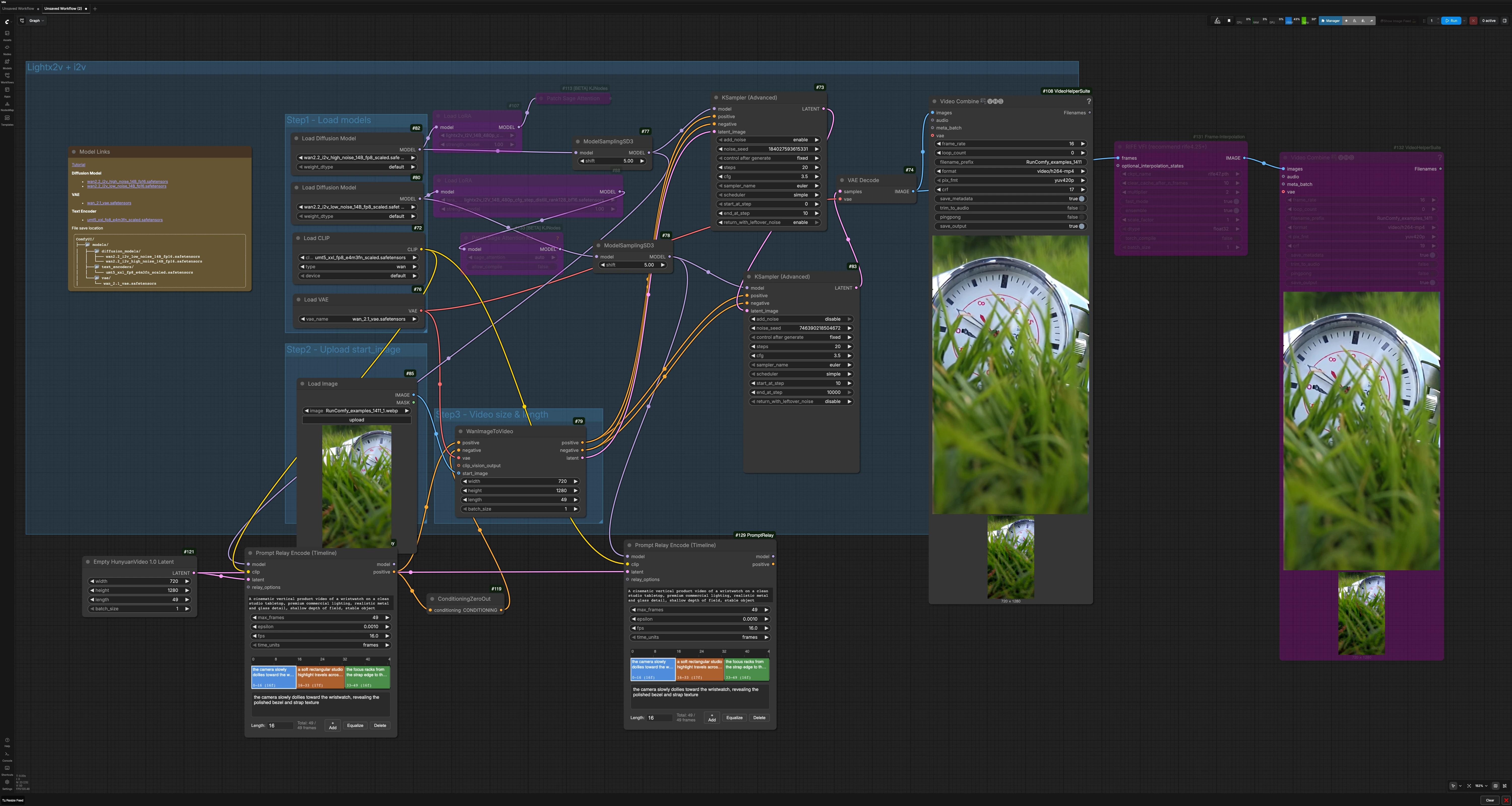
This workflow brings segment‑level scene direction to Wan 2.2 image‑to‑video. It uses Wan 2.2 for generation and the Prompt Relay method to route different prompts across a single timeline, so you can hand off control from one scene to the next without cutting the render. The result is a smooth multi‑event video where each segment follows its own prompt while object identity and style stay consistent.
Wan 2.2 Prompt Relay is an inference‑time routing technique, not a standalone model or LoRA. The graph is designed for RunComfy cloud and includes a two‑stage sampler chain plus optional RIFE frame interpolation. Use it when you want tight temporal scene control with minimal setup: provide a start image, define a global prompt and per‑segment prompts, set video length, and render.
Key models in Comfyui Wan 2.2 Prompt Relay workflow#
- Wan 2.2 image‑to‑video diffusion model 14B. High‑noise and low‑noise variants are combined to balance motion and detail in a two‑stage pass. Models are available in the Comfy‑Org repackaged set on Hugging Face. Comfy‑Org/Wan_2.2_ComfyUI_Repackaged
- UMT5‑XXL text encoder for Wan. This encoder translates your global and local prompts into conditioning used by Wan 2.2. Comfy‑Org/Wan_2.1_ComfyUI_repackaged
- Wan 2.1 VAE. Used for decoding latents back to frames after sampling. Comfy‑Org/Wan_2.2_ComfyUI_Repackaged/vae
- RIFE frame interpolation model (optional). Increases temporal smoothness or target frame rate after generation. hzwer/Practical‑RIFE
How to use Comfyui Wan 2.2 Prompt Relay workflow#
The workflow routes text prompts over time, generates a latent video from a start image, then refines and decodes frames before optional interpolation and encoding. It is organized into a few clear groups that cooperate to produce the final MP4.
- Step1 - Load models This section initializes Wan 2.2, the text encoder, and the VAE. The high‑noise and low‑noise Wan models are both prepared so the pipeline can first establish motion, then enhance detail. If a LoRA is present it is applied to the base model before sampling. You do not need to change anything here unless you want to swap checkpoints.
- Step2 - Upload start_image Import a single reference image that defines composition, subject identity, and lighting for the first frame using
LoadImage(#85). The start image anchors the look of the video and helps maintain continuity across segments. Use a clean, on‑model reference for best results. Replace it whenever you want a different subject or layout. - Step3 - Video size & length Set the target resolution and total frame count in the latent video initializer (
EmptyHunyuanLatentVideo(#121)) and keep it consistent with your segment plan. The sum of your segment lengths should equal the total frames. Match the frame rate you intend to export with the Prompt Relay settings and the video writer later in the graph. - Lightx2v + i2v The core render path uses a two‑stage sampler chain. Stage one with the high‑noise model establishes motion and scene transitions. Stage two with the low‑noise model refines detail and texture while preserving the motion path from stage one. This combination is what makes Wan 2.2 Prompt Relay both controllable and stable for scene‑to‑scene handoffs.
- Prompt routing Enter a strong
global_promptthat applies to the whole clip inPromptRelayEncodeTimeline(#117). Then define segment prompts either as JSON timeline data or as a pipe‑separated list. Prompt Relay encodes per‑frame conditioning that changes only at segment boundaries, optionally easing transitions for natural handoffs. The node feeds Wan’s conditioning and ensures each segment follows its intended direction. - Sampling and decoding The pipeline passes through
WanImageToVideo(#79), then a coarseKSamplerAdvanced(#73) followed by a fineKSamplerAdvanced(#83). Frames are decoded withVAEDecode(#74) and written to video withVHS_VideoCombine(#108). Optionally, useRIFE VFI(#131) before a secondVHS_VideoCombine(#132) if you want smoother motion or a higher output frame rate.
Key nodes in Comfyui Wan 2.2 Prompt Relay workflow#
PromptRelayEncodeTimeline(#117) Central to Wan 2.2 Prompt Relay, this node transforms yourglobal_promptand per‑segment prompts into a time‑aware positive conditioning stream. You can author segments in thetimeline_dataJSON or inlocal_promptsusing a pipe syntax. Usemax_framesto match the video length, choosetime_unitsthat align with your plan, and adjustepsilonto soften or harden prompt handoffs between segments. Keepfpsconsistent with your final export.WanImageToVideo(#79) Converts the start image plus conditioning into an initial latent timeline for Wan 2.2. Connect your start reference tostart_imageand keep width, height, and length aligned with the latent initializer. Negative conditioning in this graph is intentionally zeroed to reduce over‑constraint and maintain stable identity; introduce an explicit negative prompt only if you see recurring artifacts you want to suppress.KSamplerAdvanced(#73) First pass sampler that emphasizes motion and layout. It works with the high‑noise Wan model configured viaModelSamplingSD3to explore trajectory while respecting Prompt Relay conditioning. Tunestepsandcfgfor the strength of guidance, and keep a fixednoise_seedwhen you want reproducible motion across editing iterations.KSamplerAdvanced(#83) Second pass sampler that enhances detail and temporal consistency using the low‑noise Wan model. It refines texture, edges, and micro‑motion without fighting the coarse trajectory established by the first pass. If you increase fidelity here, consider balancing guidance to avoid over‑sharpening that can destabilize motion.EmptyHunyuanLatentVideo(#121) Creates the blank latent video that defines spatial resolution, frame budget, and batch size. Set total frames to the sum of all segment lengths so Prompt Relay can map prompts cleanly. Changing resolution affects memory and the look of motion cadence, so scale thoughtfully.VHS_VideoCombine(#108, #132) Encodes frames to MP4. Matchframe_rateto the Prompt Relayfpswhen you are not using interpolation. If you do useRIFE VFI, set the writer’s frame rate to the new effective fps. Adjustcrffor the tradeoff between size and quality.
Optional extras#
- Write the
global_promptto lock tone, camera language, and quality tags, then keep segment prompts short and action‑focused. - Ensure the total of your segment lengths equals the video length to avoid prompt misalignment.
- Keep seeds fixed while iterating on prompts, then randomize seeds only when you want a fresh take.
- Use taller or wider start images to suggest aspect preference, but always set explicit width and height for predictability.
- If you see identity drift across segments, strengthen the
global_promptwith salient object descriptors and simplify local prompts.
Resources to explore the components used here:
- Prompt Relay node for ComfyUI by kijai GitHub
- Wan 2.2 repackaged models Hugging Face
- UMT5‑XXL text encoder repackaged for Wan 2.x Hugging Face
Acknowledgements#
This workflow implements and builds upon the following works and resources. We gratefully acknowledge kijai for the ComfyUI-PromptRelay node, gordonchen19 for the Prompt-Relay project, and Comfy-Org for the Wan_2.2_ComfyUI_Repackaged models for their contributions and maintenance. For authoritative details, please refer to the original documentation and repositories linked below.
Resources#
- YouTube/Workflow @Ai Verse source tutorial
- Docs / Release Notes: @Ai Verse Workflow source tutorial
- AI Verse/AI Verse workflow page
- Docs / Release Notes: AI Verse workflow page
- kijai/ComfyUI-PromptRelay node repo
- GitHub: kijai/ComfyUI-PromptRelay
- gordonchen19/Prompt Relay project page
- GitHub: gordonchen19/Prompt-Relay
- Docs / Release Notes: Prompt Relay project page
- Comfy-Org/Wan 2.2 ComfyUI repackaged models
- Hugging Face: Comfy-Org/Wan_2.2_ComfyUI_Repackaged (split_files)
Note: Use of the referenced models, datasets, and code is subject to the respective licenses and terms provided by their authors and maintainers.