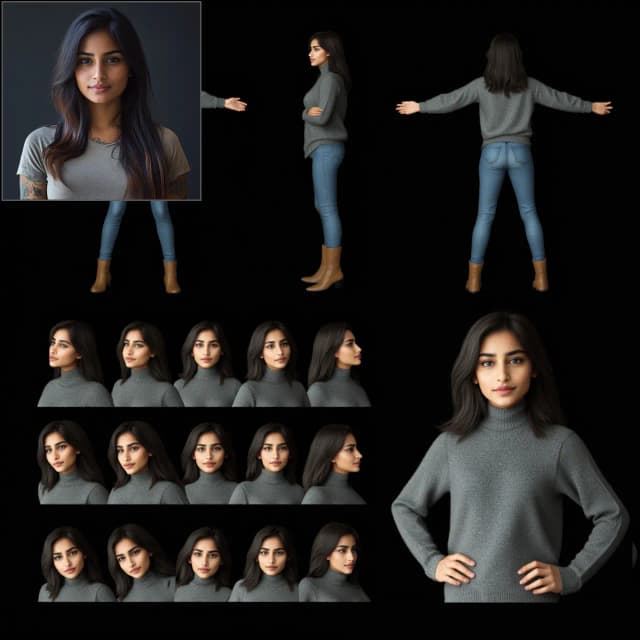

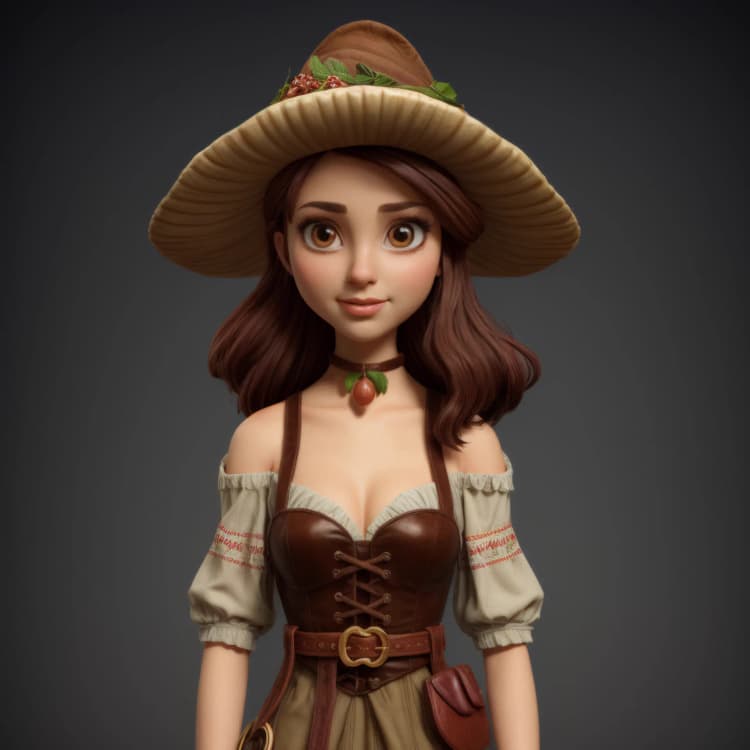



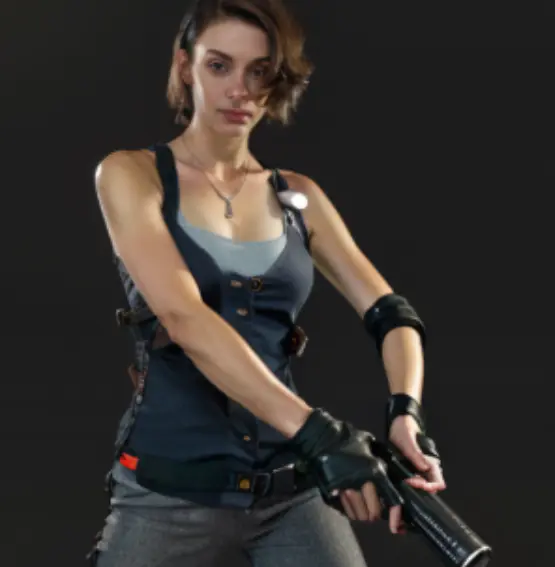
Important Note : Supported Workflows & Models#
RunComfy's Cloud is not limited to FLUX.1-dev ControlNet for Reallusion AI Render. You can swap checkpoints, ControlNets, LoRAs, VAEs, and related nodes to run additional Reallusion workflows and models listed below.
- FusionX WanVACE
- Wan2.1 Fun 1.3B Control
- Wan2.1 VACE 1.3B
- Wan2.1 VACE FusionX 14B
- Flux.1 Dev ControlNet
...
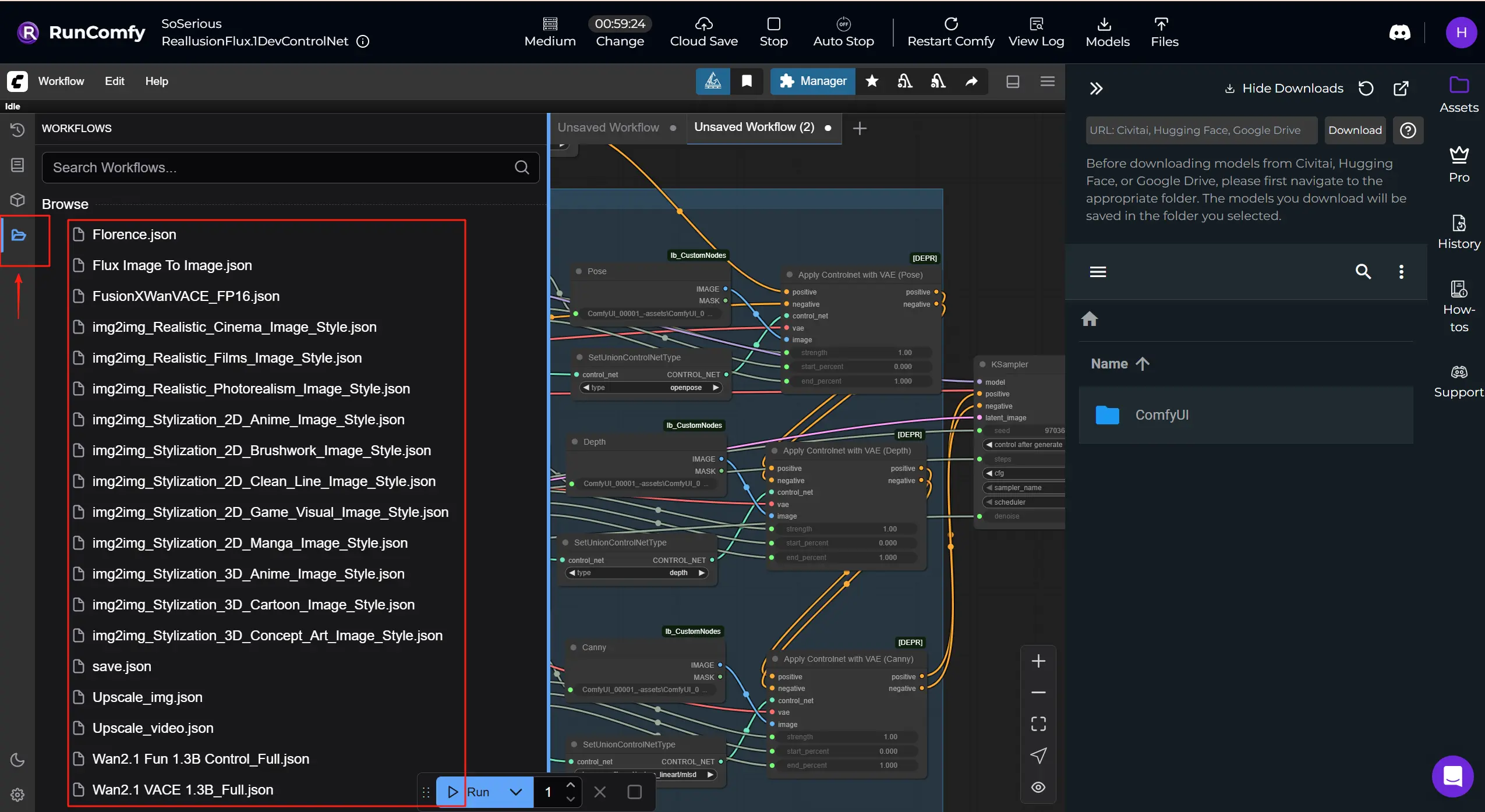
Get More Reallusion ComfyUI Workflows: Get more workflow templates that you can download and run in RunComfy. Click "Workflows" button and try more.
1. What is Reallusion AI Render#
Reallusion is a developer of real-time 2D/3D character creation and animation software, best known for iClone and Character Creator, used across film/TV, games, archviz, digital twins, and AI simulation.
Reallusion AI Render is a seamless bridge between 3D animation software and AI-powered content generation workflows. Think of it as an AI render assistant that listens to layout, pose, camera, or lighting data directly from iClone or Character Creator, then uses that context to automatically craft richly detailed images or videos inside ComfyUI. This integration brings together Reallusion’s real-time 3D creation tools with ComfyUI’s flexible, node-based AI processing architecture, making image- and video-based storytelling both artist-driven and tightly guided by 3D data. Reallusion AI Render supports multimodal inputs like depth maps, normal maps, edge detection (Canny), 3D pose data, and style images via IPAdapter. And thanks to its custom Core, ControlNet, Additional Image, and Upscale nodes, it lets animators and developers render consistent, stylized, high-quality outputs entirely under plugin control, without needing to navigate ComfyUI manually.
By interpreting structured instructions and combining them with internal parameter presets, Reallusion AI Render transforms prompt-based generation into a precise, replicable production process. It's tailor-made for creators in film, games, or commercial storytelling who need consistent characters, fine-grained style control, and frame-accurate AI-assisted sequence rendering.
2. Key Features and Benefits of Reallusion AI Render Workflows#
Direct Plugin Integration: Reallusion AI Render works natively with iClone and Character Creator via a dedicated plugin, enabling real-time feedback and control without leaving your production tools.
3D-Guided ControlNet: Seamlessly map depth, pose, normals, and edge data straight from your 3D scene into ComfyUI with Reallusion AI Render’s ControlNet nodes, achieving cinematic consistency and shot-level control.
Multi-Image Styling Support: Reallusion AI Render Workflow includes Additional Image nodes that support flexible style blending and reference-based direction, making it easy to reuse looks or perform advanced IP-Adaptive rendering.
Smart Upscale Workflow: A dedicated UpscaleData node lets creators define output resolution within the Reallusion AI Render plugin, ensuring final renders match project specifications without guessing.
Full Workflow Automation: Unlike generic ComfyUI workflows, Reallusion AI Render is designed for automation, parameters like model, sampling steps, CFG, and audio sync are passed programmatically, ready for batch rendering or custom presets.
Production-Ready Character Consistency: Paired with LoRA training and IP creation tools, Reallusion AI Render preserves facial integrity and visual fidelity across video sequences, making it ideal for AI-powered storytelling.
3. How to Use Reallusion AI Render in ComfyUI#
How to connect AI Render to the RunComfy machine: ⭐IMPORTANT
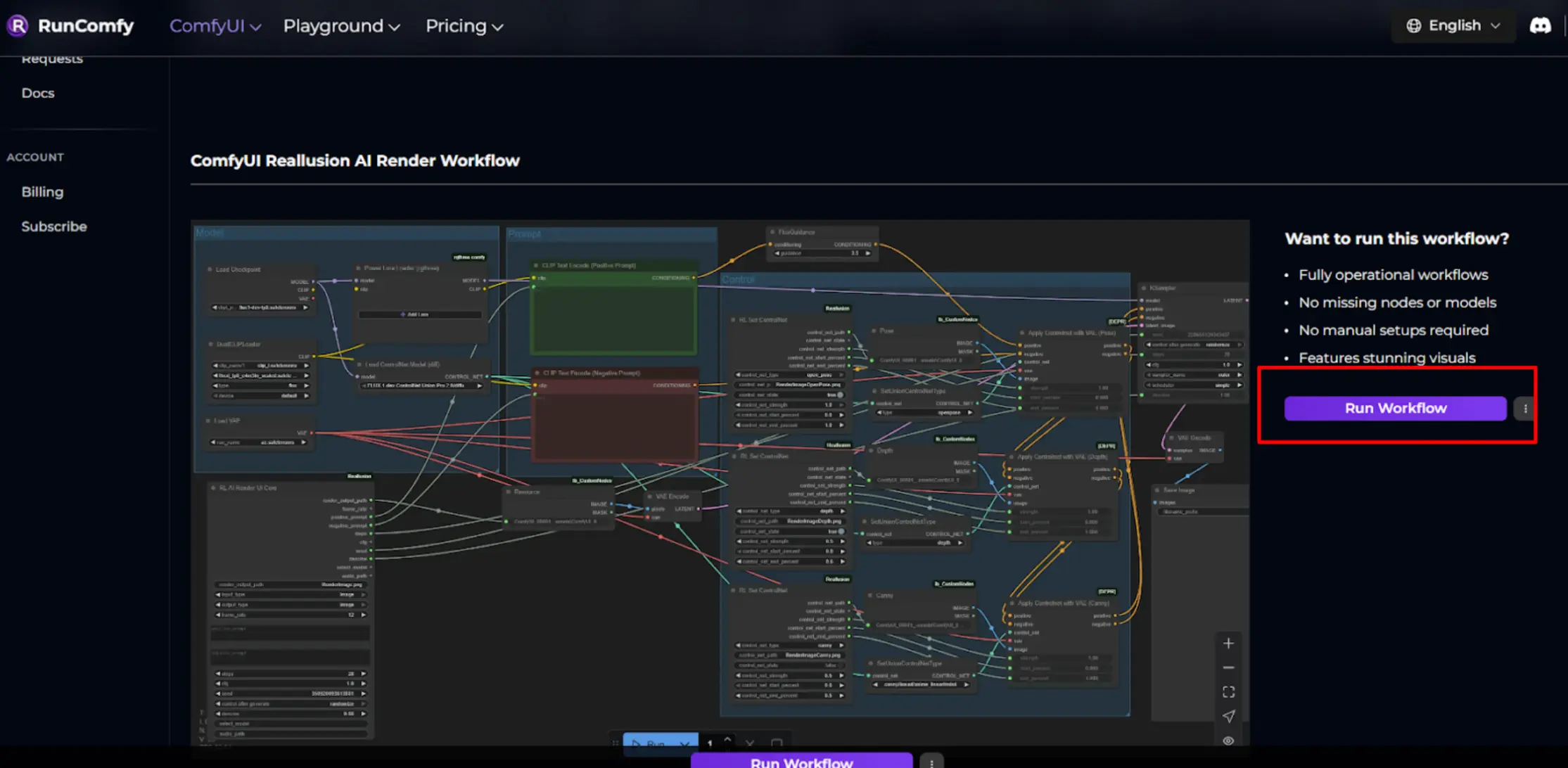
Step 1. Click _Run Workflow_ to start the machine.
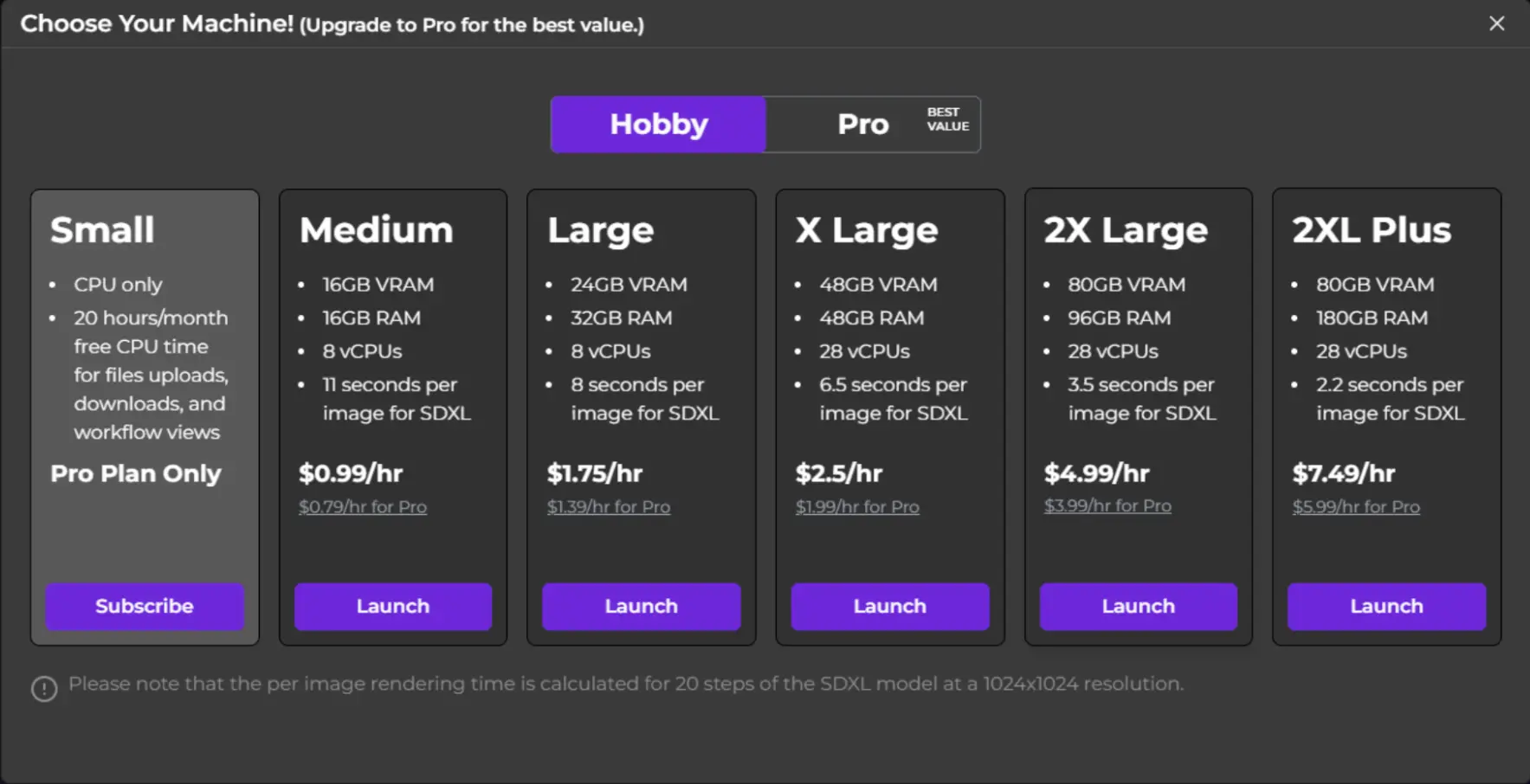
Step 2. Select the machine tier and set the usage time.
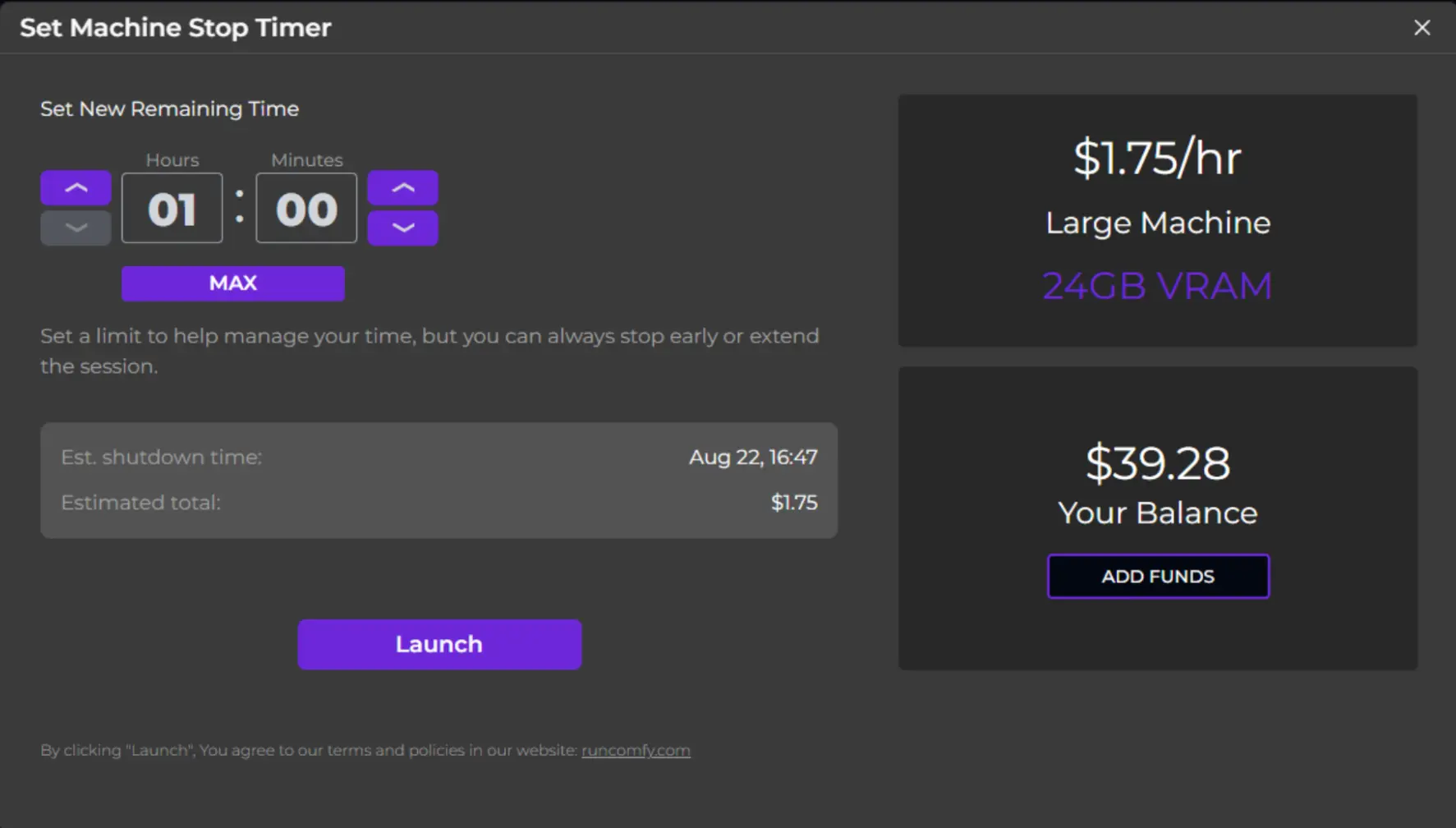
Step 3. Wait for the machine to initialize until you see ComfyUI fully loaded.
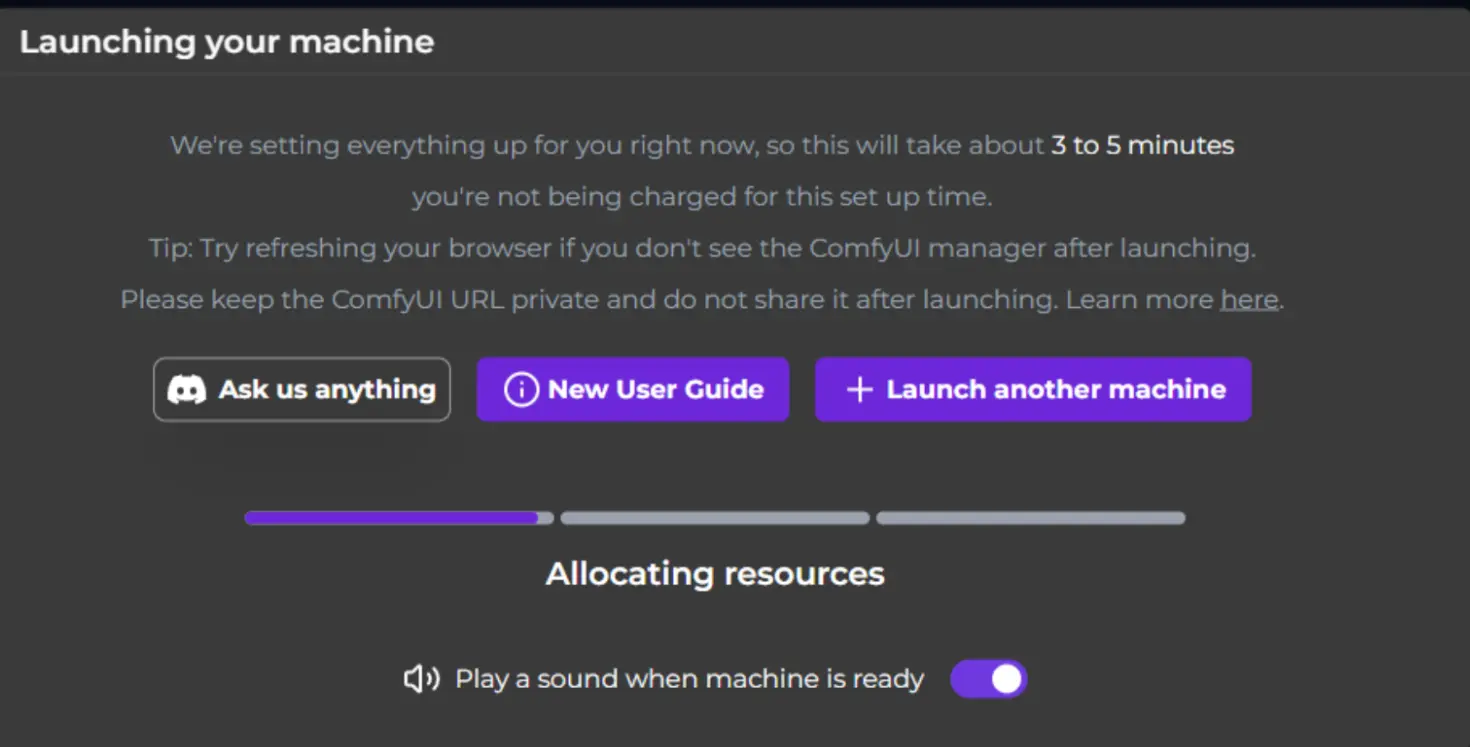
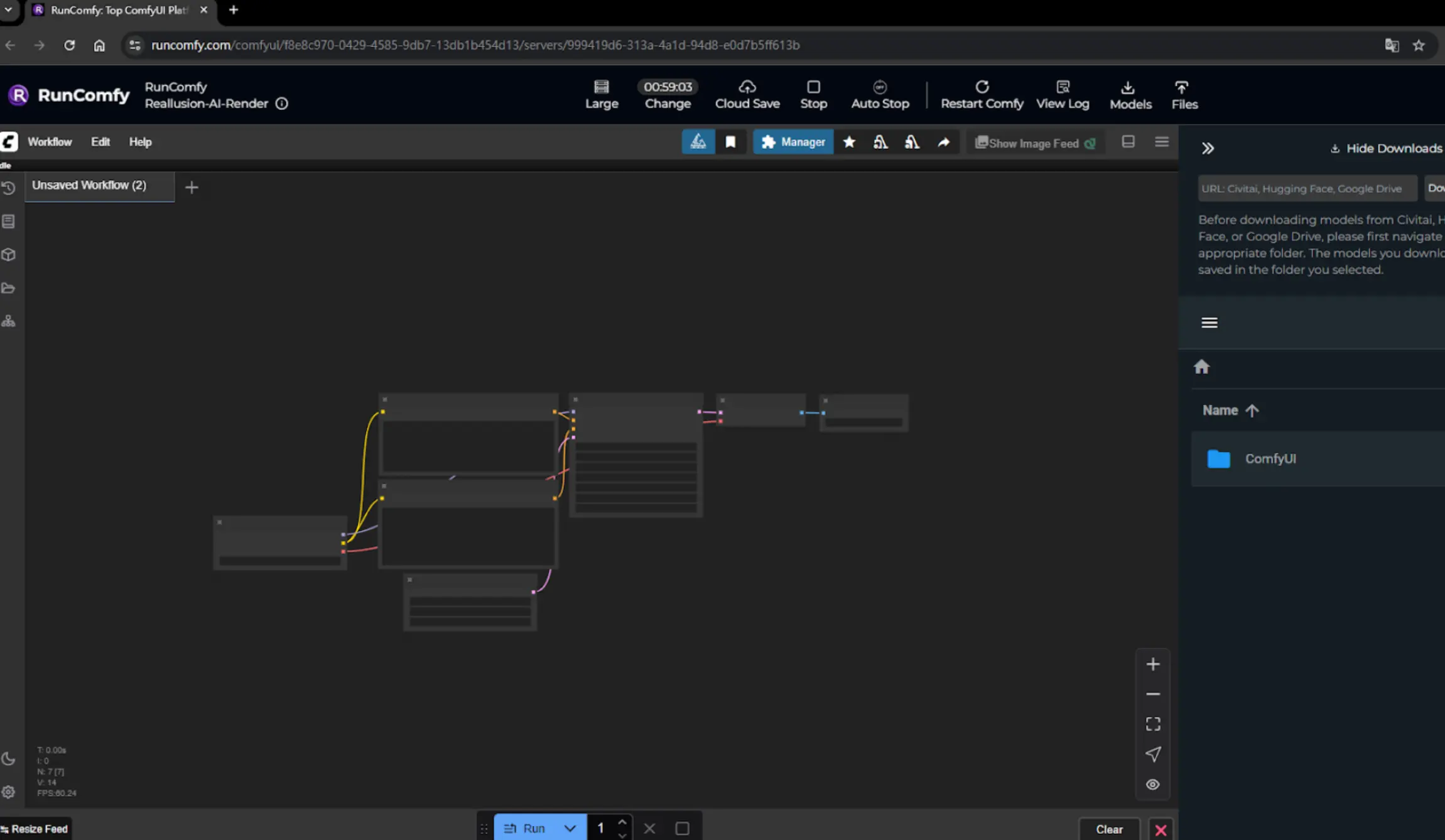
Step 4. Connect AI Render to the RunComfy machine.
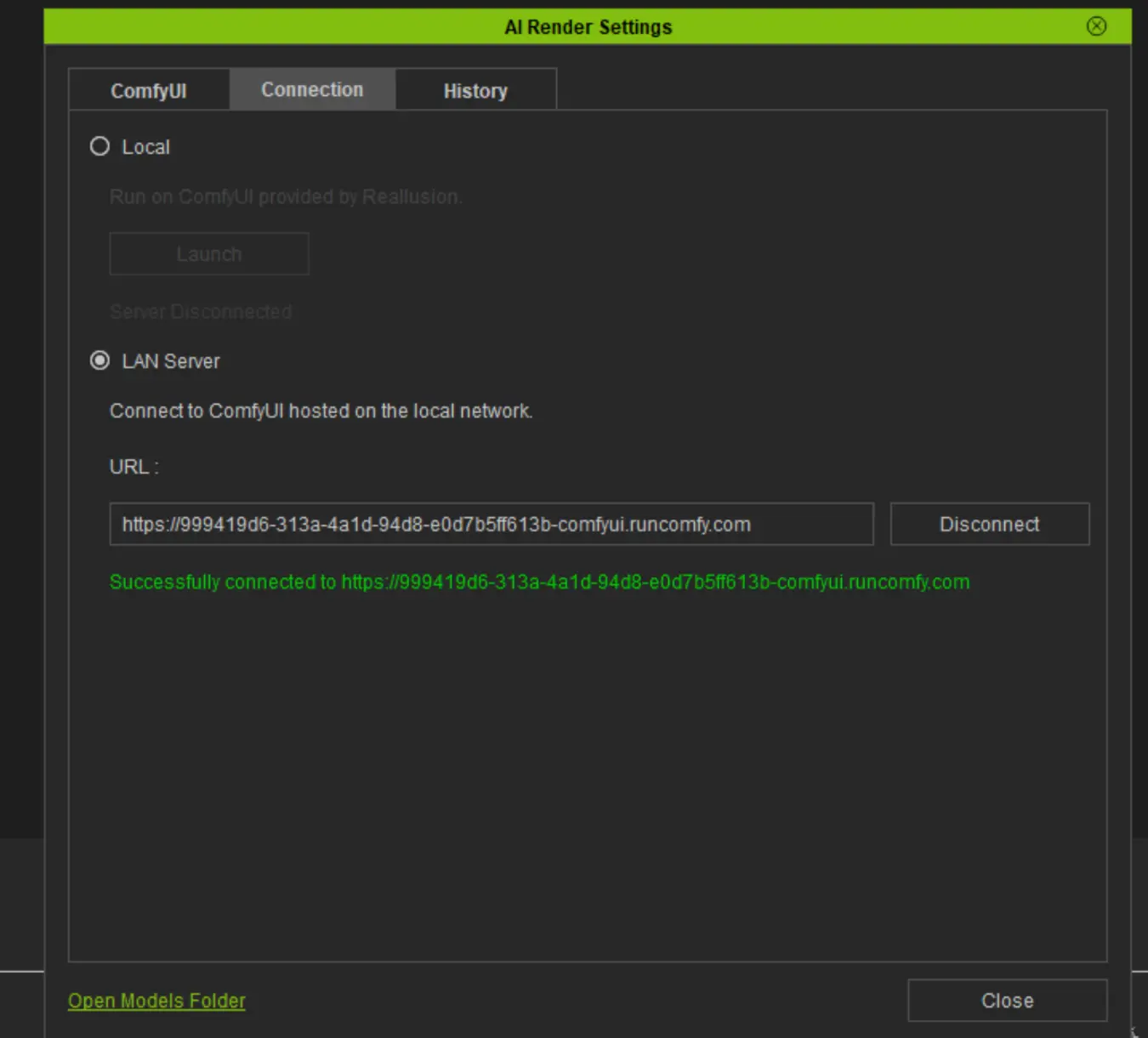
Copy the last part of the displayed RunComfy URL, then go to AI Render Settings -> Server Mode, and enter the URL in this format:

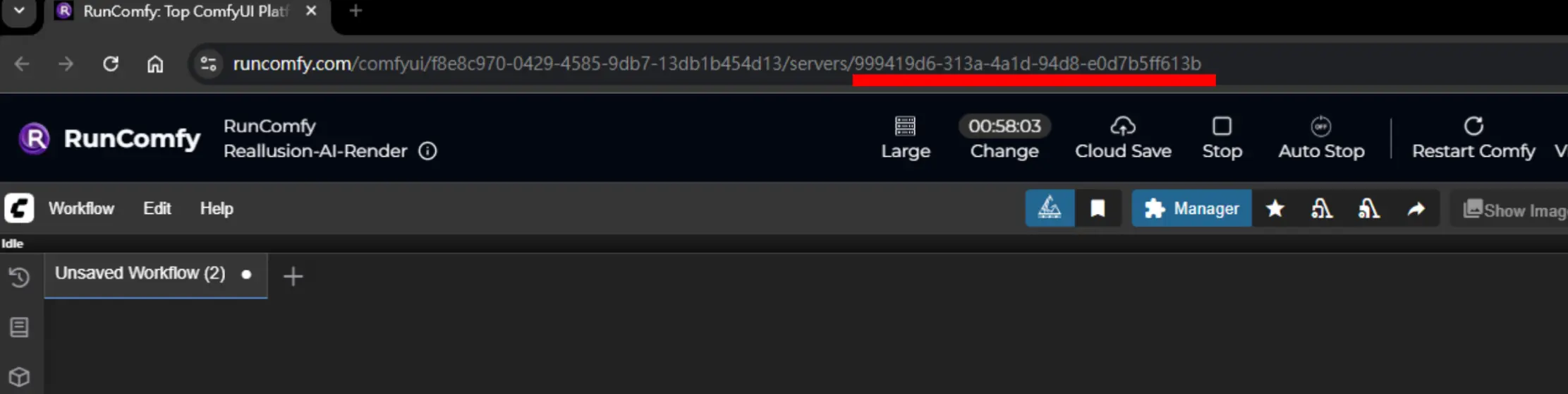
⚠️ Note: This ID changes every time you start a new machine.
Once you see "Successfully connected", the connection is complete and you can start using it.
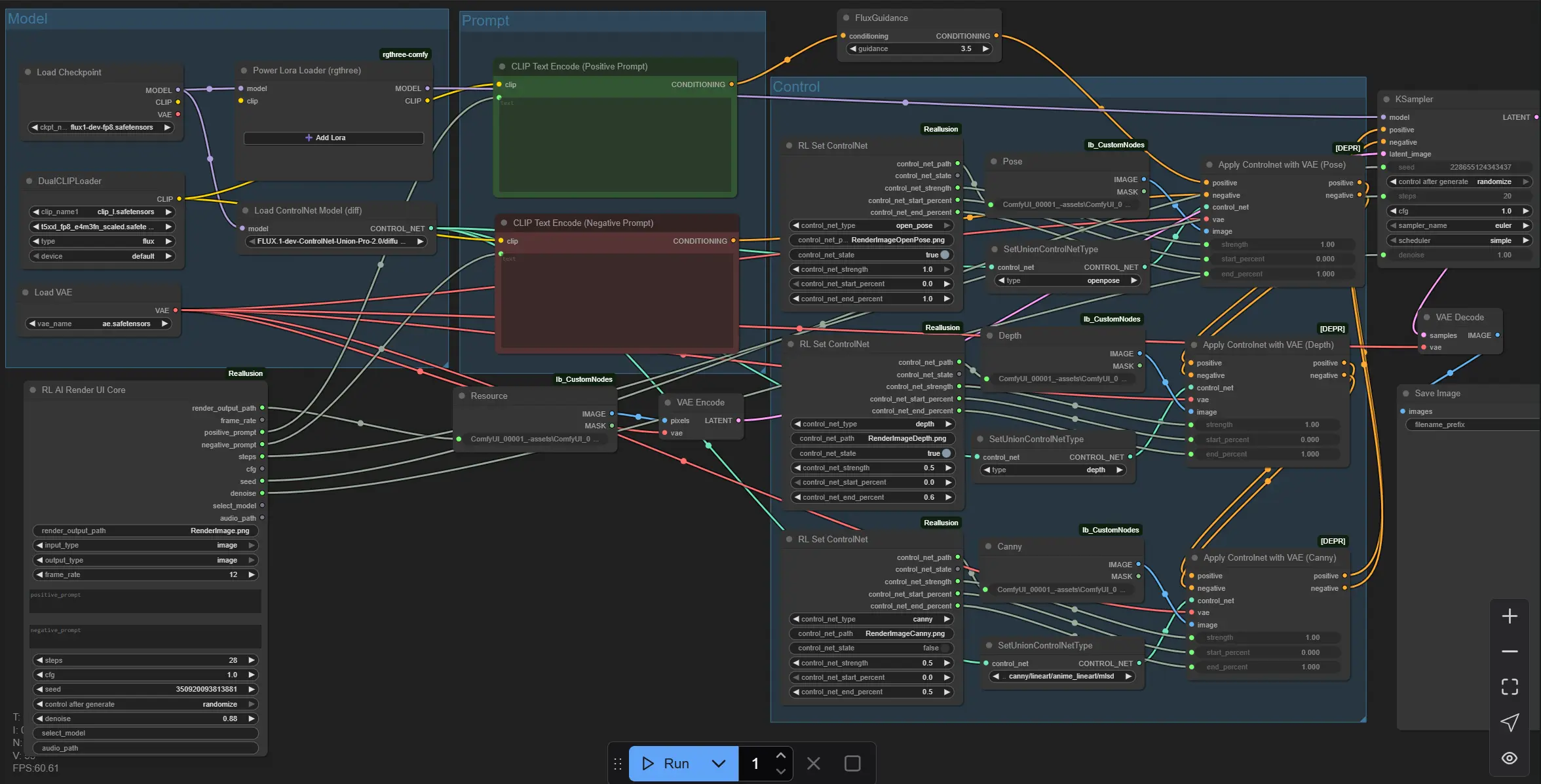
Nodes Essential Settings
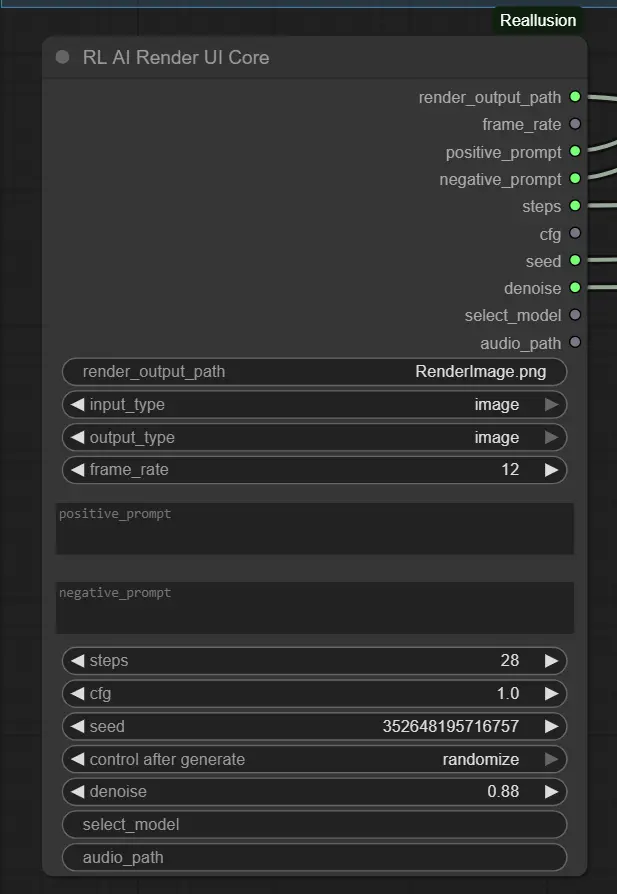
1. Prompt & Quality Settings – RL AI Render UI Core Node This node collects the main parameters from the AI Render Plugin.
- positive_prompt / negative_prompt: Describe your desired and undesired features (default: empty).
- steps: How many iterations to refine the image. Start with 28 for balanced quality/speed.
- cfg: Style adherence. Use 1.0 for flexibility, increase slightly for stronger prompt influence.
- denoise: Controls how much to change the image. Use 0.88 for stylized updates, lower for subtle changes.
2. Base Model Settings – Load Checkpoint Node
This loads your chosen model (e.g., Flux 1 Dev ControlNet).
ckpt_name: Must match the model expected by your style (default: flux1-dev-fp8.safetensors).
Use models that support IPAdapter or ControlNet for best results.
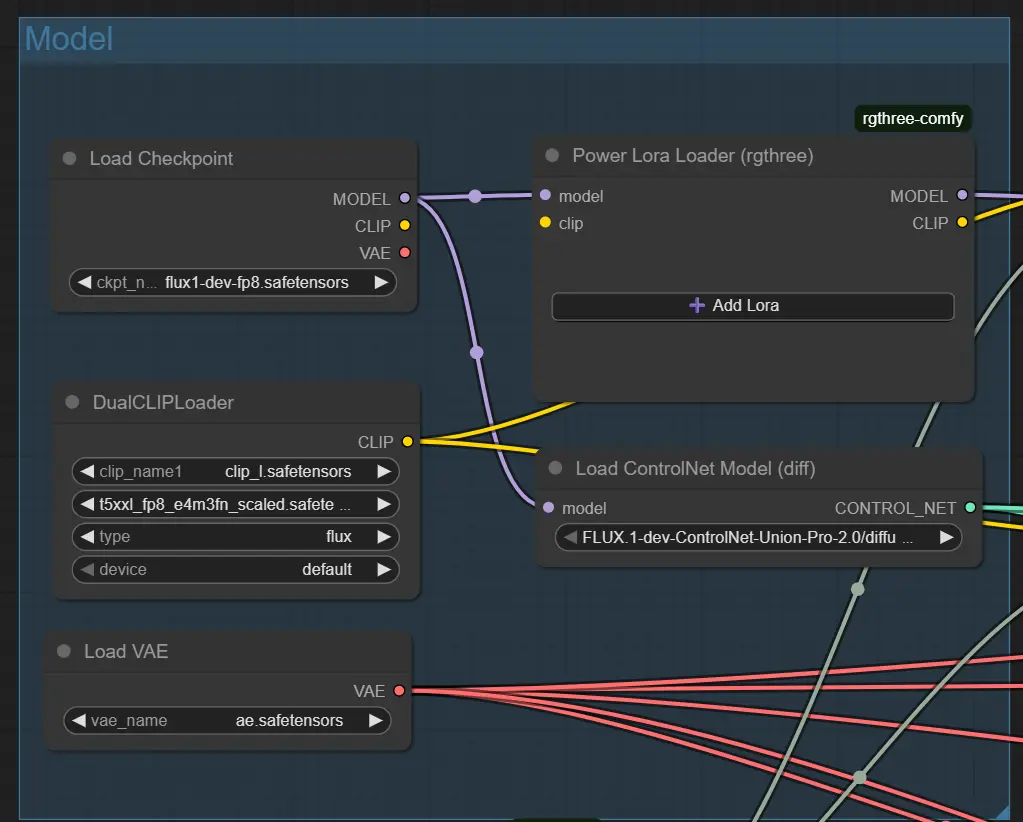
3. Structure Guidance – ControlNet Nodes (Pose, Depth, Canny) Each ControlNet node loads a specific input file (e.g., pose image); only active if control is enabled.
- control_net_strength: Level of influence (Pose often uses 1.0, Depth usually 0.5).
- Adjust start_percent and end_percent to control when the guidance fades in the generation. <img src="https://cdn.runcomfy.net/workflow_assets/1270/readme03.webp" alt="Reallusion AI Render - Workflow ControlNet" width="350"/>
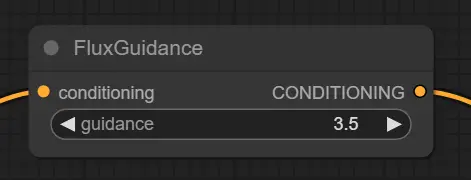
4. Prompt Conditioning – Flux Guidance Node Adjusts how the prompt shapes the image generation.
- guidance: Higher = tighter to prompt. Recommend 3.5 for good balance.
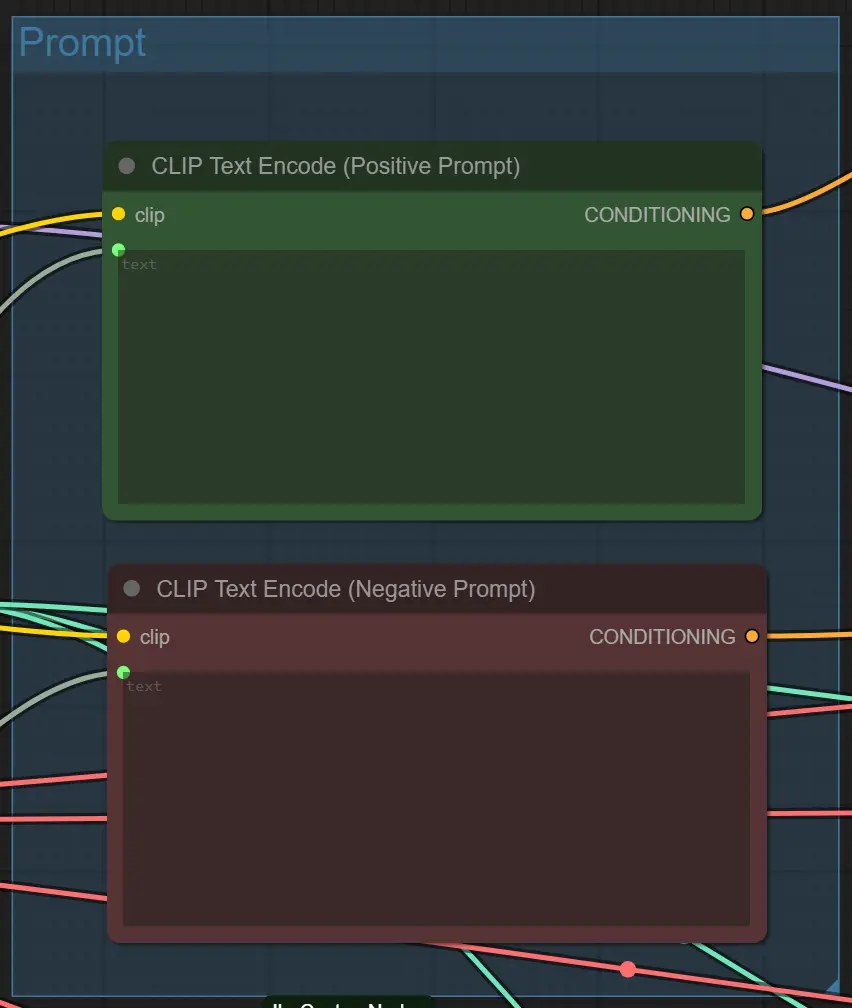
5. Text Prompt Encoding – CLIP Text Encode Nodes Generates vector guidance from your prompts.
- No need to change manually. Accepts text from the plugin.
Advanced Tips for Nodes
Prompt Clarity Avoid overly complex or vague prompts. Use direct styles like cinematic lighting, anime, or cyberpunk alley. Be specific for more controlled results.
Balance Denoise and Structure If ControlNet is enabled (e.g. Depth + Pose), a high denoise like 0.88 may disrupt structure. Try 0.6–0.75 when preserving layout is a priority.
Match Inputs with ControlNet Only enable a ControlNet if a matching guidance image exists (e.g., RenderImageDepth.png for Depth). Mismatch can cause failed prompts or empty results.
4. Acknowledgement#
This workflow integrates the Flux-FP8 model developed by Kijai with performance optimization techniques outlined by the Reallusion Team in their official AI rendering workflow guide. Special recognition to Kijai for their contribution to model development and to Reallusion for sharing valuable insights that enhance AI rendering efficiency in ComfyUI workflows.
5. More Resources About Reallusion AI Render#
Explore technical resources and documentation related to Reallusion AI Render.
- Setup / Quickstart Docs – Step-by-step guide for configuring AI Render workflows in ComfyUI. Presentation Slides
- Technical Overview – Overview of integration and features in AI Render's open beta. Product Announcement
- Workflow Optimization Guide – Tips for maximizing performance and customizing AI Render in production environments. Performance Tips
- iClone – Official page for iClone software. iClone Website
- Character Creator – Official page for Reallusion Character Creator. Character Creator Website
- AI Render Open Beta Forum – Discussions and updates on the official Reallusion forum. Forum Link
- AI Render Installation Tutorial – Video guide on setting up AI Render. YouTube Tutorial
- AI Render Image-to-Image Workflow Tutorial – Video walkthrough of image-to-image workflow. YouTube Tutorial
- AI Render Video-to-Video Workflow Tutorial – Video walkthrough of video-to-video workflow. YouTube Tutorial