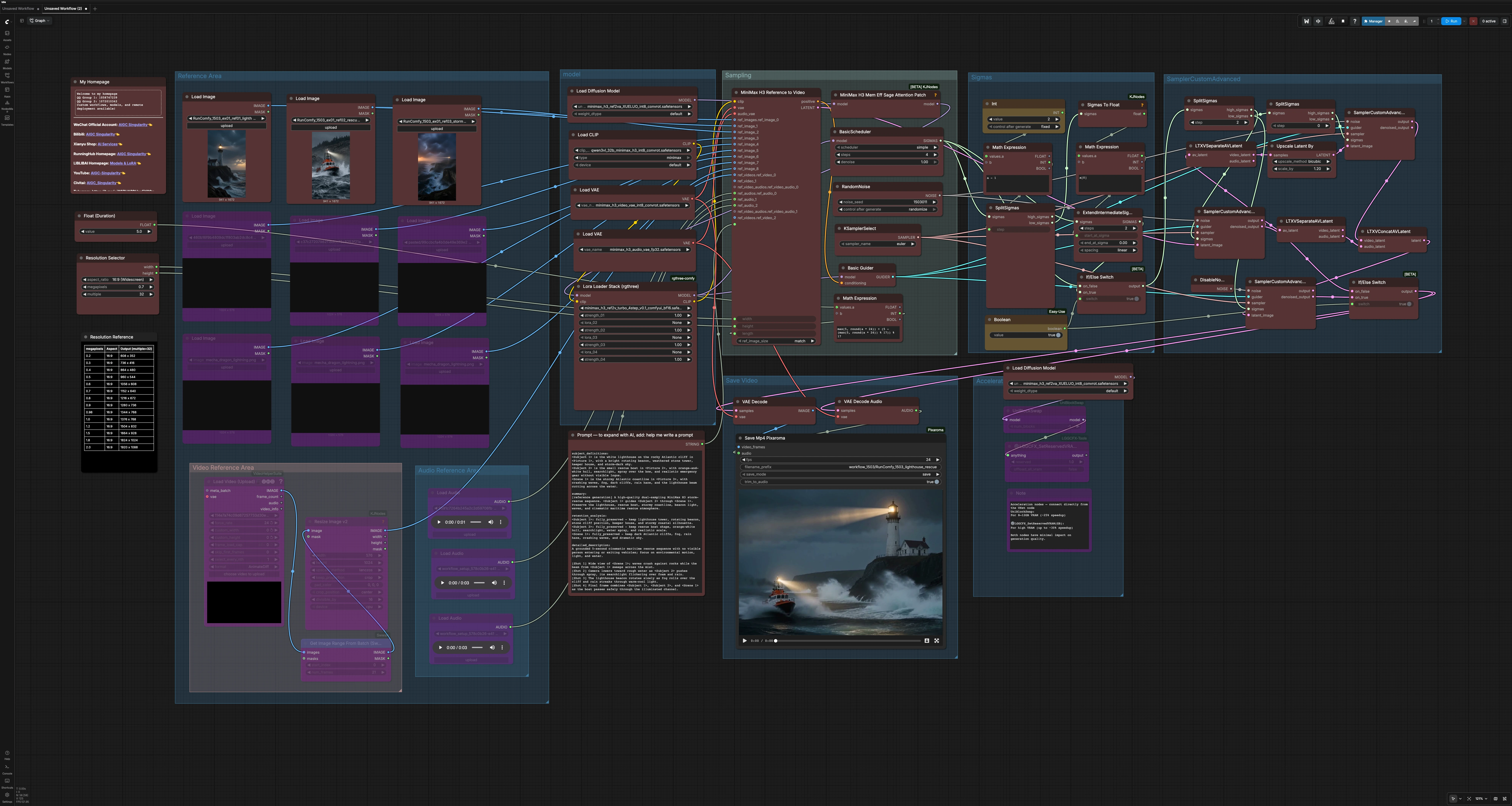
MiniMax H3 High Quality Dual-Sampling workflow: multi-reference video with synchronized native audio#
The MiniMax H3 High Quality Dual-Sampling workflow is a RunComfy-ready reference-to-video graph for turning multiple image references and optional video or audio cues into short cinematic clips with native audio generated in the same pass. It balances identity retention, stable motion, and crisp detail by combining a dual-sampling schedule, memory-efficient H3 attention, dedicated video and audio VAEs, and a turbo 4-step LoRA path.
Designed for creators who need continuity across products or characters, this MiniMax H3 High Quality Dual-Sampling workflow lets you define subjects, scenes, and sound in one prompt, then produces polished H3 video outputs without rebuilding a graph. Feed it a set of stills, drop in an audio style reference, and export a ready-to-share MP4.
Key models in Comfyui MiniMax H3 High Quality Dual-Sampling workflow#
- MiniMax H3 Reference-to-Video diffusion model (Ref2VA). Core generator that converts references plus text into an audiovisual latent, powering both frames and native audio. See model package and weights in the official repositories: MiniMaxAI/MiniMax-H3 and Comfy-Org/MiniMax-H3.
- Qwen3-VL 32B text encoder tuned for MiniMax H3. Interprets structured prompts that describe subjects, shots, and sound, then conditions the H3 UNet via CLIP-style embeddings included in the Comfy-Org model pack: Comfy-Org/MiniMax-H3.
- MiniMax H3 Video VAE. Compresses and decodes video latents for efficient high-quality frame generation, shipped with the Comfy-Org release: Comfy-Org/MiniMax-H3.
- MiniMax H3 Audio VAE. Encodes and decodes native audio latents so speech and ambience are produced and synchronized inside the same pipeline: Comfy-Org/MiniMax-H3.
- MiniMax H3 Turbo 4-step LoRA. A lightweight refinement path that improves detail and temporal stability while keeping runtime fast. It stacks on the base H3 Ref2VA model in this workflow.
How to use Comfyui MiniMax H3 High Quality Dual-Sampling workflow#
This graph is organized into clear groups that hand off work from references and prompt, through H3 sampling, to decoding and MP4 export. Dual-sampling first establishes motion and structure, then refines detail and audio while preserving identities.
Reference Area#
Load up to nine still references for people, objects, or environments. These feed the H3 ref-to-video node so the model can lock onto identity, wardrobe, and scene elements. You can also route a short clip as a visual reference if desired. Use references that already match the target perspective or lighting for best retention. If you bring in a batch or sprite sheet, GetImageRangeFromBatch (#40) can extract the frames you want to use downstream.
Video Reference Area#
If you prefer to start from a reference video, use the video loader to pull frames and optionally constrain duration. GetImageRangeFromBatch (#40) selects a contiguous slice so the workflow stays lightweight. These frames act as structural or motion guidance for the first H3 pass. You can mix video with still images; the H3 encoder fuses them before sampling.
Audio Reference Area#
Load one to three short audio snippets to guide voice timbre, cadence, or ambience. These do not get copied verbatim; instead they shape the audio latent so the final speech or soundscape follows the same style. For spoken lines, short clean voice clips with minimal background work best. If you omit audio, the workflow still generates plausible ambience from the prompt.
model#
This group wires the H3 UNet, Qwen-based text encoder, and both VAEs, then applies a memory-efficient attention patch. The Lora Loader Stack (rgthree) (#118) adds the turbo 4-step LoRA so you get higher detail without long schedules. The attention patch node reduces VRAM pressure, which is helpful at larger resolutions. Together they prepare the conditioning stack that the samplers will use.
Sampling#
MiniMaxH3ReferenceToVideo (#56) is where your prompt, references, and resolution come together to produce conditioning and an initial audiovisual latent. The node reads the structured prompt sections such as subject_definitions, summary, retention_analysis, detailed_description, overall_soundscape, and non_diegetic_music. A basic guider and sampler choice are set here to keep configuration simple while still enabling strong control. Think of this as the staging area before the dual-sampling refiners take over.
Sigmas#
A short scheduler produces the sigma schedule, which is then split to drive the dual-sampling structure. One branch emphasizes stability and coarse motion, while the other emphasizes high-frequency detail and crispness. A small boolean switch lets you extend or bypass an intermediate region when you need more cleanup on difficult shots. You do not need to tune numbers here; just choose whether to enable the extended range when faces or logos need extra fidelity.
SamplerCustomAdvanced#
The first SamplerCustomAdvanced (#108) pass runs on a lower sigma range to establish layout, identities, and motion rhythm. The latent is then separated into video and audio, and the video latent can be lightly upscaled in latent space to add headroom for details. The second SamplerCustomAdvanced (#103) pass uses a higher sigma slice to sharpen edges and textures while respecting the guider from the first pass. A companion pass SamplerCustomAdvanced (#106) can selectively denoise or preserve regions, and a switch node decides the best final latent before decoding. This two-pass dance is what gives the MiniMax H3 High Quality Dual-Sampling workflow its reliable mix of stability and crisp detail.
Acceleration Nodes#
For GPUs with tighter VRAM, UniBlockSwap helps by temporarily swapping UNet blocks to system memory, and VRAMReserver keeps enough headroom for decoding and final muxing. These speed and memory helpers have minimal quality impact and can be toggled on when you see out-of-memory warnings. Keep them near the UNet path as wired in the graph.
Save Video#
The final latent is decoded by the dedicated video and audio VAEs, then PixaromaSaveMp4 (#115) muxes frames and audio into an MP4. Set your target frame rate here and choose whether to trim the video to the generated audio length. The filename prefix and subfolder make it easy to keep takes organized. When you re-run with a new seed or references, outputs will stack in the same folder.
Key nodes in Comfyui MiniMax H3 High Quality Dual-Sampling workflow#
MiniMaxH3ReferenceToVideo (#56)#
Fuses text, image, and optional video or audio references into conditioning and an initial audiovisual latent for H3. Adjust prompt to define subjects, scene continuity, shot timing, and sound design, and set width, height, and length to target aspect and duration. Use multiple reference images to lock identity and wardrobe when continuity matters.
Lora Loader Stack (rgthree) (#118)#
Applies the MiniMax H3 turbo 4-step LoRA on top of the base model to improve detail at short schedules. Tweak the LoRA strength if edges get too sharp or if the base model style is being overridden. Keep LoRA layering minimal when the references already carry strong texture.
MiniMaxH3MemoryEfficientSageAttentionPatch (#70)#
Enables memory-efficient attention for the H3 UNet so you can run higher resolutions or longer clips on modest GPUs. Turn it on for 8 to 12 GB cards or when you see VRAM spikes. Disable only if you are benchmarking raw throughput on high-memory GPUs.
SplitSigmas (#99)#
Splits the scheduler into complementary sigma bands that feed the two sampler passes. If your scene is stable but lacks bite, shift more weight to the high-sigma branch. If motion jitters or identities drift, favor the lower-sigma branch and keep the extended intermediate switch off.
SamplerCustomAdvanced (#108)#
First-pass sampler that lays down structure, motion, and identity. Keep the guider consistent with your prompt and references so the second pass has a clean base. Use this pass to test seeds and framing quickly before committing to refinement.
SamplerCustomAdvanced (#103)#
Refinement sampler that uses a higher sigma slice to enhance detail and fix edges. Works best after a solid first pass; avoid overdriving it when faces or logos begin to oversharpen. Pair it with latent upscaling only when you need extra texture headroom.
ComfySwitchNode (#107)#
Chooses between alternative latent refinements after dual-sampling. Toggle it when comparing results from the auxiliary denoise branch vs the direct refine branch. Keep a note of which path holds identity better for your subject set.
PixaromaSaveMp4 (#115)#
Muxes decoded frames and audio to MP4. Set fps to match the feel of your motion and use trim_to_audio for tight audiovisual sync. Update the filename_prefix to keep takes organized by shot or subject.
Optional extras#
- Start from the official H3 R2V template to learn the core pattern before customizing this graph: Comfy-Org workflow template.
- Use
ResolutionSelector(#73) to pick an aspect and megapixel target that your GPU can handle, then increase gradually once framing looks right. - Prompt in structured sections the model understands: subject_definitions, summary, retention_analysis, detailed_description, overall_soundscape, non_diegetic_music. This style gives H3 clearer constraints.
- For identity-critical shots, supply 3 to 5 high-quality stills of the same subject in matching lighting and angle. Avoid heavy filters on references.
- Provide a clean 1 to 5 second voice style clip as an audio reference for consistent timbre across characters. Keep noise and music low.
- If you hit VRAM limits, enable the attention patch and the Acceleration Nodes group. Lower resolution first, then length.
- When motion is right but textures are soft, keep the first pass as is and increase reliance on the second sampler branch rather than extending overall steps.
- Save versions often. Small prompt edits have big effects because the MiniMax H3 High Quality Dual-Sampling workflow conditions both video and audio together.
Acknowledgements#
This workflow implements and builds upon the following works and resources. We gratefully acknowledge MiniMaxAI for the MiniMax-H3 model, Comfy-Org/Comfy.org for the ComfyUI templates, weights, and tutorial for MiniMax H3, and RunningHub.ai for the workflow reference for their contributions and maintenance. For authoritative details, please refer to the original documentation and repositories linked below.
Resources#
- RunningHub.ai/Workflow source and reference
- Docs / Release Notes: Workflow source and reference
- MiniMaxAI/MiniMax-H3 (official model)
- Hugging Face: MiniMaxAI/MiniMax-H3
- Comfy-Org/MiniMax-H3 (model weights)
- Hugging Face: Comfy-Org/MiniMax-H3
- Comfy.org/MiniMax H3 tutorial
- Docs / Release Notes: Tutorial
- Comfy-Org/ComfyUI MiniMax H3 R2V template
- GitHub: Comfy-Org/workflow_templates
Note: Use of the referenced models, datasets, and code is subject to the respective licenses and terms provided by their authors and maintainers.