

MiniMax H3 ComfyUI Image to Video 4-step Turbo#
MiniMax H3 ComfyUI Image to Video 4-step Turbo is a RunComfy-ready workflow that turns a single still into a short video with native stereo audio, directly in ComfyUI. It runs the MiniMax H3 (Hailuo) image-to-video pipeline and applies a Turbo LoRA so you can preview motion and dialogue in far fewer sampling steps than the default schedule.
This graph is built for creators who want fast I2V drafts without leaving the ComfyUI canvas: talking characters, quick product spins, or ambient scenes with synchronized sound. Supply one start frame and a motion/dialogue prompt; the workflow generates video frames and stereo audio together, then muxes them into a finished clip you can download.
Key models in Comfyui MiniMax H3 ComfyUI Image to Video 4-step Turbo workflow#
- MiniMaxAI/MiniMax-H3 multimodal video model. The official H3 model produces video with synchronized stereo audio and supports first-frame I2V; this workflow uses the Comfy-Org repack for ComfyUI. MiniMaxAI/MiniMax-H3 and Comfy-Org/MiniMax-H3
- MiniMax H3 Video VAE. Encodes/decodes video latents used by H3’s diffusion backbone. Included in the Comfy-Org repack. Comfy-Org/MiniMax-H3
- MiniMax H3 Audio VAE. Decodes the model’s audio latents to native stereo waveforms aligned to the frames. Included in the Comfy-Org repack. Comfy-Org/MiniMax-H3
- Qwen3‑VL 32B text encoder (MiniMax H3 variant). Parses your motion and dialogue prompt into conditioning for H3. Packaged with the Comfy-Org release under text_encoders. Comfy-Org/MiniMax-H3
- MiniMax‑H3 Turbo LoRA (4‑step). A LoRA that accelerates H3 sampling so sharp previews are possible with very low step counts. larryvrh/MiniMax-H3-Turbo-Lora and the LoRA concept paper LoRA: Low‑Rank Adaptation
How to use Comfyui MiniMax H3 ComfyUI Image to Video 4-step Turbo workflow#
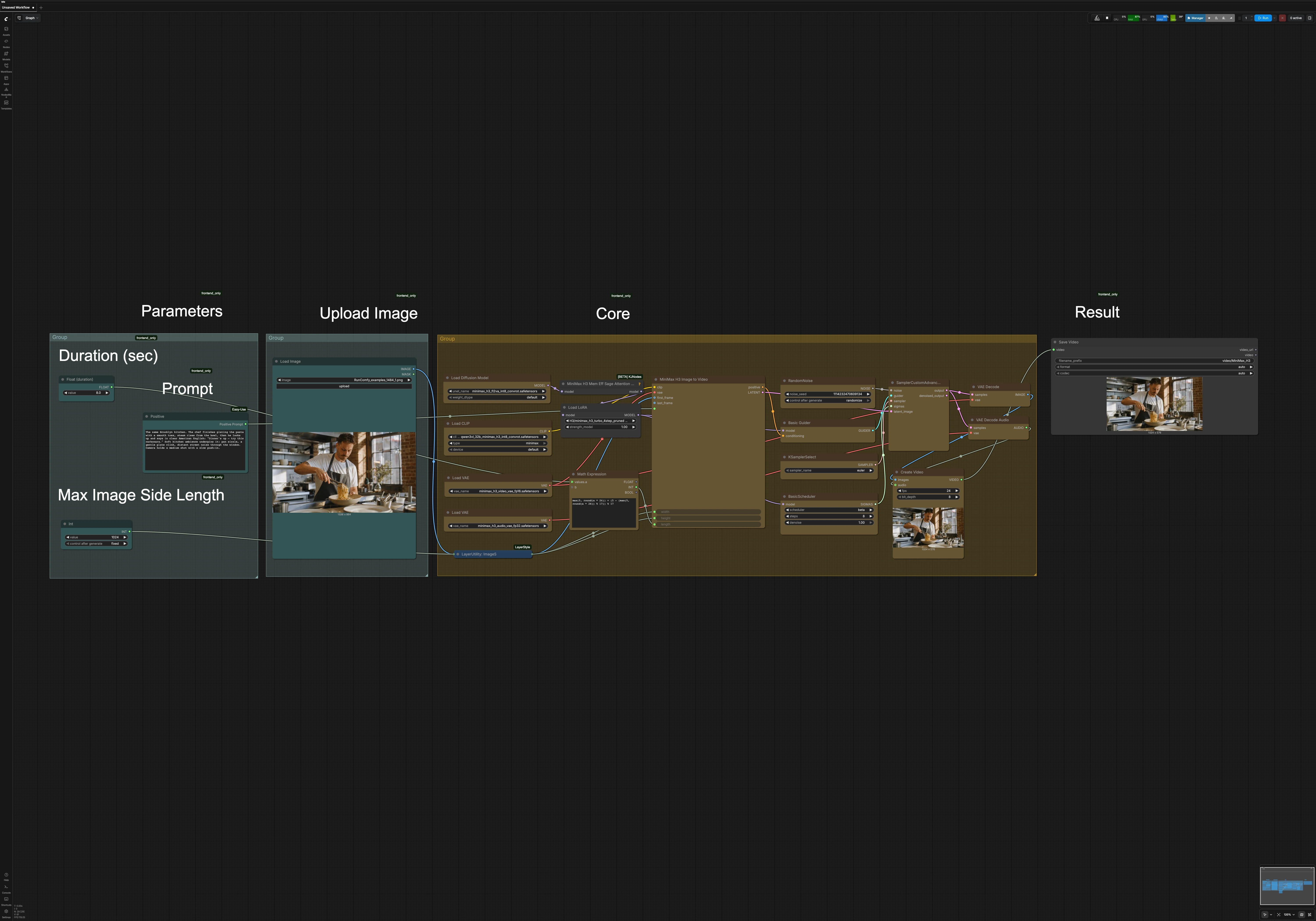
Overall flow. The graph scales your uploaded image, converts your duration into a valid H3 frame count, then feeds the start frame and prompt into H3 with the Turbo LoRA applied. The sampler produces joint video and audio latents, which are decoded and muxed into a downloadable clip.
Upload image. Use LoadImage (#114) to provide the first frame you want animated. The image is auto-scaled by LayerUtility: ImageScaleByAspectRatio V2 (#167) to a target long side while preserving aspect; the derived width/height feed the core H3 node. Letterboxing is used when needed to avoid distortion. This keeps your composition intact while matching H3’s preferred grid.
Parameters and prompt. Set the clip length using the Duration control (label “Duration (sec)”) which feeds a small math node, ComfyMathExpression (#134), that converts seconds to frames at film rate and snaps to H3’s valid grid. Enter your motion and dialogue in the green easy positive prompt node (#152); you can write natural sentences and quoted speech. The prompt is encoded by the Qwen3‑VL text encoder via CLIPLoader (#130), preparing conditioning for the model.
Core generation. UNETLoader (#129) loads the MiniMax H3 diffusion backbone and VAELoader (#121, #122) load the video and audio VAEs. The Turbo LoRA is merged at run time by LoraLoaderModelOnly (#171), and a memory‑efficient attention patch (MiniMaxH3MemoryEfficientSageAttentionPatch (#170)) helps reduce VRAM. The main node, MiniMaxH3ImageToVideo (#133), receives your start frame, prompt, and computed width/height/length, then produces synchronized video and audio latents.
Sampling and decode. A compact sampler stack (KSamplerSelect (#125), BasicScheduler (#126), BasicGuider (#128), SamplerCustomAdvanced (#127), RandomNoise (#131)) performs denoising over very few iterations thanks to the Turbo LoRA. VAEDecode (#124) turns video latents into frames, and VAEDecodeAudio (#123) produces stereo audio aligned to those frames. You do not need to tweak decode settings; they are wired for clean previews.
Output. CreateVideo (#132) muxes the frames and audio into a single clip at the working frame rate, and SaveVideo (#92) writes it with the configured filename prefix so you can download immediately from RunComfy. The result is a short, synchronized video that reflects your start frame, motion prompt, and dialogue.
Key nodes in Comfyui MiniMax H3 ComfyUI Image to Video 4-step Turbo workflow#
MiniMaxH3ImageToVideo (#133). The heart of the graph: it consumes the start frame, the encoded prompt, and your target size/length and produces joint video and audio latents. Adjust only the few inputs exposed to you in this workflow: supply a strong, descriptive prompt (include quoted dialogue) and set a realistic duration; the node handles the rest using the H3 model and VAEs from the Comfy-Org repack. Comfy-Org/MiniMax-H3
LoraLoaderModelOnly (#171). Injects the MiniMax‑H3 Turbo LoRA so the sampler can reach high sharpness in very few steps. If you need to trade artifacts for speed, slightly lower LoRA strength; if you see motion smear, nudge it up. The LoRA is designed to work across the common H3 base variants, including pruned and quantized repacks. larryvrh/MiniMax-H3-Turbo-Lora
BasicScheduler (#126) and SamplerCustomAdvanced (#127). Together they control the denoising schedule and stepping behavior. With the Turbo LoRA in place, you can run at very low step counts for quick previews; increasing steps will modestly improve stability if you can afford the time. Keep scheduler and sampler choices conventional unless you have a specific look in mind.
LayerUtility: ImageScaleByAspectRatio V2 (#167). Ensures the uploaded still is resized to a clean, model‑friendly resolution while preserving aspect. Use this when switching source images to avoid unexpected crops or warps; the node outputs the exact width/height that the core H3 node consumes. ComfyUI_LayerStyle
ComfyMathExpression (#134). Converts seconds to frames and snaps the count to H3’s valid frame grid so audio stays phase‑locked to video. You can think of it as a “safety guard” that avoids frame counts H3 does not support, preventing subtle desyncs at the muxing stage. The input is the plain‑English duration you set at the top of the canvas.
MiniMaxH3MemoryEfficientSageAttentionPatch (#170). Applies an experimental attention optimization that lowers peak VRAM during sampling on H3. Turn it on when working at larger sizes or on GPUs with limited memory; it preserves the creative intent while improving fit. ComfyUI‑KJNodes
Optional extras#
- Prompting for lip‑sync: write the actual line in quotes (for example, “Dinner’s up — try this carbonara.”) and describe ambience and camera movement in plain language.
- Composition first: pick a start frame that already frames your subject at the intended distance; the animation will respect that composition.
- Speed vs polish: the MiniMax H3 ComfyUI Image to Video 4-step Turbo setup is tuned for fast previews; if a shot matters, add a few more steps or reduce LoRA strength slightly to tame over‑sharp grain.
- Runtime headroom: if you hit VRAM limits, try a smaller max image side length, shorten duration, or enable the memory‑efficient attention patch.
- Explore bases: the workflow is compatible with the Comfy‑Org H3 repack variants (bf16, int8 convrot, pruned). If you change the base, keep the Turbo LoRA connected between the model loader and the sampler for the same acceleration effect. Comfy-Org/MiniMax-H3
Acknowledgements#
This workflow implements and builds upon the following works and resources. We gratefully acknowledge MiniMax for the MiniMax H3 model, Comfy.org for the MiniMax H3 ComfyUI workflow tutorial, Comfy-Org for the MiniMax-H3 model weights, and larryvrh for the MiniMax-H3 Turbo LoRA for their contributions and maintenance. For authoritative details, please refer to the original documentation and repositories linked below.
Resources#
- MiniMax/MiniMax H3 official announcement
- Docs / Release Notes: MiniMax H3 official announcement
- Comfy.org/MiniMax H3 tutorial
- GitHub: Comfy-Org/docs
- Docs / Release Notes: MiniMax H3 tutorial
- Comfy-Org/MiniMax-H3 model weights
- Hugging Face: Comfy-Org/MiniMax-H3
- larryvrh/MiniMax-H3 Turbo LoRA
- GitHub: Larryvrh/ComfyUI-MiniMax-H3-Turbo
- Hugging Face: larryvrh/MiniMax-H3-Turbo-Lora
Note: Use of the referenced models, datasets, and code is subject to the respective licenses and terms provided by their authors and maintainers.